The Purchase view provides a complete overview of a single purchase, including its general information, customer and supplier details, financial summary, and associated purchase items. To open it, go to Workspaces > License Management > Documents > Purchases and click a purchase in the list. The breadcrumb at the top shows the navigation path to the selected purchase.
The view is divided into two tabs: Details (shown by default) and Entitlements. When the purchase has related purchases or license agreements, a Related documents section is also shown in the Details tab. See Related Documents Visualization.
Purchase Information
The Details tab shows the purchase header, the customer and supplier cards, summary tiles, and the list of purchase items.
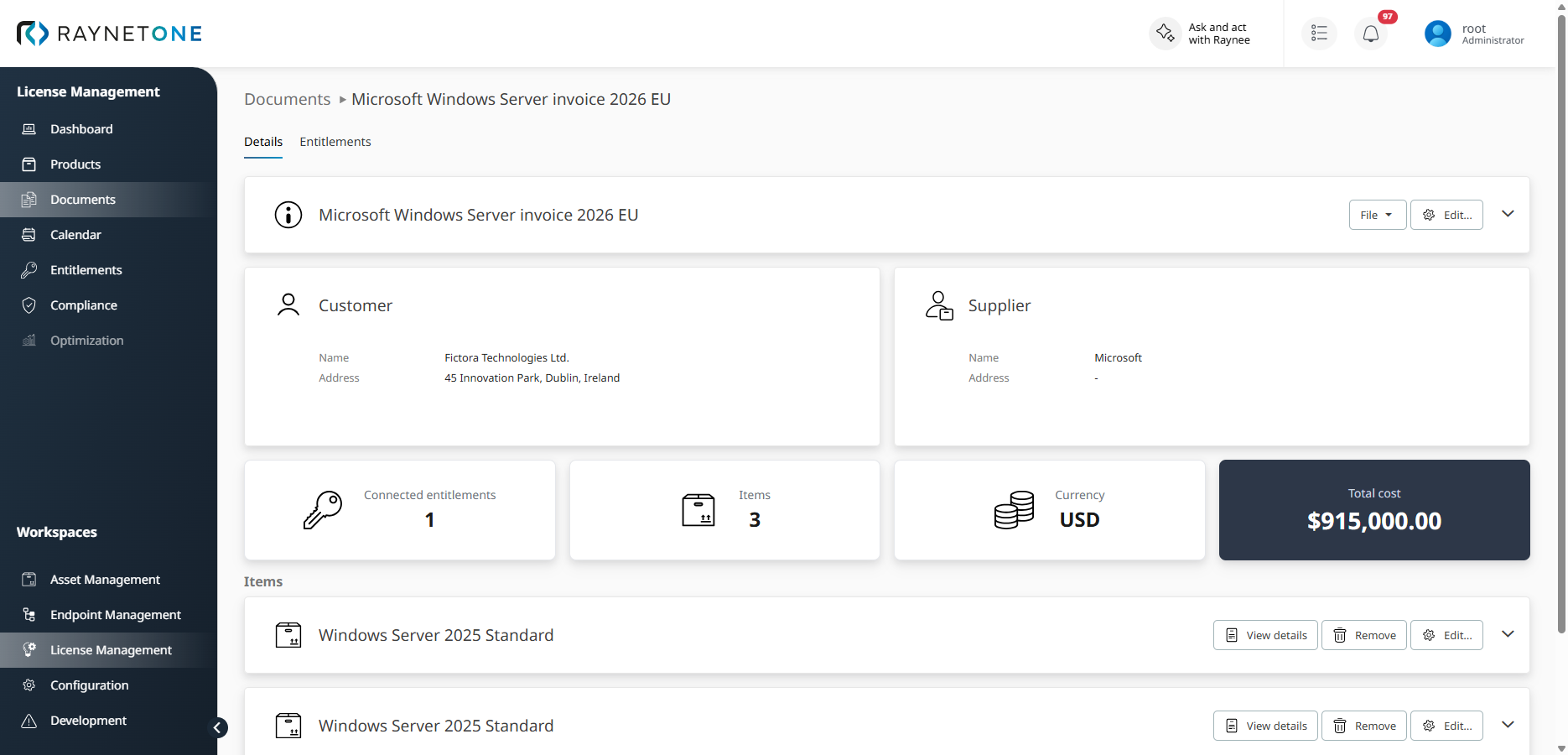
The Purchase view showing the purchase header, customer and supplier information, summary tiles, and purchase items.
Purchase header
The header is a collapsible section titled with the purchase name. Click the arrow at the right to collapse or expand it. The header shows the following fields:
•Invoice date
•Tax rate, Discount rate and Discount amount: Shown only when the value is greater than zero. The discount rate and discount amount are purchase-level values and apply to the overall purchase. The discount amount is an absolute monetary reduction, the discount rate a percentage reduction.
•Approved: Shows Yes or No.
•Contract number, Quote number, Purchase order number, Sales order number and Invoice number: A dash is shown when a value is not set.
The following actions are available in the header:
•Approve: Marks the purchase as approved. The button is shown only while the purchase is not approved and requires edit permission.
•File (dropdown): Manages the file attached to the purchase, for example the source document of a manually entered purchase. A purchase can have one file. Supported formats are PDF, PNG, JPEG and TIFF. The file is only stored with the purchase and is not analyzed. Purchases created by import already have their source document attached. Upload, replace and remove require edit permission. If no file is attached, Upload purchase file opens a file browser to attach a document. If a file is attached, the following options are shown:
•View purchase file: Opens a document preview.
•Replace purchase file: Asks for confirmation, then opens a file browser to upload a replacement file. The current file is deleted permanently before the new file is uploaded. If the upload fails, upload the file again.
•Remove purchase file: Asks for confirmation before the file is removed. This cannot be undone.
•Edit...: Opens the Edit license document wizard. See Editing a Purchase below. The button is disabled if no valid SAM Cloud connection is configured; a hint explains this.
Customer card
The Customer card displays the customer of this purchase. It is read-only and shown only if a customer is set.
•Name: The name of the customer organization.
•Address: The address of the customer.
Supplier card
The Supplier card displays the supplier of this purchase. It is read-only and shown only if a supplier is set.
•Name: The name of the supplier organization.
•Address: The address of the supplier.
Summary tiles
Four read-only tiles provide a quick overview of the purchase scope and financial value:
•Connected entitlements: The number of entitlements linked to this purchase.
•Items: The number of purchase items in this purchase.
•Currency: The currency used for all cost calculations in this purchase.
•Total cost: The total financial value of the purchase, calculated from all purchase items after applying applicable discounts. If prices are displayed as gross values and a tax rate is set, the tax rate is shown next to the total.
Items
The Items section lists all purchase items of this purchase. Each item is a collapsible row titled with the item name. Expand a row to see the item details:
•Article number, Model, Metric, Activation and Expiration
•Billing: Shown for subscription items only.
•License pack and Quantity
•Discount rate and Discount amount: Shown only when set on the item.
•Unit price, Subtotal cost (shown only when the item is discounted) and Total cost
•The commercial product with its SKU, and the technical products assigned to it. Hover over a technical product to see its name, version, edition and manufacturer.
The following actions are available for each item:
•View details: Opens the details of the commercial product of the item. See Products.
•Remove: Asks for confirmation, then removes the item from the purchase. Requires delete permission.
•Edit...: Opens the Edit purchase item dialog to change the item.
Discount rates and amounts
Discount fields in License Management operate at two levels: purchase level and item level. Each level supports both a discount rate (percentage) and a discount amount (absolute monetary value).
•Purchase-level discount rate and amount: Apply to the overall purchase. Displayed in the header. Set in the Details step of the Edit license document wizard. The wizard shows only one of the two fields, and does not offer them as soon as an item has its own discount (rate or amount greater than 0).
•Item-level discount rate and amount: Specific to a purchase item. Displayed in the item details when set. Configured in the Edit purchase item dialog, where only the discount rate can be edited. The field is not available while a purchase-level discount rate is set.
A discount is therefore defined either for the whole purchase or for its items, not for both.
When calculating the Total cost, item-level discount values take precedence over purchase-level discount values. If a purchase item has no item-level discount, the purchase-level discount is applied as a fallback. The item Total cost is calculated from the unit price, the quantity, the billing period and the item discount rate. A purchase-level discount amount is subtracted exactly from the sum of the item totals; a purchase-level discount rate reduces that sum by the percentage. For example, an item with a unit price of 89.00, a quantity of 100 and a discount rate of 10% shows a Subtotal cost of 8,900.00 and a Total cost of 8,010.00.
The unit price stored on a purchase item always represents the original list price before any discount. The discount is applied separately when computing totals, so no double-discounting occurs in downstream calculations.
Related Documents
When a purchase is linked to other purchases or license agreements, a collapsed Related documents section appears below the items. It is hidden if no related documents exist. For details, see Related Documents Visualization.
Editing a Purchase
To edit an existing purchase, click Edit... in the purchase header. The Edit license document wizard opens and guides you through the following steps: Details, Items, Link agreements, Summary and Finished. The input selection step of the Add wizard is not shown. For the general behavior of the wizard steps, see Adding a new purchase.
In the Details step, you can update the following fields. Fields marked with an asterisk (*) are required:
•Name *, and the read-only Document type
•Invoice date *
•Currency *
•Tax rate: A value between 0 and 100.
•Discount amount or Discount rate: Shown only if none of the items has its own discount.
•Customer and Supplier: Name and address.
•Contract number, Quote number, Purchase order number, Sales order number and Invoice number: A warning is shown if the invoice number is already used by another purchase.
Use the Items step to manage the items of the purchase and the Link agreements step to link license agreements to the purchase items. Review all changes in the Summary step. Navigate through the steps using Next. Changes are saved when you complete the wizard.
Editing Purchases, Entitlements, and Demand: Three Edit Paths for License Data
Raynet One provides three distinct edit paths for license data. Each targets a different layer of the license record. Using the wrong path produces incorrect data without error feedback.
EDIT PATH |
WHERE |
WHAT IT CHANGES |
WHEN TO USE |
|---|---|---|---|
Edit Purchase |
Workspaces > License Management > Documents > Purchases > (select a purchase) > Edit... |
Commercial/source information: purchase name, invoice date, supplier, currency, purchase items, quantities, pricing. |
When the commercial source document has changed — for example, a corrected invoice, updated pricing, or additional items on the same purchase. |
Edit Entitlement |
Workspaces > License Management > Entitlements > (select an entitlement) > Edit |
Operational license record: license allocation, resource group assignment, responsible user group. |
When the operational assignment needs adjustment without changing the underlying commercial data. |
Demand Override |
Workspaces > License Management > Compliance > Add/Edit Compliance > Manual Override |
Compliance calculation inputs: quantity, downgrade/upgrade values used for ELP calculation. |
When automatic calculation cannot be applied — for example, for products without automated downgrade/upgrade support, or when a manual correction of the compliance position is required. |
|
Be aware: |

When to create a new purchase instead of modifying an existing one
Modify an existing purchase when a correction to existing data is required — for example, fixing an incorrect invoice date, updating pricing, or correcting a product match on an existing purchase item.
Create a new purchase when a new commercial transaction has occurred — for example, a new purchase, a renewal under a new invoice or order number, or an additional purchase that represents a separate commercial agreement. Creating a separate purchase preserves source traceability and ensures that each commercial transaction has its own lifecycle events and audit record.
|
Be aware: |
Purchase lifecycle events (Calendar) vs. Entitlement License timeline
These two views reflect different aspects of the same data and serve different purposes:
PURCHASE LIFECYCLE EVENTS (CALENDAR) |
ENTITLEMENT LICENSE TIMELINE |
|
|---|---|---|
Location |
Workspaces > License Management > Calendar |
Workspaces > License Management > Entitlements > Details > License timeline |
Generated by |
Purchase and purchase item data (invoice date, license start, license end) |
Entitlement data (license start, license end, renewals) |
Event types |
New Purchase, Contract Invoiced, Purchased Event, Purchased Renewal, License Expiration Warning |
Purchased Event, Purchased Renewal, License End Event |
Editable |
Not directly. Automatically updated when purchase or entitlement dates change. |
Not directly. Reflects entitlement lifecycle state. |
Purpose |
Proactive lifecycle management — upcoming renewals, expirations, and purchase milestones across the full portfolio. |
Historical record of the selected entitlement's lifecycle events. |
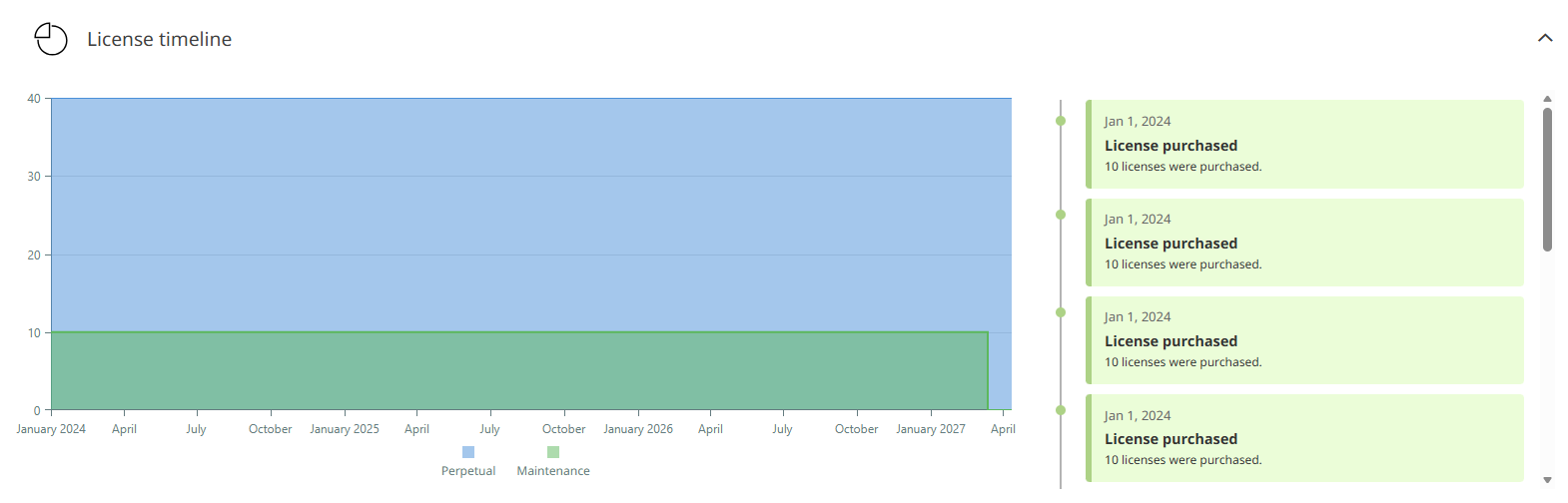
The License timeline section in the Entitlements Details view. The chart shows the license quantity over time, broken down by license model (blue: Perpetual, green: Maintenance). The event list on the right records the lifecycle events of the entitlement.
|
Note: |

Viewing Linked Entitlements
Click the Entitlements tab to view all entitlements linked to this purchase. Each entitlement row represents a licensed usage right derived from a purchase item. The grid provides a search box, a filter option and a refresh button.
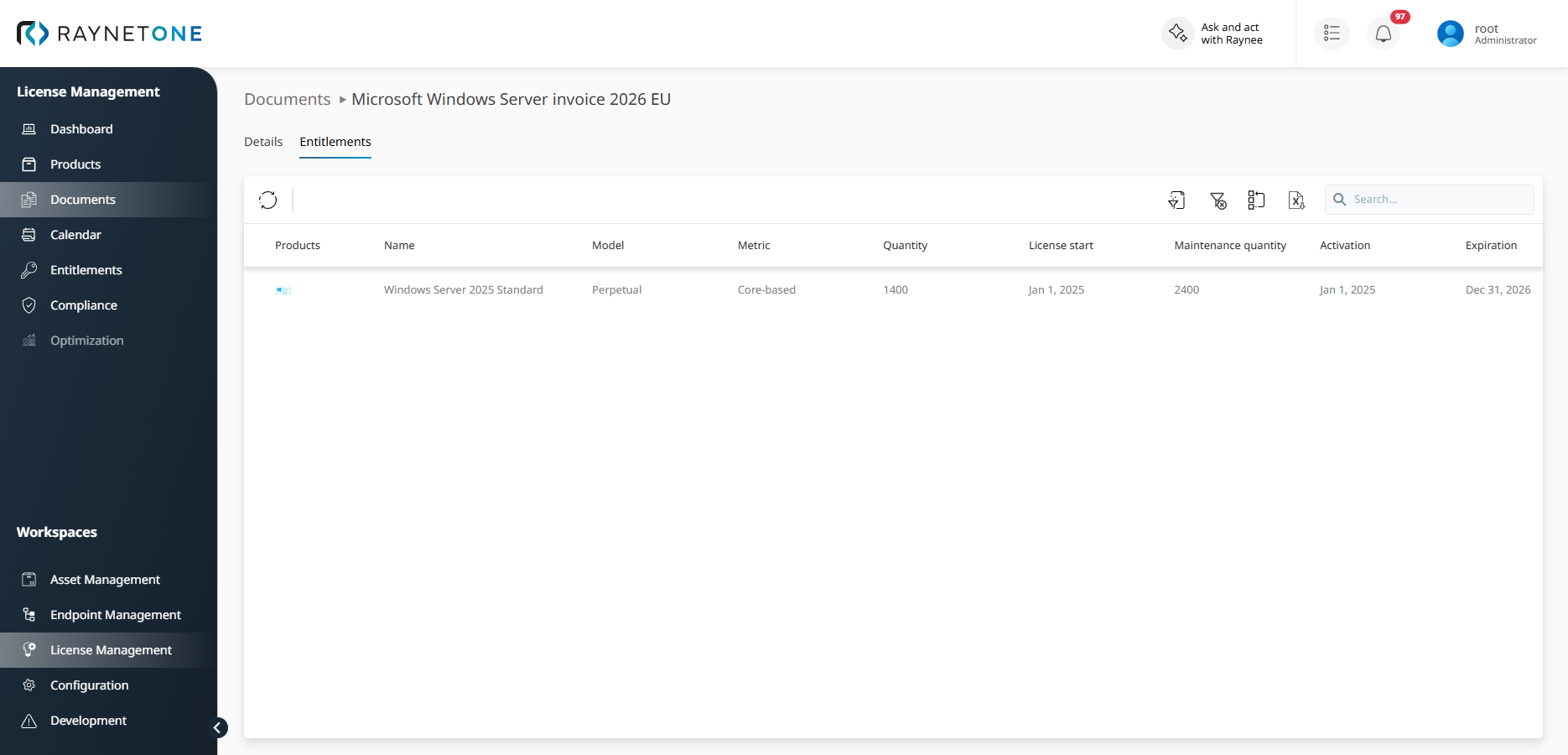
The Entitlements tab showing all entitlements linked to the purchase.
The entitlements list shows the following columns:
•Products: The products associated with this entitlement, shown as product icons. Products are typically created and maintained through purchases.
•Name: The display name of the entitlement record, generated from the associated product suite.
•Model: The license model applied to this entitlement, such as Perpetual, Subscription, or Maintenance.
•Metric: The license metric used for compliance calculations, such as Core-based, Device-based or User-based.
•Quantity: The total number of licensed units stored for this entitlement, calculated from the quantity and license pack size of all active purchase items.
•License start: The start date of the license.
•Maintenance quantity: The quantity covered by an active Maintenance or Software Assurance entitlement. For Subscription licenses, this equals the license quantity. For Perpetual licenses, this reflects the quantity of the linked Maintenance entitlement.
•Activation: The date from which the entitlement is valid.
•Expiration: The date on which the entitlement expires.
Click an entitlement to open the Entitlement details view. For a Maintenance entitlement, the linked Perpetual entitlement is opened, if one exists.