After selecting Enter Text and clicking Next, the wizard continues with the remaining steps of the process (Paste the text with the purchase details for AI processing):
2. Enter text
The Enter text option allows you to paste raw text from emails, purchase excerpts, word documents, or other sources. The text is analyzed through the AI Chat connection, which extracts and processes the purchase information.
Paste the relevant purchase text into the large input field. You can copy text directly from:
•Email bodies
•Purchase excerpts
•Scanned documents that have been converted to text
The Process text button becomes active as soon as you enter or paste text and becomes inactive again if you clear the field. Click Process text to analyze the content and extract relevant fields such as purchase name, supplier, customer, dates, costs, and products.
 |
Best practice: |
After the text has been processed successfully, click Next to continue to the Verify data step.
3. Verify data
After processing, you reach the Verify data step. Here the wizard presents the extracted information for review and correction.
The following fields may be displayed:
•Name*: Name of the purchase.
•Document type: Type of the commercial document.
•Invoice date*: Date of the invoice or purchase document.
•Currency*: Currency of the purchase.
•Tax rate: Tax rate applied to the net amount. The default value is 0.
•Total costs (net): Shows the total purchase costs excluding taxes. The value is calculated from the purchase items.
•Total costs (gross): Shows the total purchase costs including taxes. If the tax rate is 0, the gross amount is identical to the net amount.
•Discount amount or Discount rate: Discount applied to the whole purchase. The discount is prefilled from the extracted values. If the text shows a subtotal higher than the net total, the difference is entered as the discount amount. If the text states a discount rate, the discount rate field is shown instead of the amount. The field is not available as soon as a purchase item has its own discount.
•Customer: Organization or individual purchasing the license.
•Supplier: Organization or vendor providing the license.
•Contract number: Number of the contract this purchase belongs to.
•Invoice number: Billing document reference number.
•Purchase order (PO) number: Purchase order reference, if applicable.
•Sales order number: Sales order reference, if applicable.
•Quote number: Quote reference, if applicable.
The original text is shown in the preview pane on the right for reference. The pane is headed Manual text entry and shows the text you pasted. You can resize the pane by dragging the handle between the form and the preview. For details, see Adding a new purchase.
After reviewing and making any necessary corrections, click Next to continue to the Purchase items step.
4. Purchase items
After verifying the purchase header in the previous step, you now define the specific purchase items covered by this purchase. A purchase item defines the purchased license rights and creates the corresponding entitlement.
The original text remains visible in the preview pane next to the purchase items.
A confidence score may be displayed for each purchase item. It shows how closely the item matches the product found in the Technology Catalog, and is not a completion progress indicator. Lower scores indicate that the product assignment should be reviewed more carefully.
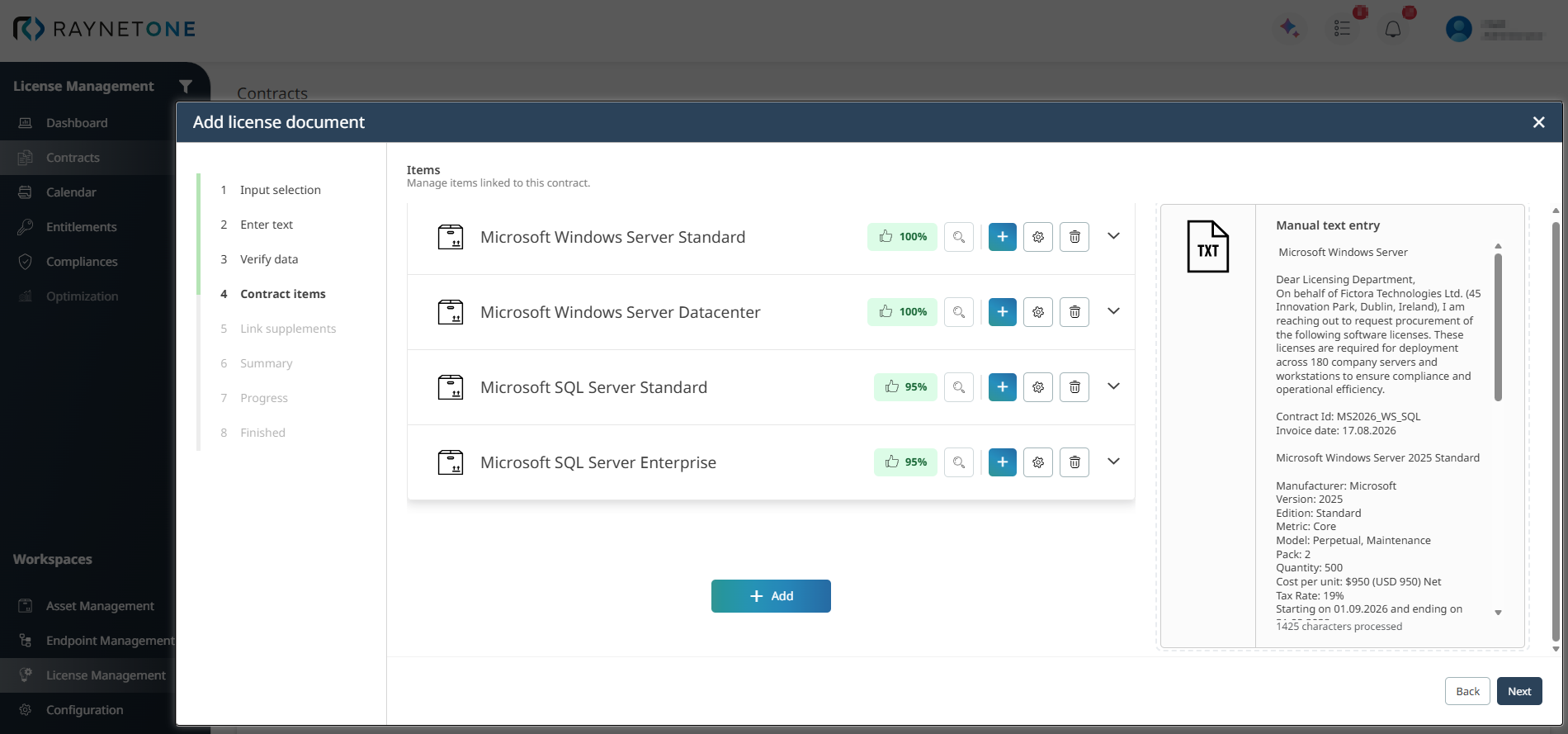
Click the settings icon on a purchase item to review and complete its details. Click the + Add button to add additional purchase items.
You can edit the following fields:
•Item name*: A descriptive name for the purchase item.
•License metric*: Defines how licenses are counted and measured. This field directly impacts compliance calculations (e.g., Device-based, User-based, Core-based). If no supported license metric could be identified, the metric Custom is set without a message. Select the correct metric if one applies, or use the Search button to determine it. See Custom metric.
•License model*: The commercial model of the license (e.g., Perpetual, Subscription, Maintenance). This field determines which type of entitlement is created.
•License start*: Start date of the license entitlement. This date triggers the automatic generation of a Purchased Event in the Raynet One Calendar.
•License end*: End date of the license entitlement, subscription, maintenance period, or trial. The availability and requirement of this field depends on the selected license model.
Click + Show more fields to display additional fields.
•SKU: The manufacturer's stock keeping unit or product identifier.
•Product number: Additional internal or vendor-specific product number.
•License pack*: The packaging or bundle size of the license.
•Quantity*: Number of licenses or entitlements purchased.
•Currency: Currency of the purchase item.
•Discount amount or Discount rate: Discount applied to the purchase item. By default the discount amount per unit is shown. If the text states a discount rate for the item, the discount rate in percent is shown instead. The field is not available while a purchase discount is set. The total cost of the item is updated accordingly.
•Unit price (net)*: Net price per license or item, excluding taxes.
•Unit price (gross)*: Gross price per license or item, including taxes.
•Billing interval: Defines the billing interval for subscription-based licenses, such as monthly or yearly. This field is disabled if the selected license model is not Subscription.
•Billing period: Defines the billing period for subscription-based licenses. This field is disabled if the selected license model is not Subscription.
•Total cost (net): Automatically calculated total cost excluding taxes, based on the entered pricing and quantity information.
•Total cost (gross): Automatically calculated total cost including taxes, based on the entered pricing, quantity, and tax information.
A discount is entered either for the whole purchase or for its items, not for both. For how the discounts are applied to the total cost, see Purchase view.
Click Save to confirm the purchase item.
|
Best practice: |
After adding all relevant purchase items and entitlements, click Next to continue to the Summary step.
5. Link agreements
In the Link agreements step, you can link existing agreements to the purchase items defined in the previous step. Agreements are linked per purchase item: each item shows its name and the number of linked agreements, and the linked agreements appear below it as tags with their name and manufacturer. To remove a linked agreement, click × on its tag.
Click Add below a purchase item to open a selection panel. The panel lists the available agreements immediately, without requiring you to type a search term. Use the Search... field to search by agreement name or manufacturer, and the Filter by manufacturer... list to show only the agreements of one manufacturer. If the agreement you need is not shown, narrow the list with search or the manufacturer filter.
Click an agreement to link it to the purchase item. Agreements that are already linked to the item are marked Already linked and cannot be added twice. If no agreement matches, the panel shows No agreements found. Only agreements you have permission to view are listed; the manufacturer filter likewise only offers the manufacturers of those agreements.
Agreements whose product mapping matches the product of a purchase item are suggested for that item automatically when you create a purchase; remove them if they do not belong. For product mapping, see License Agreements.
If no agreements need to be linked, you can proceed without making a selection. Click Next to continue to the Summary step.
6. Summary
In the Summary step, Raynet One shows a final overview of all purchase details and linked purchase items before the purchase is created.
You will see two main sections:
•Purchase details: All header information (purchase name, Contract number, total costs (Net), total costs (Gross), invoice date, etc.)
•Items: A summary of all items linked to the purchase, including configuration, quantity, and calculated costs.
Review everything carefully for accuracy.
•If something is incorrect, click Back to return to the previous steps and make corrections.
•If all information is correct, click Create to finalize and save the purchase.
7. Progress
After clicking Create in the Summary step, the wizard enters the Progress phase. Raynet One now processes the purchase, validates all entered data and links the defined entitlements. This step usually completes within a few seconds and requires no further input from you.
8. Finished
Once processing is complete, you will see the following success message:
Purchase upload completed.
The purchase has been successfully processed and added to your license management system.
At this point, the new purchase and all its associated entitlements are fully available in the Purchases overview and can be used for reconciliation, compliance tracking, and optimization.
Click Finish to close the wizard and return to the Purchases list, or click View details to immediately open the detailed view of the newly created purchase.
|
Best practice: |