Raynet One provides flexible methods to add a new purchase. To start the wizard, open the Documents page under Workspaces > License Management and click Add in the toolbar. Choose the option that best matches the format of your available purchase data.
Input selection
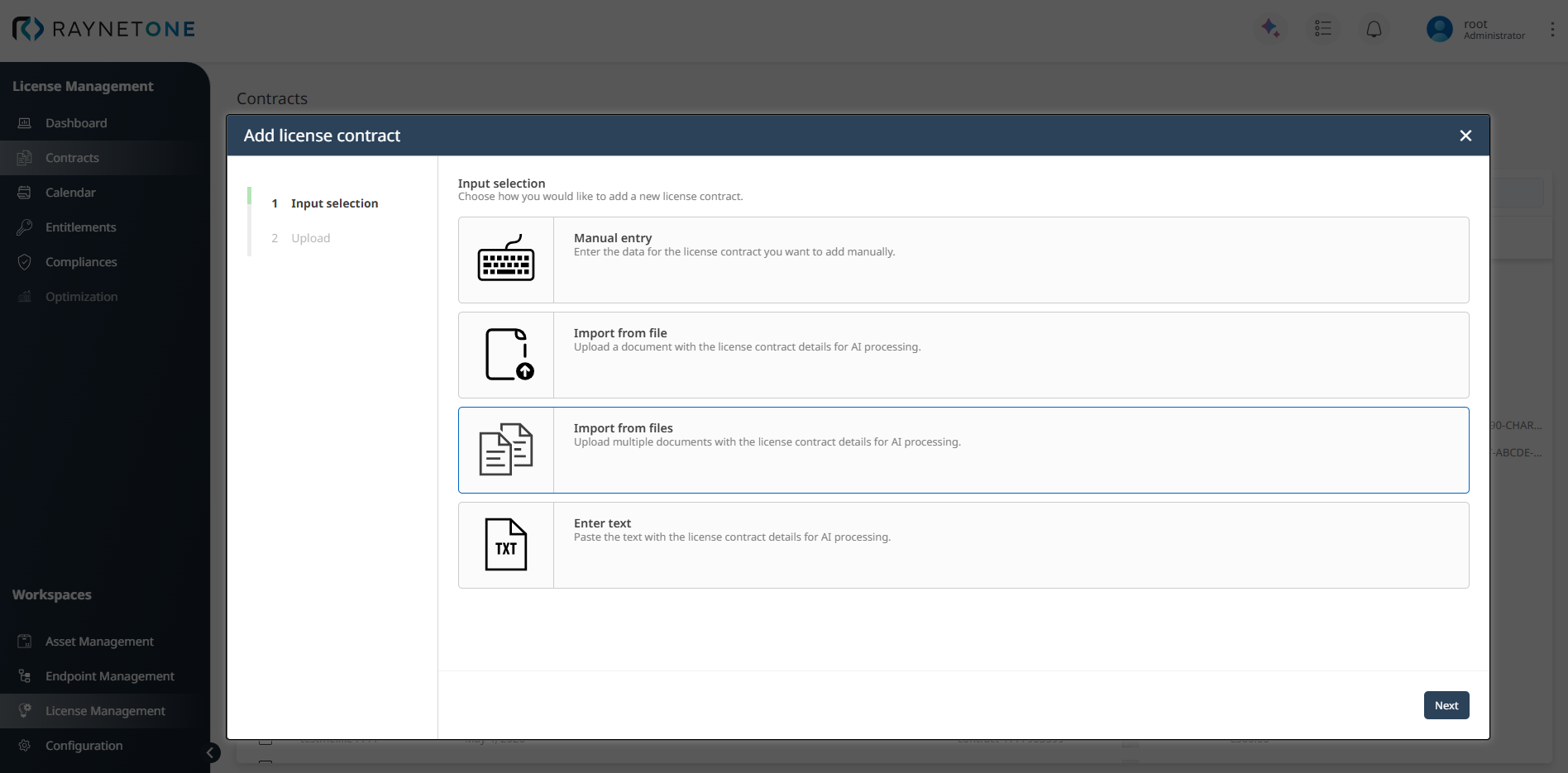
The wizard starts with the Input selection step. In this step, you choose how the purchase data should be added to the system.
The available options are:
•Manual entry: Best for full control when no digital document is available. To keep the source document, attach it afterwards with File > Upload purchase file in the Purchase view.
•Import from file: Fastest option when you have a PDF or another supported document. This option uses SAM AI for extraction.
•Import from files: Upload multiple documents, purchases, license agreements or a mix of both, for AI processing. SAM AI detects the document type of each file, and you can also set it per file. See Import from files.
•Enter text: Useful when you have raw text from a purchase document. This option is also AI-supported: the text is analyzed through the AI Chat connection. After selecting this method and entering text into the Document content field, the Process text button becomes active immediately as text is entered. The button returns to its inactive state if the field is cleared.
When the Input selection step opens, the system checks the availability of the SAM Cloud, AI Chat, and Technology Catalog services. If one or more services are temporarily unreachable, a warning message is displayed below the affected option. The message reads: The service used by the [Service Name] integration is currently unavailable. Please try again later. This message means that the integration is correctly configured, but the external service it depends on cannot be reached at this moment. The unavailability is temporary and does not indicate a problem with the integration setup. Wait a moment and refresh the page or reopen the wizard to check whether the service has become available again.
After selecting the preferred input method, click Next to continue with the wizard. The following subsections provide detailed step-by-step guidance for each method.
Comparing extracted data with the source document
When you use Import from file or Enter text, the Verify data and Purchase items steps show the source next to the form, so that you can check the extracted values without switching windows. For agreements, the same view is available in the verification step of Import from file. Manual entry has no preview.
•Resize the panels: Drag the handle between the form and the preview to give either side more room. The form keeps a minimum width, and the preview always keeps a narrow strip. Your width is remembered in the browser and used the next time you open the wizard.
•Collapse the step navigation: Click the arrow button on the step list on the left. The list then shows only the step numbers, which leaves more room for the form and the preview. Click the button again to expand it.
•Preview header: For an uploaded file, the preview shows the file name and size, followed by the PDF viewer with its own zoom, page, print and download controls. Click the fullscreen button to enlarge the preview and click it again to return. Click the close button to hide the preview; click Show preview to display it again. For Enter text, the preview pane is headed Manual text entry and shows the text you pasted, with the number of characters processed below it.
•Scrolling: Only the form scrolls. The preview stays in place, so that the document remains visible while you work through long forms.
After successfully creating a purchase using any of the three methods, you can view the purchase and its associated entitlements in two main places:
•In the Documents page under Workspaces > License Management: Click on the purchase name to open the Details view. Switch to the Entitlements tab to see all linked entitlements.
•In the dedicated Entitlements section of the License Management workspace (via the left sidebar), where all entitlements across all purchases are listed and can be filtered or searched.
 |
Best practice: |