Manual Entry starts after selecting Manual entry in the Input selection step and clicking Next. The wizard then continues with the remaining steps of the manual purchase creation process.
2. Enter details
Enter the core purchase information manually.
The following fields are displayed in this step:
•Name*: Name of the purchase.
•Document type: Type of the commercial document. The default value is Purchase.
•Invoice date*: Date of the invoice or purchase document. This field is required and must be entered explicitly.
•Currency*: Currency of the purchase. The default value is based on the user's default currency configured in the profile settings.
•Tax rate: Tax rate applied to the net amount. The default value is 0.
•Discount amount: Discount amount applied to the whole purchase, as an absolute amount in the purchase currency. The field is not available as soon as a purchase item has its own discount.
•Customer: Organization or individual purchasing the license.
•Supplier: Organization or vendor providing the license.
•Contract number: Number of the contract this purchase belongs to.
•Invoice number: Billing document reference number.
•Purchase order (PO) number: Purchase order reference, if applicable.
•Sales order number: Sales order reference, if applicable.
•Quote number: Quote reference, if applicable.
After entering the purchase details, click Next.
|
Be aware: |

 |
Best practice: |
3. Purchase items
In the Purchase items step, click + Add to create a new purchase item. A purchase item defines the purchased license rights and creates the corresponding entitlement.
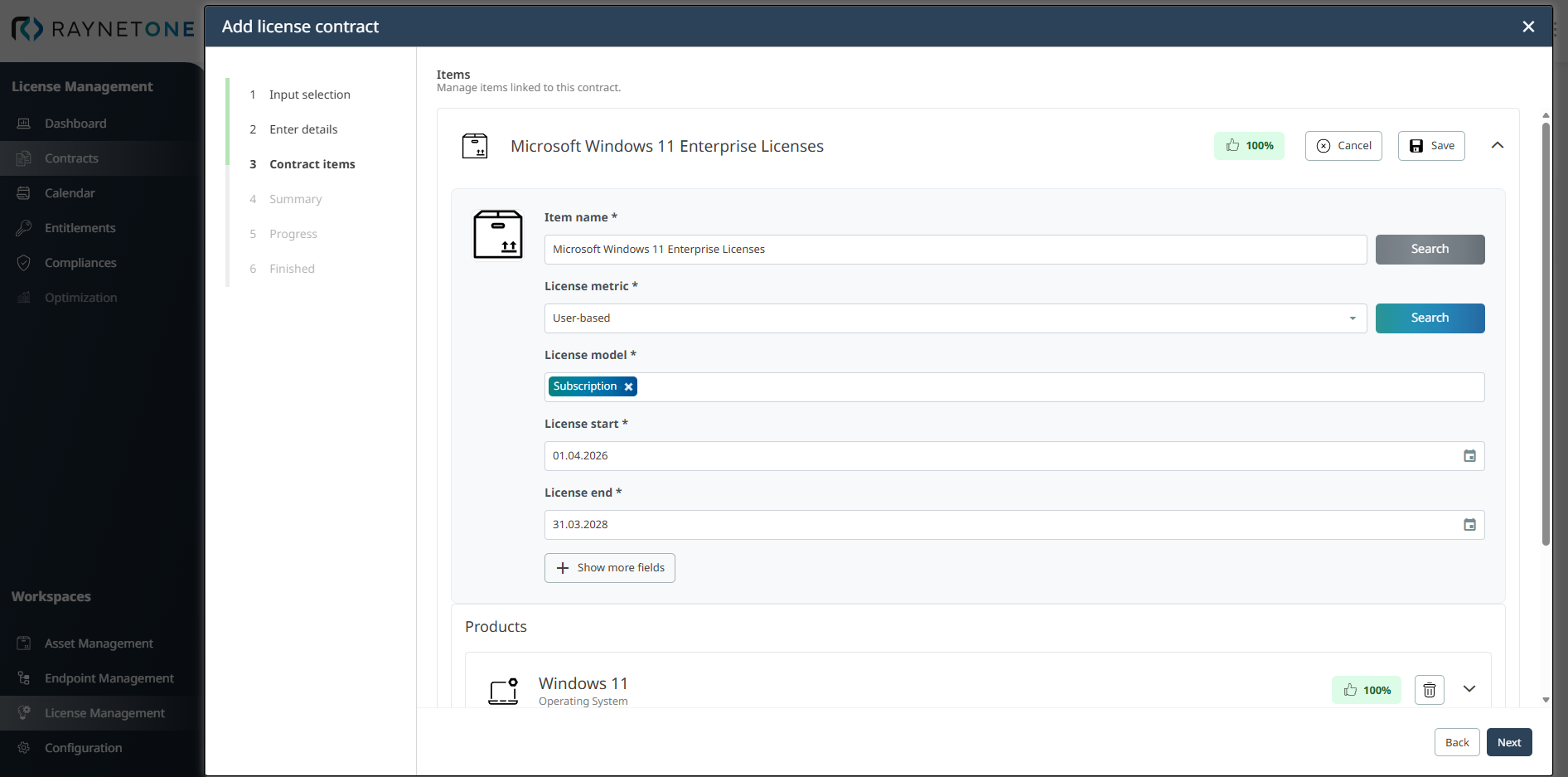
Use Search to match the entered item data against the Technology Catalog. The displayed percentage indicates the confidence of the suggested product match.
You can edit the following fields:
•Item name*: A descriptive name for the purchase item.
•License metric*: Defines how licenses are counted and measured. This field directly impacts compliance calculations (e.g., Device-based, User-based, Core-based). Select Custom for licensing terms that cannot be calculated automatically yet. See Custom metric.
•License model*: The commercial model of the license (e.g., Perpetual, Subscription, Maintenance). This field determines which type of entitlement is created.
•License start*: Start date of the license entitlement. This date triggers the automatic generation of a Purchased Event in the Raynet One Calendar.
•License end *: End date of the license entitlement or subscription. If left empty, the license is treated as perpetual with no expiration. If filled,Raynet One generates a License Expiration Warning on the final day of validity.
Click + Show more fields to display additional purchase item details.
The following additional fields are available:
•SKU: The manufacturer's stock keeping unit or product identifier Example: KW9-00657.
•Product number: Additional internal or vendor-specific product number.
•License pack*: The packaging or bundle size of the license.
•Quantity*: Number of licenses or entitlements purchased.
•Currency: Currency of the purchase.
•Discount amount: Discount applied to the purchase item, as an amount per unit. The field is not available while a purchase discount is set. The total cost of the item is updated accordingly.
•Unit price (net) *: Price per license or per item.
•Unit price (gross) *: Gross price per license or item, including taxes.
•Billing interval: Defines the billing interval for subscription-based licenses, such as monthly or yearly.
•Billing period: Defines the billing period for subscription-based licenses.
•Total cost (net): Shows the total purchase costs excluding taxes. The value is calculated from the purchase items.
•Total cost (gross): Shows the total purchase costs including taxes. If the tax rate is 0, the gross amount is identical to the net amount.
A discount is entered either for the whole purchase or for its items, not for both. For how the discounts are applied to the total cost, see Purchase view.
After entering all required purchase item data, click Save to add the item and its entitlement to the purchase. Click the + Add button to add additional purchase items if the purchase covers multiple products or configurations.
To remove a purchase item or a product within an item, click the corresponding Remove button. A confirmation dialog titled Remove purchase item appears and asks whether you really want to remove the item. This dialog prevents accidental removal of items that you may have spent time configuring. Click Yes to confirm the removal, or click Cancel to keep the item.
|
Be aware: |
|
Best practice: |
After adding all required products, click Next to proceed to the Summary step.
4. Link agreements
In the Link agreements step, you can link existing agreements to the purchase items defined in the previous step. Agreements are linked per purchase item: each item shows its name and the number of linked agreements, and the linked agreements appear below it as tags with their name and manufacturer. To remove a linked agreement, click × on its tag.
Click Add below a purchase item to open a selection panel. The panel lists the available agreements immediately, without requiring you to type a search term. Use the Search... field to search by agreement name or manufacturer, and the Filter by manufacturer... list to show only the agreements of one manufacturer. If the agreement you need is not shown, narrow the list with search or the manufacturer filter.
Click an agreement to link it to the purchase item. Agreements that are already linked to the item are marked Already linked and cannot be added twice. If no agreement matches, the panel shows No agreements found. Only agreements you have permission to view are listed; the manufacturer filter likewise only offers the manufacturers of those agreements.
Agreements whose product mapping matches the product of a purchase item are suggested for that item automatically when you create a purchase; remove them if they do not belong. For product mapping, see License Agreements.
If no agreements need to be linked, you can proceed without making a selection. Click Next to continue to the Summary step.
5. Summary
In the Summary step, Raynet One displays a complete overview of all entered information before the purchase is finalized.
You will see two main sections:
•Purchase details: All data from the Enter Details step (purchase name, IDs, customer supplier, invoice date, total costs, etc.).
•Items: A summary of all products and entitlements linked to this purchase, including quantity, license model, metric, and calculated total cost.
Review all information before submission.
•If anything is incorrect, click Back to return to the previous steps and make changes.
•If anything is correct, click Create to finalize the purchase creation.
6. Progress
After clicking Create, Raynet One processes the purchase, validates the data and links the entitlements. This step usually completes within a few seconds.
7. Finished
Once processing is complete, the new purchase and its entitlements are now fully available in the Purchases list and can be used for reconciliation, compliance tracking, and optimization. Click
Finish to close the wizard.
Automatically generated Calendar events
Raynet One One automatically generates related Calendar events based on the data you entered:
TRIGGER |
GENERATED EVENT |
DESCRIPTION |
|---|---|---|
•Invoice date (first purchase) |
•New Purchase Event |
•Marks the initial purchase |
•Invoice date (renewal) |
•Order Invoiced Event |
•Marks a purchase renewal or follow-up invoice |
•License start date (first purchase) |
•Purchased Event |
•Confirms entitlement activation |
•License start date (renewal, same entitlement) |
•Purchased Renewal Event |
•Marks a renewal on an existing entitlement |
•License end date |
•License Expiration Warning |
•Displayed on the final day of license validity |
|
Be aware: |
•The Invoice date triggers a New Purchase or Purchase Invoiced event.
•The License start date creates a Purchased Event.
•The License end date generates a License Expiration Warning (shown on the final day).
|
Best practice: |