The Documents page of the License Management workspace is the central place for the commercial documents behind your entitlements: purchases and license agreements. It replaces the former single Contracts page.
Capturing entitlements means converting the purchased rights into structured, machine-readable data - including the exact product, license metric, quantity, validity period, and any special rights. Raynet One treats this as a foundational process: only when entitlements are accurately captured can the system perform reliable automated reconciliation against discovered installations, calculate the ELP, generate compliance reports, and deliver meaningful optimization recommendations.
Documents
Access the Documents page via Workspaces > License Management > Documents. This page is the central location for managing purchases and license agreements.
The available tabs on the Documents page are:
•Purchases: Shows the complete list of all purchase records. This is also where users can add a new purchase by clicking Add in the toolbar.
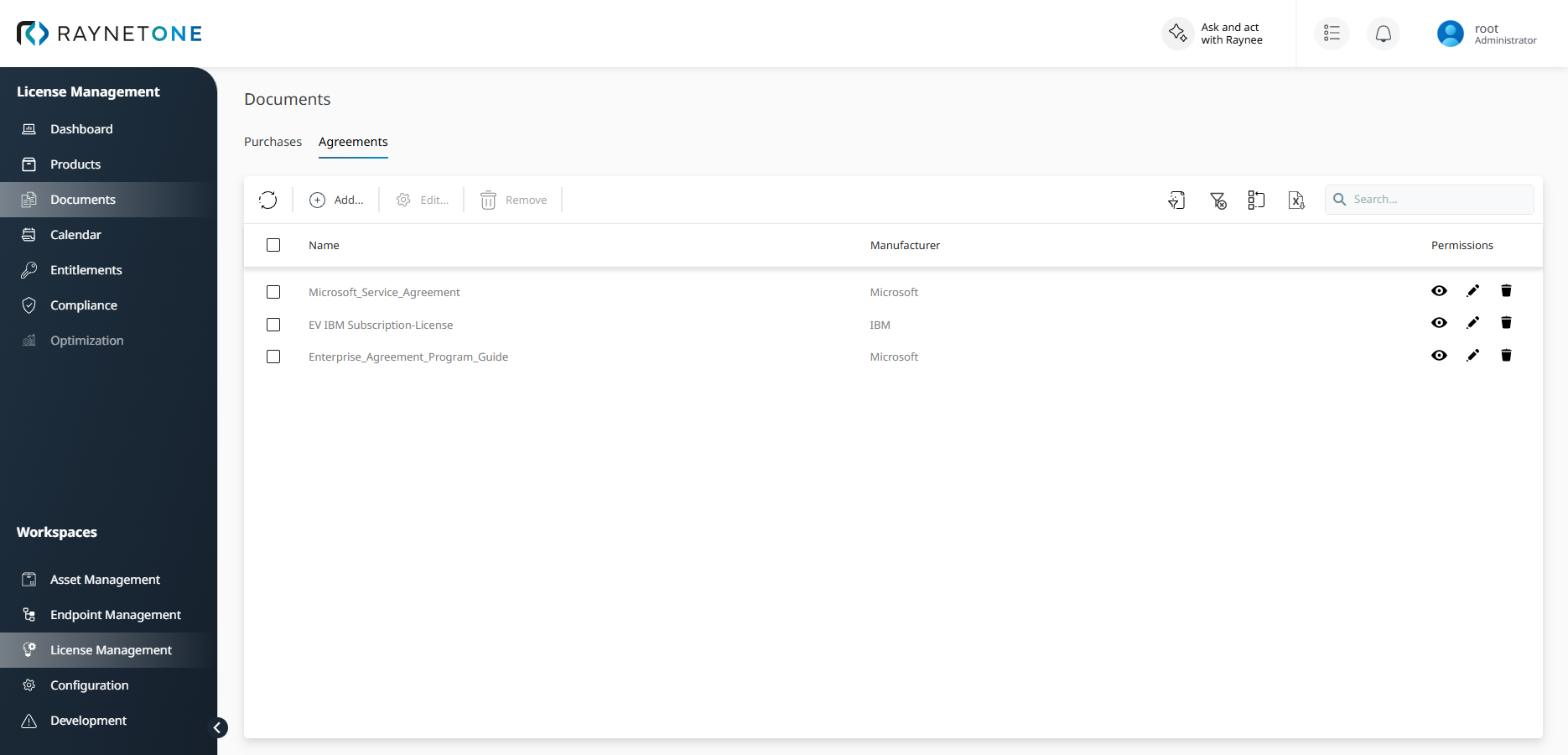
•Agreements: Shows all license agreement records. Click Add in the toolbar to create a new license agreement. For details, see License Agreements.
When you open a record, its detail view shows further tabs. A purchase has the tabs Details and Entitlements. A license agreement has the tabs Details, Purchases, Agreements and Commercial products; the last three are shown only when the agreement has linked purchases, related agreements or linked commercial products.
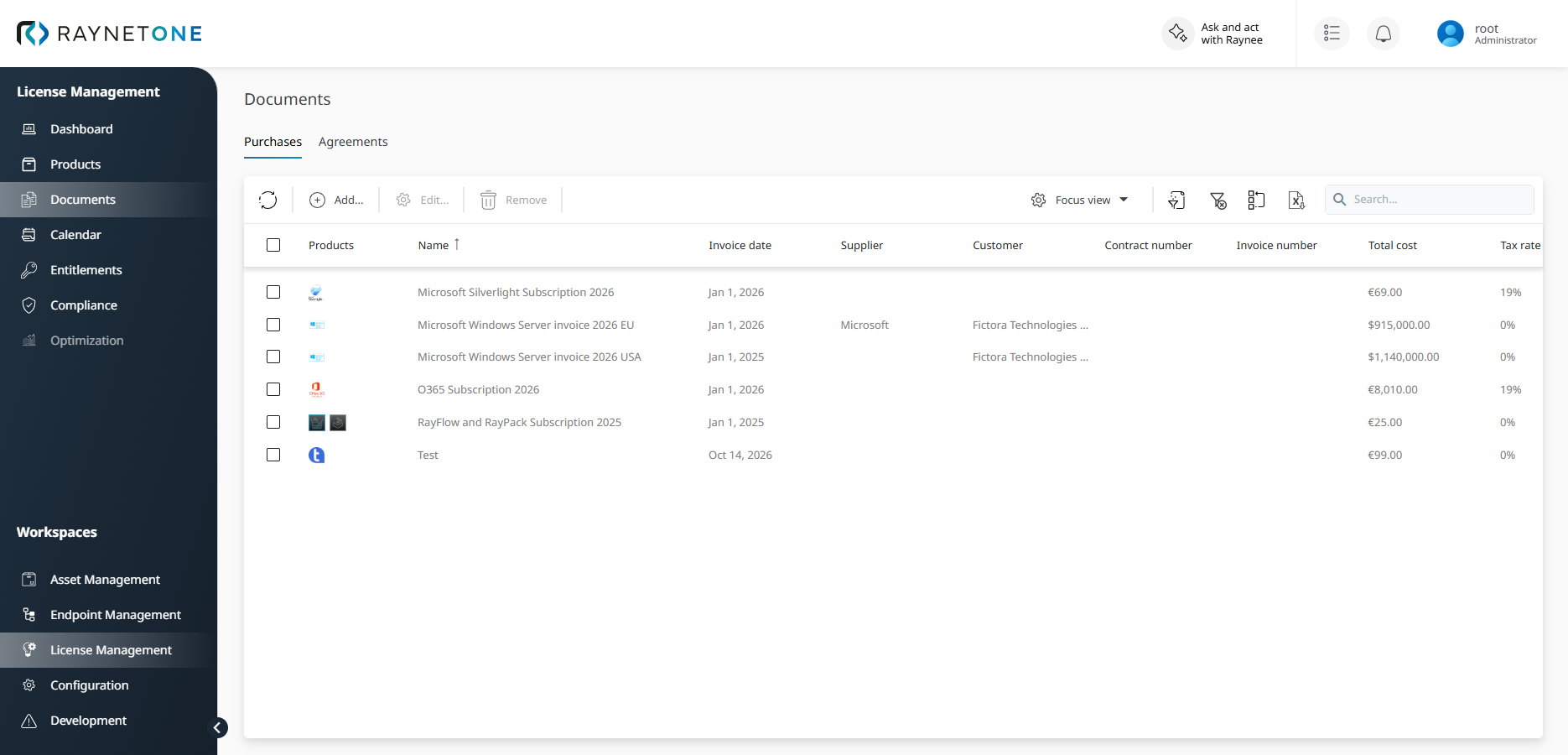
In the Purchases tab, select any purchase to view its details, related entitlements, and lifecycle events. You can filter by name, invoice date, supplier, customer, products, and total costs, as well as search and export functions. The Permissions column shows the available actions for each purchase record directly in the list. The Discount rate column is hidden by default. Open the column chooser in the toolbar and select it to show the purchase-level discount rate, as a percentage, for each purchase in the list.
When a purchase is created or updated, Raynet One automatically generates related lifecycle events in the Calendar. For the triggers and the generated events, see Manual entry.
The following figure shows the Purchases tab on the Documents page.
The following figure shows the Agreements tab on the Documents page.
To add a purchase, see Adding a new purchase. After creating a purchase, open its Entitlements tab and review the Calendar to confirm that the products, license rights and automatic events were created as expected.
Querying Discount Information via AI Chat
The Discount Rate and Discount Amount fields on purchases and purchase items are accessible through AI Chat and via the GraphQL API. You can ask the AI Chat questions about discount values, such as the total discounts applied to a specific purchase or the discount rates for individual purchase items.
Example questions you can ask in AI Chat:
•What is the discount rate on purchase [name]?
•Which purchases have a discount amount greater than [value]?
•What are the total costs for purchase [name] after applying discounts?