Import from files starts after selecting Import from files in the Input selection step and clicking Next. This option allows you to upload multiple documents, purchases, license agreements or a mix of both, and let SAM AI extract and import the purchase, agreement and entitlement information from each file automatically. This workflow supports batch import, which means that multiple files are processed in one import operation.
SAM AI extracts all available purchase fields from each uploaded document, including Discount Rate and Discount Amount at both the purchase level and the purchase item level. These discount fields are extracted automatically as part of the batch import process — the same fields available in manual entry and single-file import are extracted here as well.
2. Upload
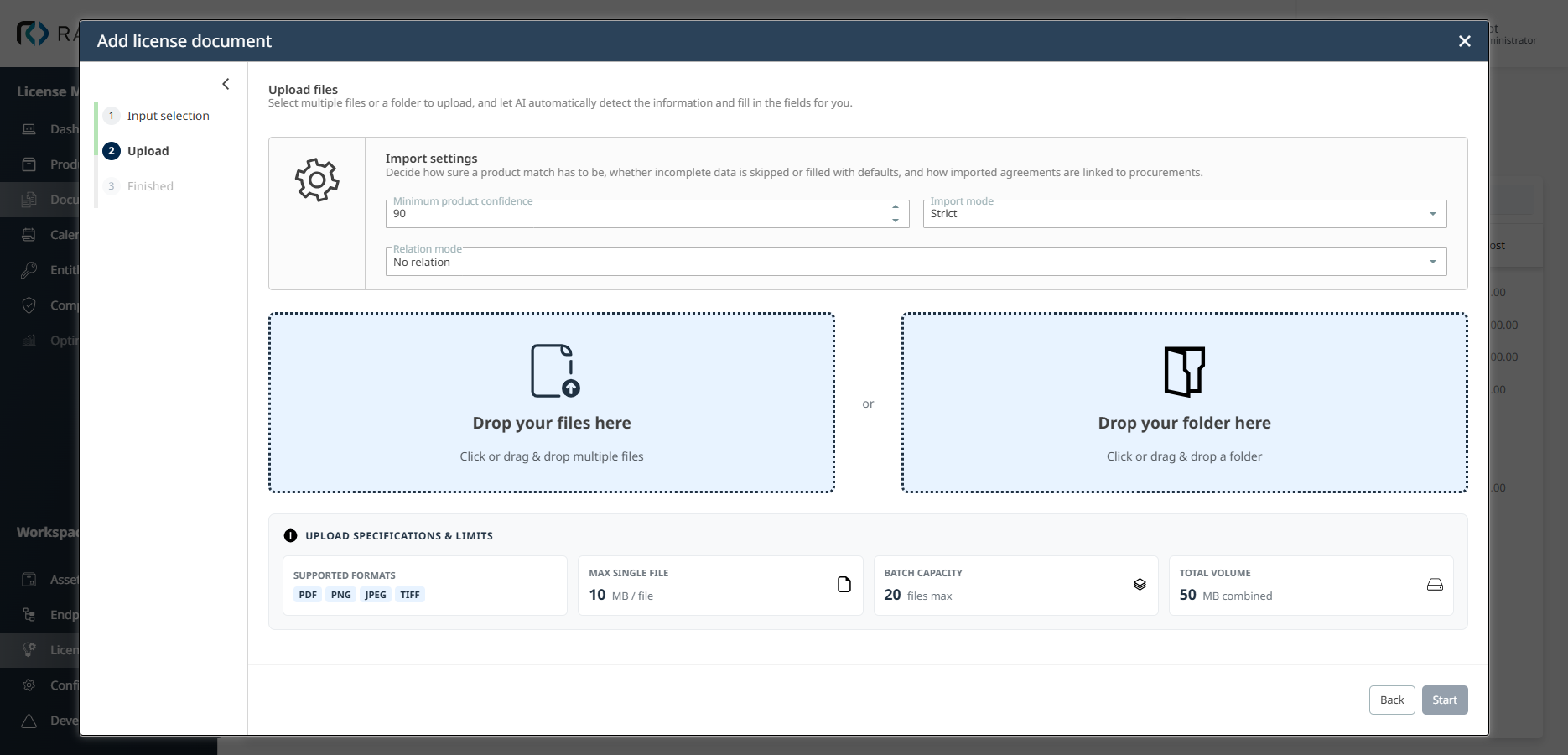
In the Upload step, you can select multiple files or a folder to upload. SAM AI analyzes the uploaded documents and extracts the relevant purchase, agreement and entitlement information. Configure the Import settings and add the files you want to process.
Import settings
Before uploading files, review and configure the Import settings to control which product matches are accepted and how imported agreements are linked to purchases.
•Minimum product confidence: Defines the minimum confidence score (0–100) that a product match needs to be accepted. The default value is 90. For each detected product, Raynet One searches the Technology Catalog, and the AI Chat connection rates how closely each result matches. If the score of a detected product is below the configured minimum, the product match is discarded. A higher value requires a closer match and reduces the risk of incorrect product assignments. A lower value accepts weaker matches and may include products that are not the correct catalog entry.
•Import mode: Controls how the system handles missing or incomplete data during import. The available options are:
•Strict (default): The purchase import fails if any required field is missing or if a product match does not meet the minimum confidence threshold. No default values are substituted for missing data. Use this mode when data completeness and accuracy are critical, and you want to manually review and correct files that do not import successfully.
•Partial: The purchase import continues even when data is incomplete. Missing required fields are filled with default values, such as today's date for a missing invoice date, a quantity of 1 for a missing quantity, or a license model of Perpetual for a missing license model. Use this mode when you want to maximize the number of successfully imported purchases and are comfortable reviewing and correcting the imported data afterward.
•Relation mode: Controls how imported agreements are linked to purchases. It applies only to license agreements in the batch; purchases are not affected. The available options are:
•No relation (default): Agreements are saved without links.
•Group relation: Each agreement is linked to all purchases that are imported in the same batch. If the batch contains more than one agreement, these agreements are also related to each other.
•Product-based relation: The products named in the agreement are matched against the Technology Catalog, using the minimum product confidence. The agreement is linked to every existing purchase that contains one of the matched products, not only to purchases of the current batch. If no purchase contains the products yet, the product links are stored, so that purchases added later can match. In Strict import mode, the agreement is not created when a product is below the minimum confidence.
Upload individual files
Use the Drop your files here area to select or drop individual documents (purchases or agreements). Click the upload area or drag and drop one or more files directly onto it to add them to the upload list. You can add files from different locations on your system by using the upload area multiple times.
Upload a folder
Use the Drop your folder here area to select an entire folder. Click the upload area or drag and drop a folder onto it to add all supported files from that folder to the upload list in a single step. This is useful when all documents for a batch import are stored in one location.
Supported files: PDF, PNG, JPEG, TIFF.
Maximum size per file: 10 MB (default).
Maximum total size: 50 MB (default).
Maximum number of files: 20 (default).
An administrator can change these limits under Configuration > License Management > Settings. See License Management settings.
After adding files, the upload list displays each file with its name and status. You can remove individual files from the list before starting the import, and you can add more files or an additional folder using the Add Files and Add Folder buttons.
When you are ready, click Start to begin the import process. SAM AI processes each file individually. The status of each file updates in real time:
•Processing: SAM AI is currently extracting data from the file.
•Import succeeded: The purchase or agreement was extracted and imported successfully.
•Failed: The file was not imported. The reason is shown next to the file name. For connection, API key and timeout errors, see Import from file.
Mixed document types
You can upload a mix of purchase and agreement files together in a single batch import. The system automatically detects the document type for each uploaded file and processes each one accordingly. This means you do not need to separate purchases and agreements into separate import operations. Alternatively, set the document type per file: click Set document type next to a file in the upload list and select Purchase or Agreement. The file is then always imported as that type and SAM AI does not decide it. Clear the selection to return to Auto-detect. Use this when SAM AI would misclassify a document. The setting cannot be changed while files are being processed.
3. Finished
When all files have been processed, the wizard switches to the Finished step automatically. The step lists every file with its result: Import succeeded together with a message, or Failed together with the reason. The only button is Close. There is no Back button and no Open details button. Click Close to close the wizard and return to the Documents page. Successfully imported purchases and agreements are immediately available on the Purchases and Agreements tabs.
 |
Best practice: |