The Related documents section provides a visual graph showing how purchases and license agreements are interconnected. It is available within the details view of both individual purchases and individual license agreements, allowing you to trace the complete network of associated documents without leaving the current view.
The section is displayed only when at least one related document exists. It appears as a collapsed accordion item. Expand it to view the graph.
Accessing the Visualization
The visualization is accessible from two locations within the Documents workspace:
•From a purchase: Open the details view of any purchase. If the purchase is linked to other purchases or license agreements, a Related documents accordion section appears in the side panel. Expand it to view the relation graph rooted at the selected purchase.
•From a license agreement: Open the details view of any license agreement. If the agreement is associated with purchases or other agreements that form a relation network, a Related documents accordion section appears. Expand it to view the relation graph rooted at the selected agreement.
In both cases the graph loads automatically when the document is opened and refreshes when you select a different document of the same type.
Understanding the Graph
The graph represents each document as a rectangular node and renders the relationships between documents as directed arrows. Two types of nodes are shown:
•Purchase nodes: Represent individual purchases. Each node displays the purchase name, PO number, invoice date, lifecycle status, and the commercial products covered by that purchase that are part of the relation. Other commercial products of the purchase are not shown.
•Agreement nodes: Represent license agreements. Each node displays the agreement name and, when available, the manufacturer name.
Three types of connections are used:
•Purchase to purchase: An arrow between two purchase nodes indicates a replacement or supersession relationship — for example, when a renewal purchase replaces an earlier one.
•Agreement to agreement: A pink arrow between two agreement nodes indicates that the agreements are related, for example through a framework agreement structure.
•Cross connections: A dashed line between a purchase node and an agreement node indicates that the purchase is covered by or associated with that license agreement.
The currently selected document is highlighted in the graph so you can immediately identify its position in the network.
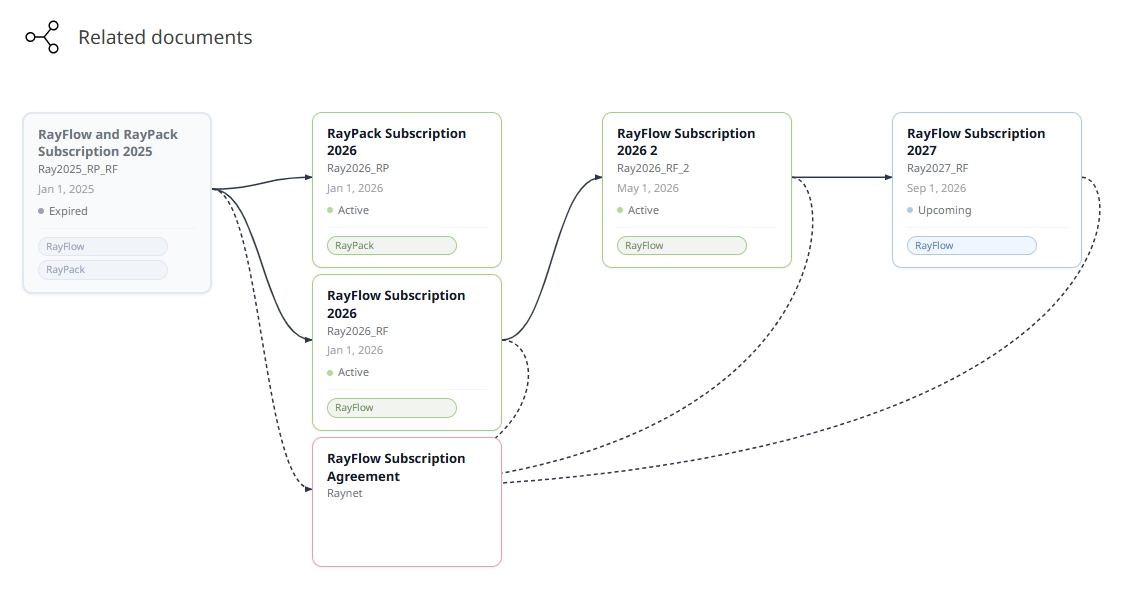
The following example shows a chain of purchases: the expired 2025 purchase was replaced by two active 2026 purchases, one of which is followed by an upcoming 2027 purchase. The license agreement covering these purchases appears as a separate node, connected to them by dashed lines.
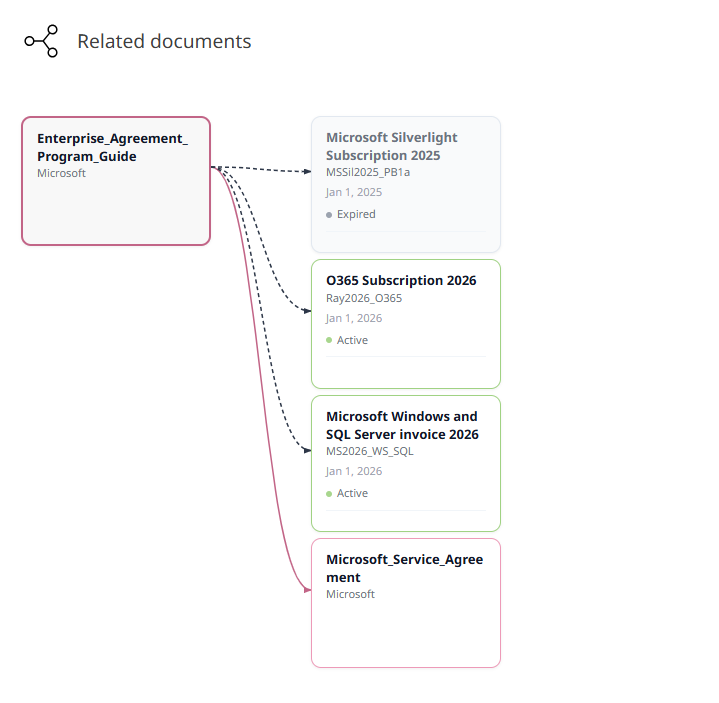
When the graph is opened from a license agreement, the agreement is the highlighted starting point. The example below shows an agreement connected to its purchases by dashed lines and to a related agreement by a pink arrow.
Purchase Node Details
Each purchase node in the graph displays the following information:
•Name: The purchase name or PO number if no name is set.
•PO number: The purchase order reference number.
•Invoice date: The date of the purchase.
•Status: The lifecycle status of the purchase — Active, Upcoming, Expired, or Unknown. A colored indicator reflects the status at a glance. The status is calculated only from the commercial products shown on the node, not from all products of the purchase.
•Commercial products: Chips showing the commercial products of this purchase that are part of the relation. Each product is shown once, without coverage details. When a purchase has more than six related products, a +n chip is shown for the remaining ones. Hover over a purchase node to expand it: all related products are listed, including multiple items of the same product, each with its license metric(s), model, and coverage dates. Hover over a single chip to see these details as a tooltip.
Navigating Using the Graph
Click any node in the graph to navigate directly to the details view of that purchase or license agreement. This works for both purchase nodes and agreement nodes, giving you a fast way to move between related documents without returning to a list view.
When you select a different purchase from the purchase list, the graph automatically refreshes to show the relation network centered on the newly selected document.
|
Note: |
