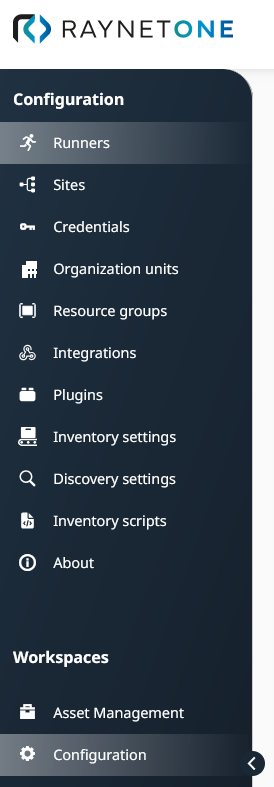
The Configuration workspace in the sidebar menu provides access to all platform-wide settings. Menu entries are organized into nine labeled groups to make navigation easier.
Infrastructure
Contains settings for managing the runners and agents that perform discovery and inventory operations.
•Runners — Select, add, remove, and inspect runners and verify their connection health.
•Agent Enrollment — Manage agent enrollment tokens (name, remaining usage, last used date, expiry, and scope). See Agent enrollment configuration.
•Agent Settings — Define connection parameters for enrolled agents, including one or more serving endpoint URLs. See Agent enrollment configuration.
•Downloads — Download runner and agent installation packages for Windows (MSI, ARM64), Linux (.deb, .rpm, Docker), and macOS (.pkg).
Credentials
Contains settings for managing credentials and credential providers used during discovery and integration operations.
•Credentials — Add, edit, and remove credential records (such as user accounts, SSH keys, and certificates) used for authenticating to scanned devices. See Credentials.
•Providers — Configure external credential provider integrations (for example, HashiCorp Vault) that supply credentials at runtime rather than storing them directly in the platform.
Users & Groups
Contains settings for user accounts and access management.
•System Users — Create and manage system user accounts.
•User Groups — Create and manage Keycloak user groups and their permissions.
•Resource Groups — Add or remove resource groups for targeted job execution.
Organization
Contains settings related to organizational structure and device assignment rules.
•Organization units — Add, remove, and connect Organization units and manage their permissions.
•Blacklisting — View and manage all blacklisted devices across organization units.
•Assignment rules — Define and manage rule sets for automatic device assignment to organization units.
Discovery & Import
Contains all settings that control how the platform discovers and inventories your IT assets.
•Ports & targeting — Configure WinRM port, port probing behavior, and targeting settings for discovery operations.
•Runbook — Configure runbook behavior settings for new devices, new networks, and missing credentials.
•Data collection — Define which data types are collected (hardware, software, CPU, disks, Docker, Hyper-V, MSSQL, file scanning, custom scripts). See Inventory settings.
•CustomScripts — Add, remove, and configure inventory scripts.
•Oracle Settings — Configure Oracle discovery instrument settings for Windows and non-Windows probes. See Inventory settings.
•Health — View the current system health check status for discovery-related services.
•Scopes — Set the deduplication scope mode (single or multi-scope) and manage the scope list.
•Import — Import asset data into the platform from external sources.
License Management
Contains global settings for the License Management feature. This group is only visible when the License Management license term is active on your installation.
•Settings — Configure compliance threshold and price display mode. See License Management settings.
Endpoint Management
Contains settings for managing rollout wave templates and device exclusions for endpoint deployments. This group is only visible when the Endpoint Management license term is active on your installation.
•Rollout waves — Create and manage reusable rollout wave configurations. See Endpoint Management Configuration.
•Exclusion — View and manage the list of devices excluded from endpoint management rollout waves. See Endpoint Management Configuration.
Connections
Contains settings for external connectors, plugins, and communication connections.
•Connectors — Inspect, add, activate, and remove API connections loaded from plugins and credential providers.
•Technology Catalog — Manage the Technology Catalog connection.
•Package Store — Manage the Package Store connection for software distribution and deployment.
•AI+Chat — Configure Voice Control, AI Chat, and SAM Cloud connections.
•Data Hub — Configure the Data Hub connection for centralized data exchange.
•Plugins — Explore pre-installed plugins and, depending on the plugin, edit their instruments.
System
Contains system information and operational settings.
•About — View the product version and build number.
•Background tasks — View and manage background task execution and scheduling.
Note: The License Management and Endpoint Management groups are only visible when the corresponding license terms are active on your installation.