Access: Open Configuration > Discovery & Inventory in the left sidebar.
The inventory settings configure the inventory scan behavior for devices, Oracle databases and network resource importing. The inventory process is part of the resource scanning process. The availability of options depends on the set of enabled plugins. Each option affects the system response to inventory events and the runner's way of inventory operation. The configuration on this page belongs to the global configuration scope. Control the IT landscape data collection methods by deciding on the set of enabled inventory instruments. Disabling critical inventory instruments may lead to incomplete data collected during the inventory scan.
Devices
This tab covers the aspect of device inventory configuration.
Actions under the Devices tab:
•prioritizing and enabling or disabling device scan instruments in a unified list,
•determining the software's reaction to missing credentials,
•adapting port probing behavior,
•changing the ports used for the SSH service on your devices,
•configuring which categories of device data are collected during scans, and
•assigning various inventory scripts.
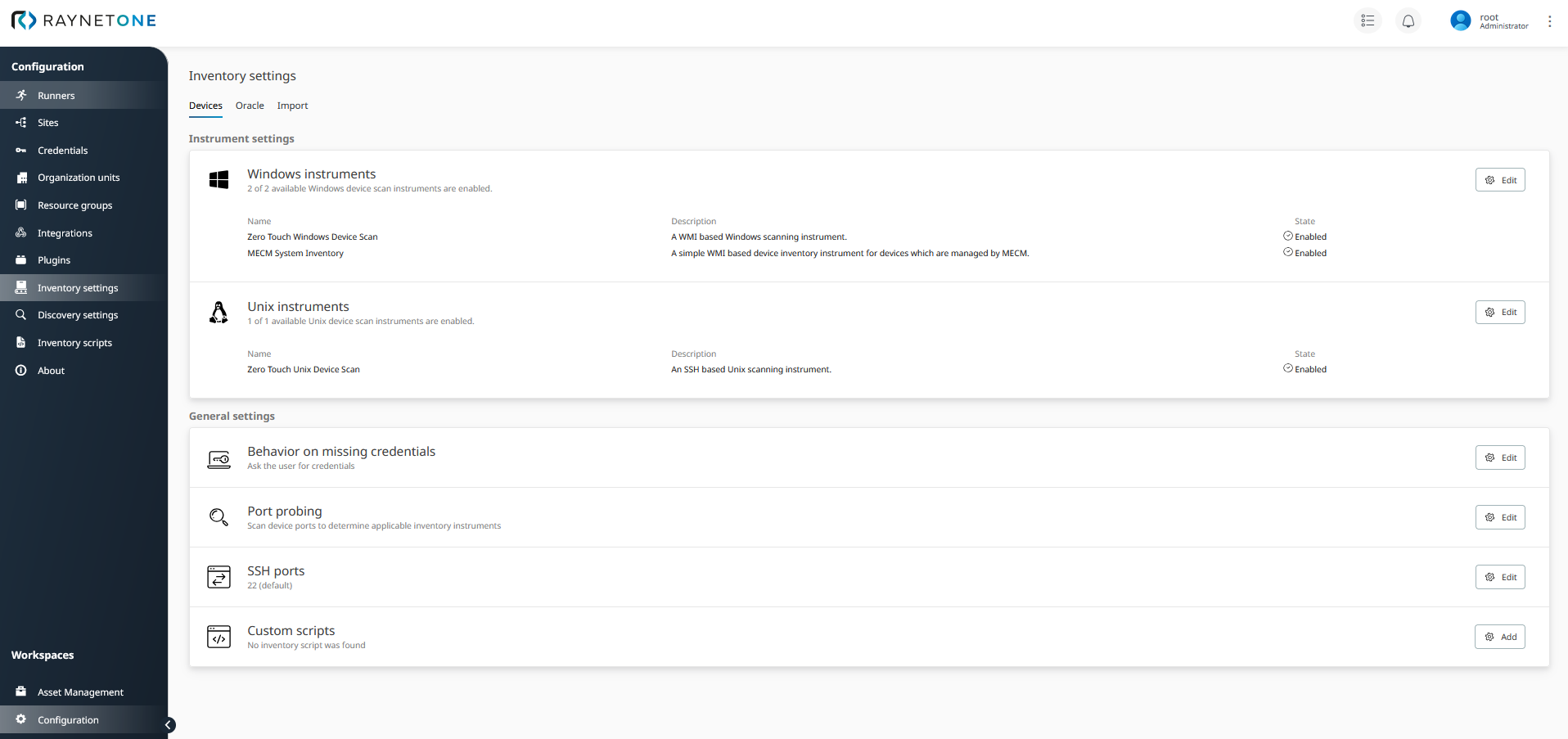
The Devices tab of the Inventory Settings page. Modify these settings to configure the device inventory behavior of your entire IT landscape at the same time.
Instrument Priority
The Instrument Priority section presents all available device scan instruments in a single unified table, replacing the former separate Windows and Unix instrument lists. You can configure the execution order and availability of each instrument to tailor the inventory scan behavior to your environment.
The table contains the following columns:
•Logo — the icon associated with the instrument's plugin.
•Name — the display name of the instrument.
•Description — a brief description of what the instrument collects (visible on the full settings page only).
•Status — indicates whether the instrument is currently Enabled or Disabled.
Reordering instruments
Drag any row to a new position to change the execution order. The instrument at the top of the list runs first during a device scan. Instruments that are better suited for your environment should be placed higher in the list to improve scan efficiency. By default, Zero Touch Windows and Zero Touch Unix are placed at the top, and the SNMP instrument is placed at the bottom.
Enabling and disabling instruments
Use the Enable or Disable button in the rightmost column to toggle an individual instrument on or off. Disabled instruments are skipped during device scans. Disabling instruments that are critical for your environment may result in incomplete inventory data.
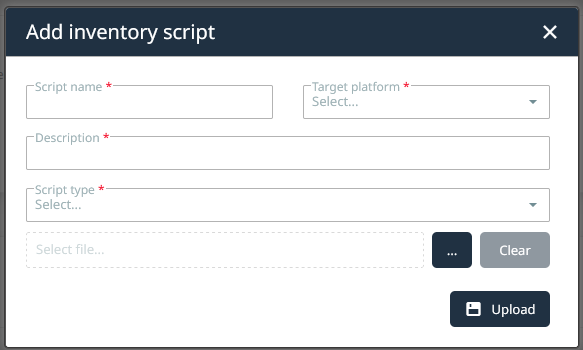
If there are no inventory scripts yet added into the system, you can click on the Add button to the right inside of the Custom scripts section to add them. The same widget is found on the Inventory scripts page.
Scan Configuration
The Scan Configuration section, located on the Devices tab, shows the data categories currently enabled for collection during device inventory scans. The displayed checkboxes are read-only and reflect the active configuration.
To modify the scan configuration, click the Edit button in the Scan Configuration section. The Scan Configuration edit dialog opens, allowing you to select which categories of device data are collected during inventory scans.
Available data categories
The edit dialog provides the following configurable data categories:
•Hardware — general hardware information such as system model, memory, and motherboard details.
•Advanced hardware — additional hardware attributes beyond the standard hardware scan.
•CPU — processor details including model, speed, and core count.
•GPU — graphics processing unit information.
•Disks — logical and physical disk information.
•OS — operating system name, version, and configuration details.
•Software — installed software and applications.
•Advanced software — extended software attributes and metadata.
•Services — running system services and their statuses.
•Docker — container information from Docker environments.
•Hyper-V — virtual machine data from Hyper-V hosts.
•Microsoft SQL — installed Microsoft SQL Server instance data.
Select All checkbox
The Select all checkbox at the top of the edit dialog allows you to enable or disable all data categories at once. The checkbox reflects the current selection state:
•Checked — all data categories are selected. Clicking the checked checkbox deselects all categories.
•Unchecked — no data categories are selected. Clicking the unchecked checkbox selects all categories.
•Indeterminate — only some data categories are selected. The checkbox updates automatically to this state when individual category selections result in a partial selection.
Oracle
This tab is about Oracle database inventory configuration.
Actions under the Oracle tab:
•change the Oracle ports,
•determine the software's behavior in case of not finding valid credentials, and
•configure Advanced Networking Option (ANO) encryption and integrity settings for secure Oracle connections.
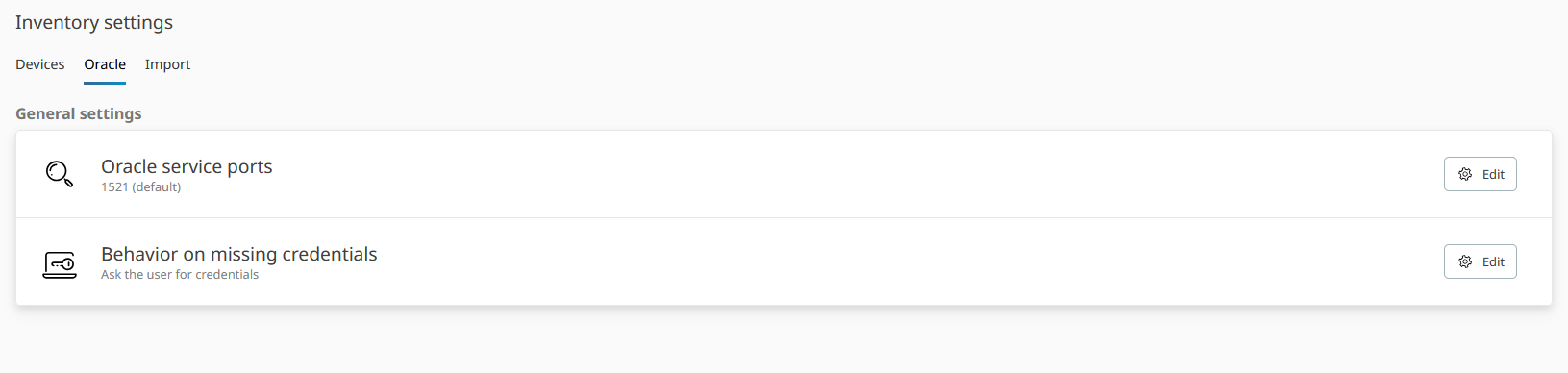
The Oracle tab of the Inventory Settings view.
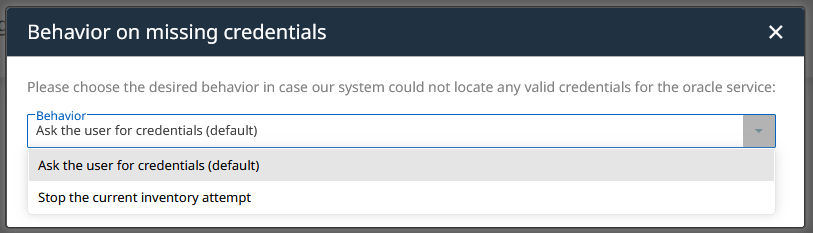
The Behavior on missing credentials widget with its list of options. Click on the Save button to apply the new configuration.
ANO Encryption and Integrity Settings
Oracle Advanced Networking Option (ANO) settings allow you to specify the encryption and integrity algorithms used when the Oracle instruments communicate with Oracle databases. These settings are transmitted to the Oracle Service Scanner, Oracle Connection Test, and Oracle Probe instruments for both Windows and Unix targets.
To configure ANO settings, click the Edit button in the ANO section on the Oracle tab. The following settings are available (all fields are optional; select None to leave a setting unspecified):
•Encryption: The encryption algorithm. Supported values: AES256, AES192, AES128, 3DES112, RC4_256.
•Encryption level: How strictly encryption is enforced. Options: ACCEPTED (use if offered), REQUESTED (prefer encrypted connections), REQUIRED (refuse unencrypted connections).
•Integrity: The integrity (checksumming) algorithm. Supported values: SHA512, SHA384, SHA256, SHA1.
•Integrity level: How strictly integrity checking is enforced. Options: ACCEPTED, REQUESTED, REQUIRED.
When a value is set to None, that parameter is not transmitted to the Oracle instruments and the Oracle client default behavior applies.
Import
The settings on this tab specify the behavior during network resource importing.
The Device status assessment setting is used to decide the device status when imported from a device registry. A device can be categorized as either active or inactive. The device activity is displayed in a column of the device list.

The Import tab of the Inventory settings view.