Access: Open Configuration > Health in the left sidebar.
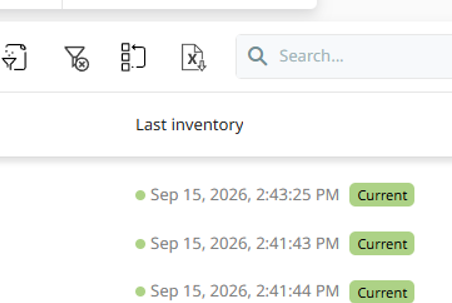
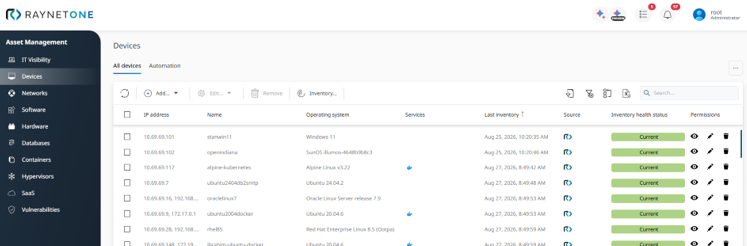
The Inventory health status assessment configuration lets you define how the age of a device's inventory data is evaluated and represented. You assign a color and a status label to specific inventory age thresholds. Once configured, each device in the Devices view displays an Inventory health status that reflects how current or outdated its inventory data is.
A background task, Update Device Inventory Health Status, periodically evaluates each device's last inventory date against the configured thresholds and updates the displayed status accordingly. Changes to the configuration may therefore not be immediately visible on individual devices.
The Inventory health status assessment page under Configuration > Health, showing the configured health statuses and their thresholds.
Inventory health status grid
The Inventory health status assessment section displays all configured inventory health statuses in a table. Each row defines one threshold rule. A maximum of five inventory health statuses can be configured.
The table contains the following columns:
•Status — the name of the health condition, for example Current, Expiring, or Obsolete. Each status must be unique.
•Color — the color indicator associated with the status. Available colors are Green, Lime, Yellow, Orange, and Red. Each color can be used only once.
•Inventory age — the maximum number of days since the last inventory collection after which this status is assigned to a device. Each inventory age value must be unique.
•Description — a system-generated summary of the rule, displayed in the format: After [X] days, set status to [Status].
To edit an existing status, click the row in the grid. To delete a status, use the delete action on the row. If devices are currently assigned the status being deleted, a confirmation dialog warns you before proceeding.
The Inventory health status assessment grid showing configured health statuses with their assigned colors and inventory age thresholds.
Add inventory health status
To add a new inventory health status, click Add new status... in the Inventory health status assessment section. The Add inventory health status wizard opens.
The button is disabled when five inventory health statuses are already configured, because the maximum of five statuses has been reached.
Step: Basic settings
This step defines the properties of the new inventory health status. All three fields are required, and each value must be unique within the existing set of configured statuses.
•Status — a label that represents the health condition of the inventory data. This name appears in the Devices view and in the inventory health status grid. Example values: Current, Expiring, Obsolete.
•Color — the color used to visually represent the health condition. Available colors: Green, Lime, Yellow, Orange, Red. Each color can only be used for one status.
•Inventory age — the number of days after which inventory data is assigned this status. For example, a value of 30 means that devices whose last inventory is more than 30 days old will be assigned this status.
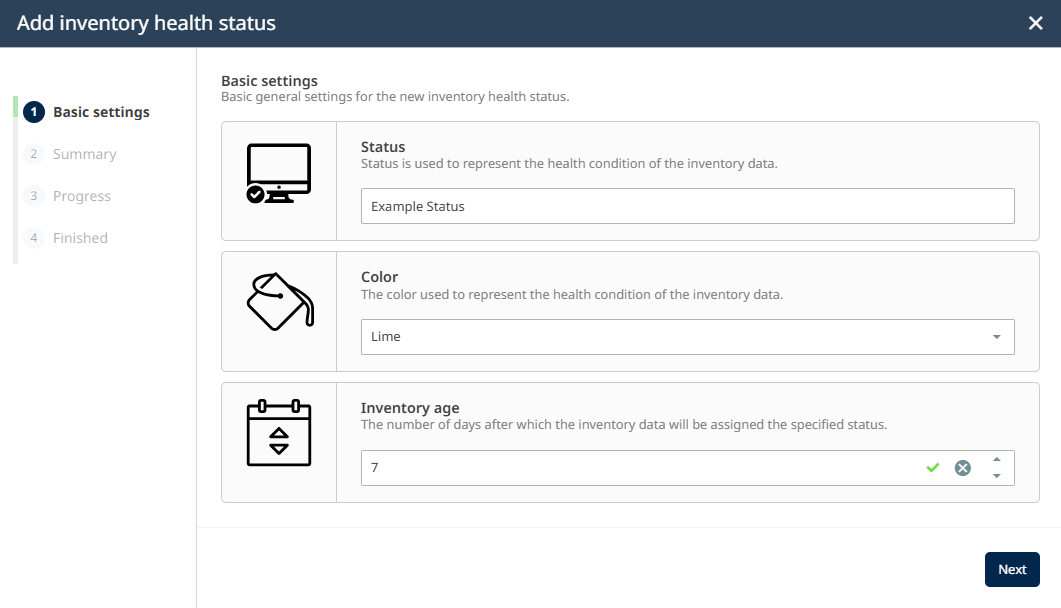
The Add inventory health status wizard showing the Basic settings step with Status, Color, and Inventory age fields.
Step: Summary
The summary step displays all configured values for review before creation. Verify the status name, color, and inventory age, then click Finish to save the new inventory health status. A confirmation message is shown when the status is created successfully.
Edit inventory health status
To edit an existing inventory health status, click the corresponding row in the grid. The Edit inventory health status dialog opens and allows you to modify the Status, Color, and Inventory age values. Click Save to apply the changes. The same uniqueness rules apply as when adding a new status.
Delete inventory health status
To delete an inventory health status, use the delete action on the corresponding row. If the selected status is currently assigned to one or more devices, a confirmation dialog informs you that the related devices will be affected. Confirm to remove the status. The status is removed from the system and the affected devices are re-evaluated on the next run of the Update Device Inventory Health Status background task.