IT landscapes can be complex, and multi-location environments are common. Your IT landscape may cover many IT assets in different locations or organizational boundaries. To precisely allocate assets and assign jobs to them, the platform includes a scope management function called Scopes.
Scopes represent deduplication boundaries within your IT environment. When assets are discovered through different means or runners, scopes help determine which assets should be treated as identical and which should remain separate. This is particularly useful for managing complex IT landscapes with multiple locations, network segments, or organizational boundaries.
By default, there is a scope named Default Scope added to your environment. It is used during the initial Self-Service Portal (SSP) process to group any assets that were found in your environment.
In the Scopes view, you can perform the following actions:
•add new scopes (deduplication boundaries) to the scopes list
•assign runners to specific scopes
•remove redundant or outdated scopes
Key Benefits of Scopes:
•Deduplication Control: Assets discovered within the same scope are compared for deduplication, while assets in different scopes remain separate.
•Runner Assignment: Runners can be assigned to specific scopes, allowing targeted discovery and inventory operations.
•Organizational Flexibility: Scopes provide flexibility in organizing your IT landscape according to physical locations, network boundaries, or business units.
The Scopes view displays all available deduplication scopes at a glance, allowing you to manage scope definitions and runner assignments.
Access: Open Configuration > Discovery & Inventory > Deduplication in the left sidebar. The Scopes page is available in all environments and is not restricted to multi-scope configurations. It also includes the scope mode selector, which controls whether the platform operates in single-scope or multi-scope mode.
Deduplication Settings
The Deduplication Settings section provides controls for managing how the deduplication engine resolves conflicting data from multiple sources. Access these settings at Discovery & Import > Import > Deduplication settings.
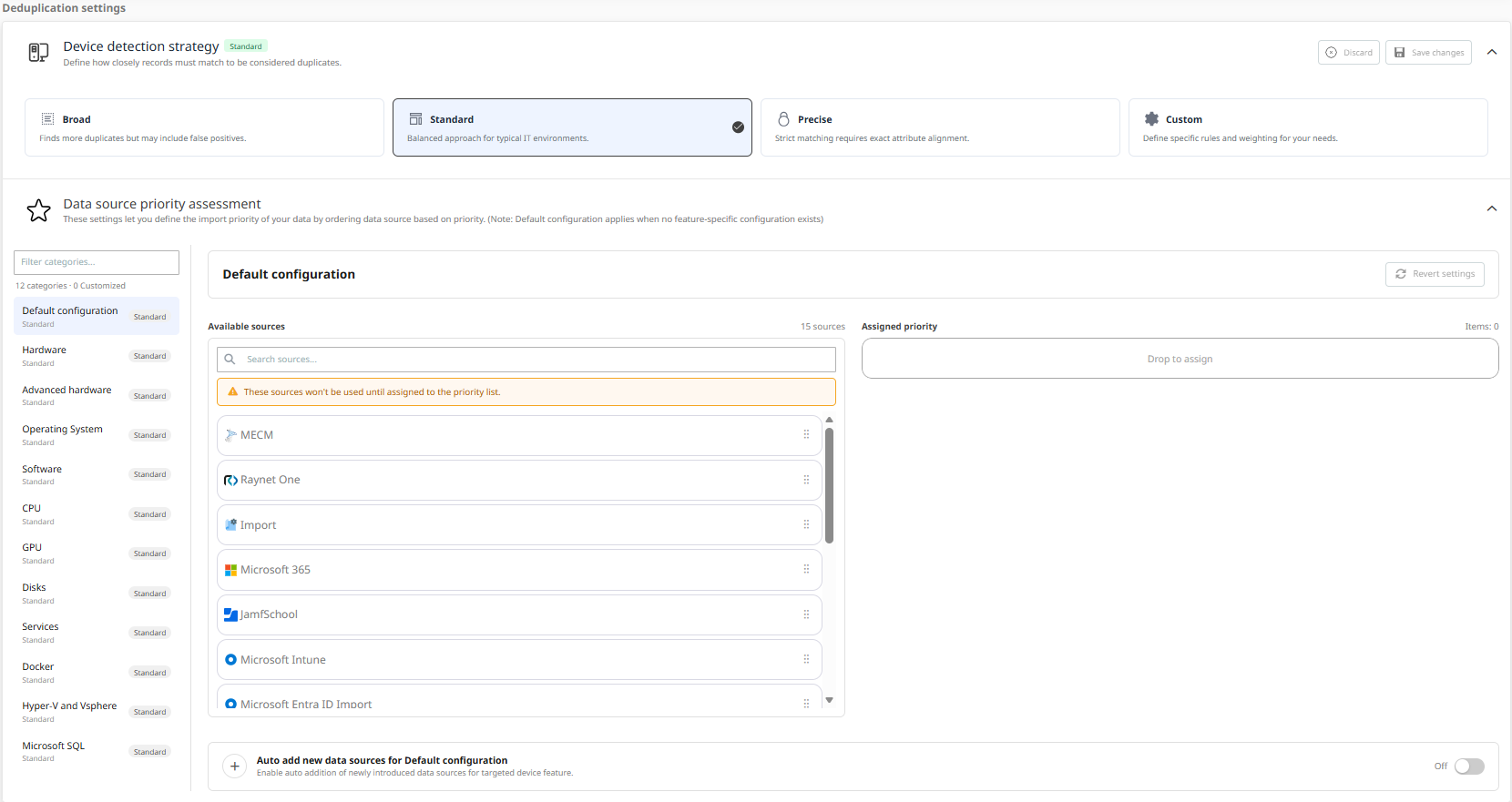
Device Detection Strategy
The Device Detection Strategy determines how closely records must match to be identified as duplicates. Four strategy options are available:
•Broad: Applies relaxed matching criteria to find the maximum number of duplicates. Best suited for environments with inconsistent data quality where higher recall is preferred over precision. This option may produce false positives.
•Standard: Provides a balanced approach suitable for typical IT environments. This is the default setting and requires no adjustment in most deployments.
•Precise: Applies strict matching that requires exact attribute alignment. Choose this option when data quality is high and false positives must be avoided.
•Custom: Allows administrators to define specific field weights, matching thresholds, and similarity criteria to meet the requirements of a unique environment. Selecting this option enables the Field Weight and Field Matching sub-panels for fine-grained configuration.
The currently active strategy is shown as a badge on the Device Detection Strategy section header. A Custom badge is shown when values have been modified from a preset. Use Discard to revert unsaved changes or Save changes to apply them.
Data Source Priority Assessment
The Data Source Priority Assessment panel determines which data source takes precedence when conflicting values are detected for the same asset field. Configuration can be defined per device feature type using the dropdown selector: Default configuration, Hardware, Advanced hardware, Software, CPU, GPU, Services, Disks, Operating System, Docker, Hyper-V and vSphere, and Microsoft SQL.
The panel uses a two-column layout:
•Available sources: Lists all data sources that are registered in the environment but have not yet been added to the active priority configuration for the selected feature type. Sources listed here do not participate in conflict resolution until they are assigned. A search field is provided to filter available sources by name.
•Assigned priority: Lists the data sources that are actively used for conflict resolution in their current priority order. The source at the top of the list has the highest priority. When two sources report conflicting values for the same field, the value from the higher-priority source is used.
Drag-and-drop: To add a source from the Available sources list to the active priority configuration, drag it from the Available sources panel and drop it onto the Assigned priority panel. To reorder sources within the Assigned priority list, drag items to the desired position. The topmost position indicates the highest priority. To remove a source, click its remove button; the source returns to the Available sources panel.
Auto add new data sources for Default configuration: A toggle control located below the priority lists. When enabled, any newly registered data source is automatically appended to the end of the Assigned priority list for the Default configuration. This ensures that new sources are included in conflict resolution without requiring manual assignment. When disabled, newly added sources appear only in the Available sources panel and must be assigned manually.
Note: Feature-specific configurations (such as Hardware or Software) inherit their settings from the Default configuration unless they have been explicitly customized. If a feature-specific configuration was modified and should revert to inheriting the default, an information banner appears with a Revert Settings button to restore the inherited behavior.
Field-Level Conflict Resolution
For each tracked asset field, you can configure which data source wins in a conflict, or apply the global source priority order. Field-specific overrides take precedence over the global Assigned priority order for the fields where they are defined. Three merge strategies are available per field: Coalesce (use the first non-empty value from the priority order), Overwrite (always use the highest-priority source, even if the value is empty), and Ignore (exclude the field from conflict resolution).
Reconciliation Trace
The reconciliation trace is a read-only view available per asset record. It shows which data source provided the value for each field and which deduplication rule was applied during the last reconciliation run. Use this view to audit and verify deduplication outcomes for individual records.