The Focus view narrows down the records shown in the following License Management lists:
Focus view combines two things: filters, which hold the purchases, technical products, commercial products and manufacturers you want to focus on, and a rule per list, which defines how these filters are combined with And/Or logic. The configuration is personal: it is stored per user and kept across sessions. The filters act on each list through the linked purchases, products and manufacturers of its records.
The Focus view button
The Focus view button is located in the toolbar of each supported list. Its appearance shows whether the list is currently filtered:
•Inactive: No filter is enabled with assigned items. The button has its default style and the list shows all records.
•Active: At least one filter is enabled and has assigned items. The button is highlighted and a badge shows the number of these filters.
Using the Focus view dropdown
Click the Focus view button to open the dropdown. It contains:
•Rules: The rule of the current list, shown read-only as a tree of And/Or groups and filter types.
•Filters: One entry per filter that has assigned items, with the number of items and an Enabled/Disabled switch. Changing the switch takes effect immediately and is saved automatically.
•Change focus settings...: Opens the Focus view settings page.
A filter enabled or disabled here applies to all supported lists, not only to the current one.
Focus view settings page
To open the settings page, click Focus view in the toolbar of a supported list and then Change focus settings... at the bottom of the dropdown. The page has the following tabs:
•Overview: Lists all filters that have assigned items, each with the number of items and an Enabled/Disabled switch. Use Add to assign items to a filter type that has none yet.
•Rules: Defines the rule for each supported list. See Configuring filter rules below.
•Purchases, Technical products, Commercial products, Manufacturers: One tab per filter, shown once the filter has assigned items. Use these tabs to add or remove items.
There is no global on/off switch for Focus view. Disabling a filter removes it from all lists, while its assigned items are kept and the filter can be enabled again at any time.
 |
Best practice: |
Configuring filter rules
The Rules tab defines how the filters are combined on each list. It contains one section per list: Documents (the Purchases list), Calendar, Entitlements and Compliance. Each section shows the current rule of that list. The rules are independent: changing the rule of one list does not affect the others.
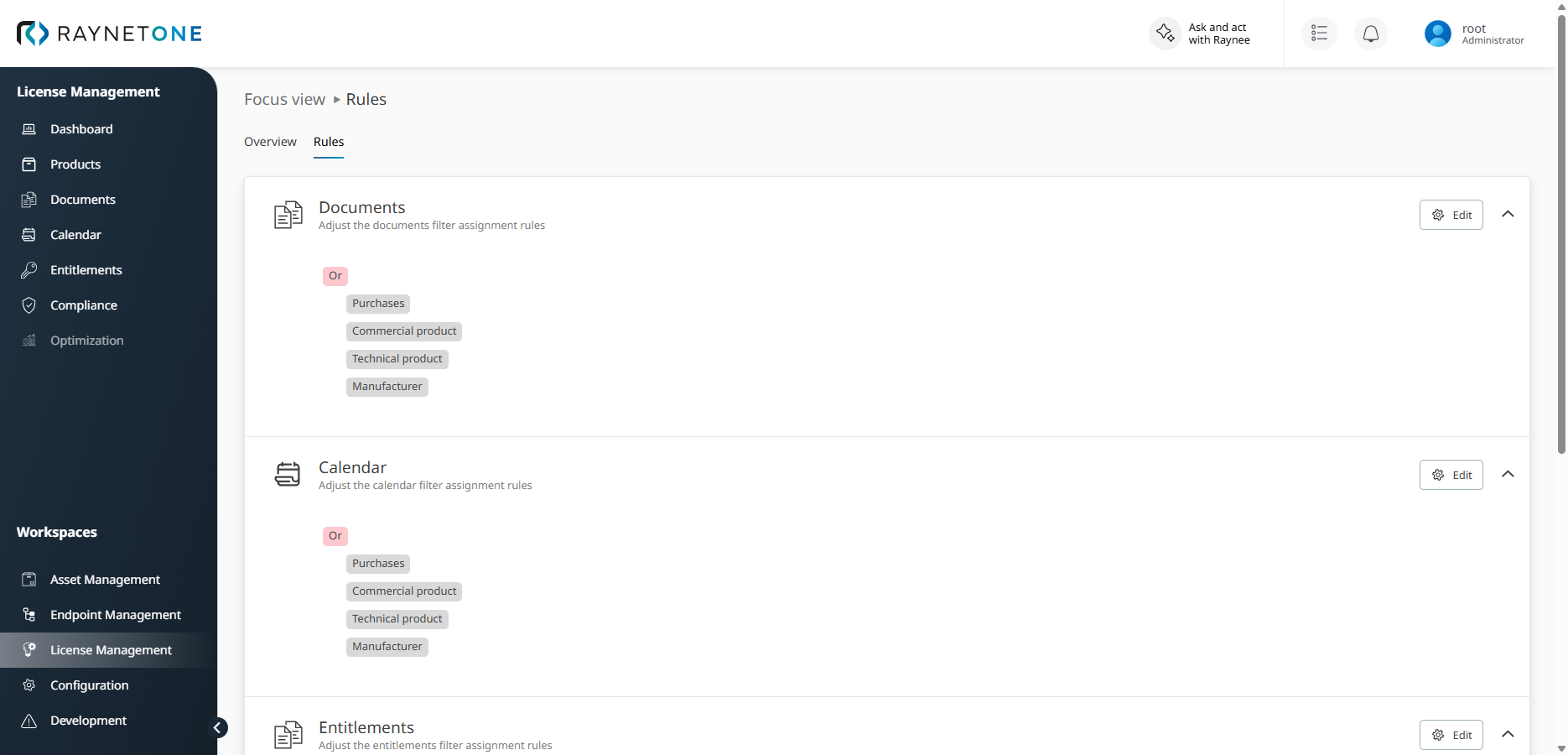
Every list starts with a default rule: an Or group containing all four filter types. With this rule, a record is shown if it matches at least one enabled filter, for example if it belongs to an assigned purchase or to an assigned manufacturer.
Editing a rule
To change the rule of a list, click Edit in its section. The Configure focus view rule set dialog opens and shows the current rule.
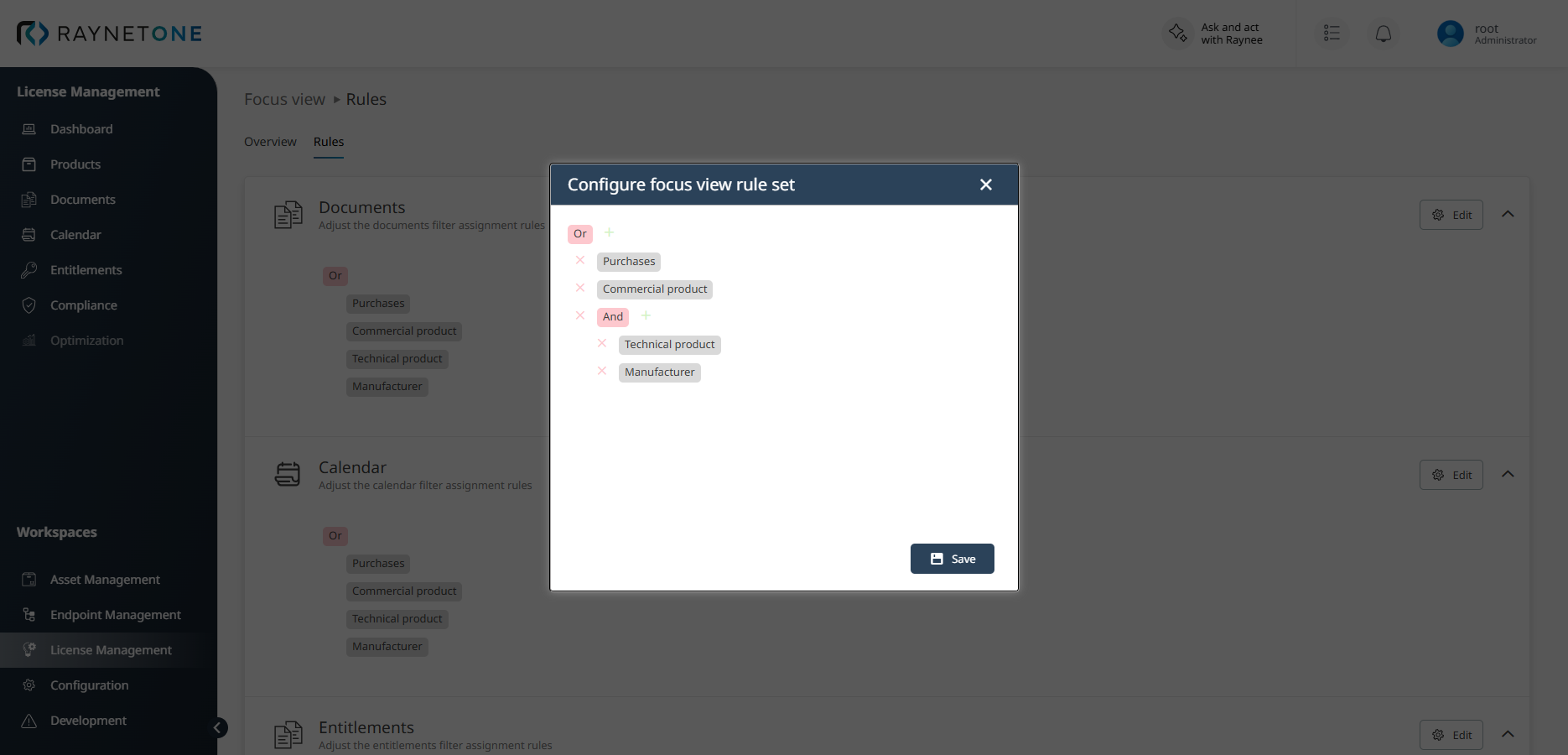
A rule consists of conditions and groups:
•Condition: One filter type: Purchases, Technical product, Commercial product or Manufacturer. A record matches the condition if it is linked to one of the items assigned to that filter.
•Group: Combines conditions and nested groups with And (a record must match all of them) or Or (a record must match at least one of them). Click the operator of a group to switch between And and Or.
Use the plus icon next to a group to add a condition or a nested group, and the cross icon to remove an entry. Click Save to apply the rule to the list. The rule is rejected in the following cases:
•The rule is empty (Filter cannot be empty.).
•A filter type is used more than once. Each filter type may appear only once in the whole rule, including nested groups (Duplicate filter values are not allowed.).
|
Note: |
