The Compliance by allocation tab shows the compliance values of the selected product per resource group. Use it to see in which resource groups a product is over- or under-licensed.
Open the tab with Workspaces > License Management > Compliance, click a product row and select Compliance by allocation. The tab is only shown when the compliance record has allocation records. Only resource groups that you can access by permissions are listed.
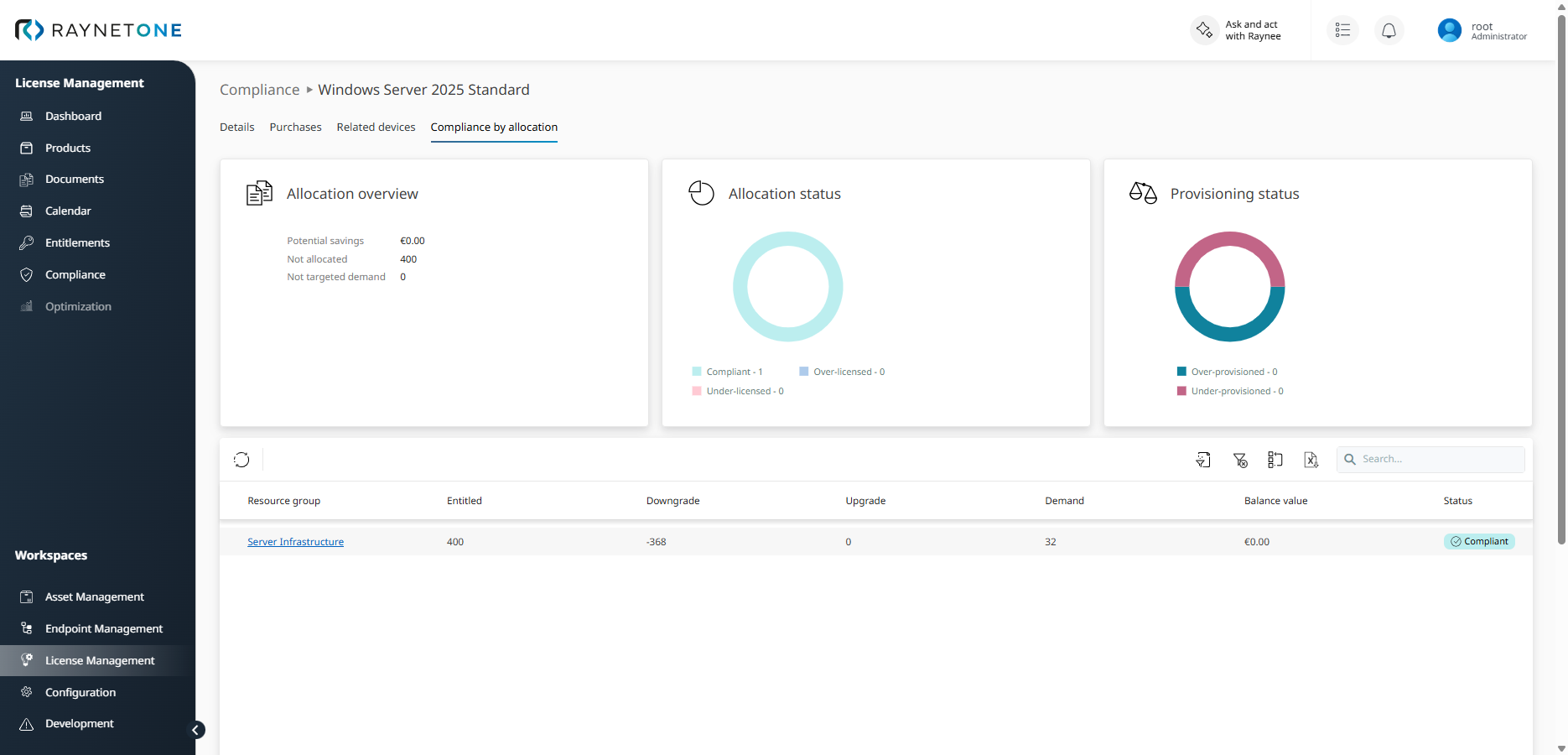
Allocation overview
VALUE |
MEANING |
|---|---|
Potential savings |
Value of the surplus in resource groups with a positive balance: unit price multiplied by the balance and the pricing period, converted to your currency. |
Not allocated |
Entitled quantity of the compliance record that is not assigned to any resource group. |
Not targeted demand |
Demand of the compliance record that is not covered by any resource group allocation. |
Charts
•Allocation status: Number of resource groups that are Compliant, Over-licensed or Under-licensed.
•Provisioning status: Sum of the licenses that are over-provisioned (positive balances) and under-provisioned (negative balances) across the resource groups.
Resource group list
The grid lists one row per resource group with Resource group, Entitled, Downgrade, Upgrade, Demand, Balance value and Status. Balance and Usage are hidden by default. The maintenance columns Maintenance balance, Maintenance entitled, Maintenance downgrade and Maintenance upgrade are also hidden by default. Show them with the column chooser. The calculation is described in License compliance calculation.
|
Note: |
