The Entitlements section in the License Management workspace shows all operational license entitlements currently stored in Raynet One. An entitlement defines what is licensed for a product, including the license model, metric, quantity, and validity period. This data is used for allocation, reconciliation, ELP calculation, and compliance reporting.
Entitlements are usually generated from purchases. The purchase is the commercial source, while the entitlement is the operational object used by license management processes. Incomplete or incorrect entitlement data can make allocation results, ELP values, and compliance evaluations unreliable.
License model and License metric are especially critical. They determine entitlement identity, generation, linking, and processing. Changing these values may affect existing assignments and downstream compliance results.
Creating entitlements
In Raynet One, entitlements can be created manually or generated automatically from purchases. In the standard workflow, purchase-driven entitlement creation is the preferred approach because it preserves source traceability and supports consistent lifecycle processing.
Manual entitlement creation should only be used if no corresponding purchase exists in the system.
Purchase-driven entitlement creation
When a purchase is created and its product data is saved, Raynet One automatically generates the corresponding entitlement. The fields License model and License metric are mandatory for correct entitlement generation and assignment. Together, these values help determine which entitlement is created or linked.
Depending on the purchased license rights and the applicable product terms, Raynet One may create or link separate Perpetual and Maintenance entitlements. The selected license model must reflect the rights documented in the corresponding purchase.
Some products require a dedicated Maintenance entitlement, while for others a Perpetual entitlement is sufficient.
|
Be aware: |

Entitlement lifecycle and automatic events
Purchase and entitlement data is used to generate lifecycle events automatically. The values defined for License start and License end determine when an entitlement becomes valid, when its validity
ends, and which related events appear in the Calendar.
License start
When an entitlement is linked and License start is defined, Raynet One creates a purchase-related event. For the first purchase of an entitlement, the system creates a Purchased Event.
If an additional purchase is recorded for the same entitlement later, the system creates a Purchased Renewal instead. This behavior applies to both purchase processing and entitlement lifecycle tracking.
License end
The License end date defines the end of the entitlement validity period. It is also used for expiration-related event handling, including:
•License Expiration Warning
•License End Event
On the last valid day, the final expiration state is reached. After the defined end date, the entitlement is no longer considered valid for further license coverage.
|
Be aware: |
 |
Best practice: |
Accessing entitlements
Access via Workspaces > License Management > Entitlements.
In the Entitlements tab, you can view all entitlement records in a single list. Each row shows the attributes that are relevant for license availability and compliance: product, name, license model, license metric, quantity, allocated quantity, remaining quantity, validity dates, and other values used for compliance processing.
The following figure shows the Entitlements tab with the entitlement list and the available toolbar actions.
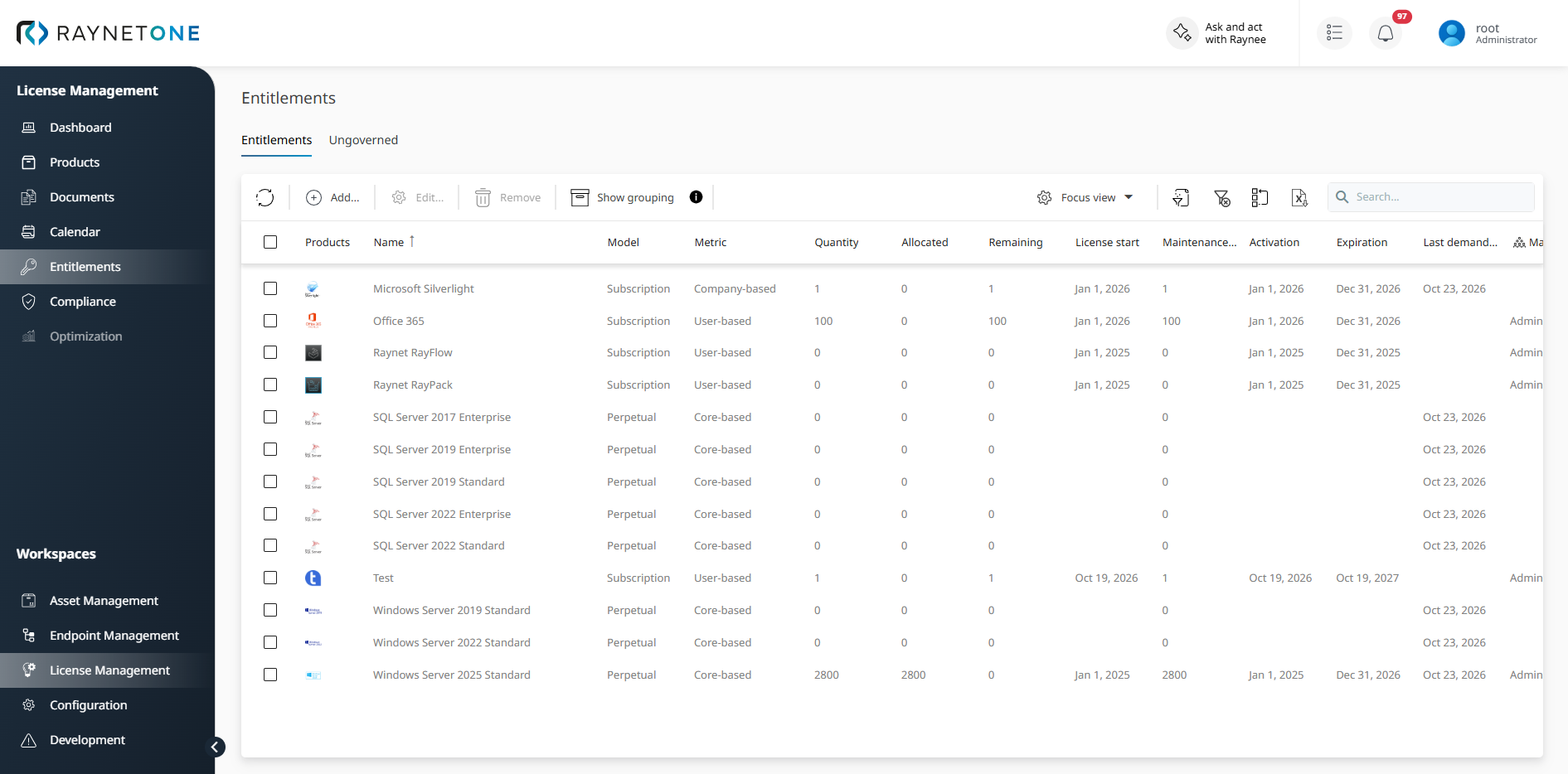
The Entitlements tab displays entitlement records in a list. Each row represents one entitlement. The following columns describe the visible entitlement data:
COLUMN |
DESCRIPTION |
|---|---|
Products |
Product associated with the entitlement. A vendor icon is displayed if available. Products are typically created and maintained through purchases. |
Name |
Display name of the entitlement record. |
Model |
License model assigned to the entitlement, for example, Perpetual, Subscription, or Maintenance. The selected model is part of the entitlement definition and influences entitlement assignment. |
Metric |
License metric used for counting, for example Core-based, Device-based, User-based, or Unlimited. Together with the license model, the metric determines how the entitlement is identified and processed. |
Quantity |
Total licensed quantity stored for the entitlement. When the license agreement grants unrestricted use rights, the quantity can be set to Unlimited. An unlimited entitlement has no fixed quantity limit and covers any number of devices, users, or cores within the scope of the agreement. |
Allocated |
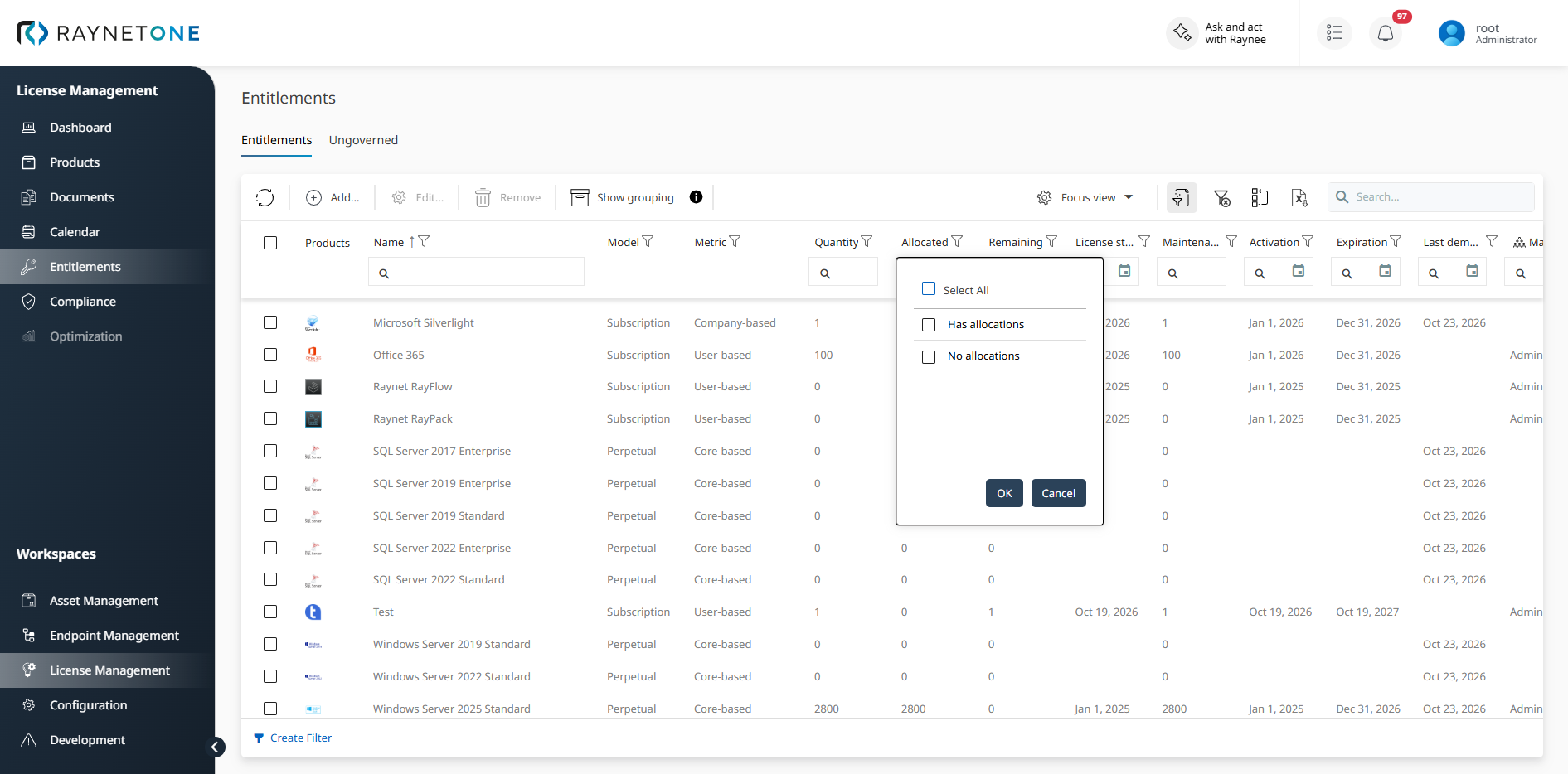
Quantity currently assigned to resource groups. These licenses will only be used for devices that are inside of these resource groups. When the Filter toolbar action is active, the column header provides a dedicated filter with the options Has allocations and No allocations. Numeric filtering is also supported. |
Remaining |
Unallocated quantity, meaning quantity that is not assigned to any resource groups. The Remaining value is calculated from Quantity minus Allocated and can be used for open demand in the system. Numeric filtering is supported for this column. |
Resource groups |
Number of resource groups assigned to this entitlement. This column is hidden by default and can be shown using the column chooser. |
Cover group name |
Name of the cover group the entitlement belongs to. Entitlements of the same cover group can share licenses with each other. This column is hidden by default and can be shown using the column chooser. |
License start |
Start date of the entitlement validity period. |
Maintenance quantity |
Quantity covered by maintenance or Software Assurance. |
Activation |
Date on which the entitlement became active in the system. |
Expiration |
End date of the entitlement validity period. If no expiration date is defined, the entitlement is treated as non-expiring in the record. |
Last demand synchronization |
Timestamp of the most recent synchronization with license demand data. |
Managed by |
Name of the user group that is responsible for the entitlement. The cell is empty if no user group is assigned or if you do not have access to the assigned user group. |
The following figure shows the header filter of the Allocated column. Select Has allocations to show only entitlements with quantity assigned to resource groups, or No allocations to show only entitlements without allocations. The selected filter is kept together with the other column settings of the list.
The Entitlements overview toolbar provides the following actions:
ACTION |
DESCRIPTION |
|---|---|
Refresh |
Reloads the list using the latest available data. |
Add |
Creates a new entitlement record manually. |
Edit |
Modifies the selected entitlement. |
Remove |
Deletes the selected entitlement. |
Filter |
Filter for required items. |
Export |
Export the Entitlements view. |
Search |
Filters the list using a text search. |
Show grouping / Remove grouping |
Toggles the product family grouping mode. When grouping is enabled, entitlements belonging to the same product family are displayed as collapsible groups, with each individual entitlement shown as a child row beneath the product family name. Click Show grouping to enable the grouped view; click Remove grouping to return to the flat list. The grouping state does not persist between sessions. |
The Ungoverned tab lists commercial software products discovered in your environment that have no corresponding purchase or entitlement yet. From here you can directly create entitlements for these products to bring them under governance. The list shows product name, edition, vendor, and number of installations. Expand a row to view version details.
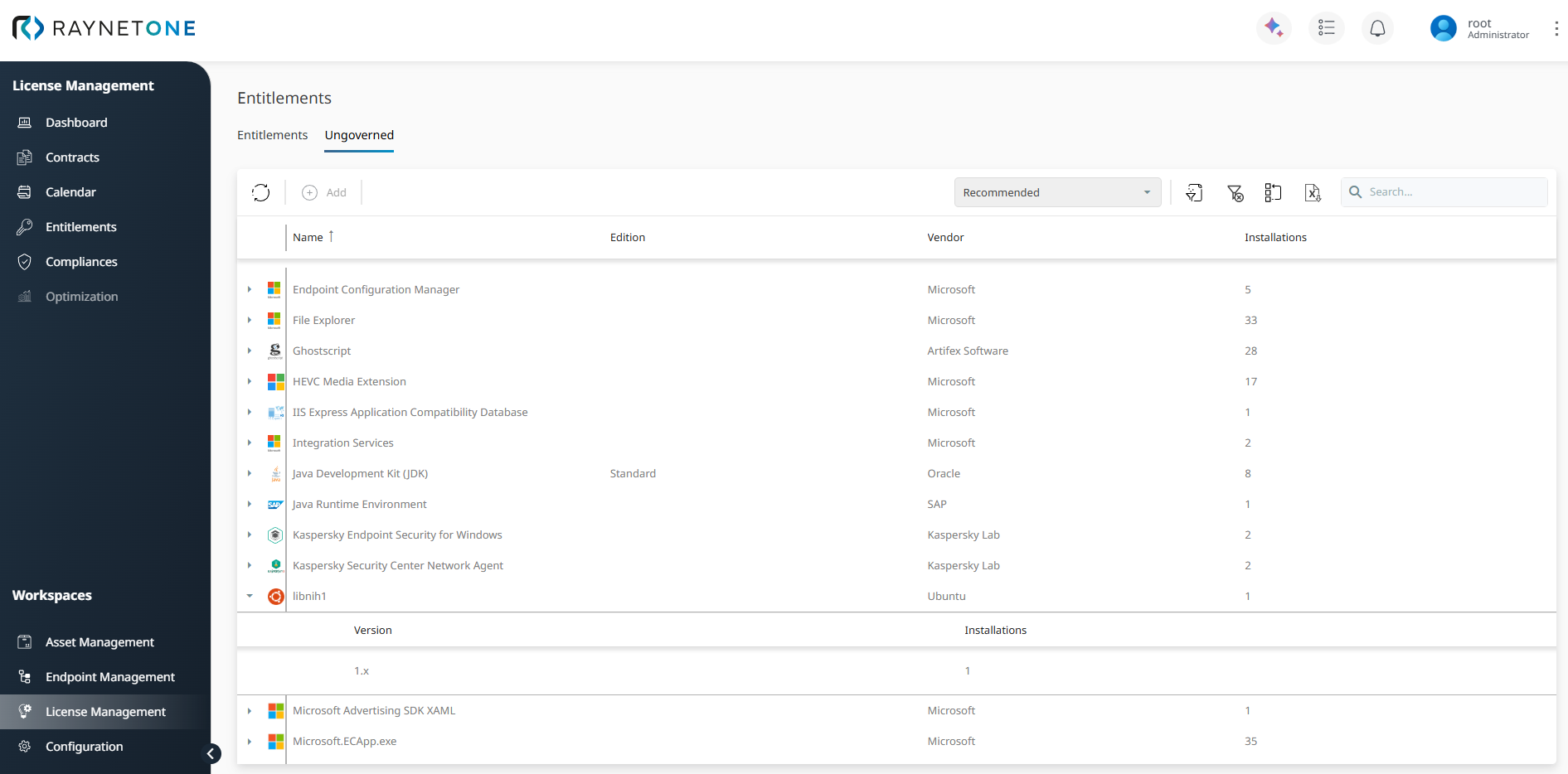
Ungoverned tab showing detected products that can be converted into entitlements.
Create an entitlement from an ungoverned product
To create an entitlement from an ungoverned product:
1.Open the Ungoverned tab.
2.Select the product from the list.
3.Click Add in the toolbar.
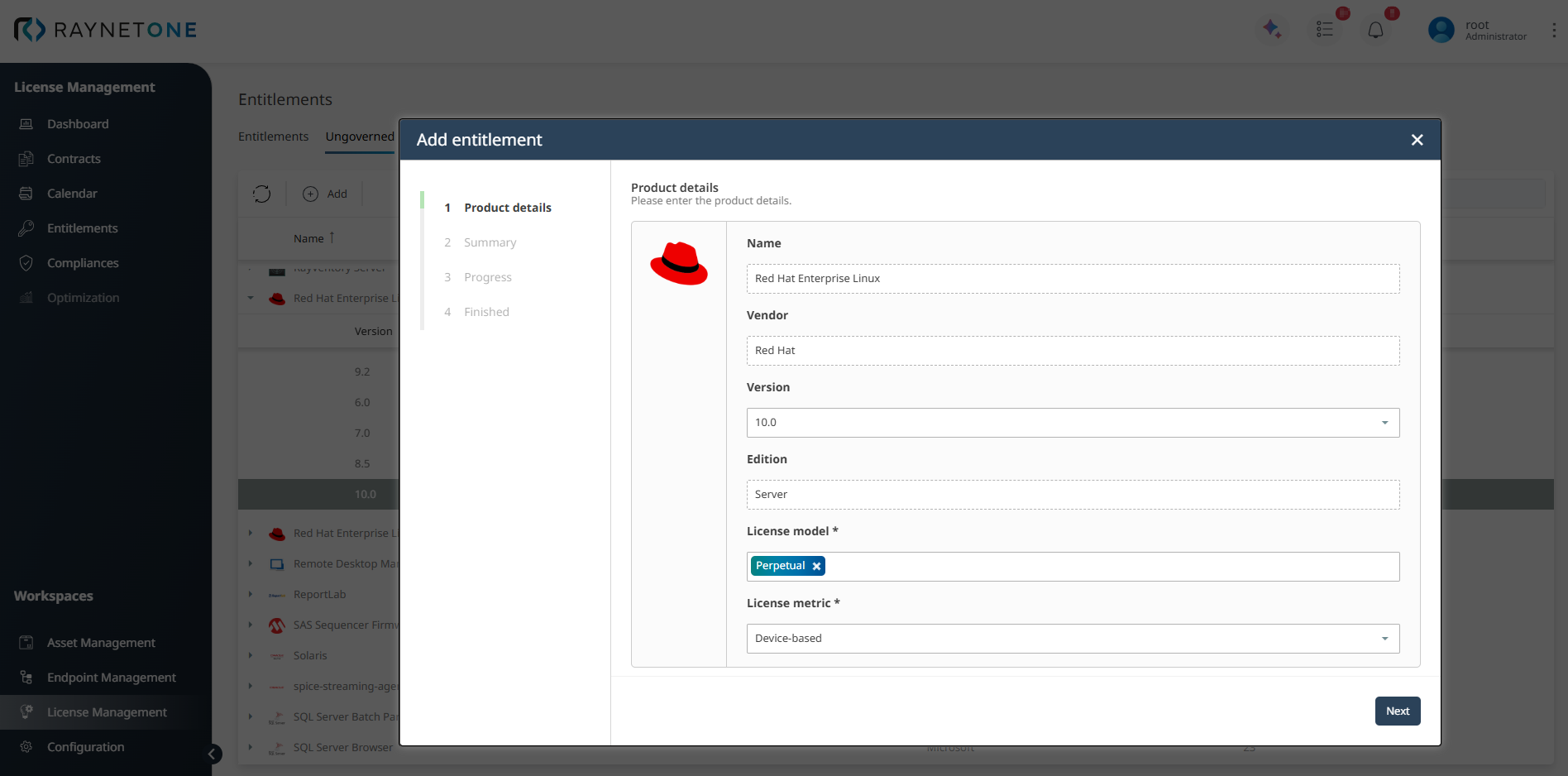
4.In Product details, verify the prefilled Name and Vendor values.
5.Complete or verify the remaining license information: Version, Edition, License model, and License metric.
6.Click Next.
7.In Summary, review the selected product and license information.
8.Click Create to proceed, or Back to return to the previous step.
9.Wait while the request is processed in Progress.
10.In Finished, confirm that the entitlement has been created and click Finish.
The new entitlement is then available in the Entitlements overview and can be used for license management processes such as allocation, reconciliation, and compliance calculation.
Edit and allocate entitlements
After an entitlement has been created or generated, you can edit it in the Entitlements section to maintain license allocation and responsibility settings.
Allocating licenses defines how the entitlement quantity is assigned to operational scopes such as resource groups and responsible teams. This makes the allocated and remaining quantities visible and turns the entitlement from a stored license right into an actively managed assignment.
|
Note: A resource group must already exist in Configuration > Resource groups before it can be selected in the License allocation step. |

Allocate licenses to an entitlement
To allocate licenses for an existing entitlement:
1.Open the entitlement.
2.Click Edit.
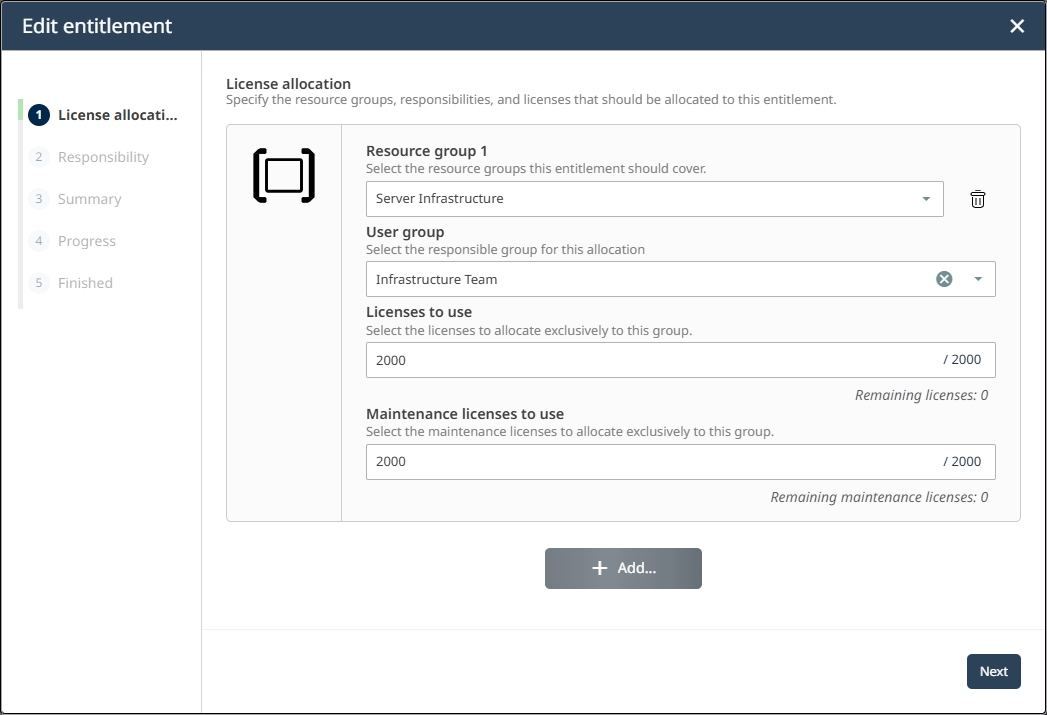
3.In License allocation, select the resource group.
4.Assign the user group.
5.In the Licenses to use field, enter the number of perpetual licenses to allocate to the selected resource group. The Remaining licenses counter shows how many licenses are still available. In the Maintenance licenses to use field. The Remaining maintenance licenses counter shows the available maintenance quantity. The maintenance licenses of a resource group cannot exceed its Licenses to use or the remaining maintenance quantity. When you change Licenses to use, the maintenance value is set to the highest value allowed. For Company-based entitlements, at most 1 maintenance license can be allocated. Only resource groups that you can access by permissions are listed. Licenses and maintenance licenses already allocated to resource groups you cannot access are deducted from the remaining counters, and the wizard shows a note with their quantity.
6.If required, click + Add to add another license allocation.
7.Click Next to continue to Responsibility.
8.Select the user group that should be responsible for the entitlement.
9.Click Next to continue to Summary.
10.Review the selected license allocation and responsibility. The summary shows the granted licenses and maintenance licenses for each resource group.
11.Continue through Progress while the system applies the change.
12.In Finished, confirm that the entitlement has been updated and click Finish.
When + Add is unavailable
If + Add is unavailable in the License allocation step, one of the following conditions applies:
CONDITION |
MEANING |
|---|---|
No licenses remaining |
All available licenses have been allocated. No further allocations can be added until the total quantity is increased or an existing allocation is reduced. |
All resource groups allocated |
All resource groups in the environment have already been added as allocations to this entitlement. |
Result after allocation update
After the wizard is completed, the entitlement record shows the updated allocation and responsibility data in the Details tab. For example, the Details tab can show you how many licenses are allocated, how many licenses remain available, and which user group is responsible for the entitlement.
The Price information section shows the costs of the entitlement:
•Latest unit price and Recurring unit price: The price per license from the latest purchase item, before discount. Only administrators can change it.
•Quantity: The number of licenses from the purchase items that are active today (quantity multiplied by license pack). With the metric Company based, the quantity is 1 if at least one purchase item is active. For Perpetual entitlements with maintenance, a separate Maintenance quantity is shown.
•Billing interval and Billing period: Shown for Subscription entitlements, taken from the purchase item.
•Total investment: The sum of the costs of the active purchase items of the entitlement, with discounts applied. Each item uses its own discount rate. If it has none, the discount rate of its purchase is used.
•Recurring total investment: Shown for Subscription entitlements and for Perpetual entitlements with a separate maintenance. It sums the active Subscription and Maintenance items, for example items billed annually, with the same discounts applied. A purchase item that combines Perpetual and Maintenance is counted in the Total investment only.
Because of the discounts, the total investment can differ from the unit price multiplied by the quantity. An entitlement has no discount rate of its own, as it can be linked to several purchases with different discount rates. The Total product cost column in the Purchases section shows the cost per purchase, including the discounts of the purchase and its items. For details on discount rates and amounts, see Purchase view.
Below Price information, additional sections such as License timeline, License allocations, and Purchases provide further entitlement context. The License timeline section shows the recorded lifecycle events of the entitlement over time. The License allocations section lists the allocations per resource group with the columns Resource group, Granted license, Granted maintenance license (granted quantity / available maintenance quantity), User group, Total cost and Permissions. Only resource groups that you can access by permissions are listed.
License status badge
The header of the entitlement record shows a color-coded license status badge next to the product name. The status is based on the license model and the validity dates of the entitlement:
•Active: Green badge. The license start date has been reached and the entitlement is valid.
•Inactive: Gray badge. The license start date is in the future or not set. Entitlements with the license model Maintenance always show this status.
•Expires in N days / Expires today: Yellow badge. A Subscription or Trial entitlement ends within the next 30 days.
•Expired: Red badge. The license end date of a Subscription or Trial entitlement has passed.
•Maintenance expires in N days / Maintenance expires today: Yellow badge. The maintenance of a Perpetual entitlement ends within the next 30 days.
•Maintenance expired: Orange badge. The maintenance end date of a Perpetual entitlement has passed. The perpetual license itself remains valid.

What you can verify here
From the Entitlements section, you can verify:
•Which products are covered by which active entitlements.
•Which license model and metric apply to each entitlement.
•Stored quantity vs. allocated vs. remaining quantity, including maintenance quantities where applicable.
•When the entitlement starts and expires.
•Which resource groups and user groups are assigned to the entitlement.
This makes the Entitlements section relevant for operational validation and for troubleshooting incorrect compliance results.
|
Best practice: |