The License allocations tab lists how the quantity of the entitlement is assigned to resource groups. Each row is one license allocation. Use it to check which resource groups can use the licenses of the entitlement and who is responsible for them.
Open the tab with Workspaces > License Management > Entitlements, select an entitlement and click License allocations. The tab is only shown when at least one license allocation exists for the entitlement in a resource group that you can access. Only resource groups that you can access by permissions are listed.
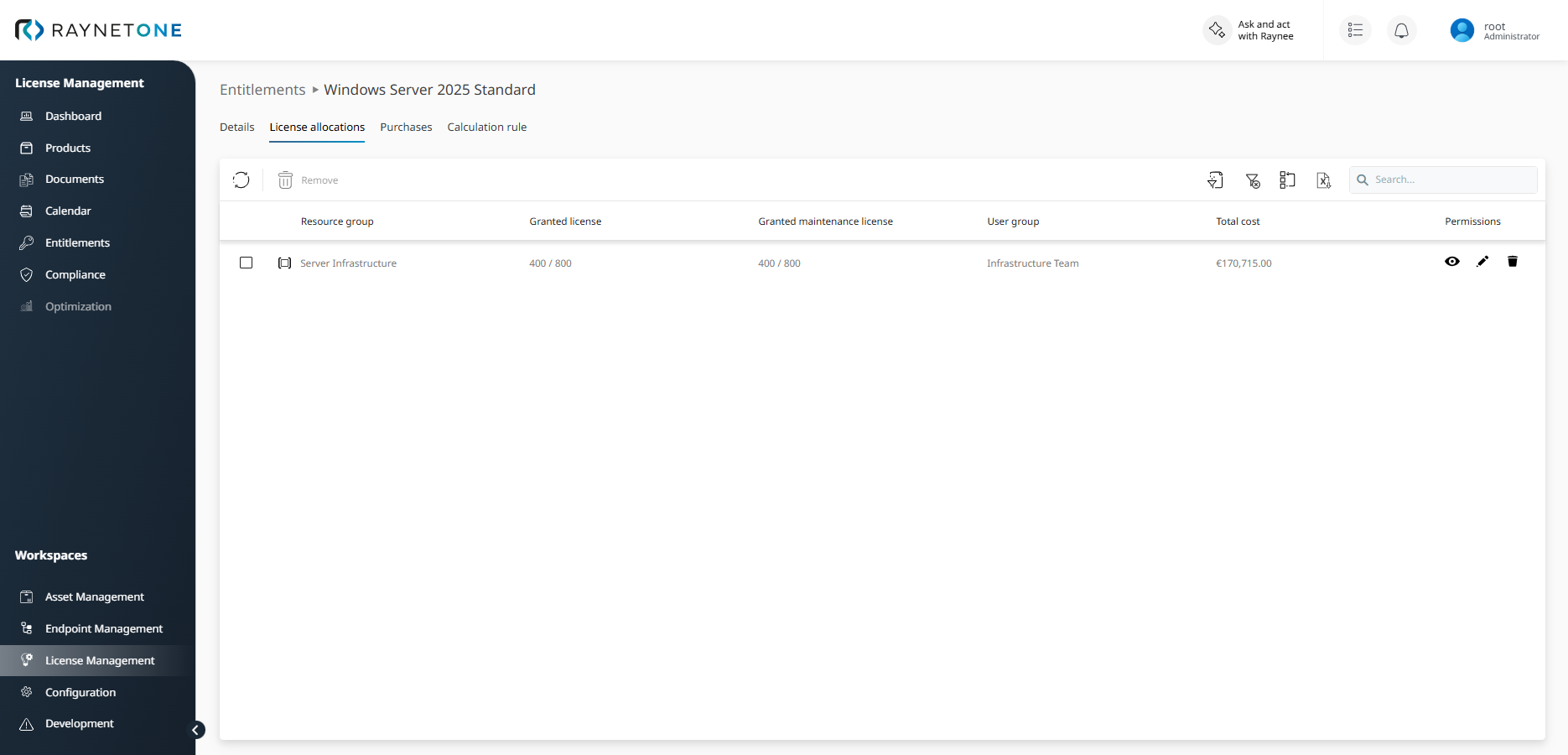
Columns
•Resource group: Resource group that receives the licenses.
•Granted license: Number of perpetual or subscription licenses allocated to the resource group.
•Granted maintenance license: Number of maintenance licenses allocated to the resource group, shown as granted quantity / available maintenance quantity.
•User group: User group that is responsible for the allocation.
•Total cost: Cost of the allocated licenses.
•Permissions: Your permissions on the allocation, shown as icons.
Available actions
The toolbar provides the following actions: Refresh, Remove, Filter, Clear filter, Column chooser, Export to Excel and Search. Remove is available when at least one row is selected.
Removing a license allocation
1.Select one or more allocations in the list.
2.Click Remove. The action requires the Delete permission on the allocation.
3.Confirm the question Are you sure you want to remove the selected license allocation? in the Remove license allocation dialog.
The licenses of a removed allocation become available again in the Remaining quantity of the entitlement. If you remove the last allocation, the tab disappears and the entitlement shows the Details tab.
Edit and allocate entitlements
After an entitlement has been created or generated, you can edit it in the Entitlements section to maintain license allocation and responsibility settings.
Allocating licenses defines how the entitlement quantity is assigned to operational scopes such as resource groups and responsible teams. This makes the allocated and remaining quantities visible and turns the entitlement from a stored license right into an actively managed assignment.
|
Note: A resource group must already exist in Configuration > Resource groups before it can be selected in the License allocation step. |

Allocate licenses to an entitlement
To allocate licenses for an existing entitlement:
1.Open the entitlement.
2.Click Edit.
3.In License allocation, select the resource group.
4.Assign the user group.
5.In the Licenses to use field, enter the number of perpetual licenses to allocate to the selected resource group. The Remaining licenses counter shows how many licenses are still available. In the Maintenance licenses to use field. The Remaining maintenance licenses counter shows the available maintenance quantity. The maintenance licenses of a resource group cannot exceed its Licenses to use or the remaining maintenance quantity. When you change Licenses to use, the maintenance value is set to the highest value allowed. For Company-based entitlements, at most 1 maintenance license can be allocated. Only resource groups that you can access by permissions are listed. Licenses and maintenance licenses already allocated to resource groups you cannot access are deducted from the remaining counters, and the wizard shows a note with their quantity.
6.If required, click + Add to add another license allocation.
7.Click Next to continue to Responsibility.
8.Select the user group that should be responsible for the entitlement.
9.Click Next to continue to Summary.
10.Review the selected license allocation and responsibility. The summary shows the granted licenses and maintenance licenses for each resource group.
11.Continue through Progress while the system applies the change.
12.In Finished, confirm that the entitlement has been updated and click Finish.
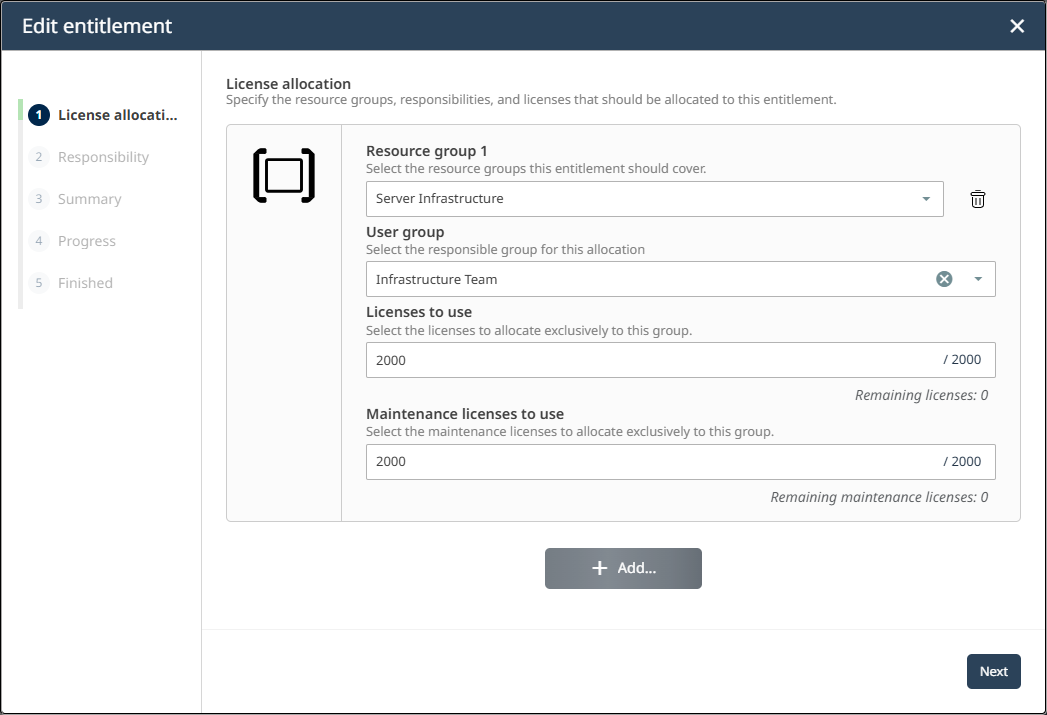
When + Add is unavailable
If + Add is unavailable in the License allocation step, one of the following conditions applies:
CONDITION |
MEANING |
|---|---|
No licenses remaining |
All available licenses have been allocated. No further allocations can be added until the total quantity is increased or an existing allocation is reduced. |
All resource groups allocated |
All resource groups in the environment have already been added as allocations to this entitlement. |
|
Note: |