Import from File starts after selecting Import from file in the Input selection step and clicking Next. This option allows you to upload a supported license contract document and let SAM AI extract the relevant contract and entitlement information.
2. Upload
Upload the license contract document that should be processed by SAM AI. Select the file you want to upload, or drag and drop it into the upload area.
Supported files: PDF, PNG, JPEG, TIFF.
Maximum file size: 10 MB.
After the file has been uploaded and processed successfully, the following message is displayed: Successfully extracted data.
Click Next to continue.
3. Verify data
Review the information extracted by SAM AI. The uploaded document is displayed next to the extracted fields so that you can compare the values with the original source document.
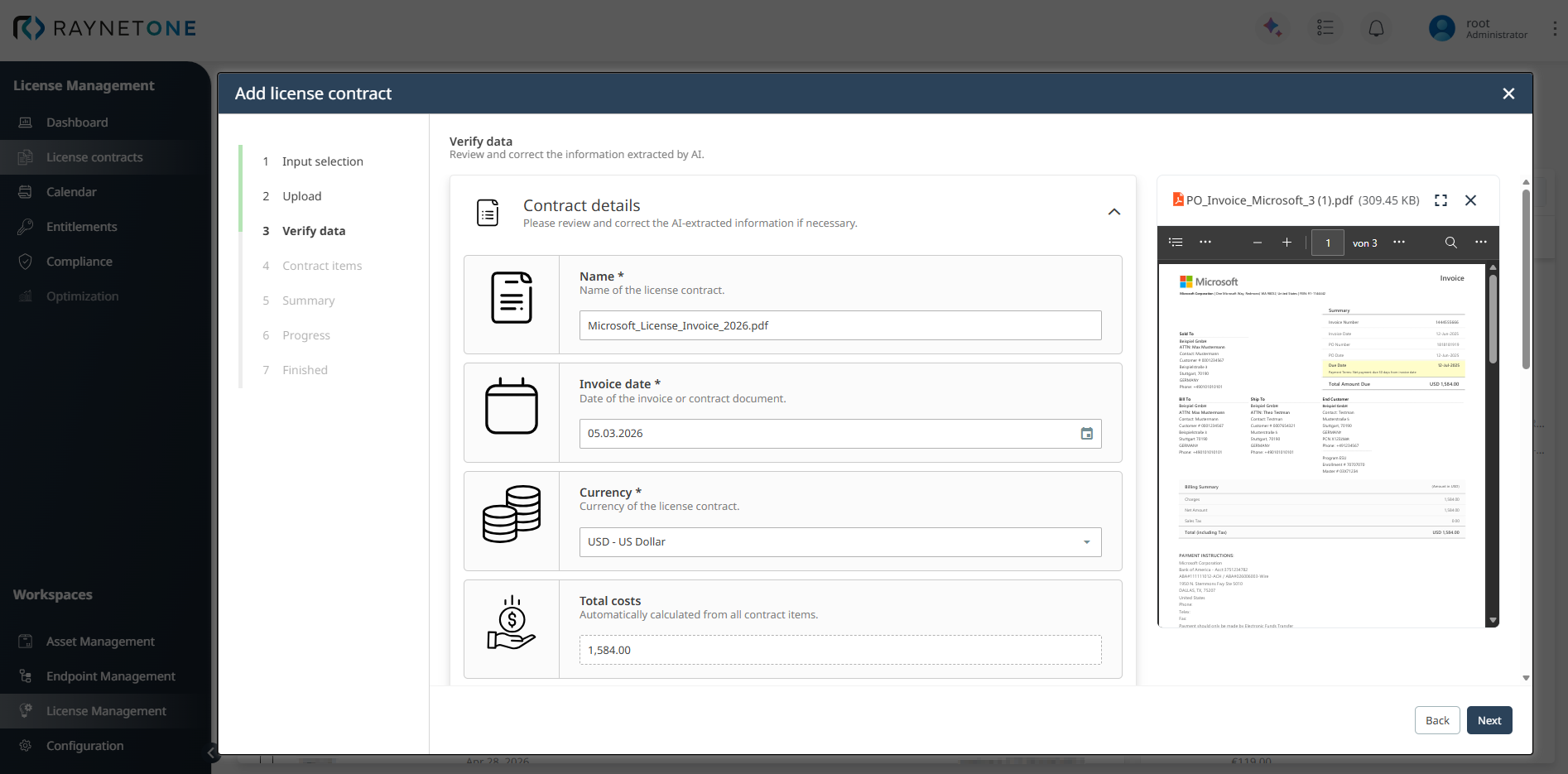
The following fields may be displayed:
•Name*: Name of the license contract.
•Invoice date*: Date of the invoice or contract document.
•Currency: Currency of the license contract.
•Total costs: Automatically calculated from all contract items.
•Customer: Organization or individual purchasing the license.
•Supplier: Organization or vendor providing the license.
•Contract ID: Unique identifier for this contract agreement.
•Invoice number: Billing document reference number.
•Purchase order (PO) number: Purchase order reference, if applicable.
•Enter order number: Sales order reference, if applicable.
•Quote number: Quote reference, if applicable.
Always verify the extracted values before continuing, especially dates, license metrics, quantities, and costs. After reviewing the extracted data, click Next.
4. Contract items
In the Contract items step, review and complete the contract items extracted from the uploaded file. A contract item defines the purchased license rights covered by the license contract and creates the corresponding entitlement.
SAM AI may display a confidence score for extracted contract items. This score indicates the confidence level of the extraction result and is not a completion progress indicator. Lower confidence scores indicate that the extracted values should be reviewed more carefully against the original document.
Click the settings icon on a contract item to review and complete its details.
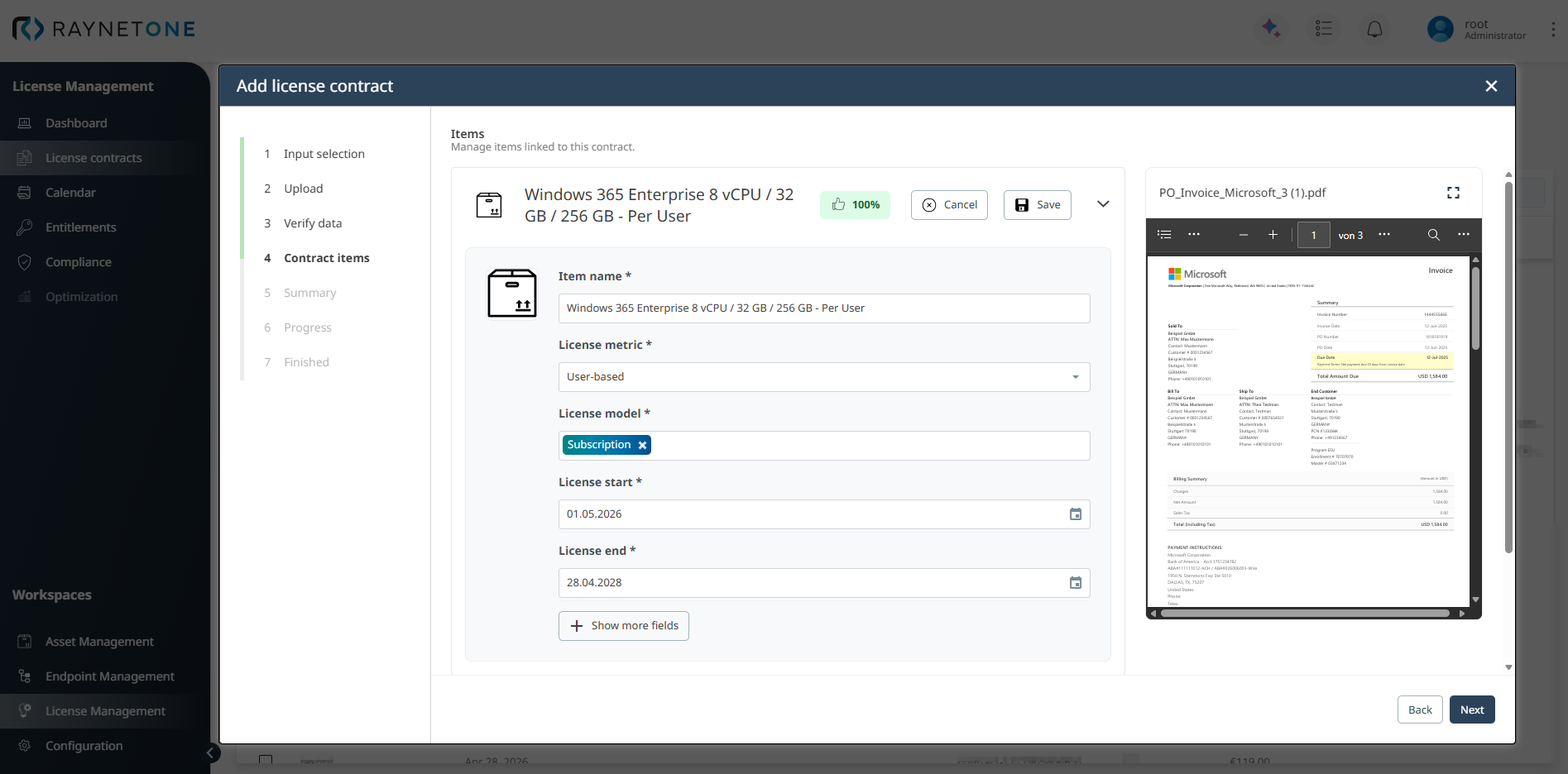
You can edit the following fields:
•Item name*: A descriptive name for the contract item.
•License metric*: Defines how licenses are counted and measured. This field directly impacts compliance calculations (e.g., Device-based, User-based, Core-based).
•License model*: The commercial model of the license (e.g., Perpetual, Subscription, Maintenance). This field determines which type of entitlement is created.
•License start*: Start date of the license entitlement. This date triggers the automatic generation of a Purchased Event in the Raynet One Calendar.
•License end*: End date of the license entitlement, subscription, maintenance period, or trial. The availability and requirement of this field depends on the selected license model.
Click + Show more fields to display additional fields.
•SKU: The manufacturer's stock keeping unit or product identifier.
•Product number: Additional internal or vendor-specific product number.
•License pack*: The packaging or bundle size of the license.
•Quantity*: Number of licenses or entitlements purchased.
•Currency: Currency of the contract item.
•Unit price*: Price per license or per item.
•Billing interval: Defines the billing interval for subscription-based licenses, such as monthly or yearly. This field is disabled if the selected license model is not Subscription.
•Billing period: Defines the billing period for subscription-based licenses. This field is disabled if the selected license model is not Subscription.
•Total cost: Automatically calculated based on unit price and quantity.
After reviewing and completing the contract item details, click Save.
Click the + Add button to add additional contract items if the contract covers multiple configurations.
 |
Best practice: |
After managing all contract items, click Next to continue to the Summary step.
5. Summary
In the Summary step, Raynet One displays a final overview of all contract details and linked contract items before submission.
You will see two main sections:
•License contract details: All header information (contract name, Contract ID, customer, supplier, invoice date, total costs, etc.).
•Items: A summary of all items linked to the contract, including configuration, quantity, and calculated costs.
Review all information carefully.
If changes are needed, click Back to return to the previous steps and update the information. If everything is correct, click Create to finalize and save the license contract.
6. Progress
After clicking Create in the Summary step, the wizard enters the Progress phase. Raynet One now processes the contract, validates entered data, links the defined entitlements, and performs initial analysis using SAM AI. This step usually completes within a few seconds and requires no further input from you.
7. Finished
Once processing is complete, the license contract is added to the LM system. At this point, the new contract and all its associated entitlements are available in the License Contracts overview and can be used for reconciliation, compliance tracking, and optimization.
Click Finish to close the wizard and return to the License Contracts list, or click View details to immediately open the detailed view of the newly created contract.
|
Best practice: |