Raynet One provides three flexible methods to add a new license contract. To start the wizard, open the License contracts overview, select the All contracts tab, and click Add in the toolbar. Choose the option that best matches the format of your available contract data.
Input selection
The wizard starts with the Input selection step. In this step, you choose how the license contract data should be added to the system.
The available options are:
•Manual entry: Best for full control when no digital document is available.
•Import from file: Fastest option when you have a PDF or another supported document. This option uses SAM AI for extraction.
•Enter text: Useful when you have raw text from a contract excerpt. This option is also AI-supported.
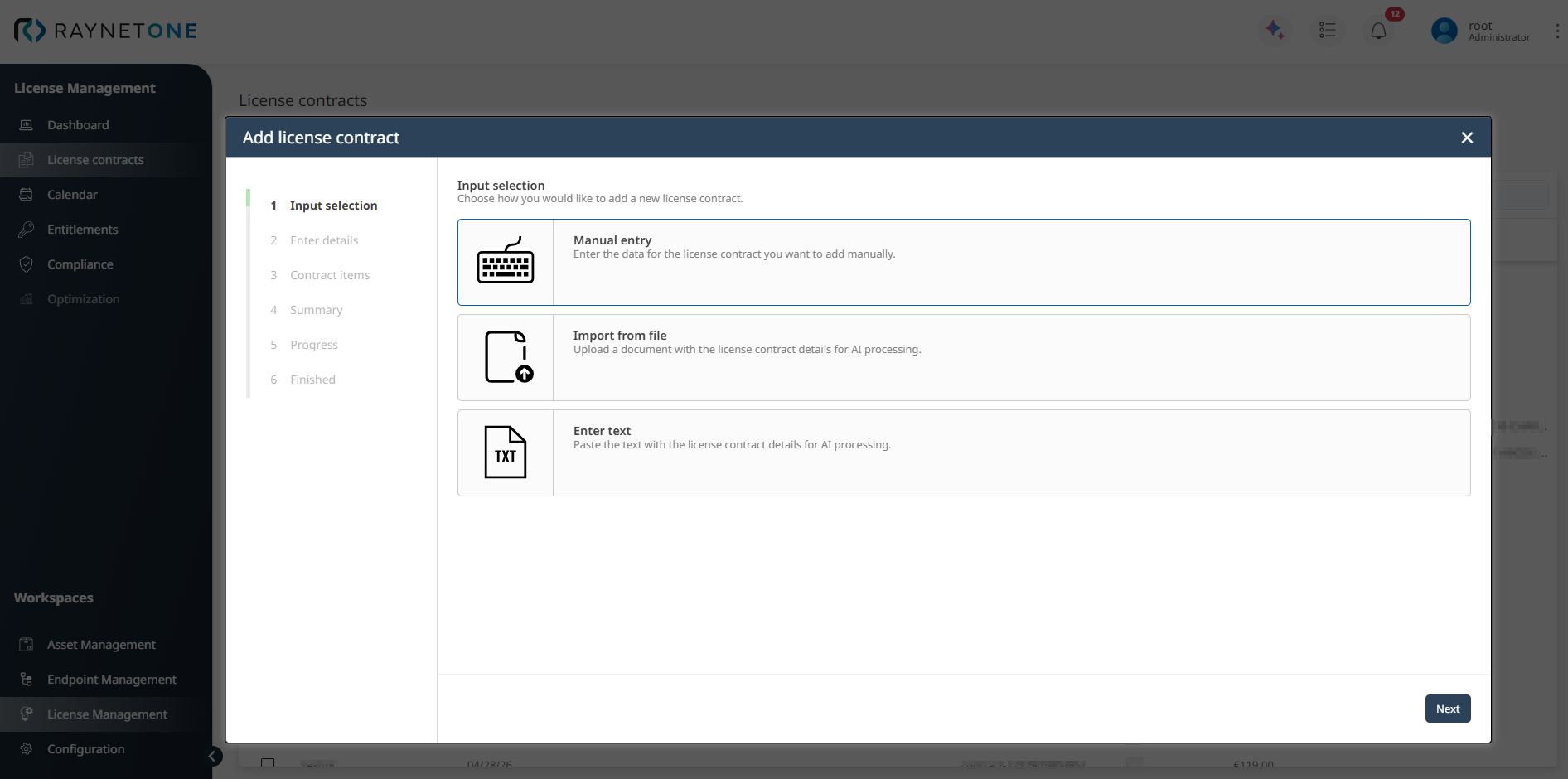
After selecting the preferred input method, click Next to continue with the wizard. The following subsections provide detailed step-by-step guidance for each method.
After successfully creating a license contract using any of the three methods, you can view the contract and its associated entitlements in two main places:
•In the License contracts overview: Click on the contract name to open the Details view. Switch to the Entitlements tab to see all linked entitlements.
•In the dedicated Entitlements section of the License Management workspace (via the left sidebar), where all entitlements across all contracts are listed and can be filtered or searched.
 |
Best practice: |