The Usage tab on a SaaS account details page shows how much and how recently the account has used each connected SaaS application. It aggregates activity data from all connected sources in a single view, making it easy to identify unused licenses and support license optimization decisions.
The tab sits next to the Details, Subscriptions, Groups, Sign-ins, and Devices tabs.
To open it, navigate to Asset Management > Cloud + SaaS > Accounts, select an account, then click the Usage tab.
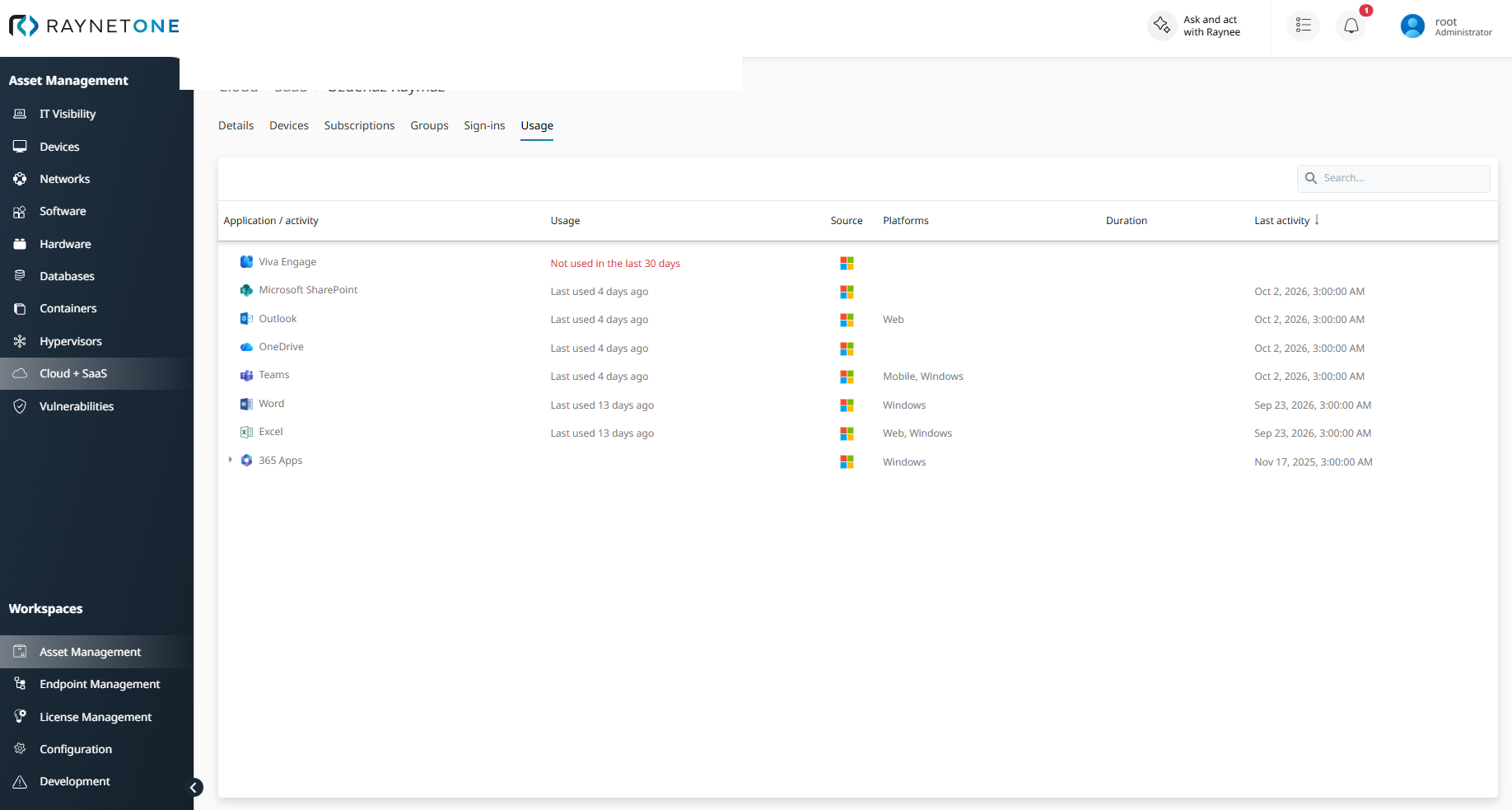
Tab layout
The tab displays an expandable two-level list. Each row at the top level represents a SaaS application and shows its logo and name. Expanding an application row reveals the individual activity rows recorded for that application.
The list can be searched and sorted. The default sort order is by Last activity, newest first.
Columns
The following columns are shown by default:
•Application / activity — the application name at the top level and the specific activity type at the expanded level.
•Usage — a summary of recent activity. See Reading the Usage column below.
•Source — the connector that provided the data for this row.
•Platforms — the platforms or operating systems on which the activity was recorded.
•Duration — the total duration of the activity, where applicable.
•Last activity — the date of the most recent recorded activity.
The following columns are available as optional columns through the column chooser:
•Count — the raw number of events recorded in the reporting period.
•Report period — the number of days covered by the source's most recent import (7, 30, 90, or 180 days).
•Category — the general activity category, such as Mail, Files, or Chat messages.
•Service — the specific service within an application, where the source reports at that level of detail.
Reading the Usage column
The text displayed in the Usage column depends on the type of row:
•Application rows — show when the application was most recently used: Last used today, Last used yesterday, or Last used N days ago. If the account is licensed for the application but no activity was recorded within the reporting period, the row displays Not used in the last N days in red. These rows are sorted to the bottom of the list.
•Activity rows — show a count for the reporting period, for example: 315 in the last 30 days.
•Activation rows — show the number of devices on which the application is activated, for example: 3 devices.
Activity types
Each source reports activities in standardized categories so the meaning remains consistent across different vendors:
•Mail — emails sent, received, and read.
•Meetings — meetings organized and attended.
•Files — files viewed or edited, synced, shared internally, and shared externally.
•Pages visited — pages viewed in connected web applications.
•Chat messages — posts and replies, messages read, and likes.
•Calls — call count and total duration.
•App used / not used — whether the application was active within the reporting period and the date of last use.
•Activated on devices — the number of devices on which the application is activated.
•Generic data actions — accessed, modified, deleted, logged in, and logged out.
Which activities appear for a given account depends on the activities reported by the connected source for that application.
How data is aggregated
The Usage tab applies the following aggregation rules:
•Only the latest report for each application and activity is shown. Earlier imports for the same application are not accumulated.
•Activity rows for the same activity recorded on different platforms are combined into a single row.
•In the last N days in the Usage column refers to the reporting period of the source's most recent import, not the current date.
Empty state
If no connected source has imported usage data for the account, the tab displays No data was found.
To resolve this, check that the connected source has usage and activity import enabled in its connector configuration, then run an inventory.
Supported sources
The following sources supply usage data to the Usage tab. Additional sources will be added in future releases.
Microsoft 365
The Microsoft 365 connector provides usage data for the following applications:
Application |
Activities shown |
Outlook |
Emails sent, received, read; Meetings organized, attended |
OneDrive |
Files viewed or edited, synced, shared internally, shared externally |
SharePoint |
Files viewed or edited, synced, shared internally, shared externally; Pages visited |
Teams |
Chat messages, Posts and replies, Calls with duration, Meetings organized and attended. The Platforms column shows the devices used: Windows, Mac, Linux, ChromeOS, iOS, Android, Web. |
Teams Phone |
PSTN and Direct Routing calls with duration; each call is listed separately, covering the last 90 days only. |
Viva Engage (Yammer) |
Posts and replies, Messages read, Likes |
Word, Excel, PowerPoint, OneNote, Skype for Business |
App used / last used, per platform |
Microsoft 365 Apps, Project, Visio |
Activated on devices (device count) |
Required Microsoft 365 import options
To populate the Usage tab from Microsoft 365, configure the import options under Configuration > Connections > Microsoft 365 connector > Import options.
The following import options are new in this release and must be enabled to collect the corresponding activity data:
•Import email activity
•Import OneDrive activity
•Import Teams user activity
•Import Teams device usage
•Import Viva Engage activity
•Import Direct Routing calls (uses the PSTN date range setting)
The following import options already existed in previous releases and also contribute data to the Usage tab:
•Import active user details
•Import activation user details
•Import app usages
•Import PSTN calls
•Import SharePoint activity user details
Each report covers a configurable reporting period of 7, 30, 90, or 180 days.