The Cloud + SaaS workspace in Asset Management gives you visibility into the SaaS applications and cloud services used across your organization. It covers the services, accounts, groups, subscriptions, and usage data collected from connected cloud sources.
Navigate to Asset Management > Cloud + SaaS in the sidebar to open this workspace. The workspace is organized into three tabs: Services, Accounts, and Groups.
Services
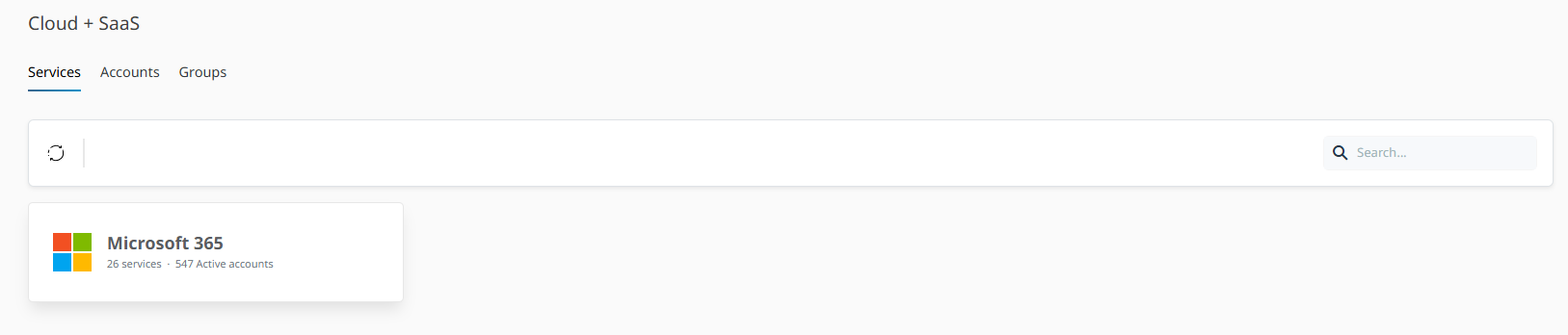
The Services tab shows a card for each connected SaaS application. Each card displays the application name and a summary of the number of services and active accounts imported from that source. Click a card to drill down into the service plan list for that application.
The service plan list shows the following columns:
•Name — the display name of the service plan.
•SKU part number — the technical identifier for the service plan used by the provider.
•Status — indicates whether the service plan is currently enabled.
•Accounts — a progress bar showing the number of assigned accounts against the total purchased seats.
•Assigned accounts — the number of accounts currently assigned to this service plan.
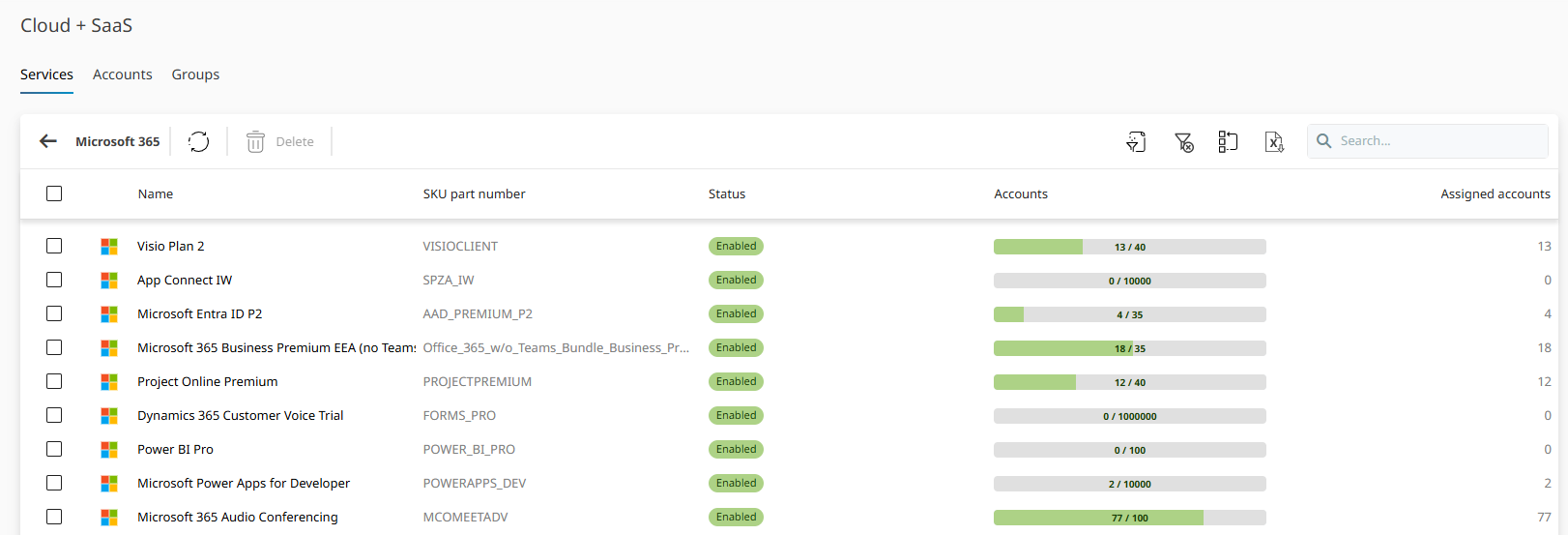
Use the search field and toolbar to filter, sort, export, or manage columns in the list. You can delete service plans from this view by selecting one or more rows and clicking Delete in the toolbar. Click the back arrow to return to the Services overview.
Accounts
The Accounts tab lists all user accounts discovered in connected SaaS applications. For each account you can view its subscriptions, group memberships, sign-in history, assigned devices, and usage data. See the Accounts section for details.
Groups
The Groups tab lists the groups imported from connected SaaS sources, such as Microsoft 365 groups. You can search and filter the list to locate groups of interest. Click a group name to open the group details, which show the group properties and the list of member accounts.