The Calculation Rule gives you direct control over how license demand is calculated for an entitlement. Instead of relying on a fixed counting method, you can write a custom rule expression that reflects your actual license terms — down to the device level.
You access the editor from License Management > Entitlements > [entitlement] > Calculation rule. It opens as a dedicated tab in the Entitlement Details view, with a full-width code editor and a toolbar containing Revert, Sync, Remove, Edit.
Is this relevant for you?
What the Calculation rule tab shows decides how demand is counted:
CALCULATION RULE TAB |
HOW DEMAND IS COUNTED |
|---|---|
The editor shows a rule expression |
The rule expression runs once per device and returns the demand. It replaces the standard counting for this entitlement. |
The editor shows no rule expression |
Demand is counted according to the Metric of the entitlement, for example Core-based or Device-based. |
No demand is calculated, and the rule has no effect, for entitlements with the metric User-based, Floating, PVU, VPC, Terabyte-based or RAM-based, and for entitlements with the metric Custom (the default for purchased products whose metric is not supported yet, so you maintain their demand manually), and for entitlements with the model Maintenance. The same applies when a manual override is active on the compliance of the entitlement.
Other entitlement fields — Quantity, Allocated, Remaining, and Maintenance quantity — are not part of the calculation. The rule expression works on device-level attributes only and does not read or change any of these values.
The Calculation rule tab is always shown in the Entitlement details view, also for inactive entitlements. The License allocations and Purchases tabs only appear when the entitlement has license allocations or purchases.
If the Calculation rule tab shows "There is no calculation rule.", no rule has been created yet for this entitlement. Click Create rule... to set one up (see below).
When you would use it
Some license agreements cannot be expressed with a single fixed metric. Standard metrics cover the majority of cases — but for the remaining scenarios, such as Windows Server Datacenter, SQL Server Enterprise, and VM-ratio licensing, standard counting is not enough.
These are also precisely the scenarios where audits occur and penalties arise.
Typical situations where you would reach for this:
•Complex VM/host licensing with per-socket or per-core rules
•Core-based rules that scale differently depending on whether a device is a host or a VM
Once your rule expression is active, it replaces the standard demand counting logic entirely for that entitlement. The rule expression runs once per device and returns a numeric demand value. That value feeds directly into your ELP:
Balance = Entitled + Downgrade + Upgrade − Demand
An incorrect rule expression directly affects your compliance result — getting the logic right matters.
Writing your rule expression
Rule expressions are written in Lua, a small and widely used scripting language. A Lua expression is a short piece of code that is evaluated for each device and returns a number: the demand of that device. You do not need to write the code from scratch, because the rule expression is generated from the Rule generation description. Knowing the basics of Lua helps you to review and adjust it. Every rule expression you write has access to a device object that describes the device currently being evaluated.
Available attributes
ATTRIBUTE |
TYPE |
DESCRIPTION |
|---|---|---|
device.cpus |
int |
Physical CPU sockets |
device.cores |
int |
Total physical cores |
device.logical_cores |
int |
Total logical cores |
device.ram |
ulong |
Physical memory in bytes — divide by 1,073,741,824 to work in GB |
device.isVirtualMachine |
bool |
True if the device is a virtual machine |
device.isHost |
bool |
True if the device hosts one or more virtual machines |
device.hasHost |
bool |
True if this virtual machine has a tracked parent host |
device.host |
object/nil |
The parent host device object, if this device is a VM; nil otherwise |
device.vm_count |
int |
Number of virtual machines hosted on this device |
device.os_type |
string |
Operating system type |
device.name |
string |
Device name |
device.cpu_type |
string |
CPU model string |
device.disk_capacity |
double |
Sum of all physical disks in GB |
device.hasSoftware(id) |
bool |
Returns true if the catalog product with the specified GUID is installed on the device. The id parameter must be a valid catalog product GUID from the Raynet One Technology Catalog; any other value returns false. |
Syntax rules to keep in mind
•Comparison operators: ==, ~=, <, >, <=, >= — Lua uses ~= for not-equal, not !=
•Logical operators: and, or, not — lowercase only
•Math functions available: math.max, math.ceil, math.floor, and the standard Lua math library
•File I/O and OS library access are not available
•Every rule expression must contain a return statement
•Loops are not permitted — saving a rule expression with a for or while loop fails with: Invalid calculation rule. It may contain no return or contains a loop (for, while).
A worked example: Windows Server 2025 Standard
To see how this comes together in practice, consider a core-based licensing scenario for Windows Server 2025 Standard, where the Calculation rule tab shows a rule expression. The rule expression handles three different device situations and returns the correct demand for each.
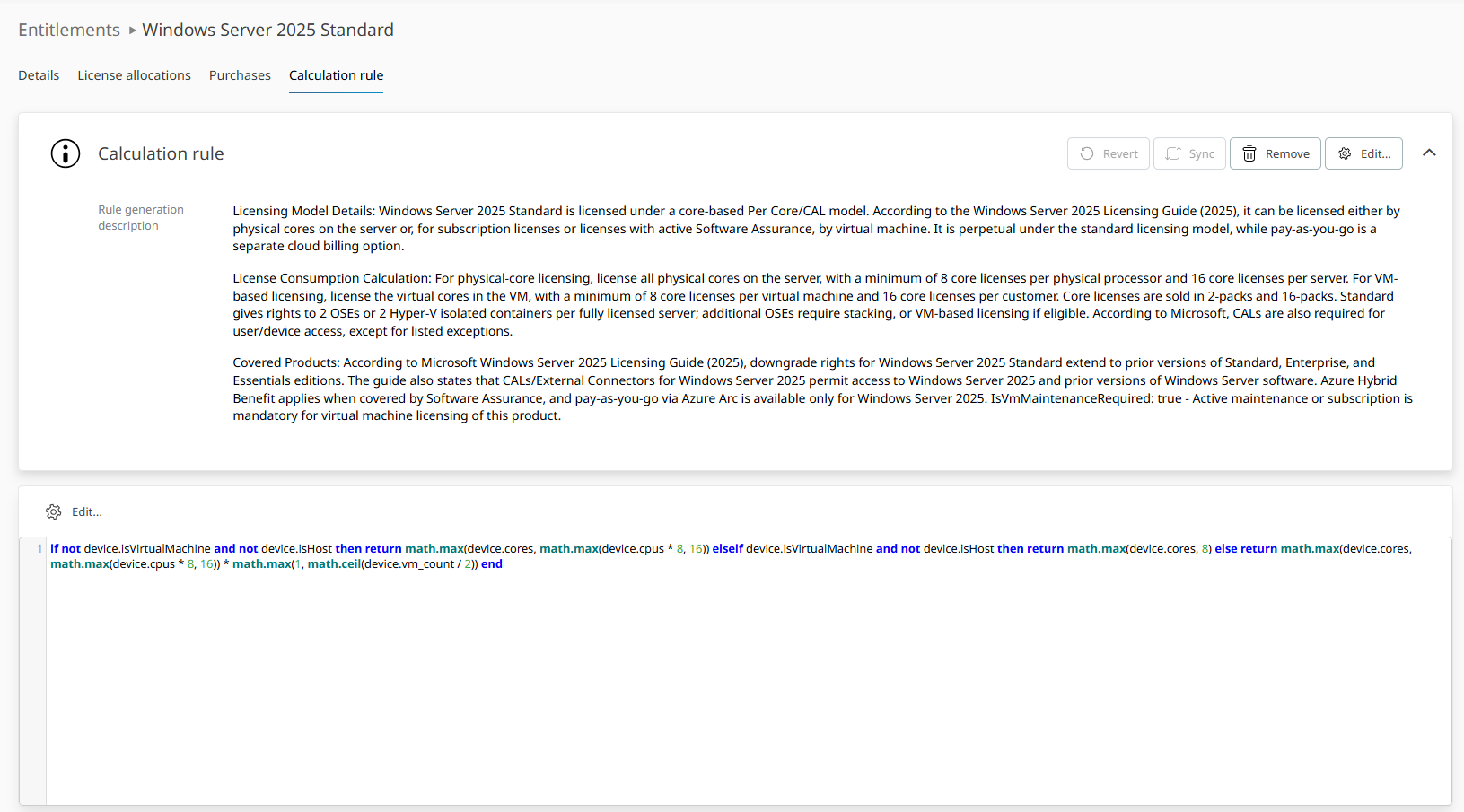
if not device.isVirtualMachine and not device.isHost then
return math.max(device.cores, math.max(device.cpus * 8, 16))
elseif device.isVirtualMachine and not device.isHost then
return math.max(device.cores, 8)
else
return math.max(device.cores, math.max(device.cpus * 8, 16))
* math.max(1, math.ceil(device.vm_count / 2))
end
Here is what the rule expression does for each device situation:
SCENARIO |
LOGIC |
RESULT |
|---|---|---|
Standalone physical host — not a VM, not hosting VMs |
Maximum of: actual cores vs. CPU sockets × 8, minimum 16 |
Standard core-based demand |
Virtual machine without a tracked host |
Maximum of: actual cores, minimum 8 |
Reduced demand for VMs |
Physical host running virtual machines |
Core-based demand × VM ratio factor (ceiling of VM count ÷ 2, minimum 1) |
Demand scaled by VM count |
Editing, saving, and reverting:
Calculation rules are normally created automatically, in the same way as with the Codex option, when the licensing of a product is calculated. You only need to create a rule yourself if the Calculation rule tab shows no rule, for example after you removed it. Entitlements with the model Maintenance do not get a rule.
To create a rule for the first time:
If the Calculation rule tab shows "There is no calculation rule.", click Create rule... to open the wizard. In Step 1 — Input selection — choose how to create the rule:
•Manual entry: Enter the Rule generation description yourself. The rule expression is generated from it
•Codex: Generate the description and the calculation rule automatically. The description is created from the product, the Metric and the Model of the entitlement, using the licensing terms from the Codex knowledge base
The rule expression is always generated by SAM AI from the description. Creating a rule and using Sync therefore require the SAM Cloud connection.
The following toolbar actions are available:
ACTION |
PURPOSE |
|---|---|
Revert |
Restores the Rule generation description to the version created by Codex |
Sync |
Regenerates the rule expression from the Rule generation description and overwrites the current rule expression |
Remove |
Deletes the calculation rule, including the rule expression and the description |
Edit |
Opens the wizard to change the Rule generation description |
To edit the Rule generation description:
•Click Edit... in the Calculation rule toolbar (top right) to modify the description text. The rule expression is not changed until you click Sync.
To edit the rule expression:
•Click the gear icon Edit... above the code editor to unlock the rule expression for editing.
•A confirmation dialog opens before Edit mode is unlocked.
•Make your changes in the editor.
•To leave edit mode without saving, click Cancel. If there are unsaved changes, you are asked to confirm.
To save:
•Click Save — and click Yes to confirm.
•Save is disabled until a change is detected.
•An empty rule expression cannot be saved.
•The new rule expression is used the next time demand is calculated (see below). Because it differs from the generated version, the Async badge appears.
BADGE |
MEANING |
|---|---|
Modified |
The Rule generation description was changed manually and differs from the version created by Codex. |
Async |
The Rule generation description and the rule expression are not synchronized, or the rule expression was edited manually. Click Sync to regenerate the rule expression from the description. |
(no badge) |
Description and rule expression are synchronized |
To revert the calculation rule description:
•Click Revert in the Calculation rule toolbar.
•A confirmation dialog asks: "Are you sure you want to revert the calculation rule description to value created by codex?".
•Click Yes to confirm or Cancel to abort.
•This restores the Rule generation description to the version created by Codex — it does not revert the rule expression. Revert is disabled while the description is unchanged.
To synchronize the rule expression with the description:
•Click Sync in the Calculation rule toolbar to open the Synchronize calculation rule dialog.
•This regenerates the rule expression based on the content of the Rule generation description field.
•A confirmation dialog asks if you are sure you want to synchronize calculation rule based on description.
•Click Yes to proceed or Cancel to abort.
•Use this when the Rule generation description has been updated and you want the rule expression to reflect the new description. Sync is disabled while the rule expression and the description are synchronized.
|
Be aware: |

How your rule expression affects Compliance and ELP
Once your rule expression is active, it takes full ownership of demand calculation for that entitlement. The rule expression runs once per device in scope and returns a demand value. All returned values aggregate into the total demand used in your ELP calculation.
To confirm whether a rule expression is active for a product, open the Entitlements Details view and select the Calculation rule tab.
|
Be aware — removed rule: |
|
Be aware — runtime errors: |
The rule expression only takes effect when the Calculation rule tab shows one. Otherwise demand follows the Metric of the entitlement shown on the Details tab.
The demand values produced by your rule expression are applied when Calculate demand is triggered from the Related devices tab in the Compliance view. Until demand is recalculated, changes to the rule expression are not reflected in the Compliance overview.