The Contracts view provides a complete overview of a license contract, including its general information, customer and supplier details, financial summary, and associated contract items. The view is divided into two tabs: Details and Entitlements.
Contract Information
The Details tab provides a complete overview of the selected contract, including general contract information, customer and supplier details, a financial summary, and the list of associated contract items.
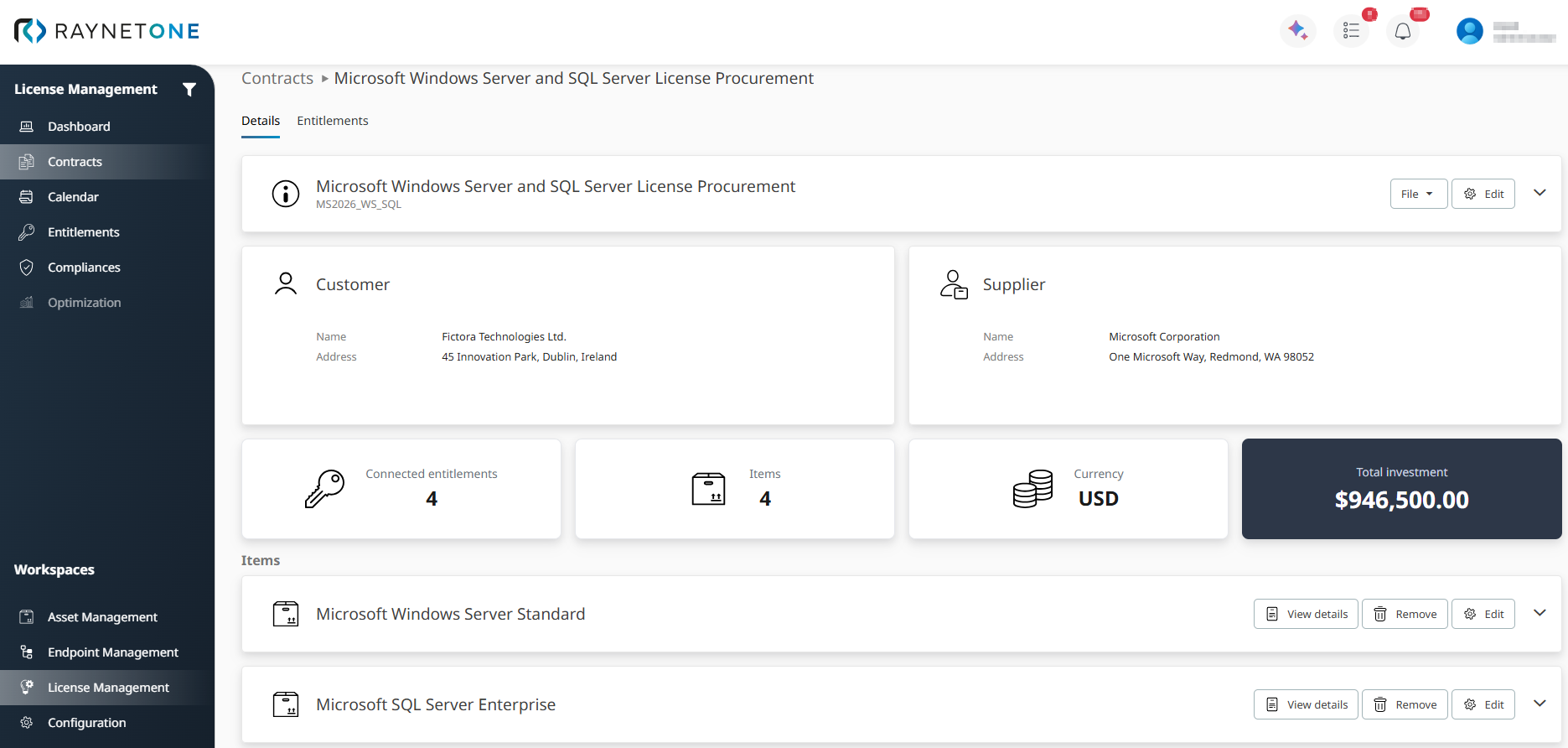
The Contract Details view showing the contract header, customer and supplier information, summary tiles, and contract items.
The Details tab is organized into the following areas.
Contract information
The contract information section displays the contract name, contract ID, and key reference fields including invoice date, invoice number, PO number, sales order number, and quote number.
The following actions are available in the contract information section.
File (dropdown): Manages the contract file attached to this contract. The available options depend on whether a file is currently attached.
If no file is attached:
•Upload contract file opens a file browser to attach a new contract document.
If a file is already attached, the following options are shown:
•View contract file: Opens a document preview with Download and Fullscreen options.
•Replace contract file: Opens a file browser to upload a replacement file.
•Remove contract file: Opens a confirmation dialog. This action cannot be undone.
Edit: Opens the Edit license document wizard. See Editing a License Contract below.
Customer card
The Customer card displays the customer associated with this contract. This card is read-only.
•Name: The full name of the customer organization.
•Address: The registered address of the customer.
Supplier card
The Supplier card displays the supplier associated with this contract. This card is read-only.
•Name: The full name of the supplier organization.
•Address: The registered address of the supplier.
Summary tiles
Four read-only tiles provide a quick overview of the contract scope and financial value:
•Connected entitlements: The number of entitlements linked to this contract.
•Items: The total number of contract items included in this contract.
•Currency: The currency used for all cost calculations in this contract.
•Total investment: The total financial value of the contract, calculated from all contract items.
Items
The Items section lists all contract items linked to this contract. Each row displays the item name and the following actions:
•View details: Opens the Product Suite Details view for the selected contract item in the Details tab for the selected contract item.
•Remove: Removes the contract item from the contract.
•Edit: Opens the contract item for editing.
Editing a License Contract
To edit an existing license contract, click Edit in the contract information section. The Edit license document wizard opens and guides you through the following steps: Details, Contract items, Summary, Progress, Finished.
In Step 1 – Details, you can update the core contract information, including the contract name, document type, invoice date, currency, tax rate, and discount rate. Navigate through steps using Next. Changes are saved upon completing the wizard.
Editing Contracts, Entitlements, and Demand: Three Edit Paths for License Data
Raynet One provides three distinct edit paths for license data. Each targets a different layer of the license record. Using the wrong path produces incorrect data without error feedback.
EDIT PATH |
WHERE |
WHAT IT CHANGES |
WHEN TO USE |
|---|---|---|---|
Edit Contract |
Workspaces > License Management > Contracts > Edit |
Commercial/source information: contract name, invoice date, supplier, currency, contract items, quantities, pricing. |
When the commercial source document has changed — for example, a corrected invoice, updated pricing, or additional items on the same purchase order. |
Edit Entitlement |
Workspaces > License Management > Entitlements > Edit |
Operational license record: license allocation, resource group assignment, responsible user group. |
When the operational assignment needs adjustment without changing the underlying commercial data. |
Demand Override |
Workspaces > License Management > Compliances > Add/Edit Compliance > Manual Override |
Compliance calculation inputs: quantity, downgrade/upgrade values used for ELP calculation. |
When automatic calculation cannot be applied — for example, for products without automated downgrade/upgrade support, or when a manual correction of the compliance position is required. |
|
Be aware: |

When to create a new contract instead of modifying an existing one
Modify an existing contract when a correction to existing data is required — for example, fixing an incorrect invoice date, updating pricing, or correcting a product match on an existing contract item.
Create a new contract when a new commercial transaction has occurred — for example, a new purchase, a renewal under a new invoice or order number, or an additional purchase that represents a separate commercial agreement. Creating a separate contract preserves source traceability and ensures that each commercial transaction has its own lifecycle events and audit record.
|
Be aware: |
Contract lifecycle events (Calendar) vs. Entitlement License timeline
These two views reflect different aspects of the same data and serve different purposes:
CONTRACT LIFECYCLE EVENTS (CALENDAR) |
ENTITLEMENT LICENSE TIMELINE |
|
|---|---|---|
Location |
Workspaces > License Management > Calendar |
Workspaces > License Management > Entitlements > Details > License timeline |
Generated by |
Contract and contract item data (invoice date, license start, license end) |
Entitlement data (license start, license end, renewals) |
Event types |
New Purchase, Contract Invoiced, Purchased Event, Purchased Renewal, License Expiration Warning |
Purchased Event, Purchased Renewal, License End Event |
Editable |
Not directly. Automatically updated when contract or entitlement dates change. |
Not directly. Reflects entitlement lifecycle state. |
Purpose |
Proactive lifecycle management — upcoming renewals, expirations, and contract milestones across the full portfolio. |
Historical record of the selected entitlement's lifecycle events. |
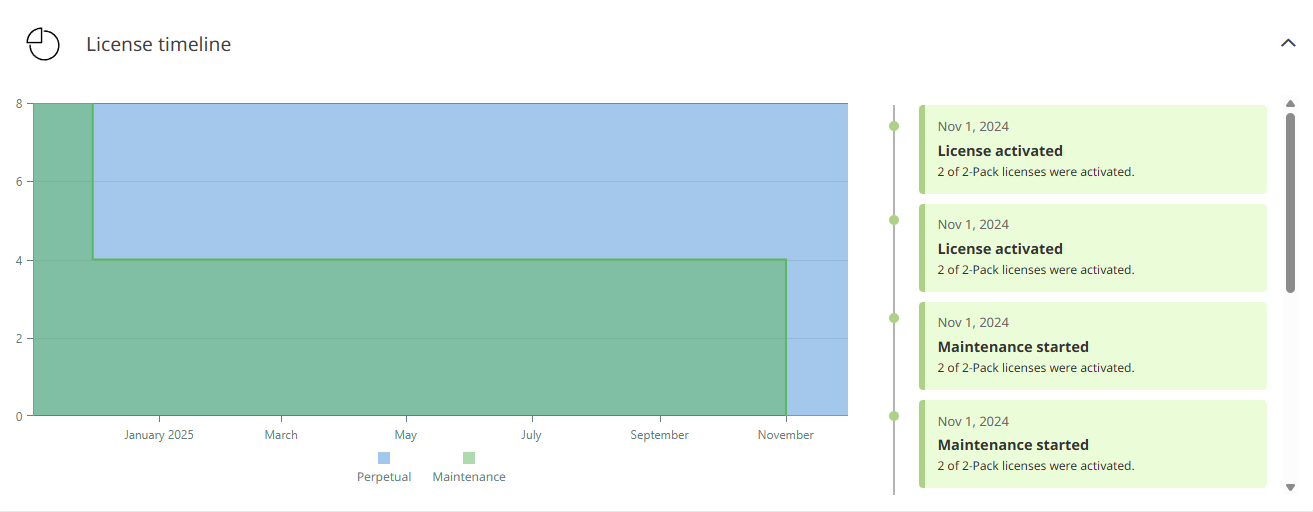
The License timeline section in the Entitlements Details view. The chart shows the license quantity over time, broken down by license model (blue: Perpetual, green: Maintenance). The event list on the right records the lifecycle events of the entitlement.
|
Note: |

Viewing Linked Entitlements
Click the Entitlements tab to view all entitlements linked to this contract. Each entitlement row represents a licensed usage right derived from a contract item.
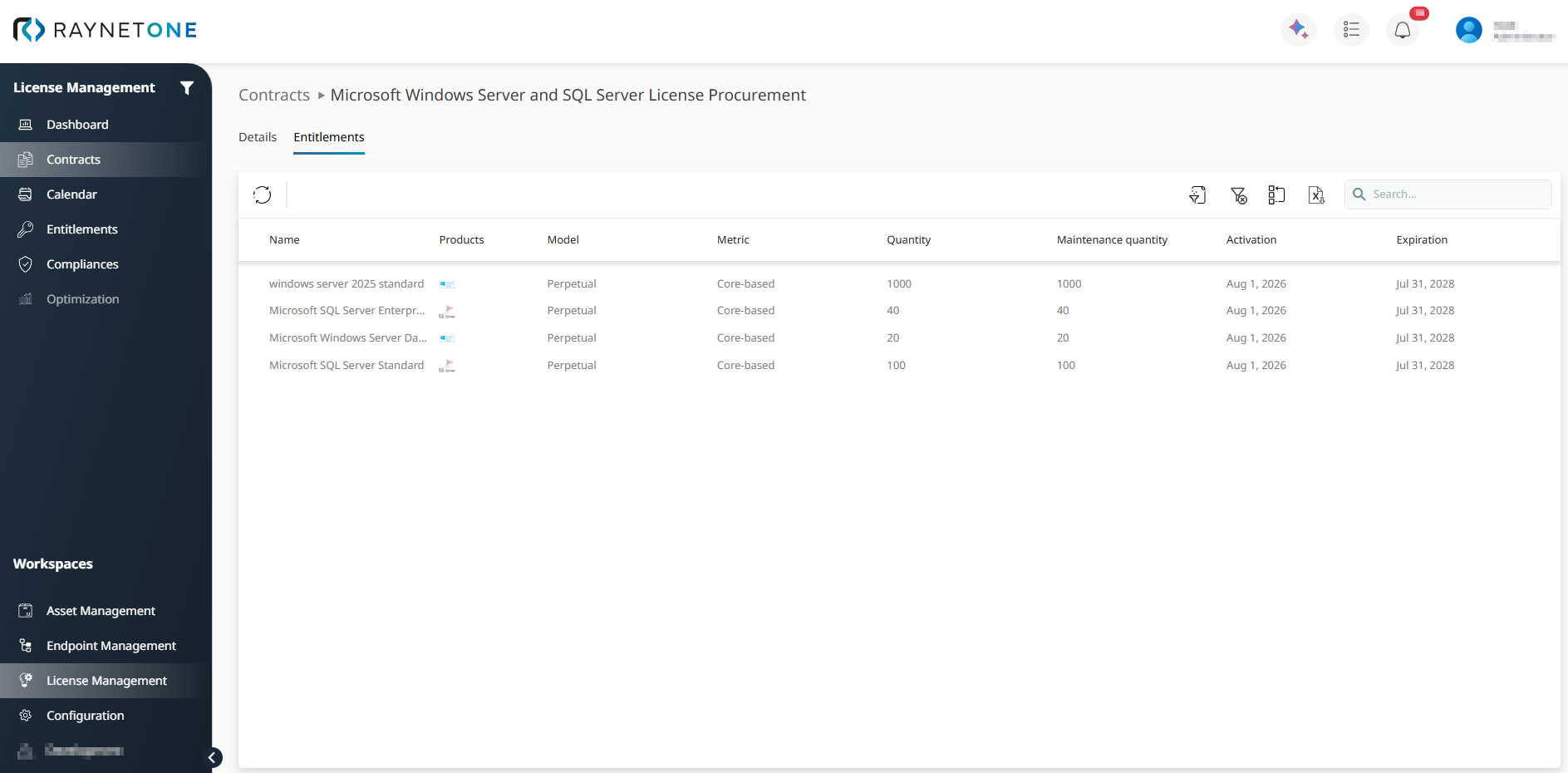
The Entitlements tab showing all entitlements linked to the contract.
The entitlements list shows the following columns:
•Name: The display name of the entitlement record, generated from the associated product suite.
•Products: The product or products associated with this entitlement. A vendor icon is displayed if available. Products are typically created and maintained through license contracts.
•Model: The license model applied to this entitlement, such as Perpetual, Subscription, or Maintenance.
•Metric: The license metric used for compliance calculations, such as Core-based, Device-based or User-based.
•Quantity: The total number of licensed units stored for this entitlement, calculated from the quantity and license pack size of all active contract items.
•Maintenance quantity: The quantity covered by an active maintenance of Software Assurance entitlement. For Subscription licenses, this equals the license quantity. For Perpetual licenses, this reflects the quantity of the linked Maintenance entitlement.
•Activation: The date from which the entitlement is valid.
•Expiration: The date on which the entitlement expires.
Each row represents a licensed usage right derived from the contract. Clicking an entitlement name opens the Entitlements Details view for the selected entitlement.