The Add compliance dialog is used to create a compliance record manually for an existing entitlement. The dialog allows users to override the default calculation values and define the quantity inputs used for compliance evaluation. Compliance records
can only be created for entitlements that already exist in the system. In the standard workflow, these entitlements are typically derived from product suites linked to a license contract.
|
Be aware: |

To open the dialog, click + Add in the toolbar of the Compliance overview.
Manual Override
The Manual Override option controls whether the values in the dialog can be edited manually.
STATE |
BEHAVIOR |
|---|---|
Enabled |
All editable fields can be entered manually and are used for compliance calculation. |
Disabled |
The dialog reverts to the system-calculated values. Manual input is not applied. |
|
Be aware: |
Fields
The following fields are available in the Add compliance dialog:
FIELD |
MANDATORY |
DESCRIPTION |
|---|---|---|
Entitlement |
Yes |
Selects the entitlement for which the compliance record is created. The selected entitlement defines the product, license model, metric, and base quantity. |
Active |
Read-Only |
The value is based on the entitlement's quantity value, only counting if the license is active. |
Demand |
Yes |
Required license quantity for the entitlement. |
Downgrade |
Yes |
Quantity adjustment caused by downgrade rights. Enter a negative value if quantity is transferred from the current product to an older compatible version. Enter a positive value if quantity is received from a newer version. |
Upgrade |
Yes |
Quantity adjustment caused by upgrade rights. Enter a negative value if quantity is transferred from the current product to a newer compatible version. Enter a positive value if quantity is received from an older version. |
Balance |
Read-Only |
Automatically calculated compliance result based on the entered values. |
|
Note: |

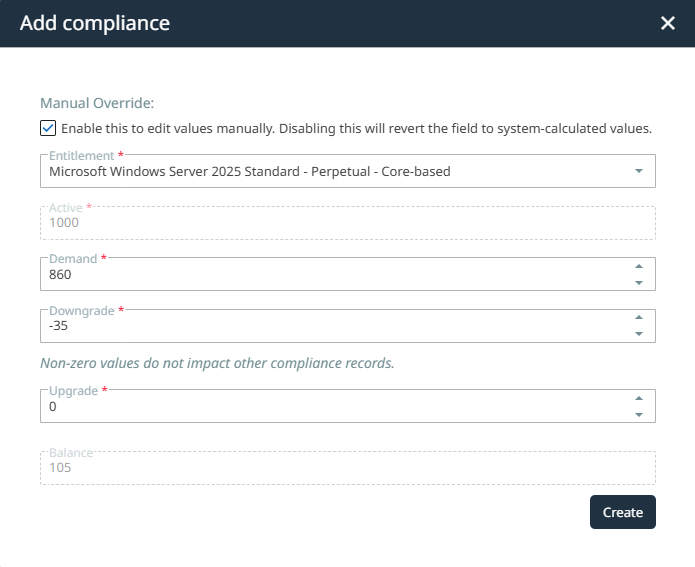
Balance calculation
The Balance field is calculated automatically using the following formula:
Balance = Active + Downgrade + Upgrade - Demand
Balance = 1000 + (-35) + 0 - 860 = 105
Example shown in the dialog
Because the resulting balance is greater than zero, the entitlement is over-licensed.
The screenshot shows the entitlement Windows Server 2025 Standard - Perpetual - Core based with these values:
FIELD |
VALUE |
|---|---|
Active |
1000 |
Demand |
860 |
Downgrade |
-35 |
Upgrade |
0 |
Balance |
105 |
Downgrade and Upgrade handling
The Downgrade and Upgrade fields are used to adjust quantities between compatible product versions as part of compliance calculation.
Downgrade
Downgrade rights allow a newer product version to cover usage of an older compatible version.
VALUE |
MEANING |
|---|---|
Negative (e.g., -35) |
Quantity is transferred from the current product to an older compatible version |
Positive (e.g., +35) |
Quantity is received by the current product from a newer version |
Example:
Downgrade = -35 means that 35 units are transferred from Windows Server 2025 Standard to an older compatible version for compliance coverage.
Upgrade
Upgrade rights allow an older product version to cover usage of a newer compatible version.
VALUE |
MEANING |
|---|---|
Negative (e.g., -10) |
Quantity is transferred from the current product to a newer compatible version |
Positive (e.g., +10) |
Quantity is received by the current product from an older version |
Example
In the shown example, Upgrade = 0, so no upgrade-based quantity adjustment is applied to this compliance record.
Creating the compliance record
After all required values have been entered, click Create to save the compliance record.
Once saved, the new record appears in the Compliance overview with its calculated balance and resulting status.
|
Be aware: |
What you see
After clicking Create, you see the new compliance record in the Compliance overview. The resulting row shows:
•the selected entitlement and product
•the active quantity used as calculation input
•the entered demand
•the downgrade and upgrade adjustments
•the calculated balance
•the resulting compliance status
In the example shown, the selected entitlement is over-licensed because the calculated balance is 105.