The Compliances section in the License Management workspace provides the product-level compliance result for your managed software portfolio. It compares effective entitlement quantities with calculated license demand and displays the resulting balance and compliance status for each product.
Access via Workspaces > License Management > Compliances.
Compliance results depend on underlying entitlement data (typically derived from Contracts) and calculated software demand. The assigned license model and license metric determine how entitlement quantities are formed and used in compliance calculations.
The Compliances overview displays all products in a single list. Each row represents one product and its current calculated license position.
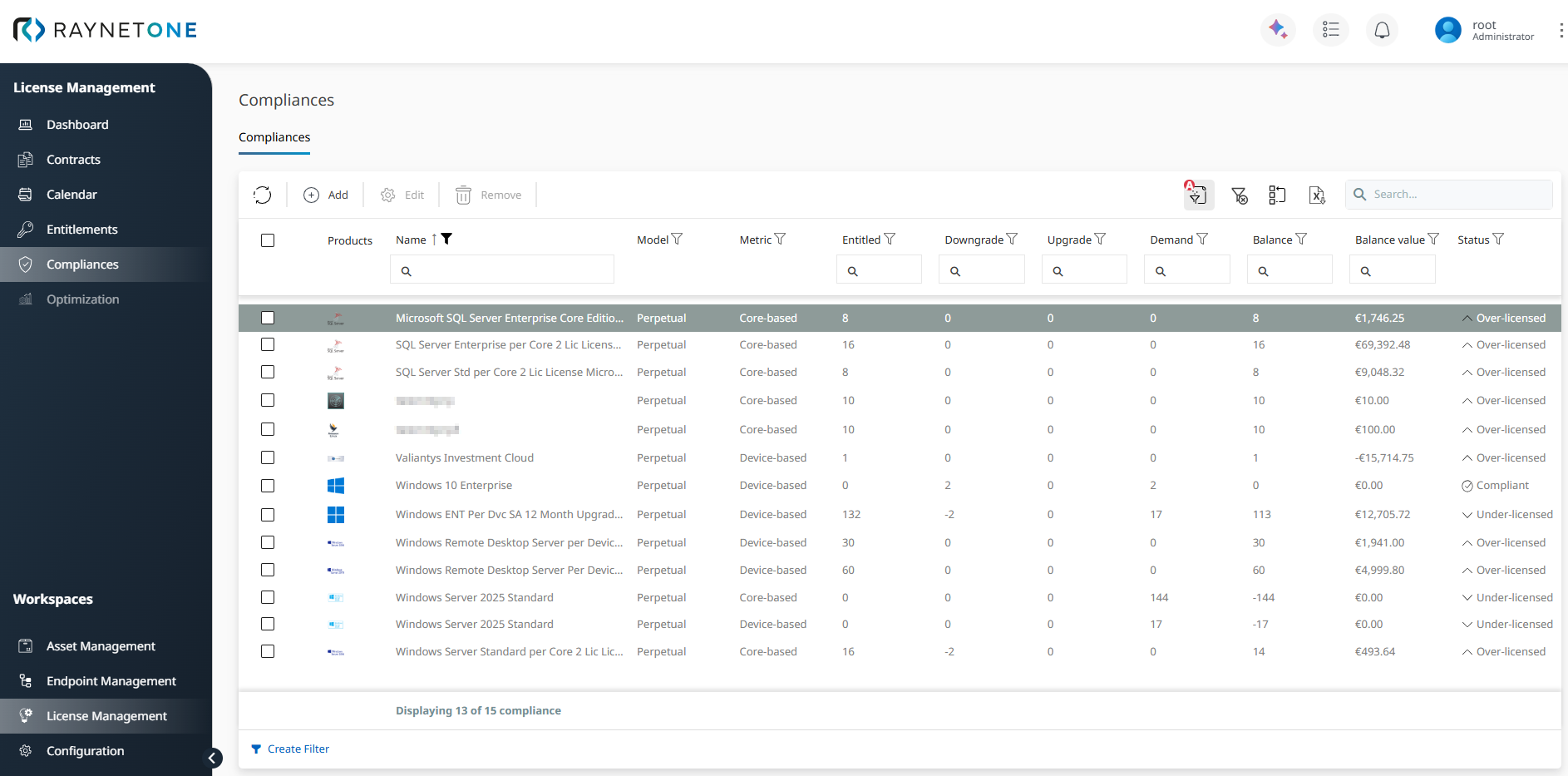
The list shows:
•Product
•License Model and Metric
•Entitled quantity
•Downgrade and Upgrade adjustments
•Demand
•Balance (ELP)
•Balance value (financial valuation)
•Status
Compliance Status
STATUS |
MEANING |
REQUIRED ACTION |
|---|---|---|
Compliant |
Available quantity matches calculated demand. |
Monitor regularly |
Over-licensed |
Available quantity exceeds calculated demand. License surplus present. |
Review Optimization for reclamation or reallocation |
Under-licensed |
Calculated demand exceeds available quantity. License deficit present |
Immediate action: Verify entitlement data and review demand |
|
WARNING An Under-licensed status represents an active compliance risk. Prioritize these products. |

Effective License Position (ELP)
The Balance column shows the Effective License Position for each product, calculated as:
Balance = Entitled + Downgrade + Upgrade - Demand
•Positive balance: License surplus (cost optimization potential).
•Negative balance: License deficit (financial exposure).
•The Balance value column shows the financial valuation (currency inherited from the related license contract).
Products with an active maintenance or subscription entitlement additionally have a Maintenance balance. Maintenance balance is shown on the Compliance Details page.
Calculation Result
BALANCE |
COMPLIANCE STATUS |
|---|---|
= 0 |
Compliant |
> 0 |
Over-licensed |
< 0 |
Under-licensed |
|
Note: |

Available Actions
The toolbar provides the following actions: Refresh, Add, Edit, Remove, Search.
After selecting a product from the Compliances overview, the Details view provides deeper information about the selected compliance result.
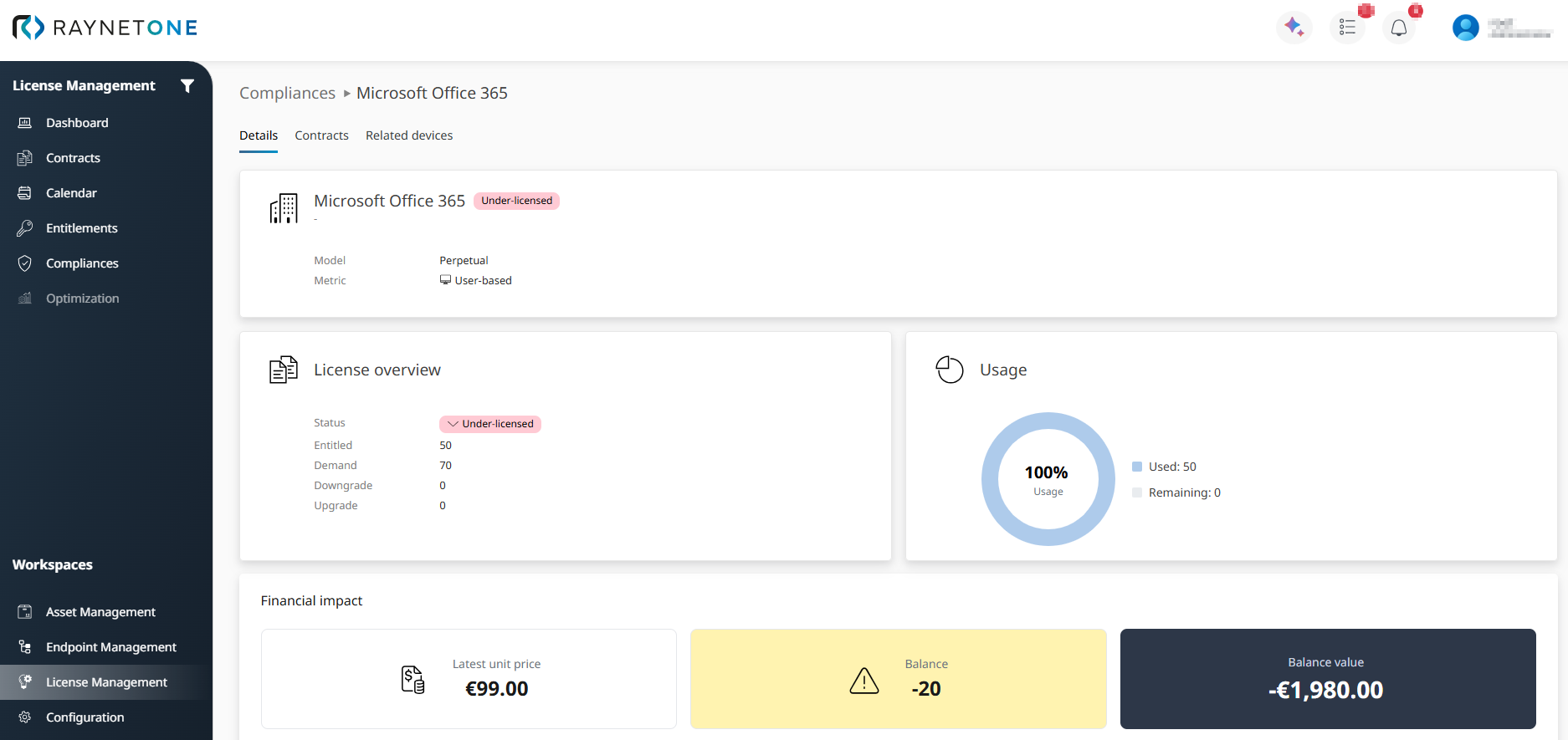
The Details tab shows the selected product, its compliance status, license model, metric, license overview, and usage information. In this example, the product is under-licensed because the calculated demand exceeds the entitled quantity. Use this tab to understand the current license position of the product and to identify whether the product is compliant, under-licensed, or over-licensed.
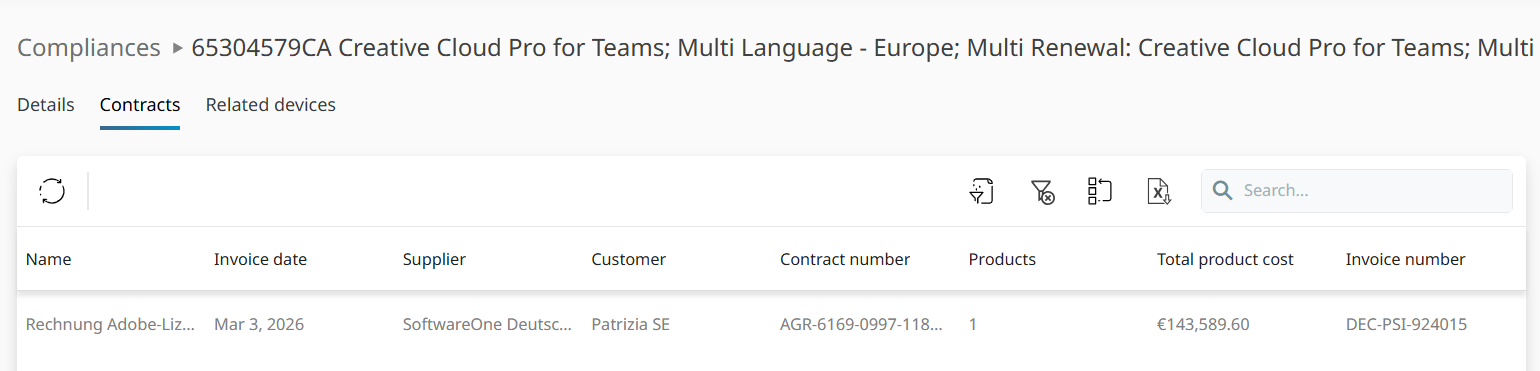
The Contracts tab lists the license contracts related to the selected compliance result. Use this tab to verify the contract records that contribute to the entitlement data used in the compliance calculation.
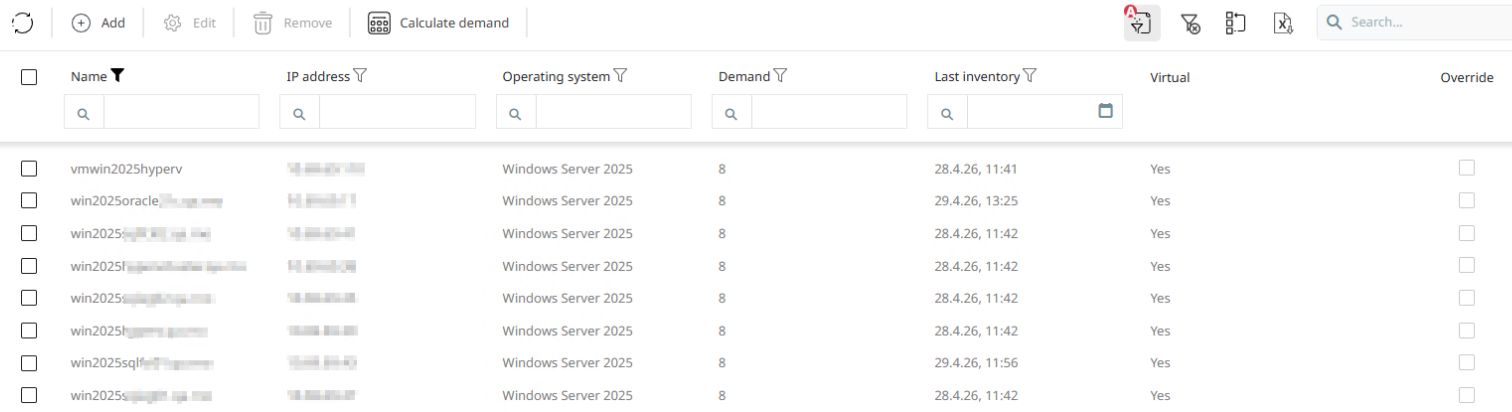
The Related devices tab lists devices that contribute to the calculated demand for the selected product. Use this tab to review demand-relevant devices and to calculate or adjust demand data where required.
 |
Best practice: |