Windows file scanning enables you to create custom search rules that run on Windows endpoints during Zero Touch inventory scans. These rules enable targeted detection of specific files and directories. This significantly reduces scan time compared to the standard Inventory scan, which would otherwise process much larger volumes of data and require subsequent manual filtering. This approach delivers faster results with greater precision and efficiency when detecting installed software or custom configurations.
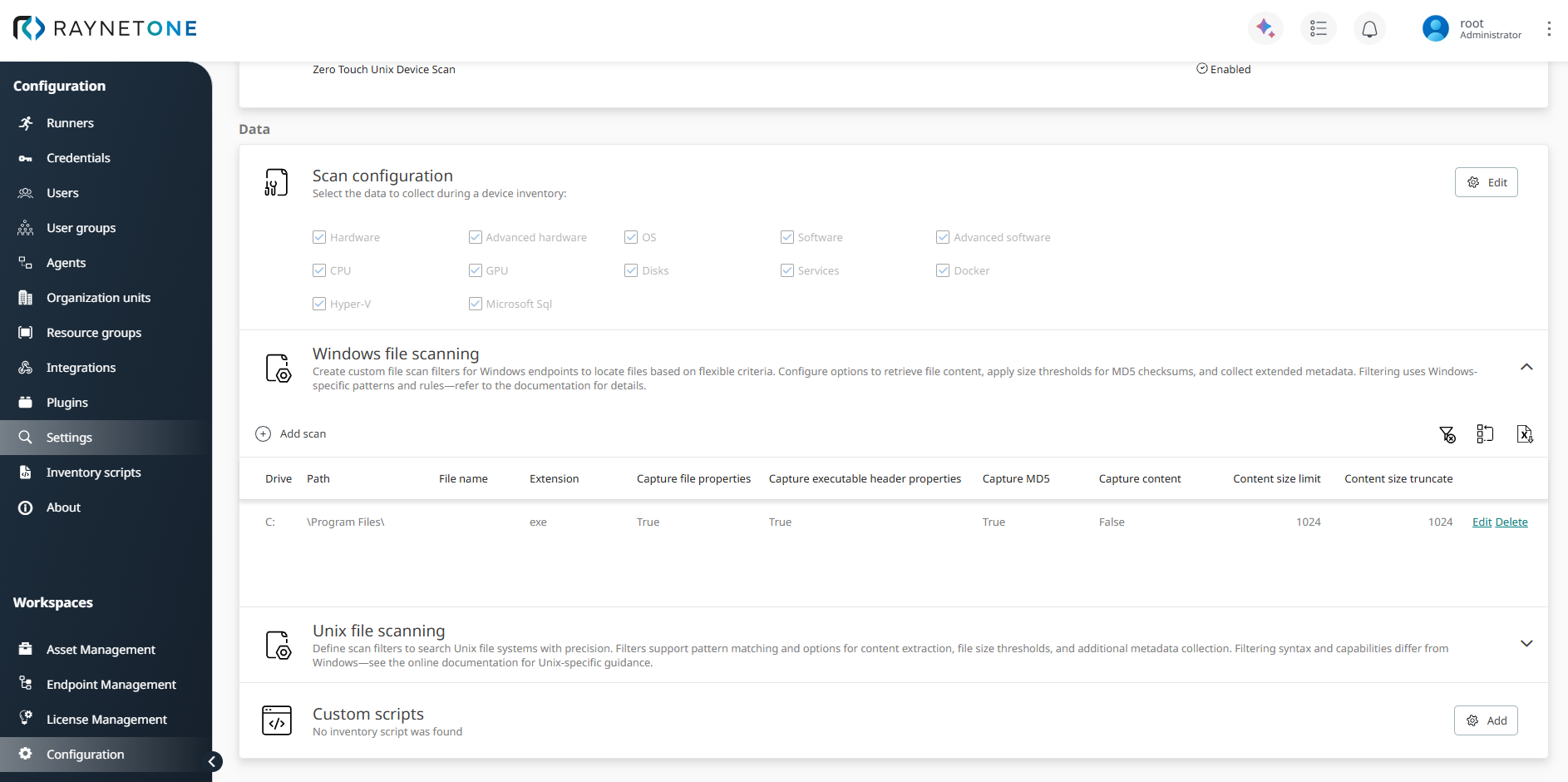
The configuration is centralized in the Windows file scanning table, accessible via Configuration > Scan configuration.
Windows file scan specification parameters
To add a new rule, click Add scan. Each row in the table defines one search rule using the following columns:
•Drive: Drive letter (e.g., C:). A colon is automatically appended if not provided at the end of the string.
•Path: Directory path to search (supports patterns). Selects files by providing a path, for example: "\\Temp\\". The path string has to accept leading and trailing backslashes, either by explicitly stating them or by inclusion using the LIKE-pattern operators (%, _).
•File name: Filter for the file name (supports wildcards).
•Extension: File extension without leading dot (e.g., exe).
•Capture file properties: Collect additional properties (Manufacturer, Version, InstallDate) from the file metadata.
•Capture executable header properties: Extract version information, checksum, and subsystem details from the Portable Executable (PE) header of executables and DLLs.
•Capture MD5: Calculate and store an MD5 checksum of the file content.
•Capture content: Embed the file content in the inventory results (stored base64-encoded).
•Content size limit: Hard upper limit (in bytes) for file content embeddding. Files exceeding this size are not embedded. Default: 1024 bytes (1 KB). Value 0 removes the limit (not recommended in large environments due to potential growth of inventory data).
•Content size truncate: Maximum number of bytes stored when embedding content. Any excess is discarded (only the beginning of the file is retained). Commonly set to the same value as Content Size limit. Limit the size of captured file content by providing a maximum capture size. The excess remainder is cut off.
If this value is zero, file contents are not stored. (Default: 0).
When Capture content, Capture MD5, or Capture executable header properties is enabled, the system accesses file contents via Windows file sharing (SMB).
|
Note: |

The Zero Touch Windows Device Scan uses WMI and the CIM_DataFile object in the CIMv2 namespace, in a lightweight approach to search the target system for file evidence.
If generating MD5 checksums, capturing file content, or capturing PE header information was requested, then Windows file sharing is used to read the file content.
For the file scan specification properties Drive, File Name, and Path, you can use wildcards as allowed for the LIKE-operator. The query is submitted as WQL where the equals (=) and LIKE-operators are case-insensitive. If the value contains any of the characters [, % or _, then the search uses the LIKE operator, otherwise the search uses the equals-operator. Please note that the above characters cannot be escaped, thus the LIKE operator is forced.
Queries of the CIM_DataFile object with Path filtering are optimized by the Windows operating system (Win32 Find(First|Next)File). Not specifying critical optimization properties can cause spikes in execution time, as the system defaults to looking at the entire set of files on all drives. Most noteworthy, the use of LIKE-template operators is known to be least optimized.
For more information about the data set queried against, check Microsoft’s documentation of the CIM_DataFile object.
If the system detects the need to query file contents, it will attempt to connect to the device’s disks through SMB.
Filtering by maximum file content size is only performed if the system detects the need to query file contents. Otherwise, the ContentSizeLimit parameter has no effect.
Files are grouped by the calculated hash based on the whole content of the file. Since we read entire files into memory for hash computation and inventory purposes, the scope of the filesystem should be selected carefully. Inaccuracy of the hashing function can result in two different files being grouped as one. Carefully choose the File scan content size limit parameter of the instrument settings to reject too big files from the get-go.
If the result data-set contains no files, the list of inventoried files attached to the device is not replaced.
Practical examples:
Windows Application Discovery
Drive: C:
Path: *\Program Files*
Extension: exe
Capture file properties: True
Capture executable header properties: True
Capture MD5: True
Capture content: False
Content size limit: 1024
Content size truncate: 1024
By enabling Capture MD5 and Capture executable header properties, the scan ensures that all discovered applications are correctly identified and normalized in the
Raynet One UI. Content capture is disabled as binary data from executable headers is already parsed into specific metadata fields.
When multiple Windows file scan rules are defined, they are executed in parallel during an Inventory scan. Raynet One automatically deduplicates matching files based on their full path, ensuring that each file appears only once in the results while retaining the richest available metadata from all applicable rules.
To view the files captured by your custom file scan rules, navigate to Asset Management > Networks > Devices (IPv4). Select the device that has completed an Inventory scan. Each device detail view includes tabs such as Details, Software, Hardware, Services, Processes, Ports, Files and Custom classes. Switch to the Files tab to see the list of files that were matched and collected according to your defined scan rules. For an example of how these file scan results typically appear in practice, refer to the section Viewing scan results (in this case showing results from a Unix file scan).