File scan specifications define granular search parameters to identify unmanaged files and configurations on Windows and Unix/Linux endpoints. This enables the detection of software installations outside of central management, the verification of local configuration states, and the identification of security vulnerabilities (CVEs) or End-of-Life (EoL) components. Use these settings to automate Zero-Touch inventory and ensure full visibility across all managed devices.
The configuration is managed centrally in the UI under Configuration > Settings > Inventory settings > Data, in the separate sections Windows file scanning and Unix file scanning. During the Inventory process (such as Zero-Touch), specific file contents can be optionally embedded into the scan results. To enable granular control over the targeted paths and filename patterns, administrators can define the necessary rules by clicking Add scan.
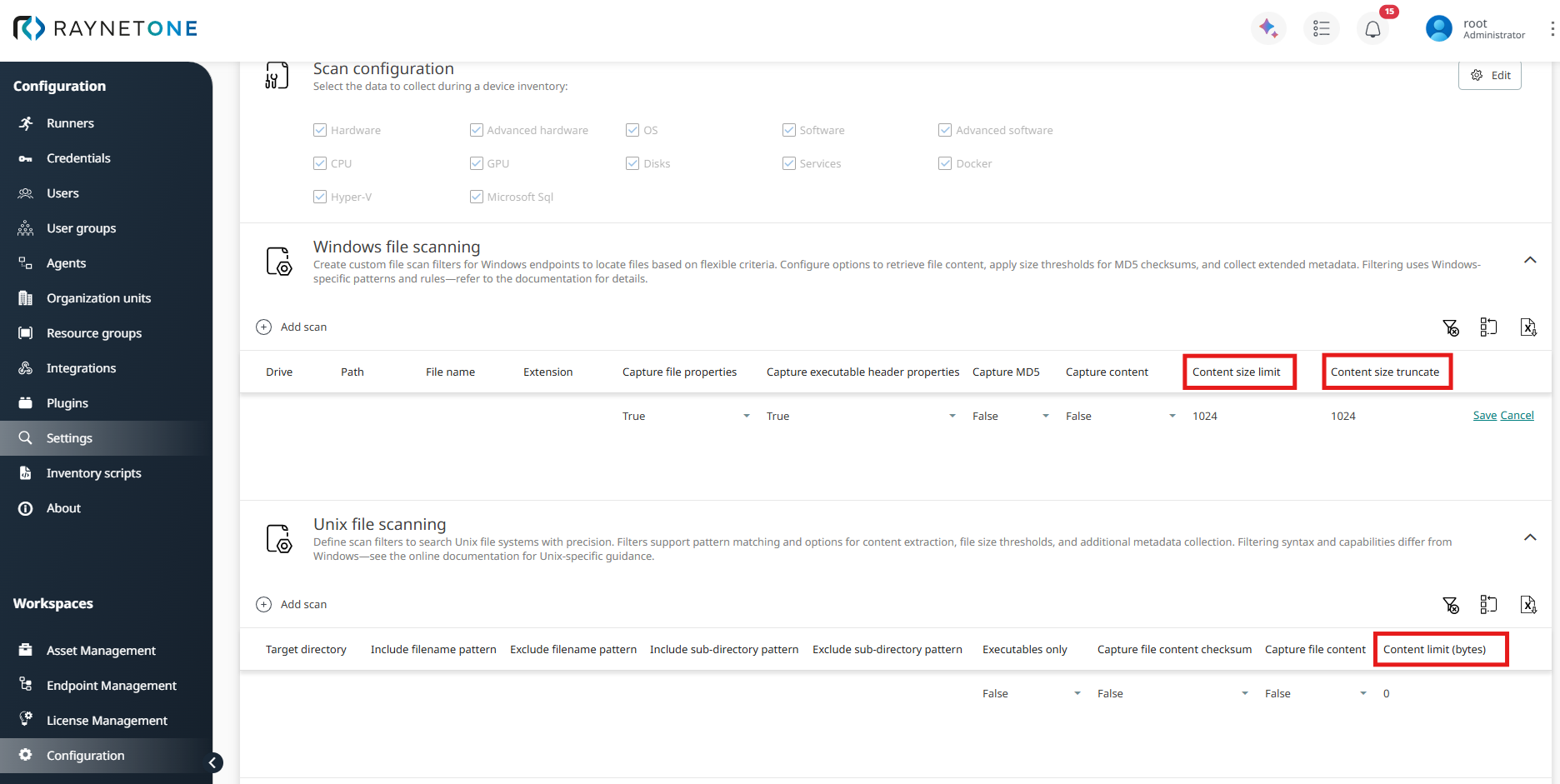
The max content size limit is controlled by central parameters (highlighted in red in the screenshot below):
•Content size limit (Windows) / Content limit (bytes) (Unix): Defines the maximum file size (in bytes) for which content capture is attempted. Files exceeding this size are ignored for content embedding.
•Content size truncate (Windows only): Specifies the maximum amount of content (in bytes) actually stored from qualifying files. Excess data is truncated to prevent oversized .ndi files and improve performance.
Inventory Data Flow & Processing
Upon initiating an Inventory scan (Zero Touch), the captured data, including file scan results, is transferred to the Raynet One Inventory Endpoint as a temporary .ndi file.
To ensure data quality, the raw inventory undergoes an automated refinement process within Raynet One, where it is matched against the Technology Catalog:
•Normalization: Converts inconsistent raw data from the scan (such as package varying file names) into standardized product names and categorized versions.
•Enrichment: Adds manufacturer details, lifecycle metadata (EoL/EoS), and known vulnerabilities (CVEs) to the inventory data.
Only after this reconciliation are the refined results visualized in the UI, specifically within Asset Management (IT Visibility, Software, Hardware, Databases, Vulnerabilities), dashboards, and reports. For example of how they are displayed in the UI, see the section Viewing scan results.
Detailed configuration examples and recommended settings for each platform are provided in the following subsections:
•Windows file scan specification
With these custom file scans, you gain deeper visibility into your IT environment. This enables reliable detection of hidden or custom software, verification of configurations, and identification of potential security risks, all of which directly contribute to improved Software Asset Management.