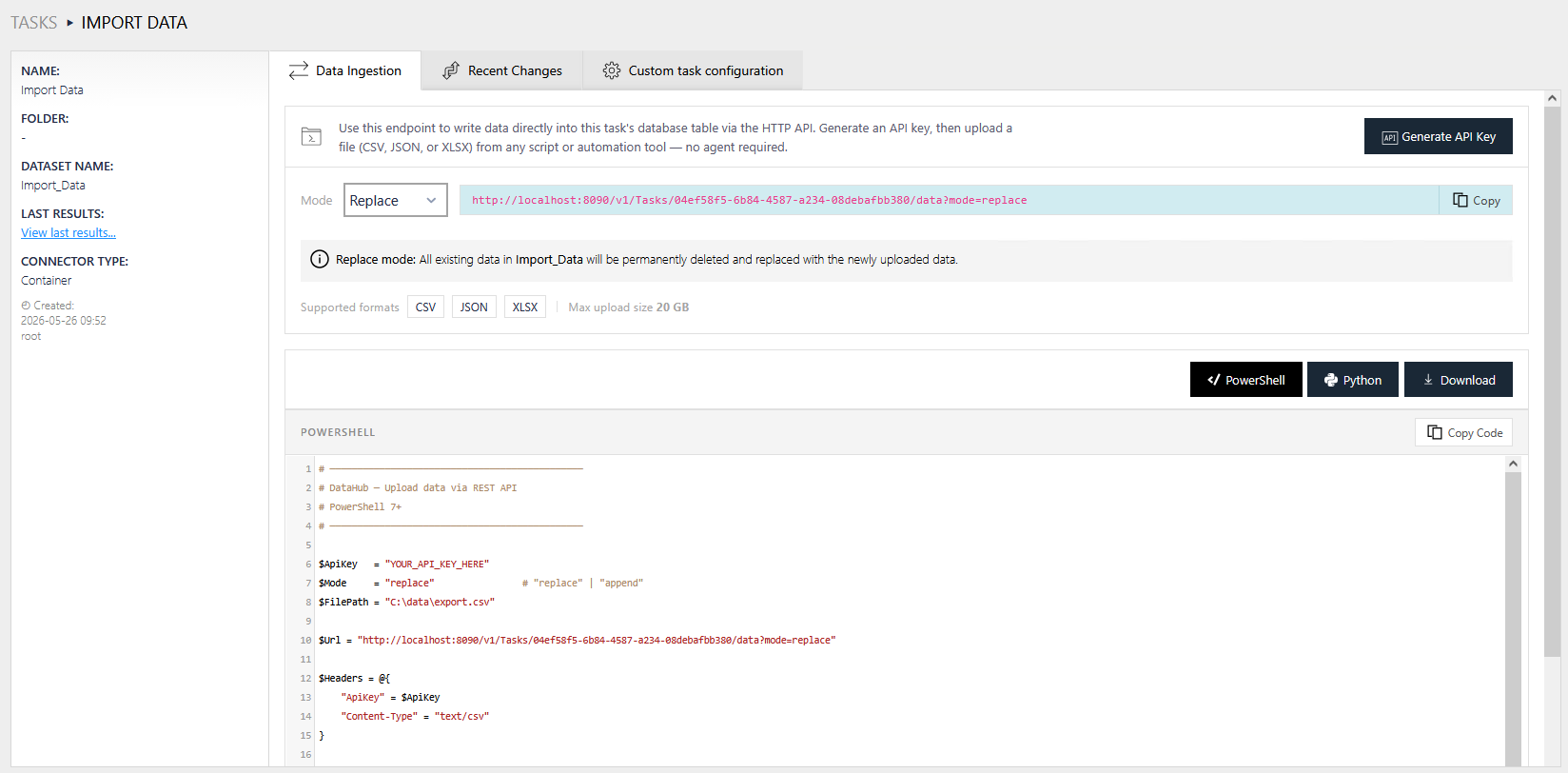
The Data Ingestion tab is available exclusively for container task types and turns a container task into a programmable data ingestion endpoint. It enables external systems, scripts, and automation workflows to push data directly into a container task's result table through the public REST API, without manual file imports through the user interface.
To access the Data Ingestion tab, navigate to the task details of any container task by clicking its name in the tasks view. The tab is displayed alongside the standard task detail tabs.
Ingestion Endpoint
The upper section of the Data Ingestion tab provides all the information required to call the upload endpoint for the container task.
Generating an API Key
Requests to the upload endpoint must be authenticated with an API key. Use the Generate API Key button to automatically create a new API key scoped to the result table of the current container task. After generation, the API key is displayed in a dialog. Copy and store the key immediately, as it cannot be retrieved again after the dialog is closed.
API keys can also be managed manually through Granular API Key Access Control.
Write Mode
The Mode selector controls how uploaded data is written to the result table. Two modes are available:
•Replace — All existing data in the result table is permanently deleted and replaced with the newly uploaded data. Use this mode for a full refresh of the table contents.
•Append — New rows from the uploaded file are added to the existing data in the result table without removing any existing records. Use this mode for incremental data updates.
Selecting a mode updates the endpoint URL displayed in the tab accordingly, so the copied URL always reflects the currently selected write mode.
Endpoint URL
The endpoint URL field shows the full upload URL for the container task, including the selected write mode. Use the Copy button to copy the URL to the clipboard.
Supported File Formats and Upload Limits
The upload endpoint accepts files in the following formats:
•CSV (text/csv)
•JSON (application/json)
•XLSX (application/vnd.openxmlformats-officedocument.spreadsheetml.sheet)
The maximum allowed upload file size is 20 GB per request.
Code Snippets
The lower section of the Data Ingestion tab provides ready-to-use script snippets that execute an upload request against the endpoint. The snippets are pre-configured with the current task's endpoint URL and the selected write mode.
Two scripting languages are available:
•PowerShell — Compatible with PowerShell 7 and newer.
•Python — Compatible with Python 3.7 and later.
Before using a snippet, replace the YOUR_API_KEY_HERE placeholder with a valid API key and adjust the FilePath variable to point to the file you want to upload.
The following actions are available for the code snippets:
•Copy Code — Copies the full script content to the clipboard.
•Download — Downloads the script as a file (.ps1 for PowerShell, .py for Python) named after the task's result table.
See Also
•Pushing Data to Container Tasks (API Reference)
•Granular API Key Access Control
•Authentication and Authorization