Clicking on the name of a task in the tasks view navigates to the task details. This view shows the basic details, configuration and recent history of a task.
The task can be edited and deleted using the action buttons located in the upper horizontal action bar:
•Edit
Opens the “Edit Task” panel that allows it to edit the current task details
•Delete
Deletes the current task
•Run
If the selected task can be started (its type is licensed, there is a valid agent configuration and all settings are in place) this button starts it on demand, ignoring any schedule set on the task.
•Stop
This option is active for tasks that are currently running. Pressing this button and confirming the action stops the task and rejects any results it collected so far.
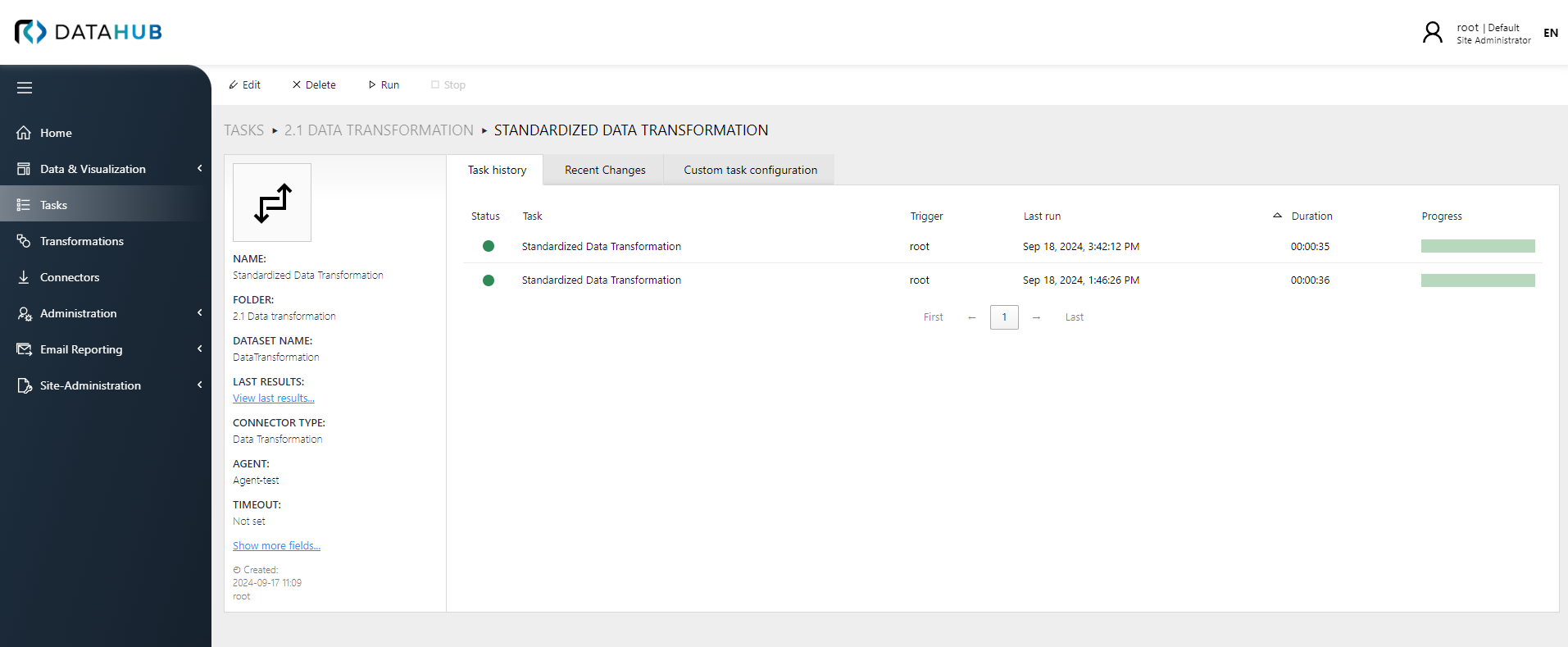
The following tabs are available in this view. The set of visible tabs depends on the task type:
•Task History
The Task History section displays a list of recent task runs, including their timing, status, and the agent that executed each task. Clicking on a task name reveals additional details and status information.
•Dependencies
Shows the dependencies of the selected task. You can view dependencies in either list view or graph view. For detailed information about managing task dependencies, see Task dependencies.
•Recent changes
This view tracks the changes of task configuration.
•Custom task configuration
Shows task configuration parameters, in a JSON format. This view may be replaced with more specialized view for certain connector types (for example MS SQL Server or ODBC).
•Data Ingestion (container tasks only)
Available exclusively for container task types. This tab turns a container task into a programmable data ingestion endpoint, allowing external systems and scripts to push data directly into the task's result table via the REST API. It provides tools to generate a scoped API key, configure the write mode (Replace or Append), copy the endpoint URL, and download ready-to-use PowerShell or Python script snippets. For detailed information, see Data Ingestion Tab.