The Connectors tab in the Configuration > Connections workspace displays all configured data connectors. A connector is a scheduled job that collects data from a connected service and imports it into Raynet One. Each connector defines what data to collect, when to collect it, and which runner to use.
Access
Navigate to Configuration > Connections > Connectors in the sidebar.
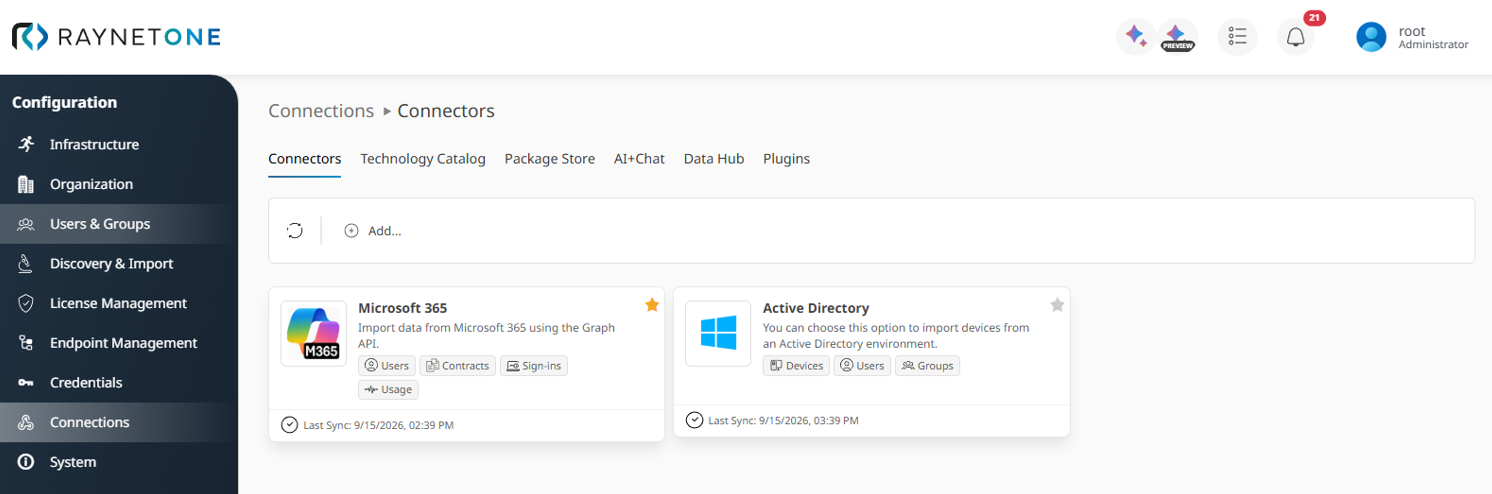
The Connectors tab in the Configuration workspace showing configured connector cards.
Connectors overview
The Connectors tab presents each configured connector as a card. Each card shows the following information:
•Connector type icon: The logo of the connector type.
•Display name: The name assigned to the connector when it was created.
•Description: A short description of the connector type and the data it imports.
•Data categories: Icons indicating the types of data the connector imports, such as Devices, Users, Groups, Contracts, or Software.
•Status indicator: An icon in the card footer shows the current operational state. The possible states are Active, Disabled, and Failed (with the date and time of the last synchronization shown next to it where applicable).
•Favorite: A star icon in the top corner of the card. Click it to mark the connector as a favorite for quick access. Favorites are shown at the top of the list.
If no connectors are configured yet, the page shows an empty-state message with an Add Connector button.
Toolbar
The toolbar at the top of the Connectors tab provides the following actions:
•Refresh: Reloads the connector list to show the latest status.
•Add...: Opens the Add Connector wizard to create a new connector.
Adding a connector
Click Add... in the toolbar or Add Connector in the empty-state view to open the Add Connector wizard. The wizard guides you through the following steps:
STEP |
DESCRIPTION |
|---|---|
1. Connector type |
Select the connector type. The wizard shows a Featured connectors section at the top with highlighted connectors (Active Directory, Microsoft 365, and VMware vSphere) and an All connectors section below. Use the search box in the All connectors section to filter connectors by name. Each connector entry shows the connector logo, a short description, and the data categories it imports. Use the Preview connectors are hidden toggle to include preview connectors in the list. |
2. Import options |
Select the import scope for the chosen connector type. This step is only shown for connector types that support predefined import profiles. For the Active Directory connector, the following profiles are available: •Basic: Import devices only — the essentials to get started. •Standard: Devices and accounts — link assets to the accounts that use them. •Full: Everything: devices, users, and full group membership trees. •Custom: Define import scope and filters to match your exact needs. |
3. Connector settings |
Configure the connection settings specific to the selected connector type. This step is only shown for connector types that require a dedicated configuration step. For the Active Directory connector, provide the following: •Distinguished name: The domain name of the Active Directory domain to scan (for example, ad.example.com). •Credentials: Select the credentials to authenticate with the Active Directory. Click Add... to create new credentials if none are available yet. |
4. Job details |
Configure the job execution settings. Under When to run, choose how and when the connector should execute: •Run now: The connector executes immediately after creation. •Schedule it: Set up a recurring schedule for automatic data collection. •Save only: Save the connector without running or scheduling it. You can trigger it manually from the Connector Details page at any time. Under Advanced settings, optionally select a preferred runner for this connector job. Set to On to specify custom settings for this job. If set to Off, the general configuration is applied. |
5. Summary |
Review all configured settings before creating the connector. Click Next to confirm and create the connector, or click Back to revise previous steps. |
6. Progress |
The wizard connects to the external service and creates the connector. This step completes automatically when the connection is established. |
7. Triggered |
The connector has been created. If you selected Run now, the first data collection job is started immediately. Click View Details to open the Connector Details page, or close the wizard to return to the Connectors overview. |
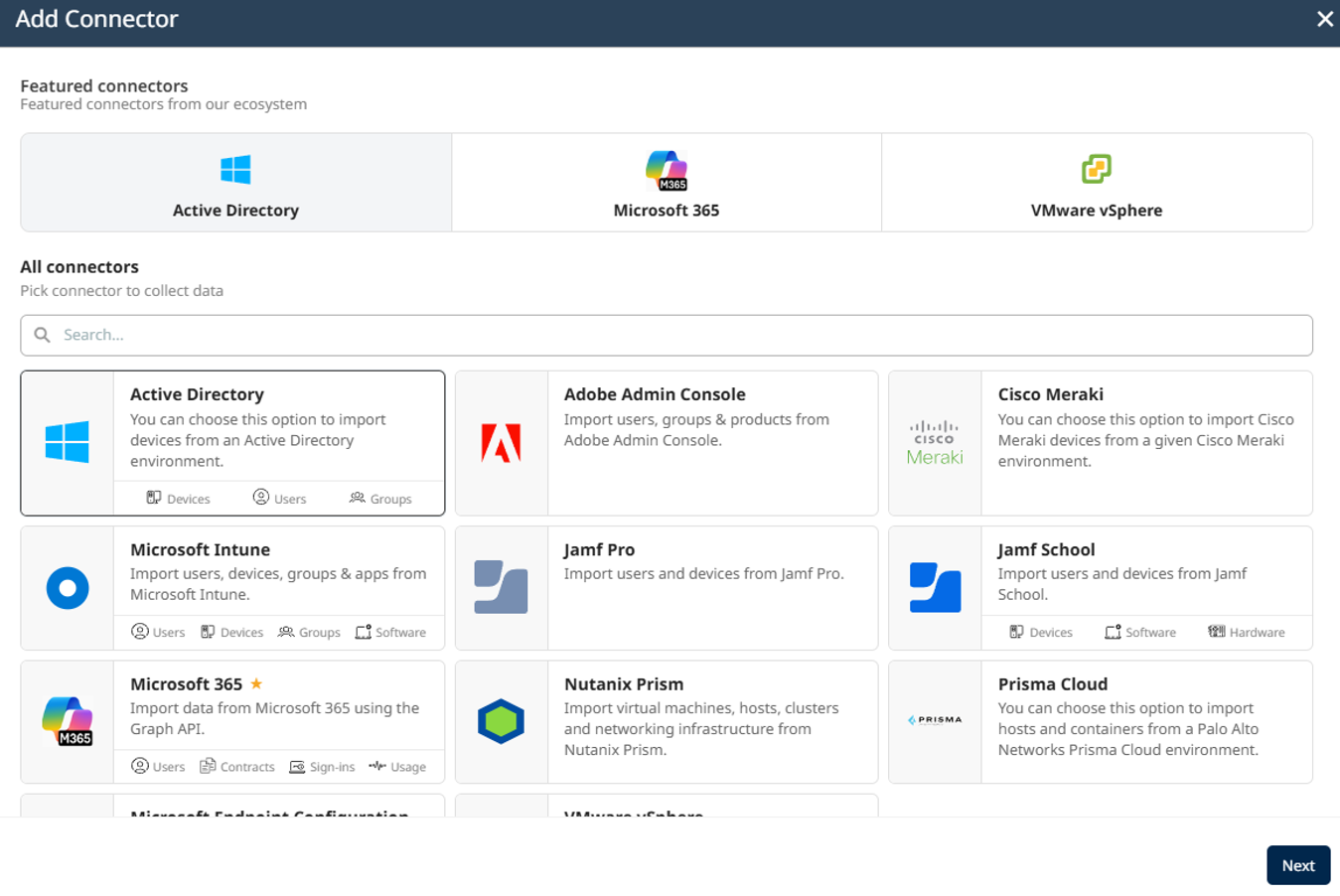
Step 1 — Connector type: Select from featured connectors (Active Directory, Microsoft 365, VMware vSphere) or search the full connector catalog.
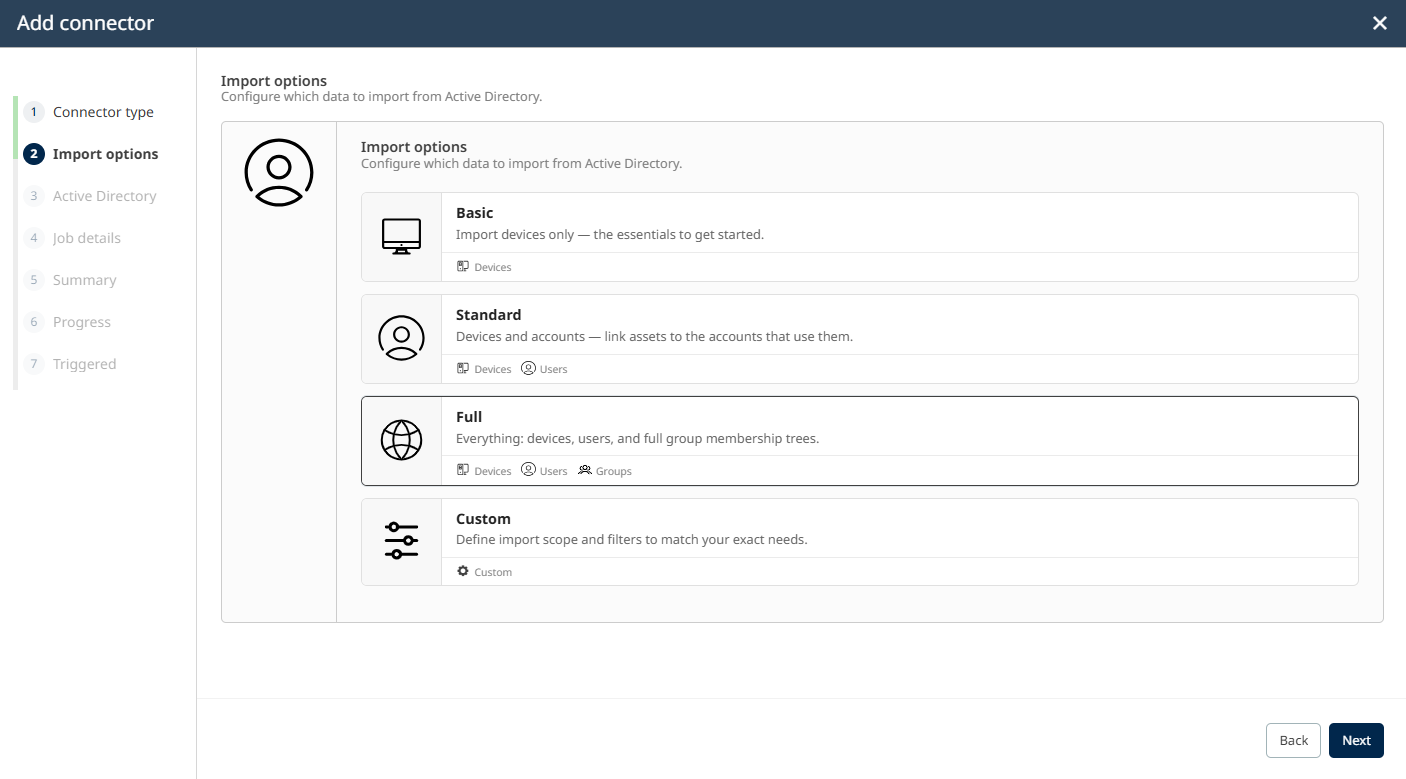
Step 2 — Import options (Active Directory): Select the import scope. The Full profile imports devices, users, and full group membership trees.
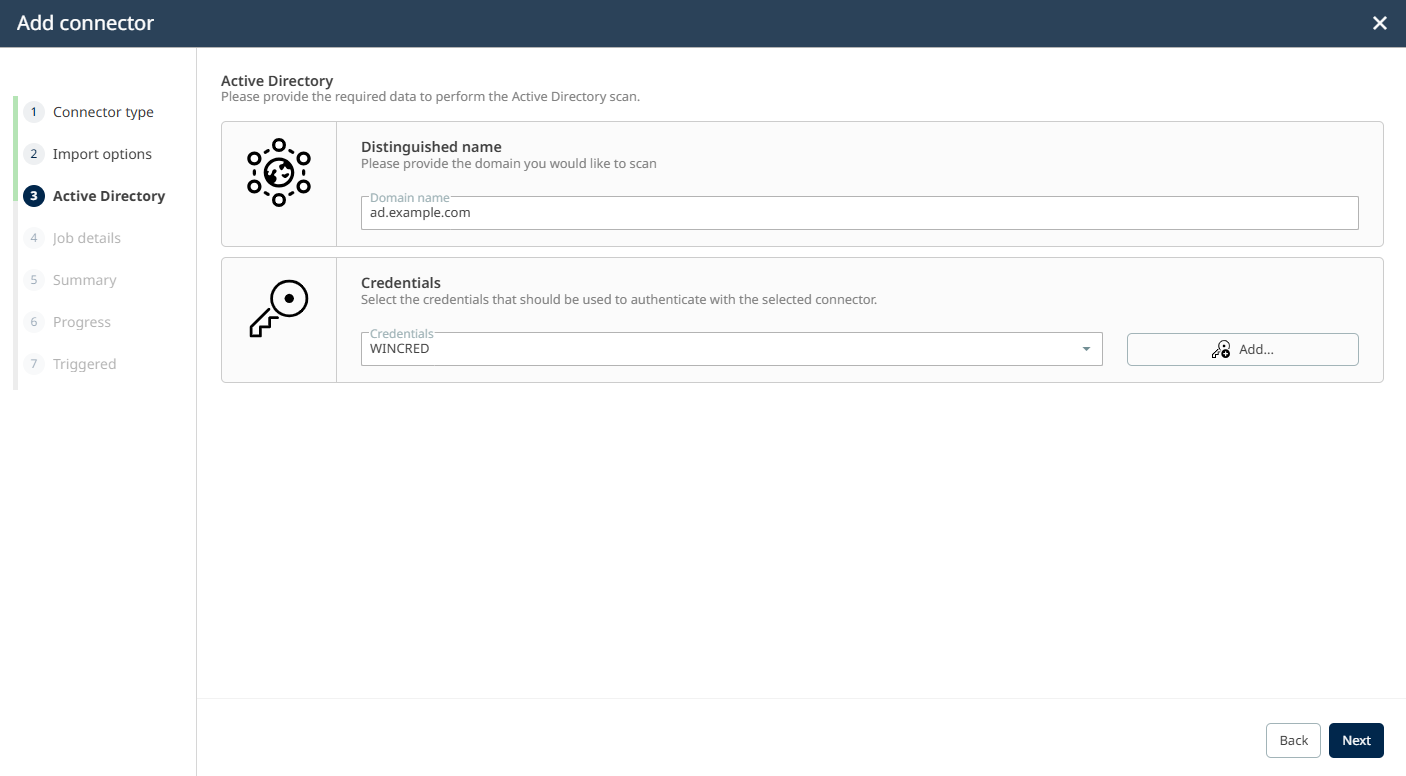
Step 3 — Active Directory: Provide the domain name and select the credentials for authenticating with the Active Directory.
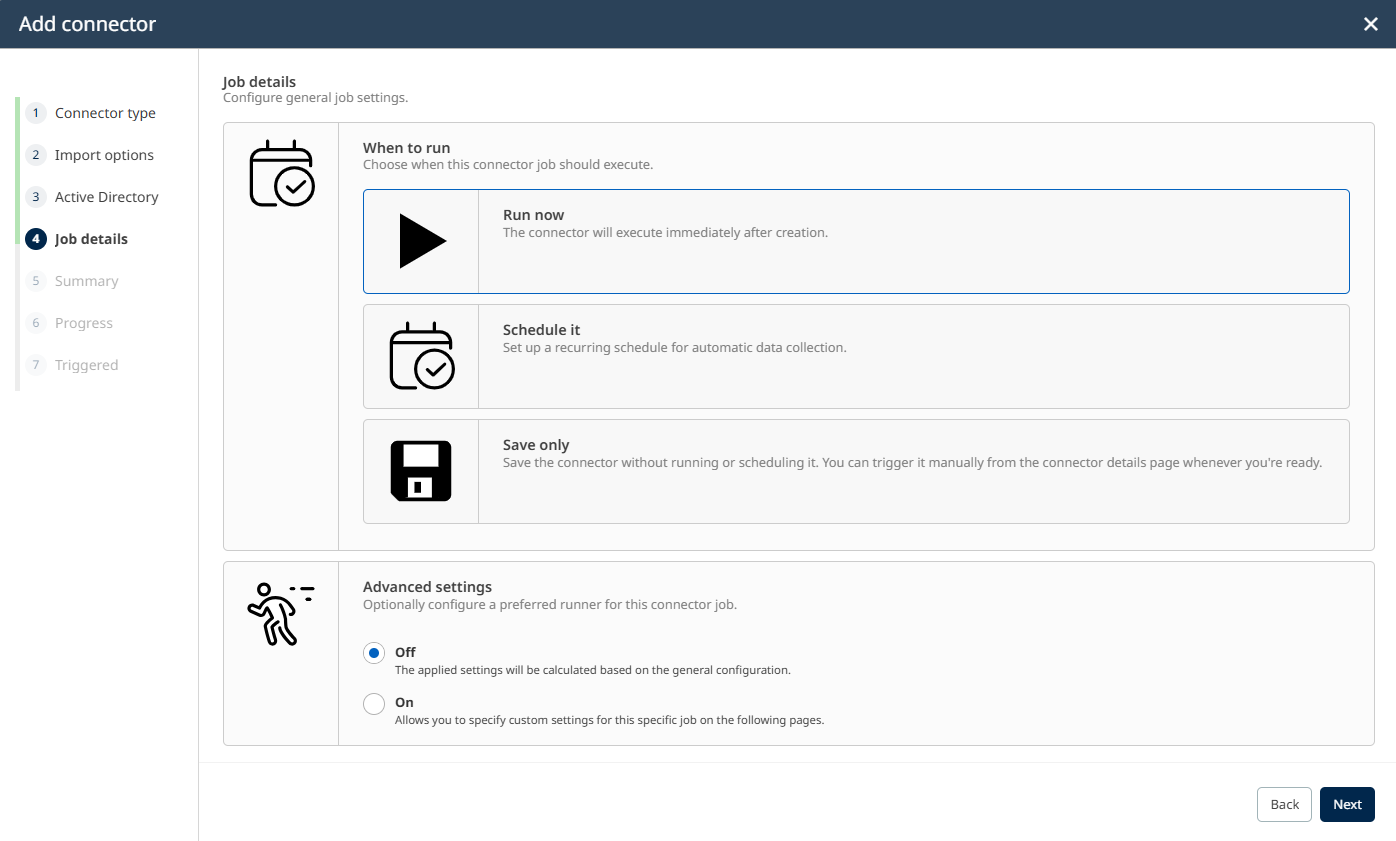
Step 4 — Job details: Choose when to run the connector and optionally configure advanced settings.
Connector Details page
Click a connector card to open the Connector Details page. The page shows the full configuration and operational history of the selected connector. The following tabs are available:
•Overview: Displays the connector type and description, the active import configuration (profile and data categories), and the operational status including the last and next synchronization times and import statistics from the last run.
•Run history: Lists all past connector runs. Each entry shows the start and finish time, status, duration, and any error message if the run failed.
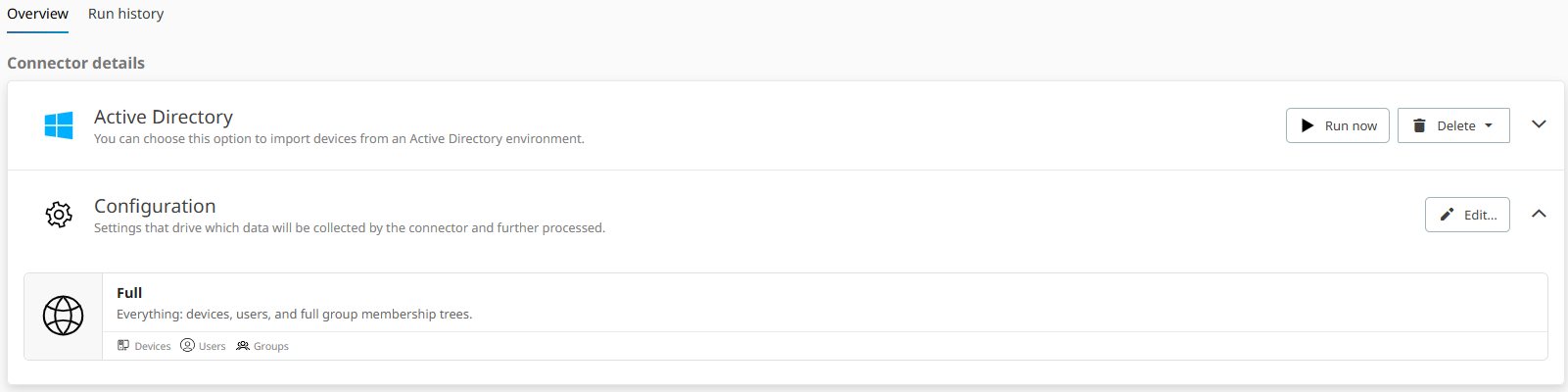
Connector Details page — Overview tab: Shows the connector type, the active import configuration, and available actions.
The following actions are available on the Connector Details page:
•Run Now: Starts a connector run immediately, outside the configured schedule.
•Edit...: Opens the connector configuration for editing. Click Edit... in the Configuration section to modify the import options or connection settings.
•Activate / Deactivate: Enables or disables the connector. A deactivated connector does not run according to its schedule and is shown as Inactive in the Connectors overview.
•Delete: Removes the connector. You can choose to delete only the connector (collected data remains) or to delete the connector and remove all data that was collected by it.
|
Note: |
