In the Organization units view, you can explore and define organization units (OUs) as part of your professional IT environment. Each part of an organization should have their own IT resources. By mirroring an actual organization's structure into organization units you can easily request inventory jobs for specific parts. Synchronize the list of organization units with changes in your real organization to better manage your IT landscape.
The organization units are managed in a tree hierarchy. Each can have at most one parent but multiple children. There can be no circular relationships.
In this view, you can perform the following actions:
•add new organization units,
•remove redundant organization units,
•assign icons to organization units,
•explore your current environment,
•edit organization unit descriptions,
•determine the parent organization unit, and
•inspect, add and remove assigned devices,
•configure dynamic device assignment rule sets and rules, see Dynamic device assignment for organization units, and
•manage blacklisted devices excluded from dynamic assignment, see Managing blacklisted devices.
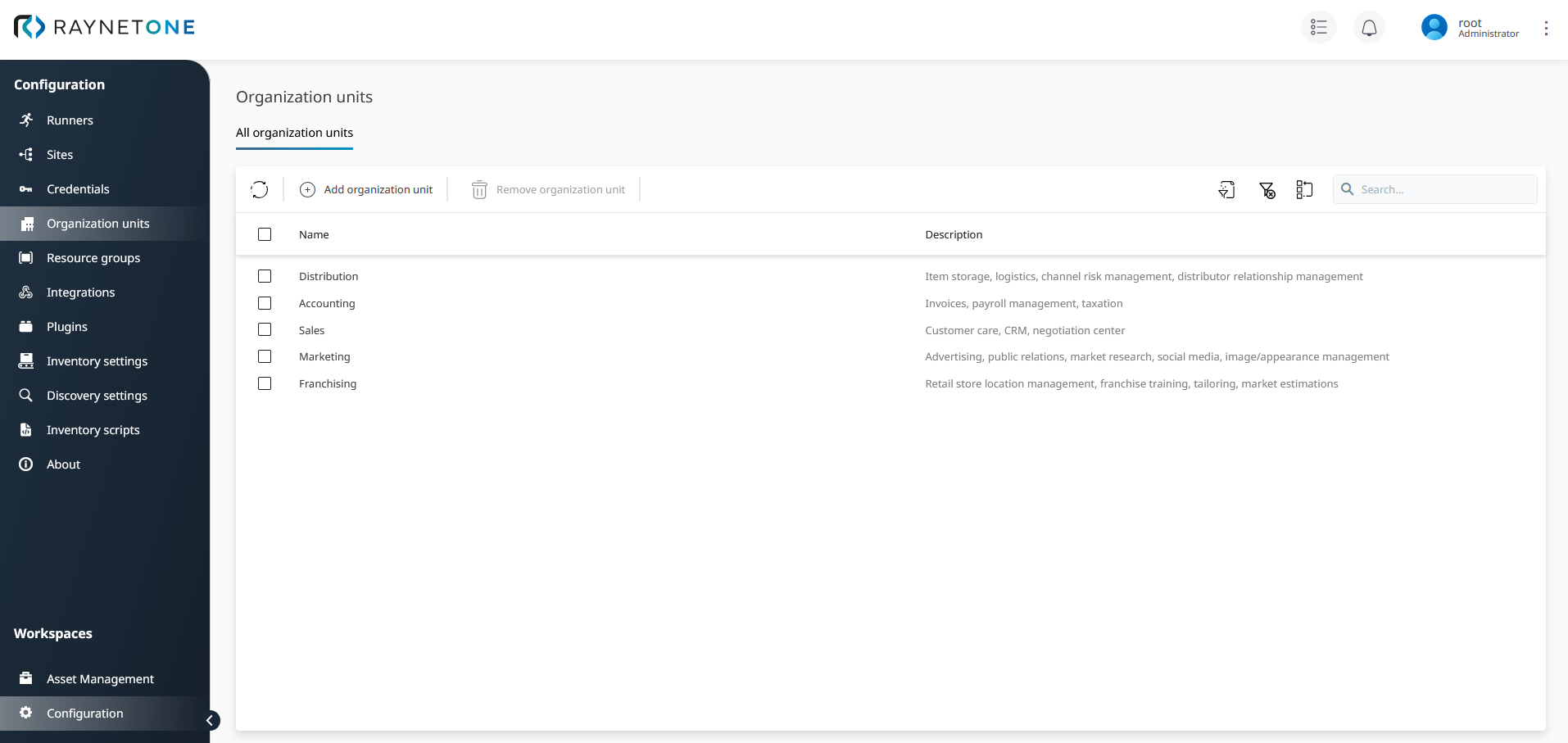
Organization Units view displays available organization units at a glance. It is recommended to keep this list up-to-date. In the above picture you can see sample business facilities registered, along with their description. Use self-explanatory names and insightful descriptions to help IT management recognize the gravity and importance of the organization's parts.
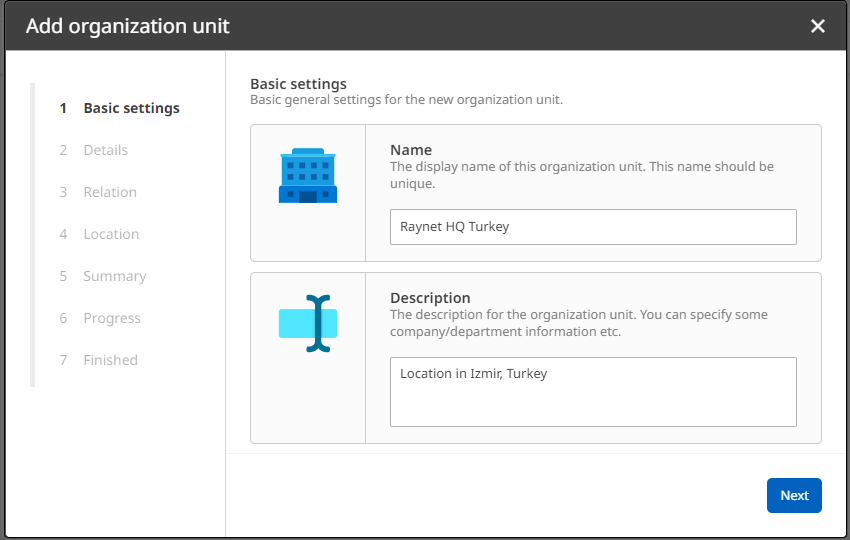
The Add Organization Unit wizard helps you to create a new organization unit for structuring your managed environment.
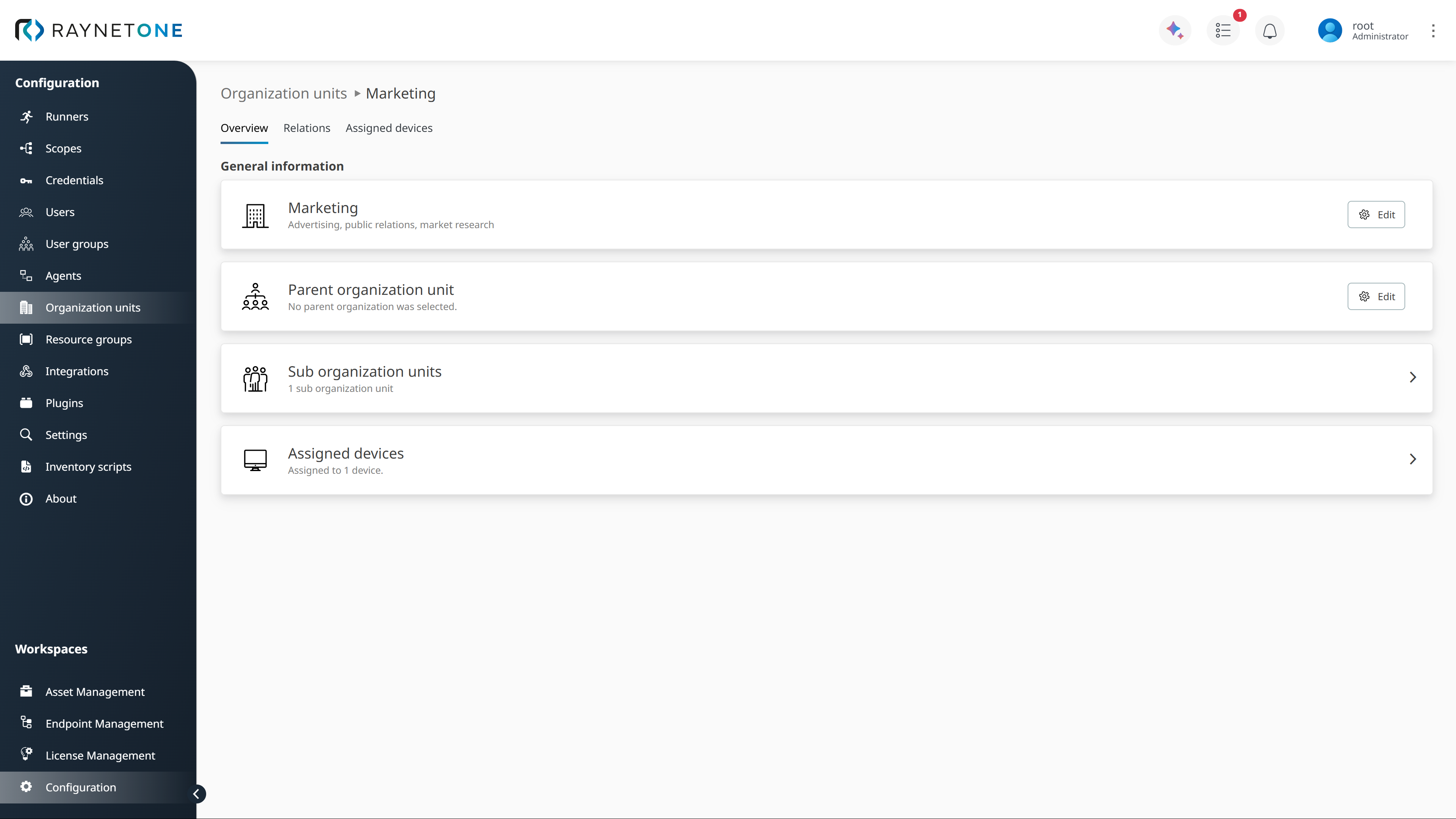
Overview of an individual organization unit. It displays the description, hierarchical and general resource assignment information of the selected organization unit. Used to verify the correct hierarchy relationships.
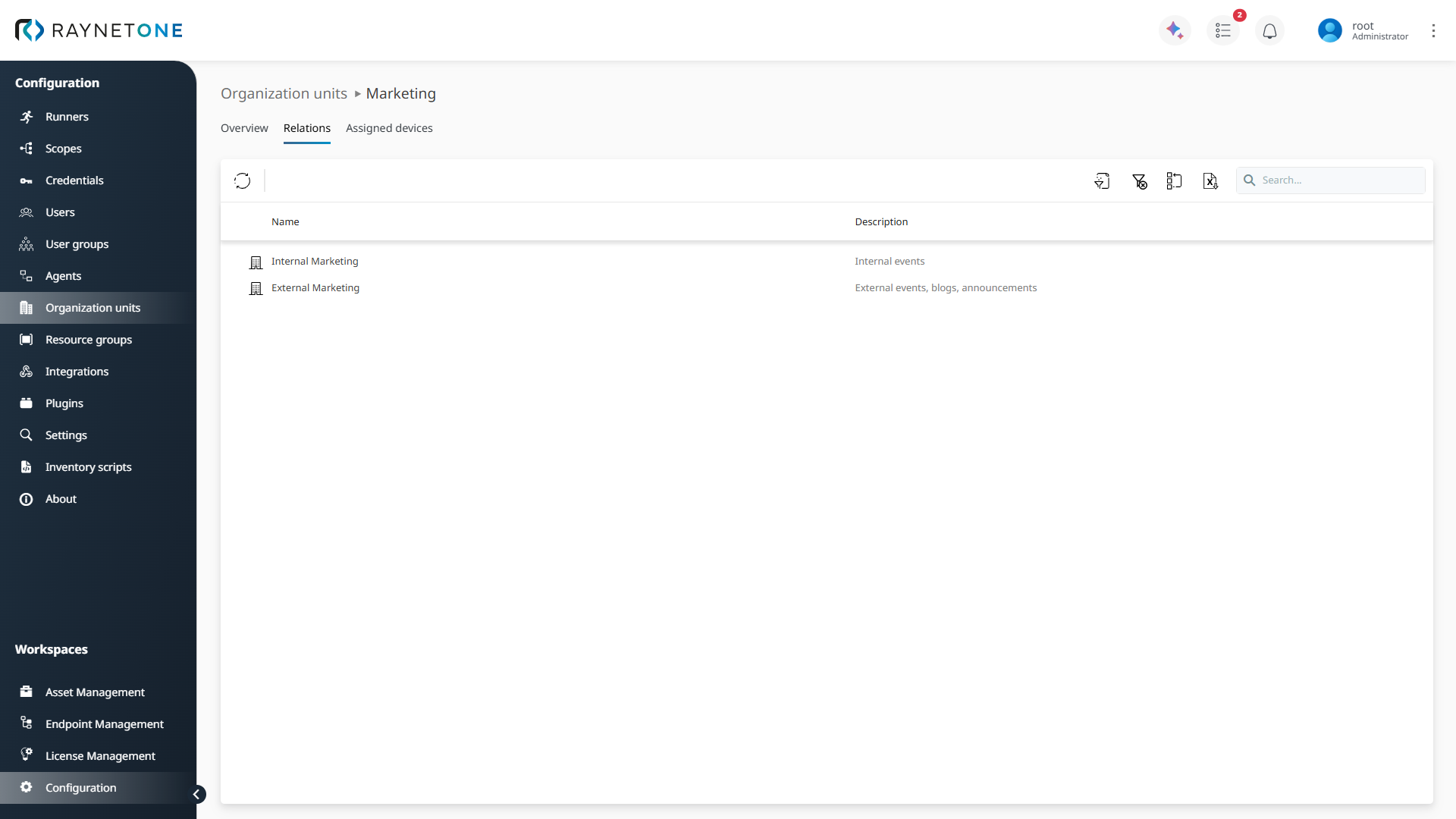
Relations list of an organization unit. Includes all child organization units of the selected parent organization unit. The tab leading to this page is only shown for parent organization units. It is hidden for all organization units having no hierarchical children. Use this view to manage the hierarchy relationships from the parent's perspective.
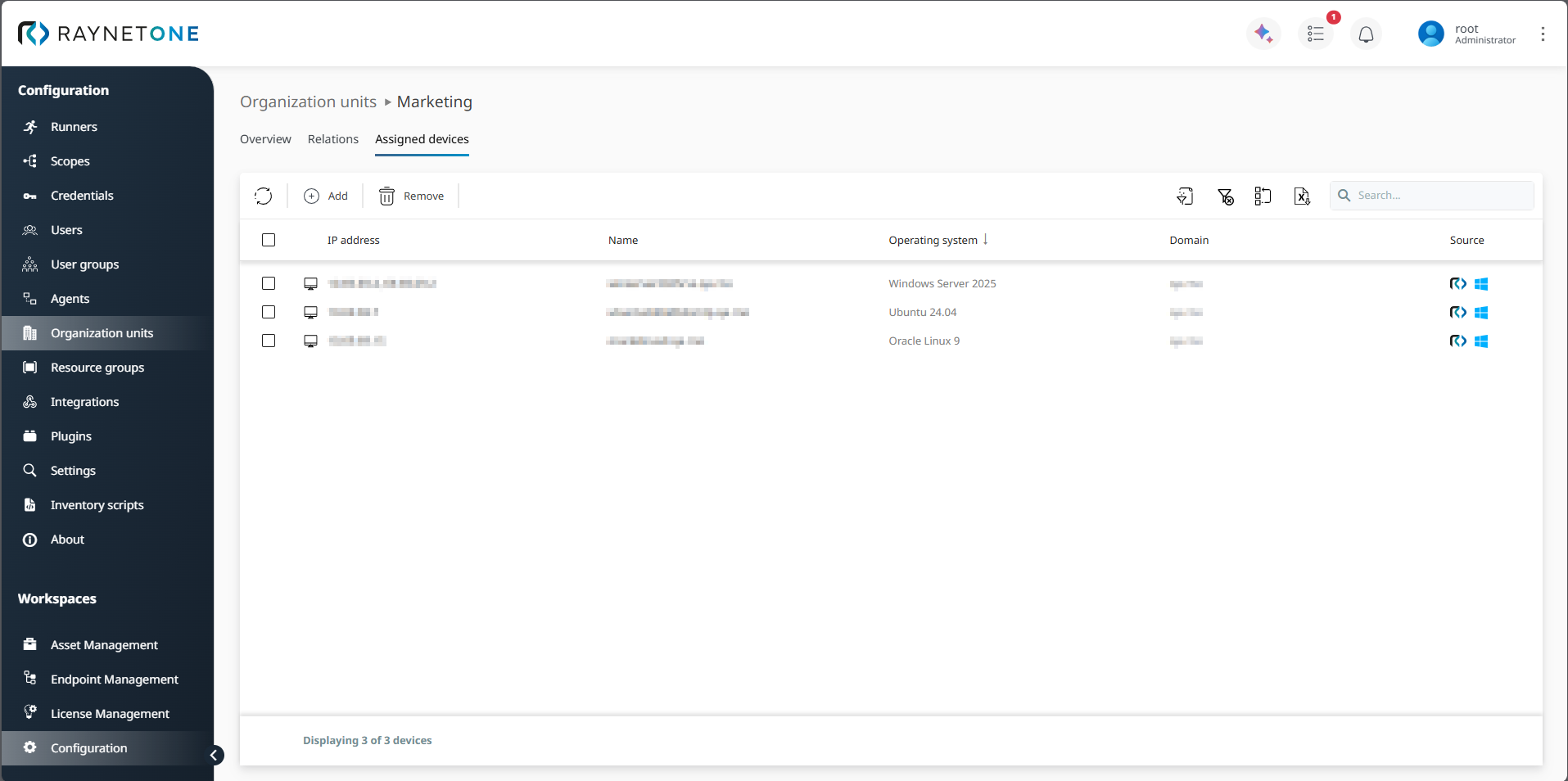
Assigned devices list of an organization unit. Each organization unit can be assigned a fixed set of devices, based on previously discovered or manually imported ones. Consider the organization unit as a firmly maintained list of network devices. Multiple devices can be assigned to an organization unit, but each device can only belong to one organization unit.
|
Note: |

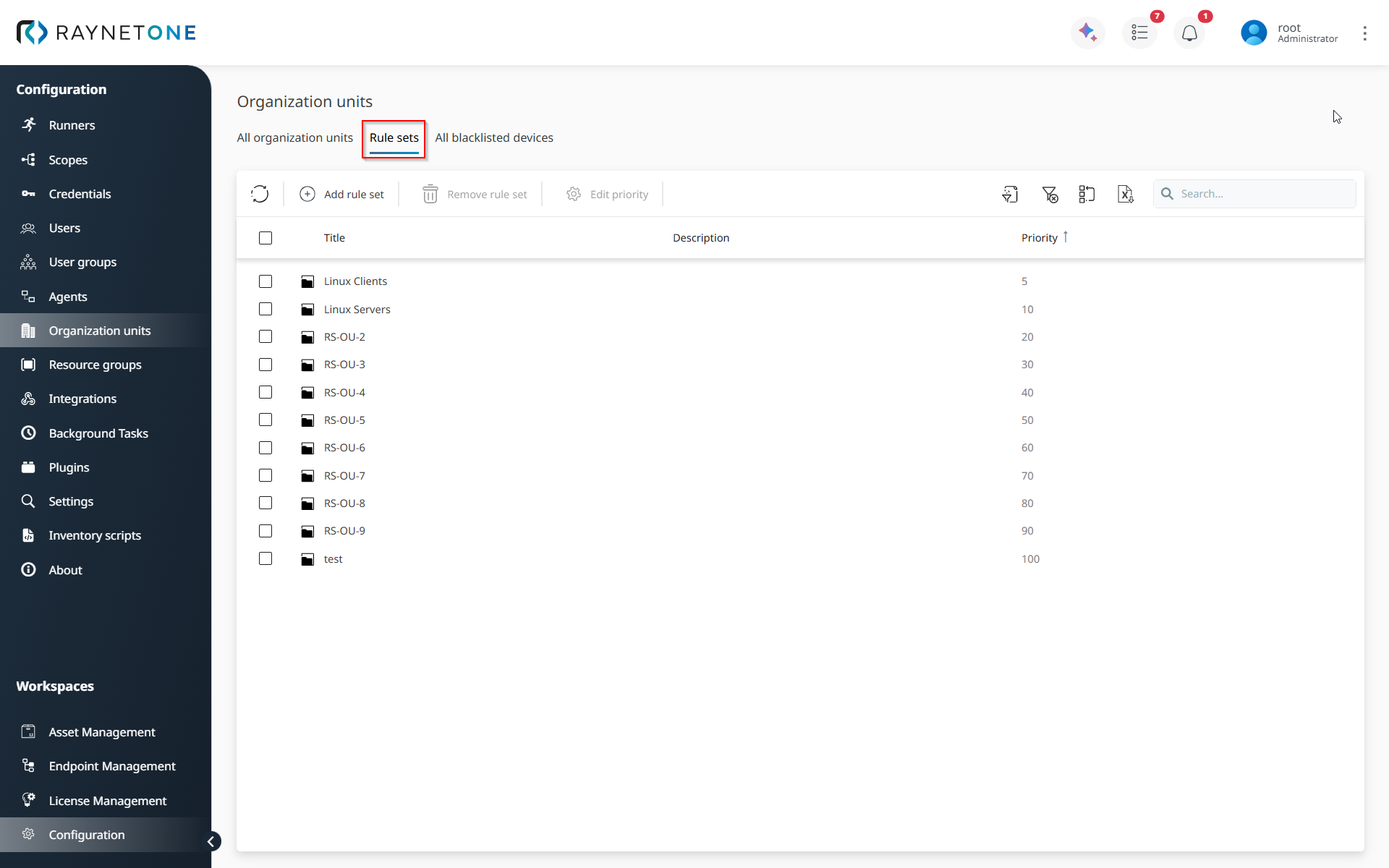
The Rule sets tab allows you to automatically assign discovered devices to organization units based on user-defined rules. This helps keep organization unit membership up to date without requiring manual device assignment after each discovery or inventory run.
Rule sets are evaluated by priority. Each rule set can contain one or more rules, and each rule also has its own priority. Raynet One processes the rule sets and rules in priority order until a device is successfully assigned to an organization unit.
In the Rule sets view, you can create and manage rule sets, review their priority, and open individual rule sets for more detailed configuration.
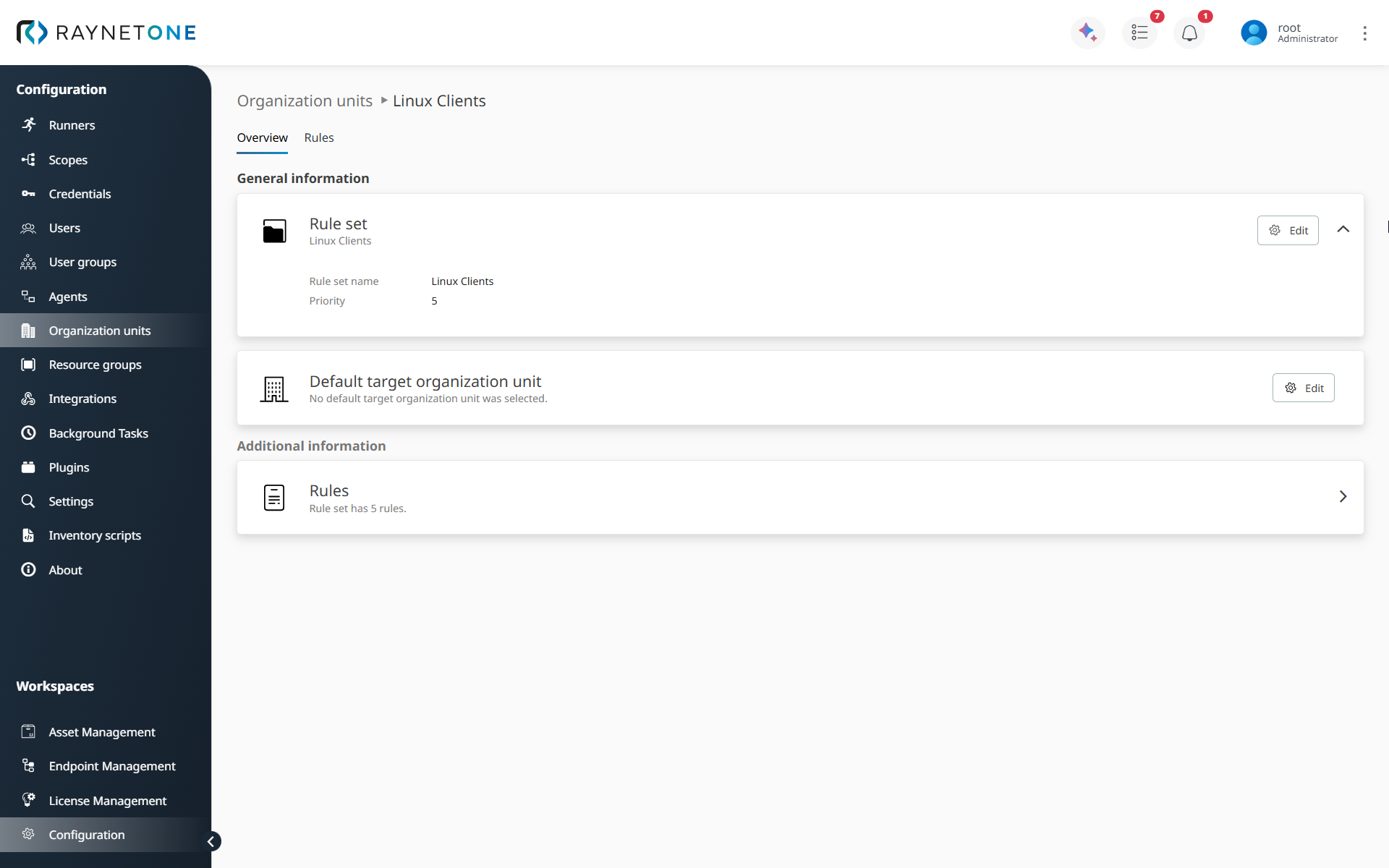
After opening a rule set, the overview page displays the rule set name, priority, default target organization unit, and the number of rules included in the rule set.
A rule set can include a Default target organization unit. This organization unit is used when no rule in the rule set successfully assigns the device, provided that the device is not blacklisted from the default target organization unit.
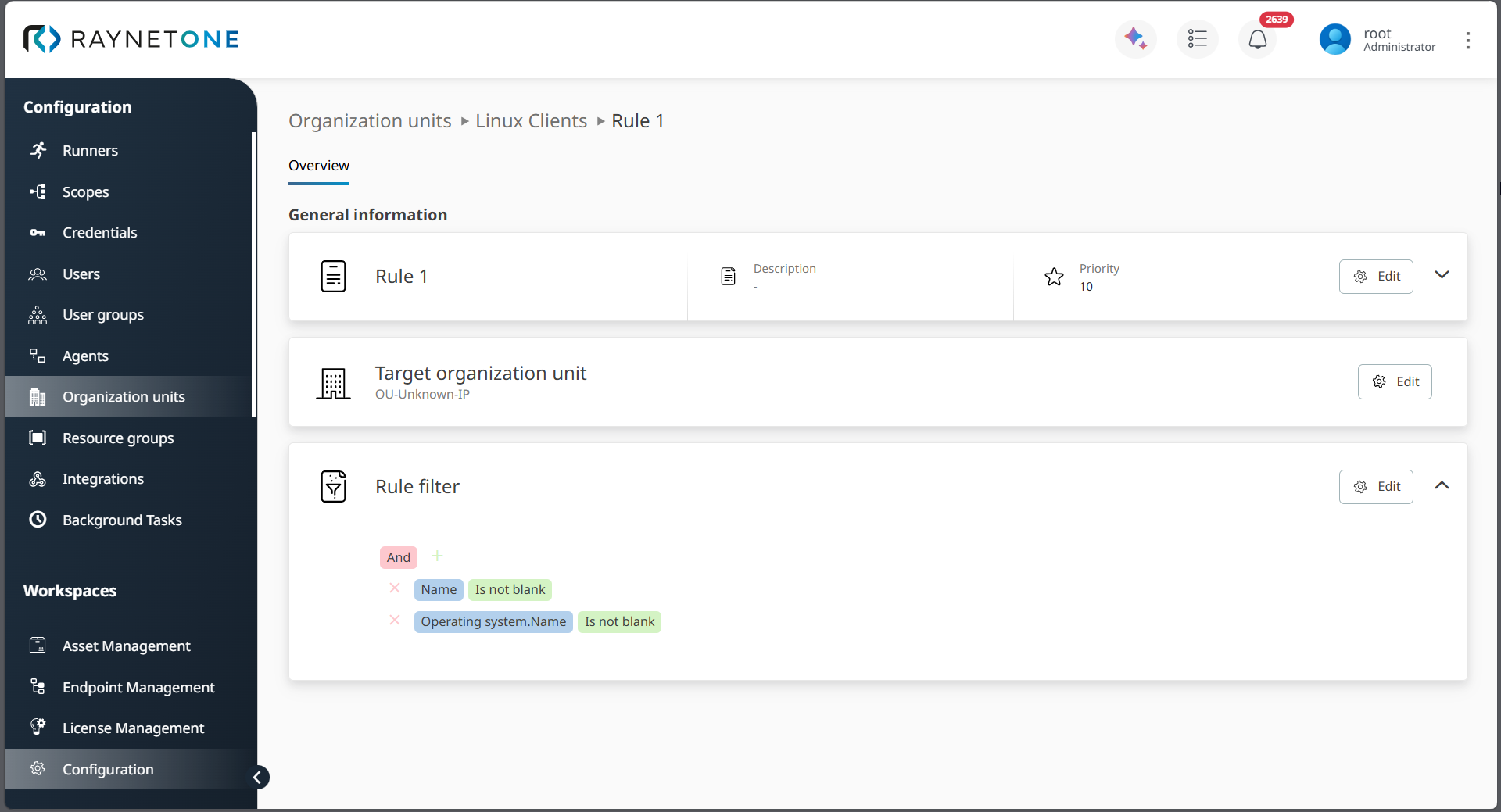
Rules define the conditions that decide whether a device should be assigned to a specific organization unit. Each rule has:
•a priority,
•a target organization unit, and
•one or more filter conditions.
Rule filters can be based on device properties such as name, operating system, IP address, domain, tags, hardware attributes, or other available inventory data. When a device matches a rule filter, Raynet One assigns the device to the rule’s target organization unit and stops processing further rules.
Processing logic
Raynet One evaluates dynamic assignment rules in the following order:
1.Rule sets are processed by priority.
2.Rules inside each rule set are processed by priority.
3.When a rule matches and the target organization unit is allowed, the device is assigned to that organization unit.
4.If the matching target organization unit is blacklisted for the device, the device is not assigned there and rule evaluation continues.
5.If no rule in a rule set assigns the device, Raynet One checks whether the rule set has a default target organization unit.
6.If the default target organization unit is allowed, the device is assigned there.
7.If no assignment is possible, processing continues with the next rule set.
Example:
A rule set has the following rules:
•Rule 1: Device name equals win11dogan → assign to OU1
•Rule 2: Device IP equals 10.69.69.152 → assign to OU2
•Rule 3: Device domain equals qa.rno → assign to OU3
If a discovered device matches Rule 1, it is assigned to OU1, and the remaining rules are not processed.
If the device matches Rule 2 but is blacklisted from OU2, Raynet One skips that assignment and continues evaluating the remaining rules or the rule set’s default target organization unit.
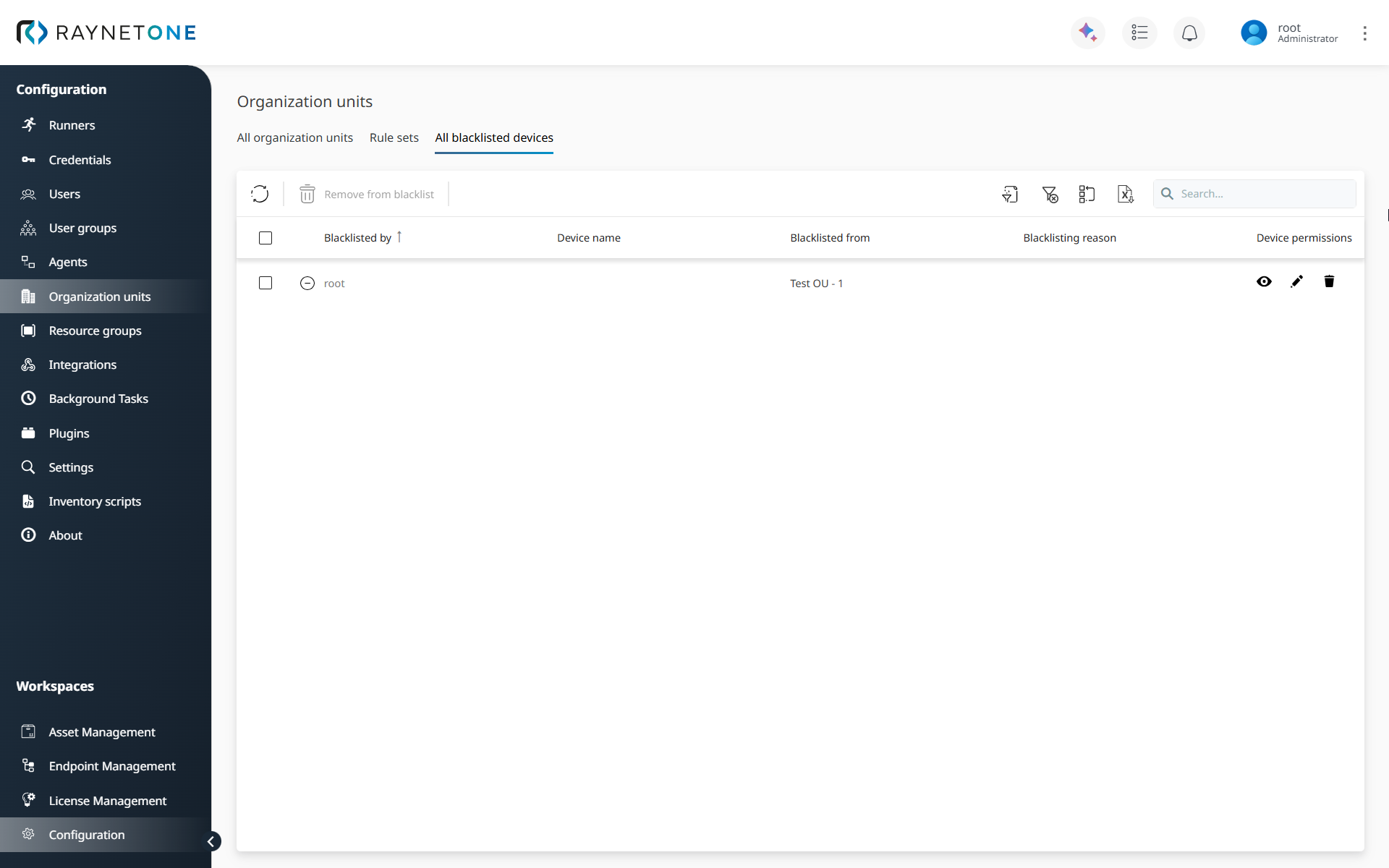
The All blacklisted devices tab shows devices that are excluded from dynamic assignment to specific organization units.
If a device is blacklisted from an organization unit, Raynet One will not dynamically assign the device to that organization unit, even if a rule matches. When a device is added to or removed from a blacklist, the assignment engine runs again and attempts to find the next valid organization unit for that device.
This ensures that manual exclusions are respected while still allowing devices to be dynamically assigned to another suitable organization unit.