Raynet One empowers administrators with advanced user group management features, enabling the creation of child groups for intuitive hierarchical organization. It also supports the configuration of inheritance structures to define permissions across related groups. These capabilities extend to assigning groups to predefined roles, ensuring precise access control tailored to organizational needs.
Before configuring user groups and role assignments, refer to the permissions section for detailed information on how roles, Permission Context, and ACLs work together to determine Effective Permissions.
To access these comprehensive user group management capabilities in Raynet One, navigate to the Workspaces section on the left sidebar at the bottom and click on Configuration to open the central panel.
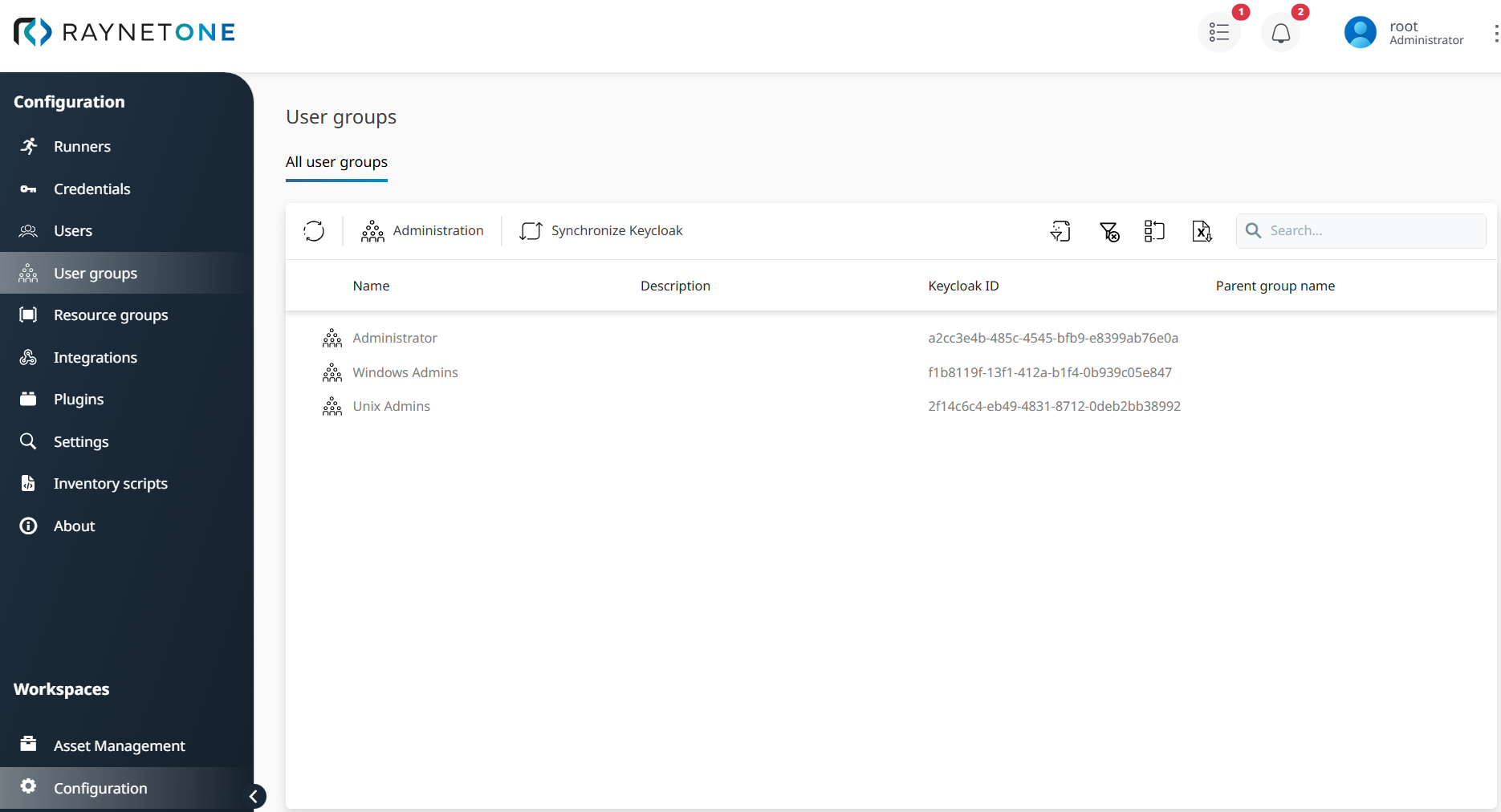
Once in the Configuration panel, select User groups to display the overview of all user groups.
In the Raynet One User groups view, the name of each user group and its Keycloak ID - the unique identifier from the integrated identity provider - are displayed.
This view provides an intuitive User Interface (UI) with powerful tools for efficient user group management, offering the following key options:
•Refresh: Updates user group data instantly from the backend.
•Administration: Enables creation and configuration of user groups for customized hierarchies and permissions.
•Synchronize Keycloak: Instantly syncs data with Keycloak, complementing Keycloak's automatic updates every 10 minutes for consistent user group data.
•Filter configurations: Filters the user group list by criteria like Name or Parent group name (right side).
•Export to Excel: Downloads the user group list as an Excel file (right side).
•Search bar: Enables quick keyword-searches within user groups (right side).
This section explores the Administration features, enabling the creation and configuration of user groups for secure, scalable identity management in Raynet One.
Click Administration to create new user groups or configure existing ones, tailoring permissions and hierarchies effortlessly.
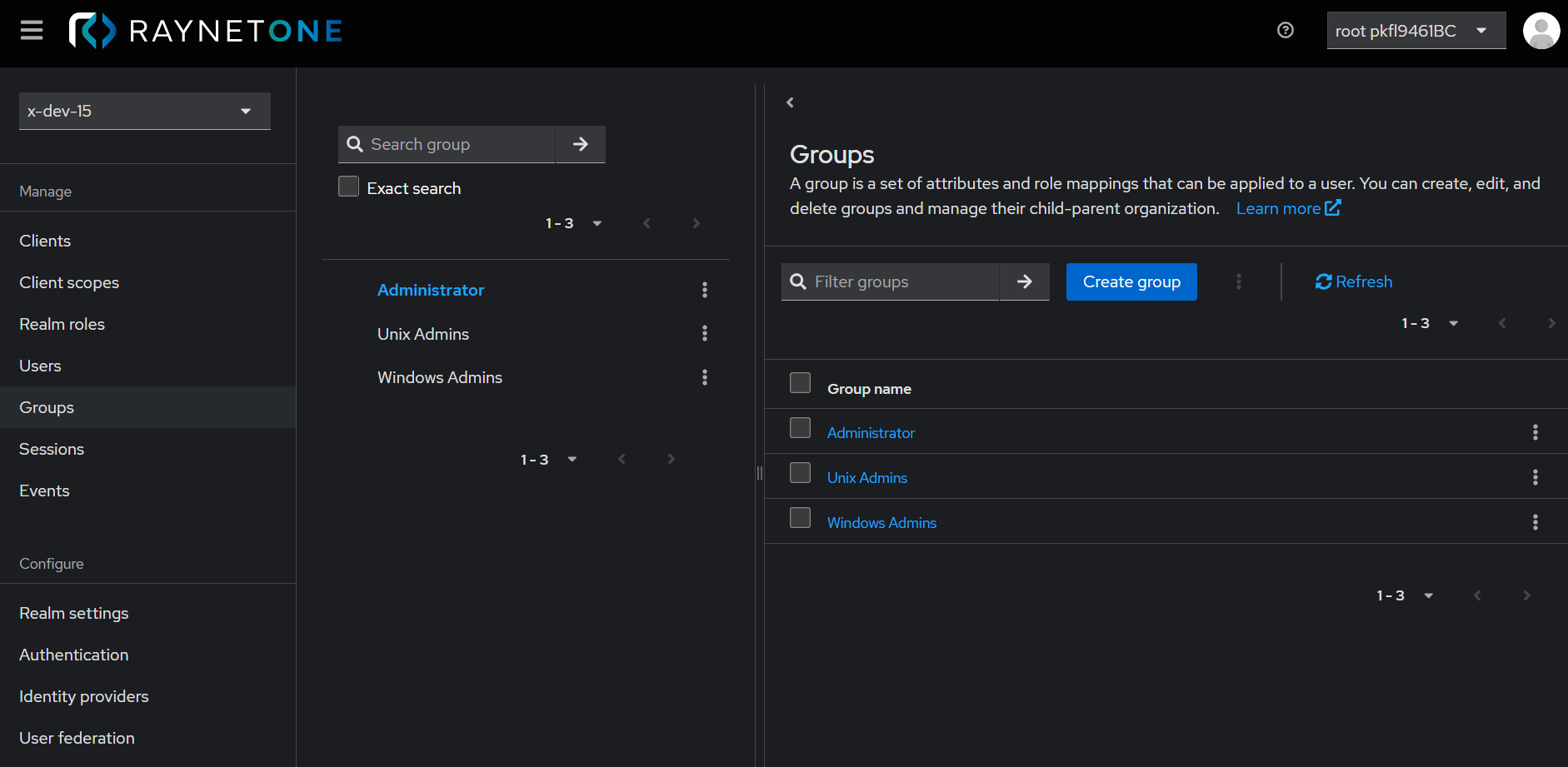
Click the three dots next to a group name to rename, move, create a child group, or delete it. Select Create group to easily add a new group.
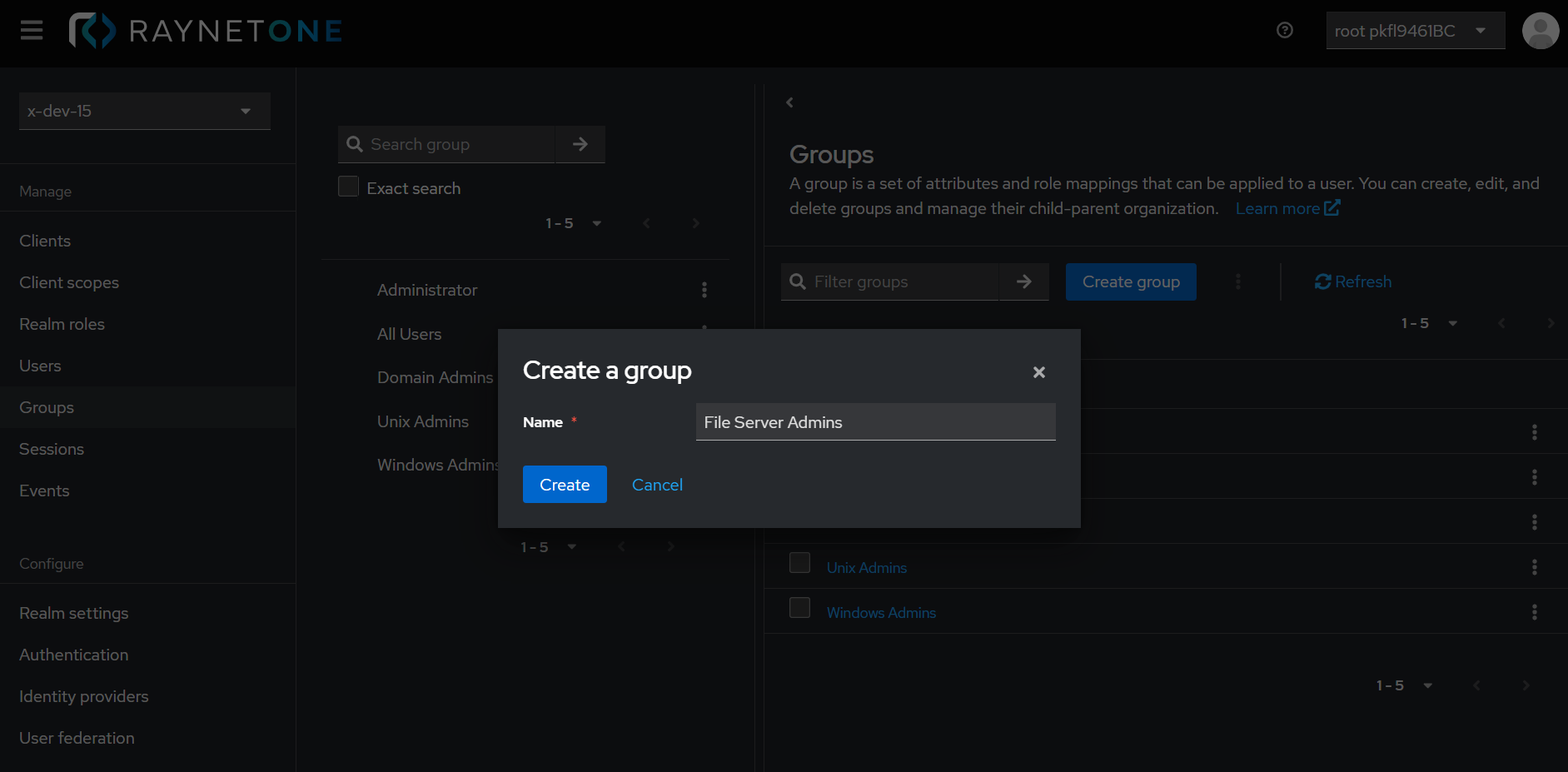
This section explains how to establish group structures in Raynet One, followed by an example illustrating File Server Admins as a specialized group for targeted administration. The File Server Admins group manages specific permissions for targeted areas, like file servers and storage systems, ensuring scalability and enhanced security.
To create the group, navigate to the Groups view and click the Create group button.
Clicking the Create group button opens the Create a group view. In the required Name field, enter the group's name and then click the Create button to finalize. The File Server Admins group provides administrative access to file servers and shared storage resources, enabling members to manage file permissions and backup operations for the organization's data infrastructure.
The Group details view also includes tabs like Members, Attributes, Role mapping, and Permissions to manage user group configurations comprehensively:
•Members tab: Add or remove users from the group for accurate access control.
•Attributes tab: Configure metadata such as group descriptions or custom properties.
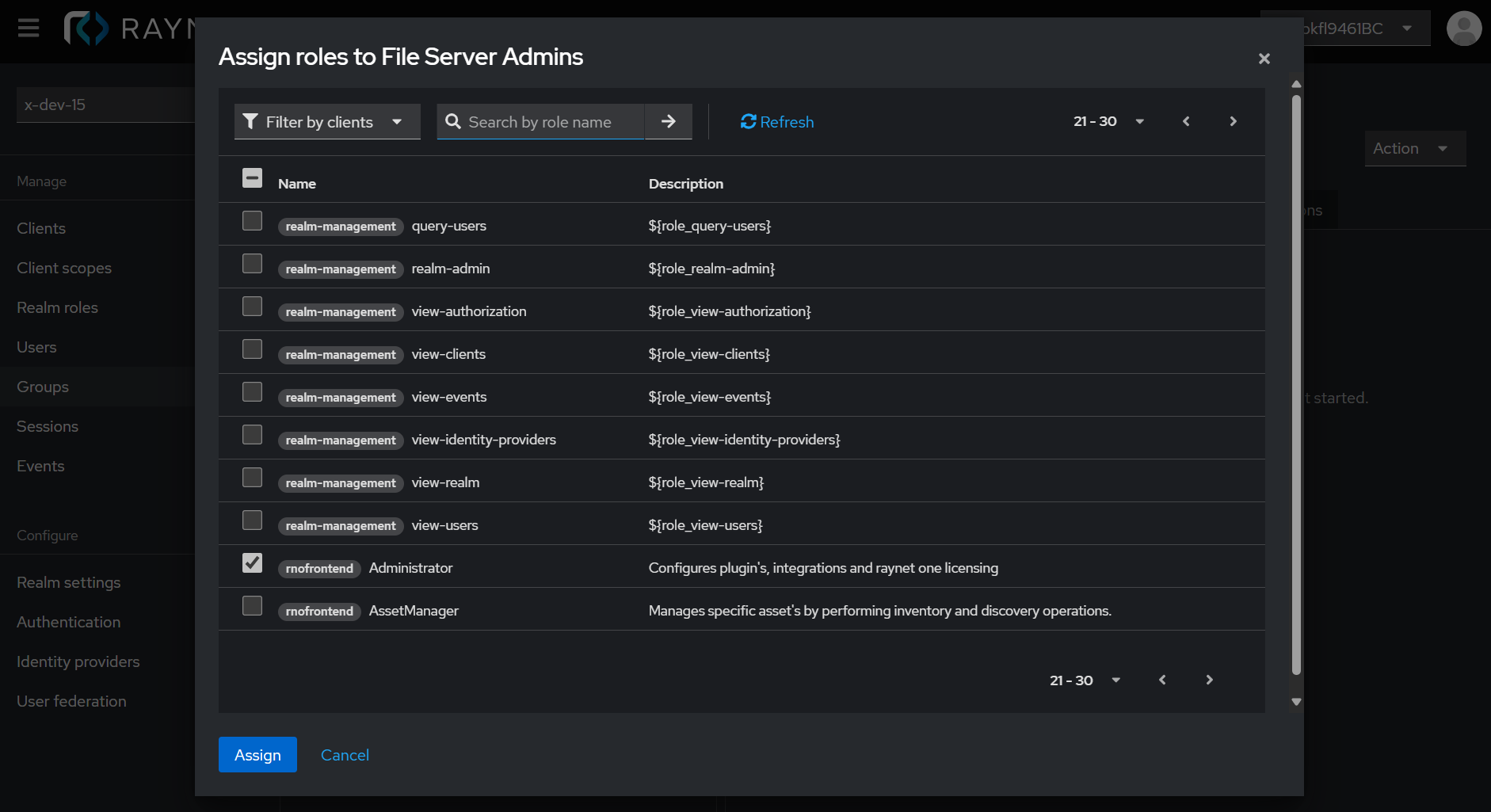
•Role mapping tab: Assign specific roles to the User group to define operational capabilities within the Permission Context.
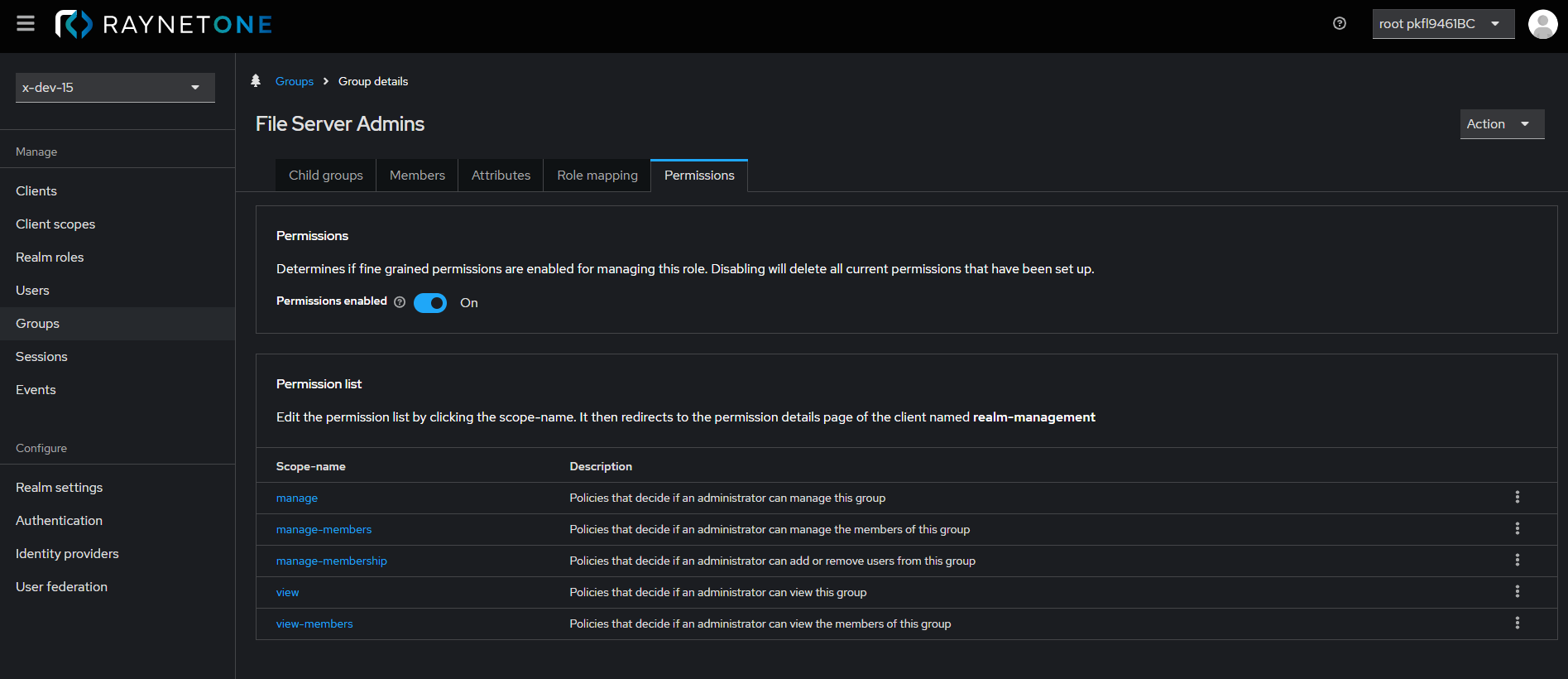
•Permission tab: Navigate to the Permissions tab in the Group details view and ensure the Permissions enabled toggle button is set to On. This settings determines if fine-grained permissions are enabled for managing the user group.
|
WARNING Disabling the Permissions enabled toggle in the Permission tab will delete all current permissions that have been set up for the user group and prevent ACL functionality in Raynet One. |

To assign a role to the File Server Admins group, navigate to the Role mapping tab and click the Assign role button. In this example, the rnofrontend role Administrator is selected for the File Server Admins group to define the group's operational capabilities within Raynet One. Click the Assign button to finalize the role assignment.
The combination of assigned roles and Permission Context (defined by ACLs) determines the Effective Permissions for group members, which will be covered in later sections.
To manage access rights for the File Server Admins user group, navigate to the Permissions tab in the Group details view and ensure the Permissions enabled toggle is set to On to apply fine-grained ACLs. This toggle defines whether Effective Permissions, combining Permissions Context and Roles, are enforced; disabling it deletes all configured permissions for the user group.
|
Note: |

The combination of assigned roles and Permission Context (defined by ACLs) determines the Effective Permissions for group members. To complete the access control configuration, proceed to the Resource groups section where ACLs will be defined and assigned to establish the Permission Context for user groups.