Step into the intuitive joy of managing users with Raynet One, inspiring effortless definition and administration of user accounts tailored to vibrant, professional IT environments.
For a comprehensive understanding of how permissions work in Raynet One, including Permission Context, ACLs, and Effective Permissions, refer to the permissions section before proceeding with user configuration.
This section explores assigning predefined client roles, such as Administrator, Global Asset Manager, Asset Manager, User, or Guest, each granting specific access to IT assets tailored to organizational needs. The Guest role provides minimal access with no operational permissions, serving as the lowest-level entity. Properly configured user accounts ensure secure and efficient resource management, leveraging Keycloak's synchronization for smooth integration.
To manage users, navigate to Workspaces, click Configuration, and select Users to access the Users view. The Users view displays an overview of all users, including their email addresses and Keycloak IDs for straightforward identification and administration. Roles can be assigned to users in two different ways: directly assigning a role to a user or adding a user to a user group with an assigned role. Access and permissions are determined by a Permission context, computed based on Access Control Lists (ACLs) assigned to user groups. The Permission Context defines which operations a user can perform on specific assets, based on group memberships and ACLs that map permissions between resource groups and user groups. These user management tasks, including assigning roles, are covered in detail in later sections.
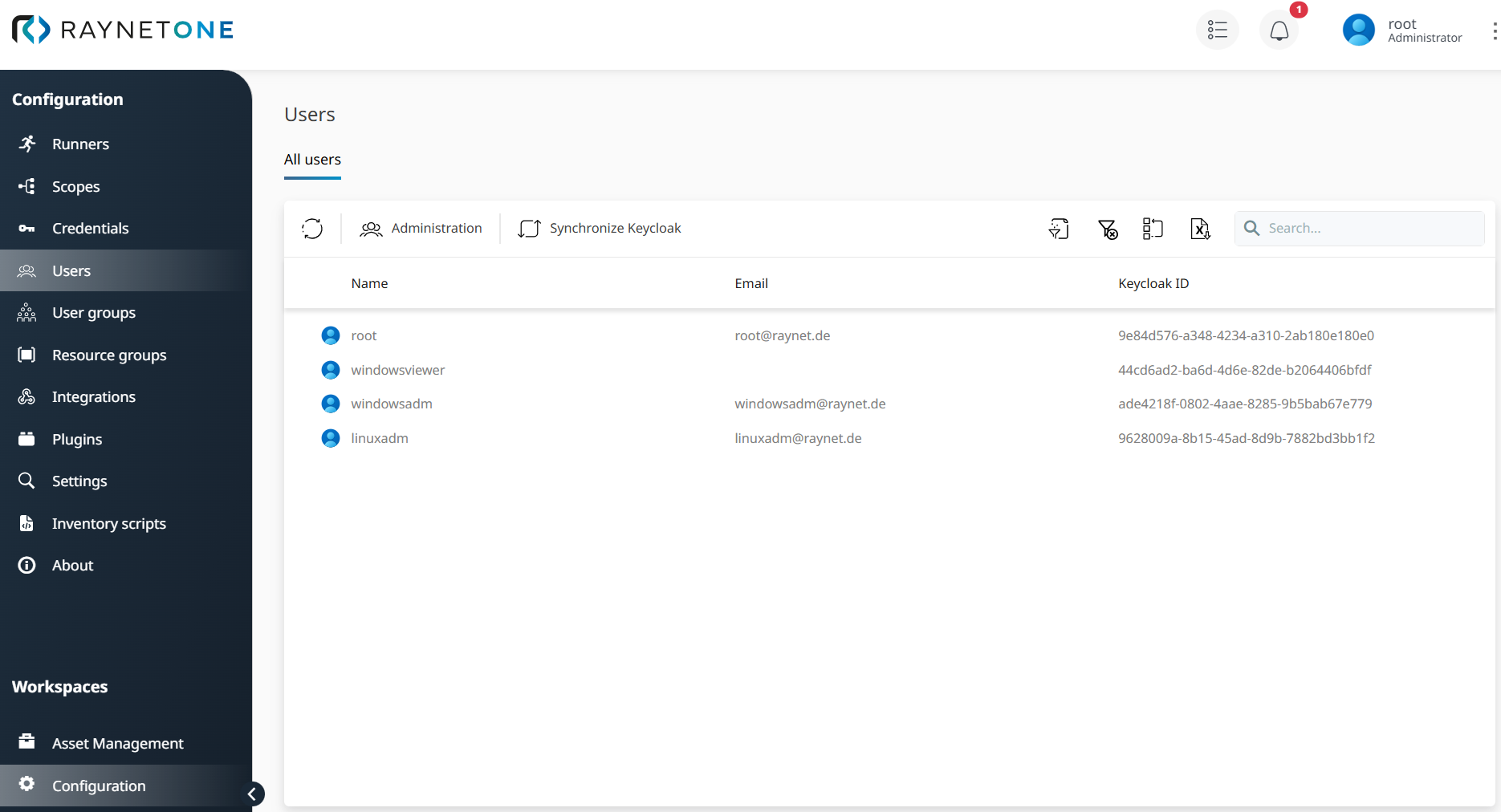
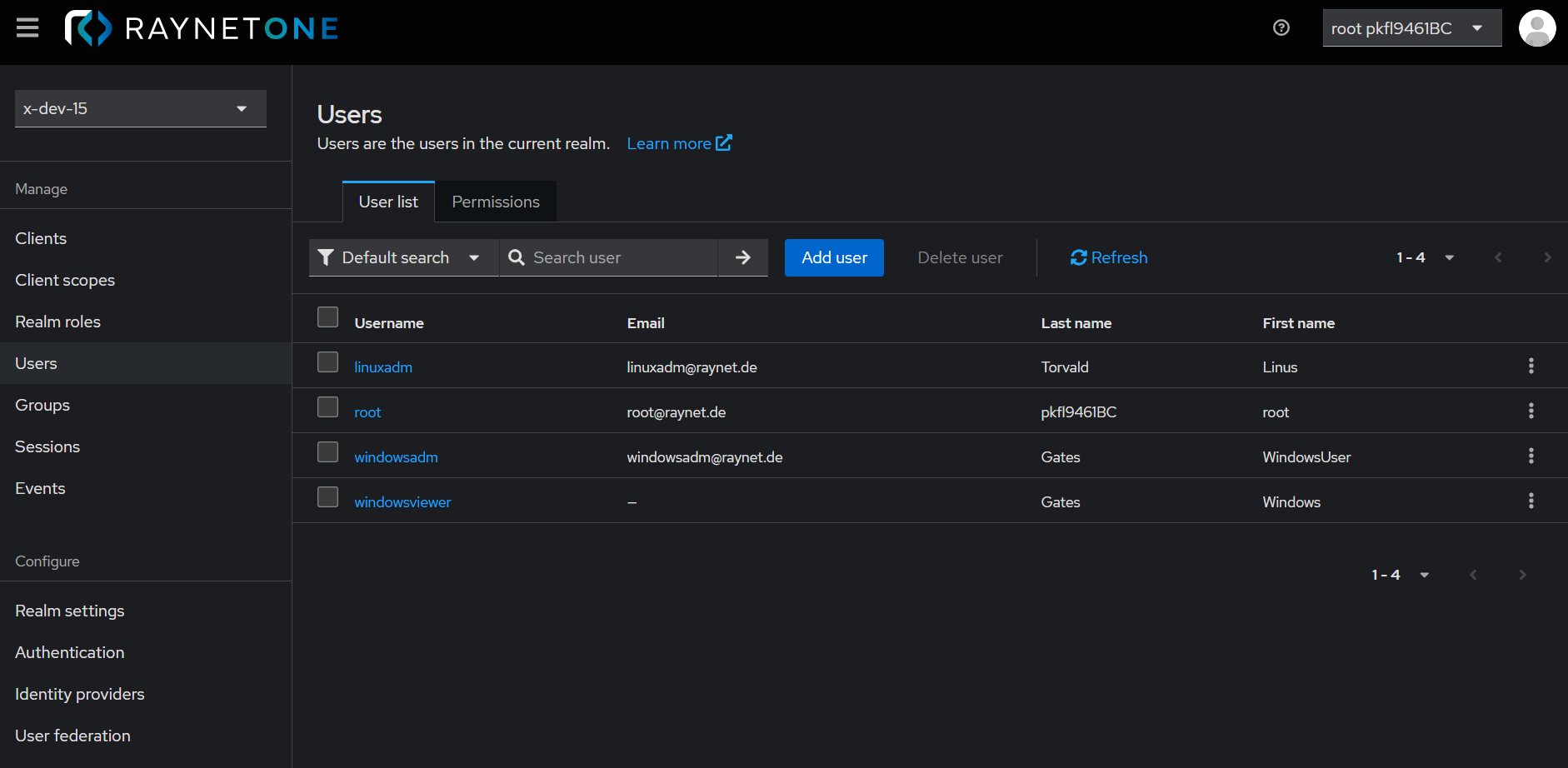
In the Users view, click the Administration button to access the Users management view. The User list tab, displayed by default, provides an overview of all current Users, including the Username, Email, Last name and First name. From the User list tab, new users can be added and existing users can be deleted as needed. Ensure that Permissions enabled is always set to On in the Permissions tab and avoid making changes to this setting to maintain proper access control.
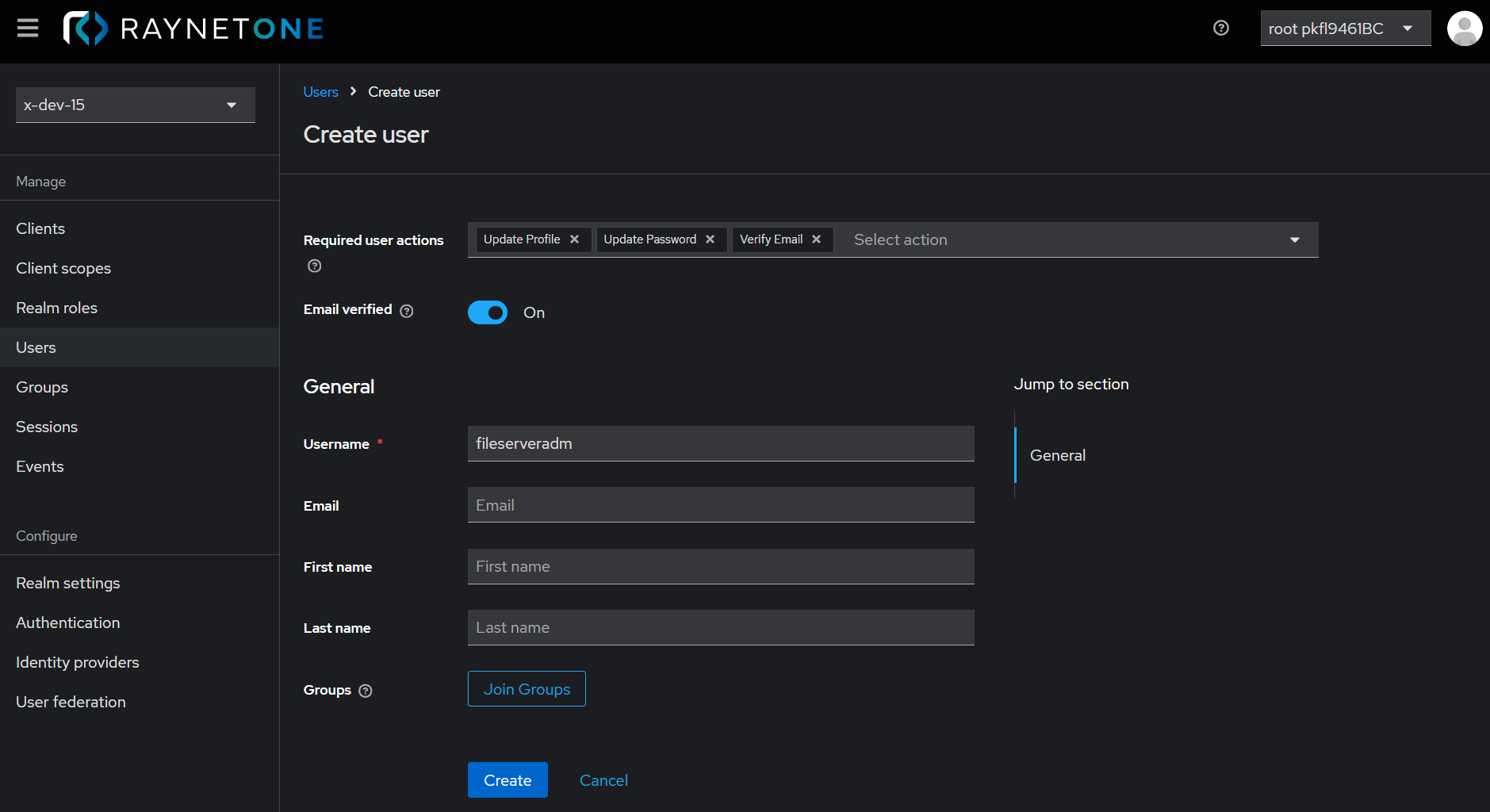
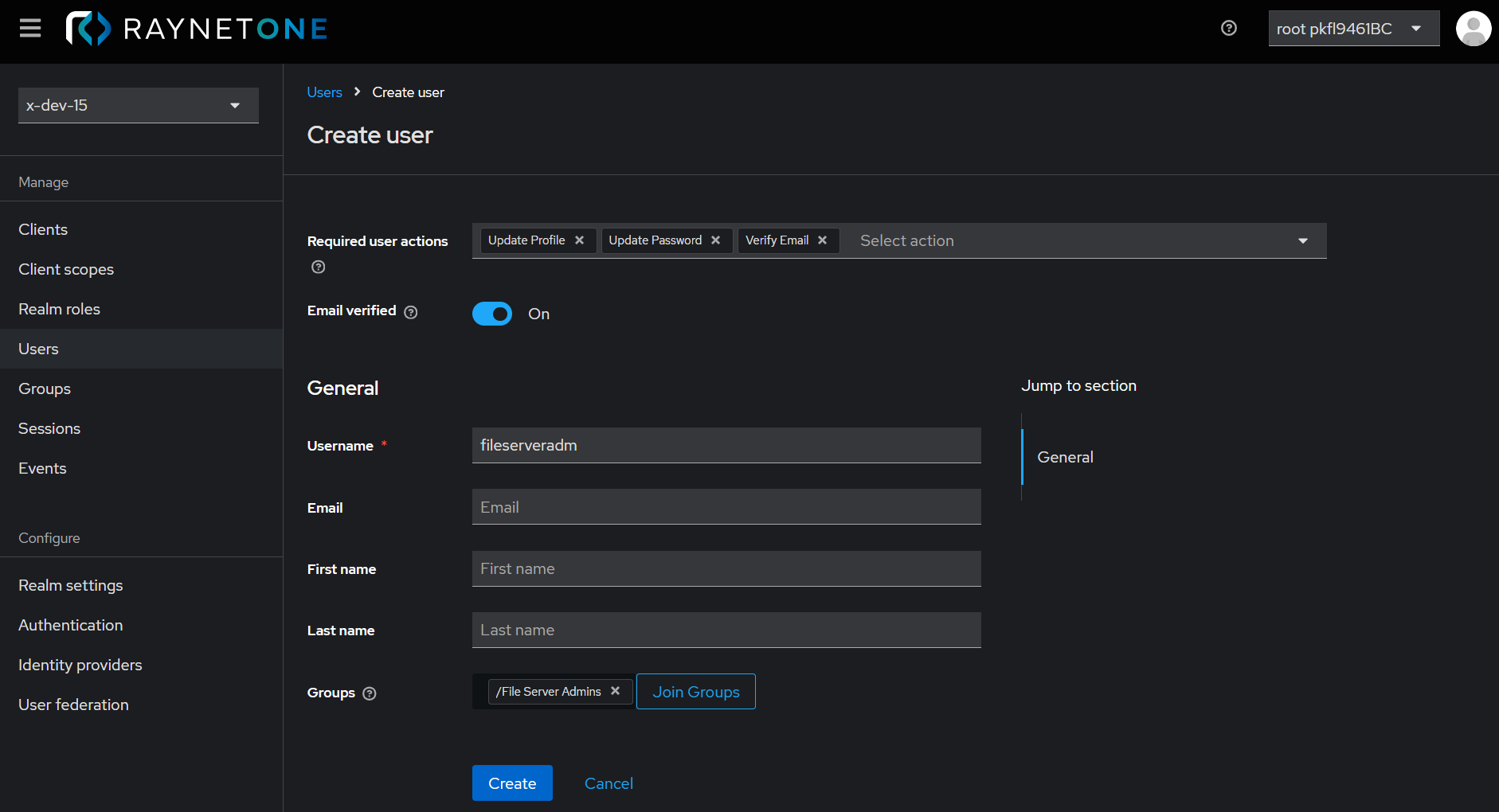
From the User list tab, click the Add user button to add a new user, such as fileserveradm. Select the required user actions, such as Update Profile, Update Password, and Verify Email, to enforce specific actions upon the user's first login:
•Update Profile: Requires the user to enter new personal information.
•Update Password: Requires the user to set a new password.
•Verify Email: Sends an email to verify the user's email address.
Ensure the Email verified toggle button is set to On to confirm the user's email address has been verified. Enter the required details, including Username, Email, First Name, and Last Name, in the General section. For example, use the Username fileserveradm. Assign the user to at least one user group to define their permissions through group memberships and ACLs, as detailed in later sections. It is strongly recommended to assign each user to a User group to ensure proper access control.
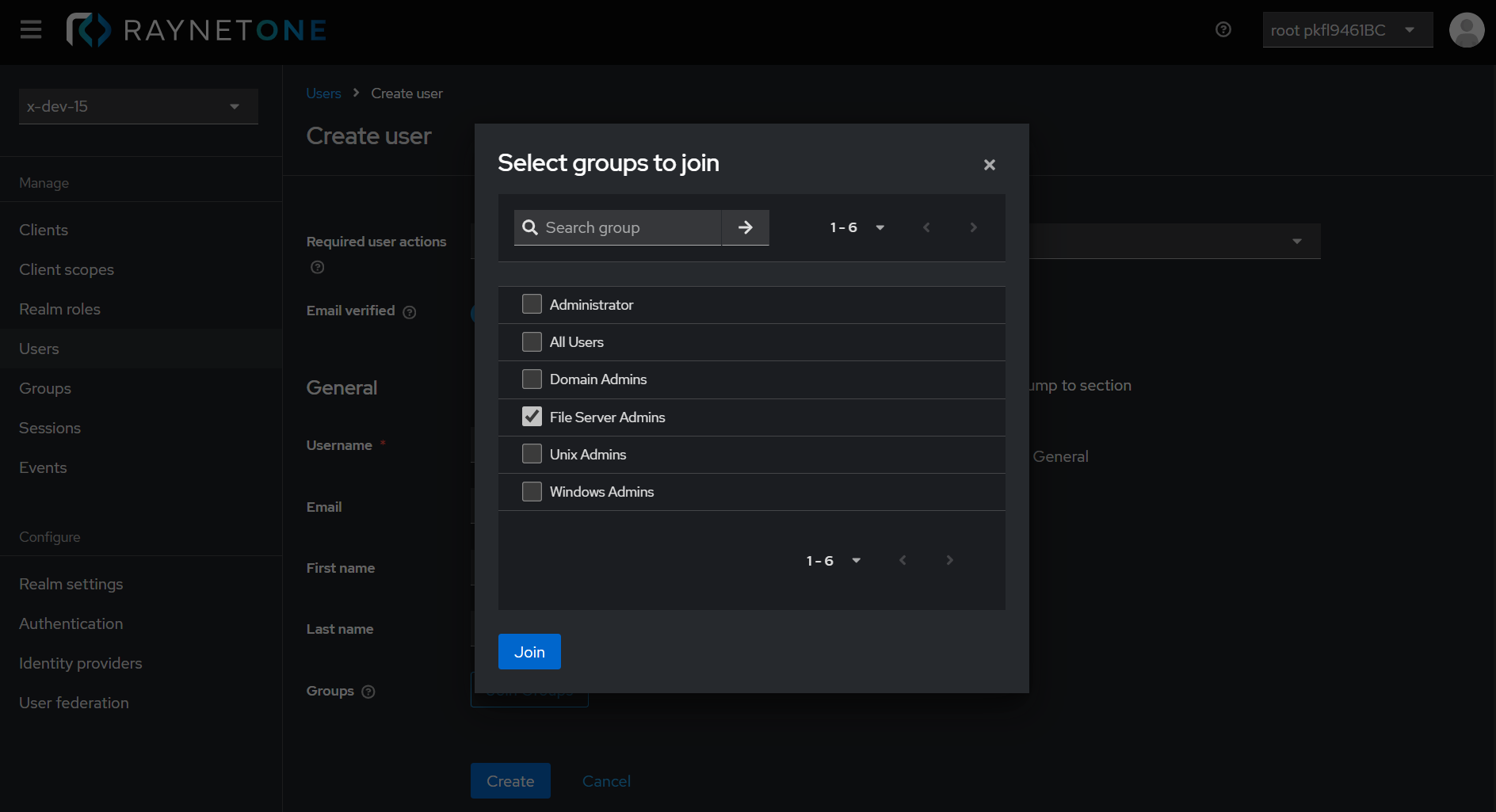
To assign a user, such as fileserveradm, to a User group such as File Server Admins in the Create user view, after completing earlier steps (e.g., selecting required user actions, setting the Email verified toggle button to On, and entering user details) as described in previous sections, click the Join Groups button. For details on creating User groups, refer to the User groups section.
Select the File Server Admins User group, by ticking the checkbox next to the group name. Click the Join button to assign the user to the File Server Admins User group, granting permissions to manage file server resources (e.g., shared drives, access controls). This group join automatically assigns any roles previously assigned to the File Server Admins user group to the user, enabling efficient permission management.
In the Create user view, verify the group membership of a user, such as fileserveradm, assigned to a User group like File Server Admins, as described in previous sections, noting that a user role will be assigned later. Click the Create button to proceed with user creation.
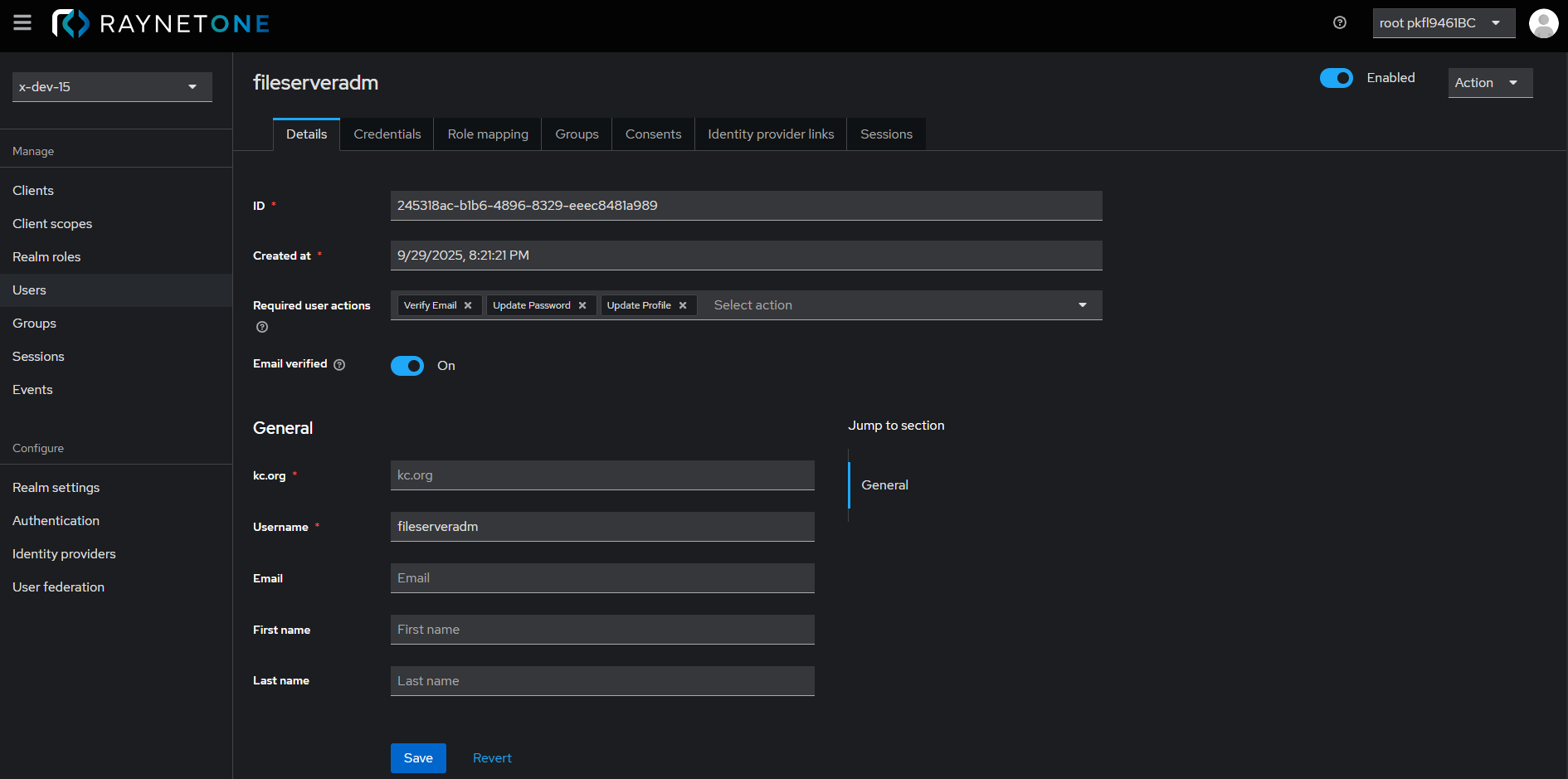
After creating a user, such as fileserveradm, in the Create user view, as described in previous sections, the User details view displays the user's information, with the Enabled toggle button or Disabled toggle button on the right to activate or temporarily suspend the user. In the Details tab, the user's data is displayed, while the Credentials tab allows setting a password (temporary or permanent), though this step is skipped here.
As described earlier in this document, adding a user, such as fileserveradm, to a User group like File Server Admins, automatically assigns the group's role to the user.
The Role mapping tab, detailed in the next section, covers direct assignment of a role to a single user from the realm.
All changes are saved by clicking the Save button in the Details tab; other tabs (Consents, Identity provider links, Sessions) do not affect permissions and are covered in later sections.
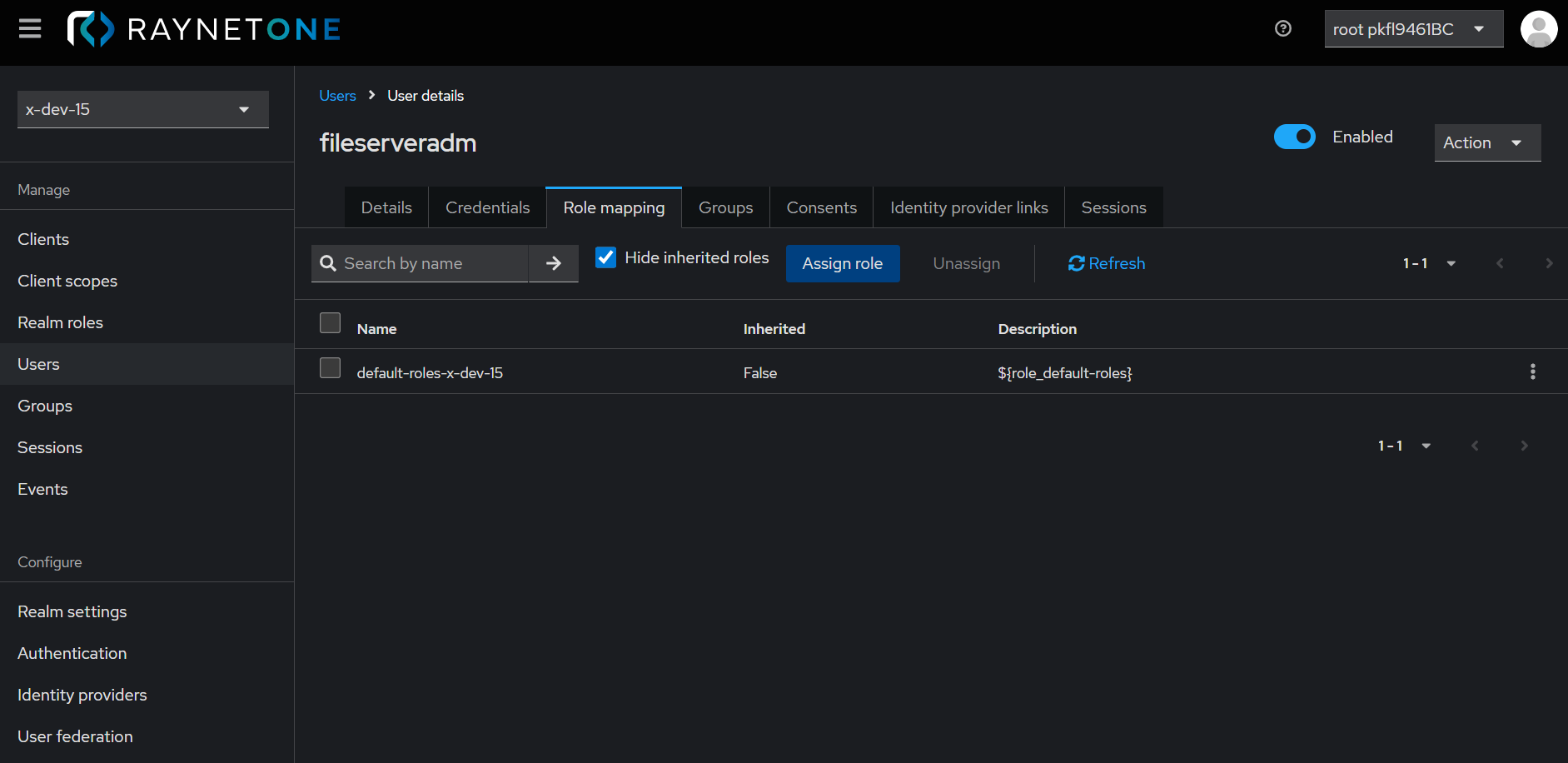
In the User details view, the Role mapping tab, enables direct assignment of a role to single user, such as fileserveradm, in contrast to the assignment through User groups like File Server Admins, as described earlier.
Roles can be assigned to users, such as fileserveradm, in two ways: directly via the Role mapping tab or by adding the user to a User group like File Server Admins with an assigned role. These roles, in combination with User groups and Resource groups, define the user's permission context and ACL. In the Role mapping tab, there are various options, including searching for roles, hiding inherited roles, assigning a role using the Assign role button, or removing a role by selecting it and clicking the Unassign button. The Refresh button can be used to synchronize role assignments.
For a user like fileserveradm, responsible for managing file server resources (e.g., shared drives, access controls), the Asset Manager role is most suitable, as it enables performing inventory and discovery operations on specific assets.
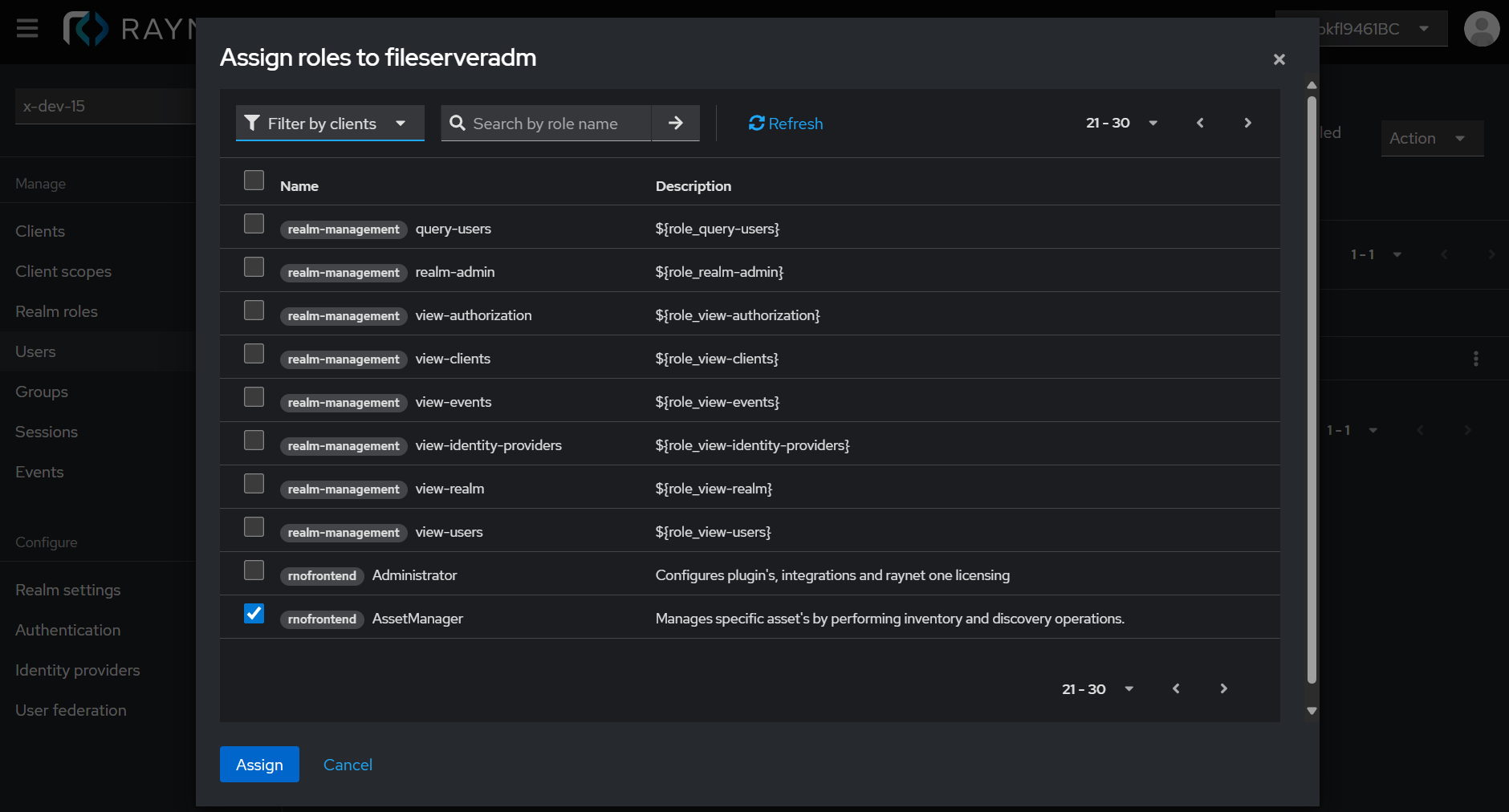
In the Role mapping tab, click the Assign role button to add the Asset Manager role to a user, such as fileserveradm. In this example, the Asset Manager role is suitable for a user, such as fileserveradm, to manage file server resources, such as shared drives and access controls. The role assignment may vary depending on the use case and the organization's individual infrastructure. Multiple client roles can be selected for a user, or user groups, with the choice varying based on the user's specific use case. The rnofrontend client roles are designed for interaction with the Raynet One User Interface (UI), enabling tasks like asset management.
Other rnofrontend client roles, like Administrator (for plugin and licensing configuration) or Global Asset Manager (for global connectors and rules), serve different purposes. The User role (for viewing and modifying specific properties) or the Guest role (with minimal access and no operational permissions) offer restricted functionality.
To assign the role to a user, select the role by checking its box and click the Assign role button, as shown below. The role assignment may vary depending on the organizational environment and specific requirements, with this serving as an example of logically assigning a role to a user.
To complete the permissions for a user, such as fileserveradm, ensure that the configuration steps in the Resource groups section are also completed after assigning the role. ACLs defined in Resource groups are essential to establish the Permission Context that, combined with the assigned role, determines the user's Effective Permissions and actual access to resources. Proceed to the Resource groups section to complete this configuration.
Experience seamless user and permission management with Raynet One, empowering effortless asset control across diverse organizational needs.