Step into the intuitive power of managing assets like networks, devices, and databases with Raynet One, enabling effortless categorization through Resource groups, the most powerful feature for grouping network resources in vibrant, professional IT environments. This section covers ACL configuration within Resource groups.
For comprehensive background information on Permission Context, Access Control Lists, and how they determine Effective Permissions, refer to the permissions section before proceeding.
Resource groups organize assets such as credentials, runners, devices, networks, and databases in a tree hierarchy with one parent and multiple children, preventing circular relationships. By default, assets are public, yet Access Control Lists (ACLs) restrict access to authorized users only. The Permission Context is a computed model that defines the exact permissions a user has over all available entities in the system, determined exclusively by the ACLs assigned to the user's groups. Effective Permissions combine the Permission Context with user roles/user group roles to govern both access to entities and the operations allowed on them.
To create a new resource group in Raynet One, navigate to the Resource groups view by selecting Configuration under Workspaces in the bottom-left menu, then choose the Resource groups option from the left-hand menu. In the Resource groups view, click the Add resource group button to start creating a new group for managing assets.
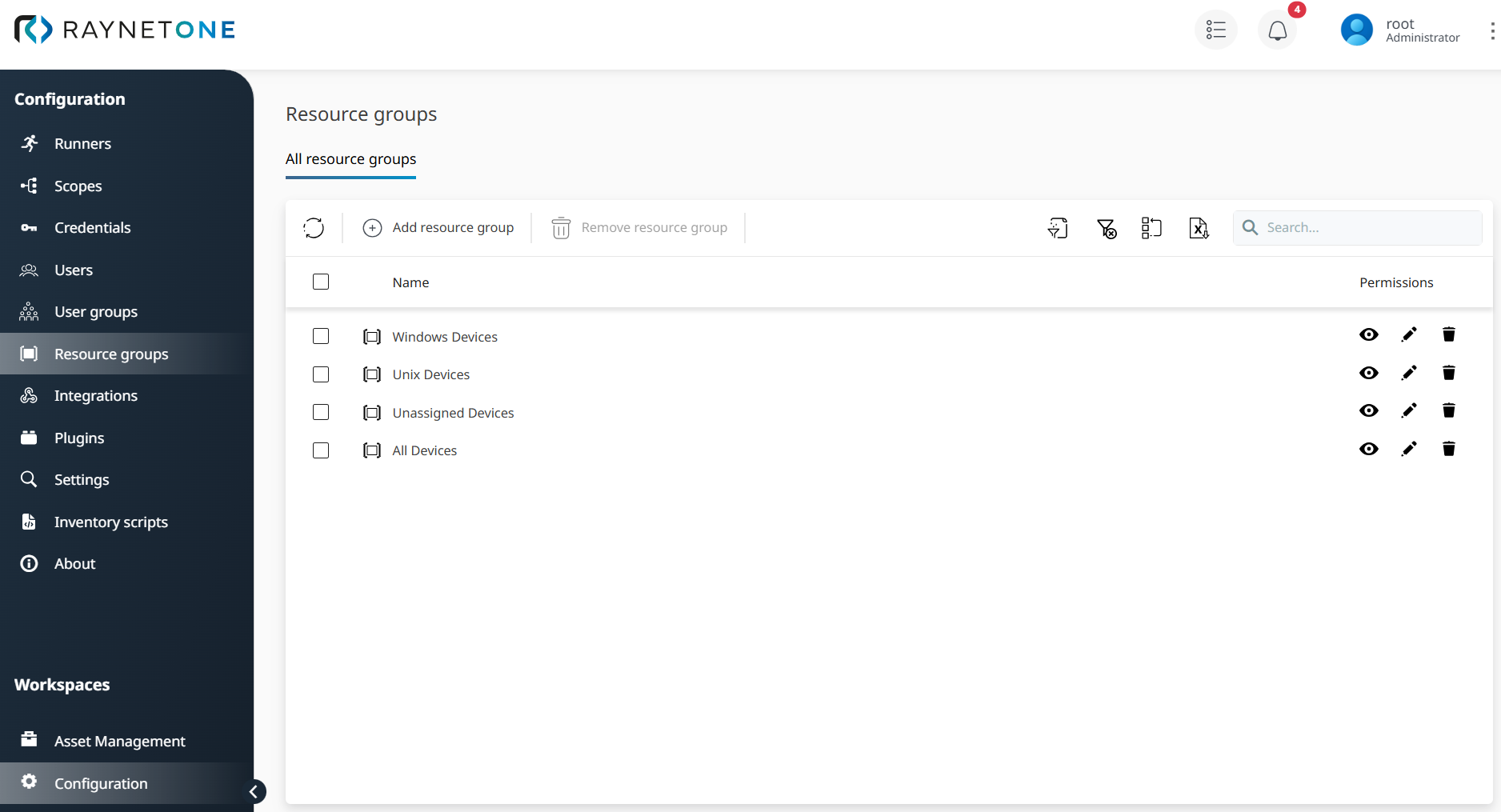
After navigating to the Resource groups view and clicking the Add resource group button, the Add resource group view opens, where the name of the new Resource group is specified under Step 1: Basic Settings.
Enter a unique name in the provided field, then click Next to proceed to Step 2: Relation in the Add resource group process.
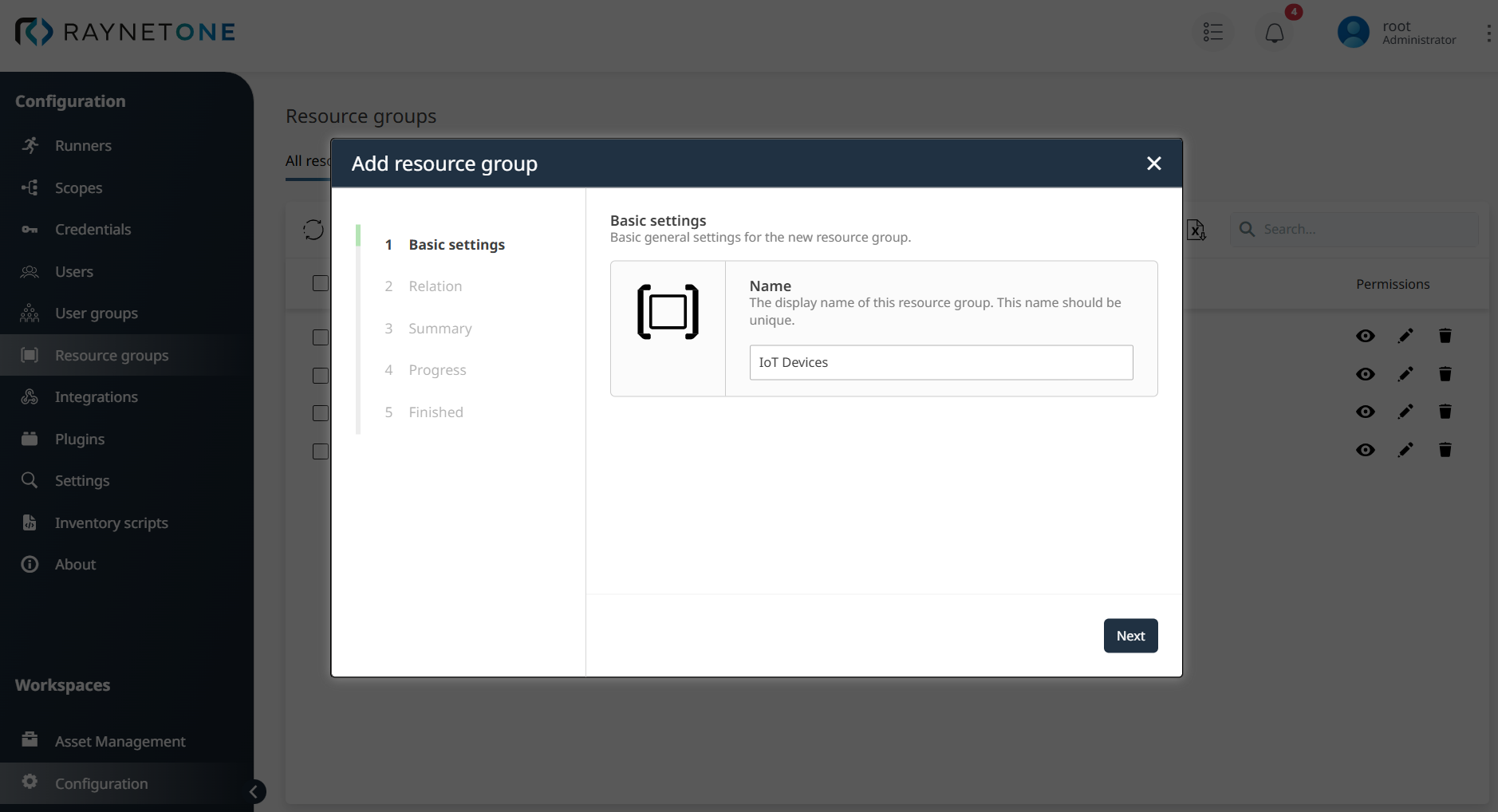
Within Step 2: Relation, define the hierarchical position of the new Resource group within the organizational structure in Raynet One. For example, selecting All Devices as the Parent from the dropdown menu positions IoT Devices as a specialized subgroup, ensuring a logical and efficient structure for managing assets like devices, networks, and databases, then clicking Next proceeds to the next step.
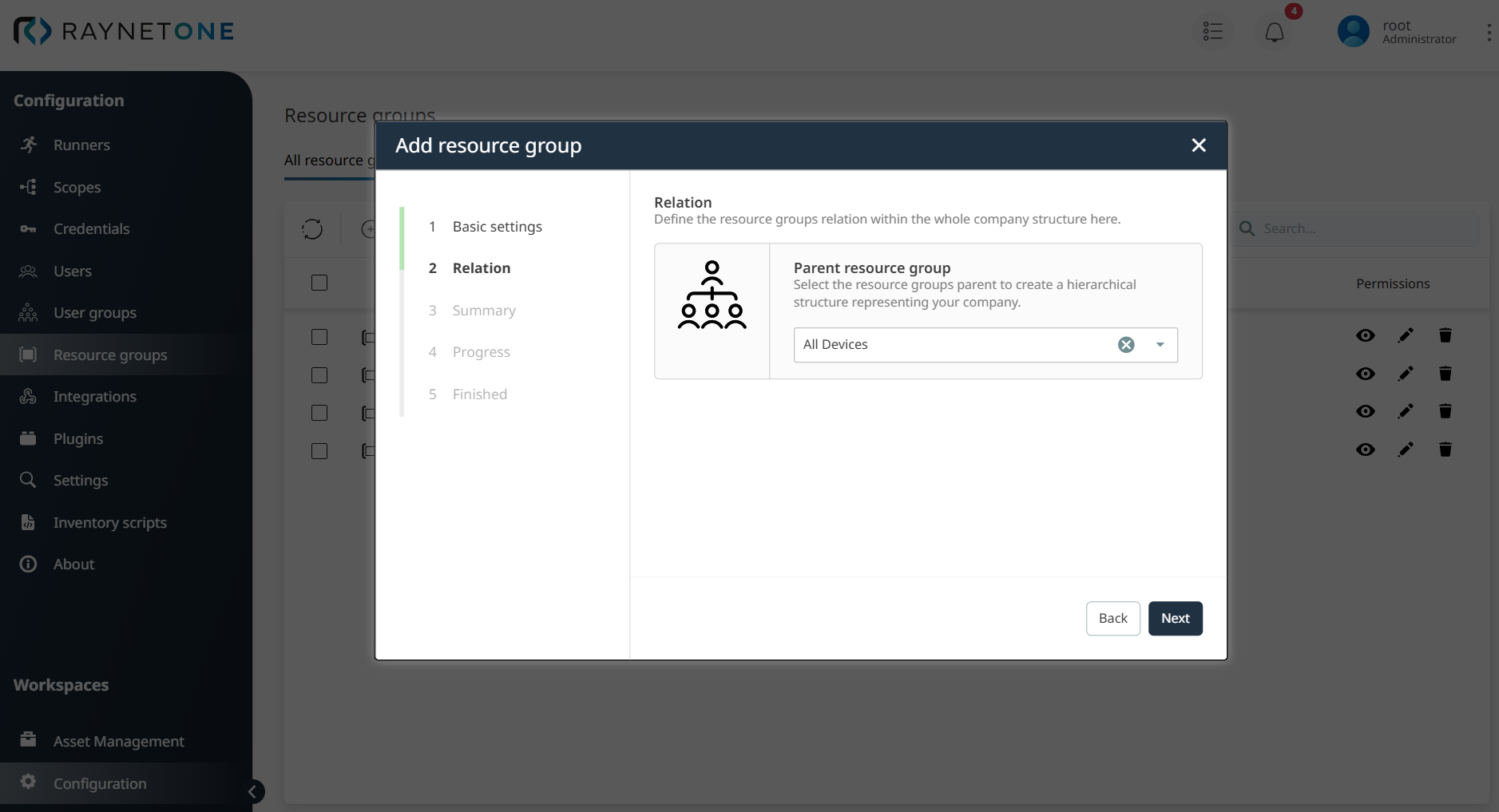
In Step 3: Summary, the relation between the Parent All Devices and the Resource Group IoT Devices is reviewed. If changes are needed, clicking the Back button allows modifications, or if the hierarchy is satisfactory, clicking the Create button finalizes the Resource group creation.
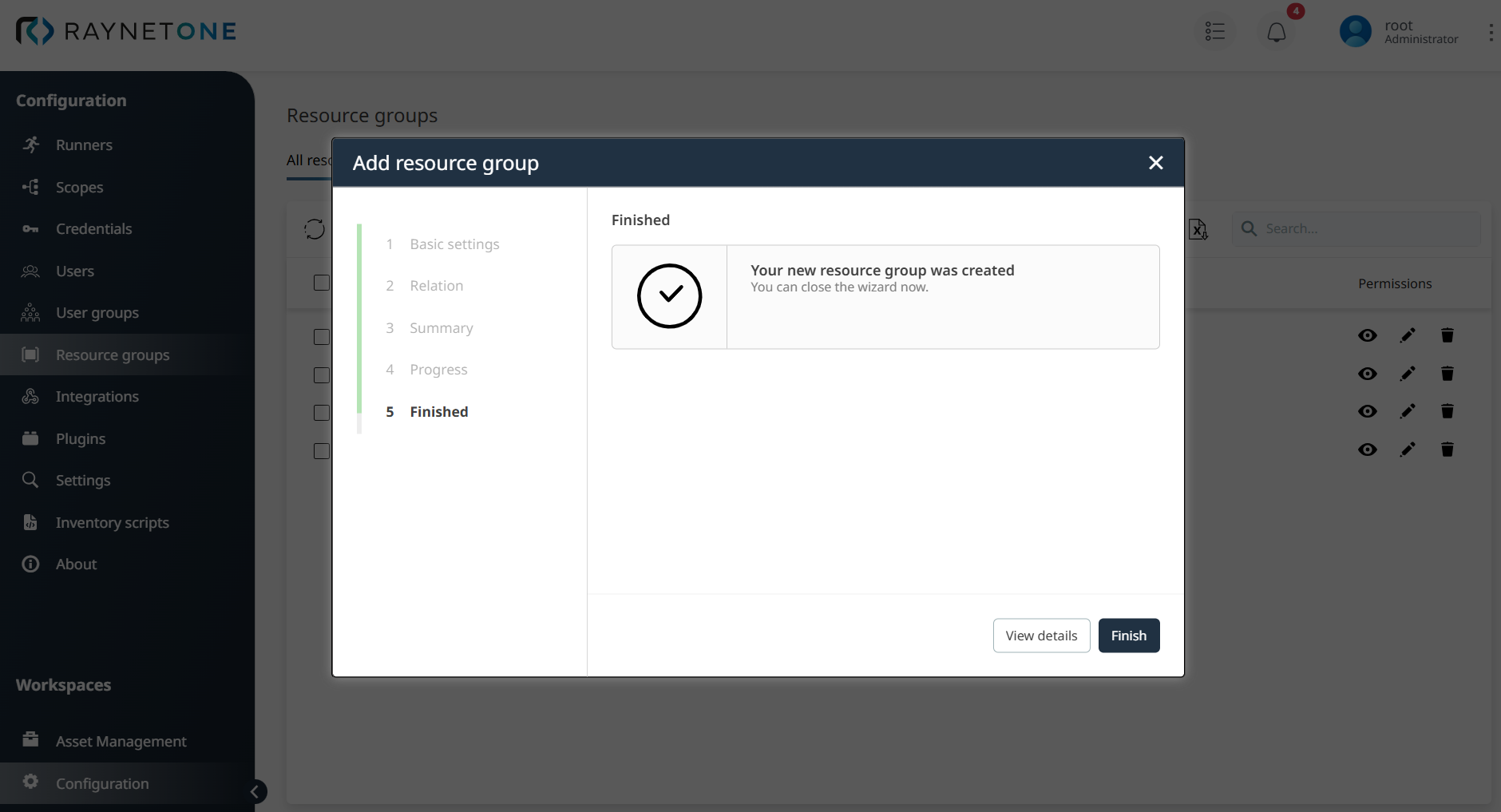
After clicking the Create button in Step 3: Summary, Step 4: Progress processes the creation of the Resource group IoT Devices. Upon successful creation, Step 5: Finished confirms that the Resource group has been created, displaying a confirmation message. Clicking the Finish button completes the process, enabling further configuration of settings for the Resource group within the organizational structure under the parent All Devices.
Once the creation of the Resource group IoT Devices is completed in the Finished step, configuring permissions becomes available. In the Resource groups view, under IoT Devices, selecting the Permissions tab enables defining specific rights for assets, for example, granting read access to IoT Admins or write access to Asset Managers by clicking the Add button. Initially, no permissions are set, allowing configuration from a clean state.
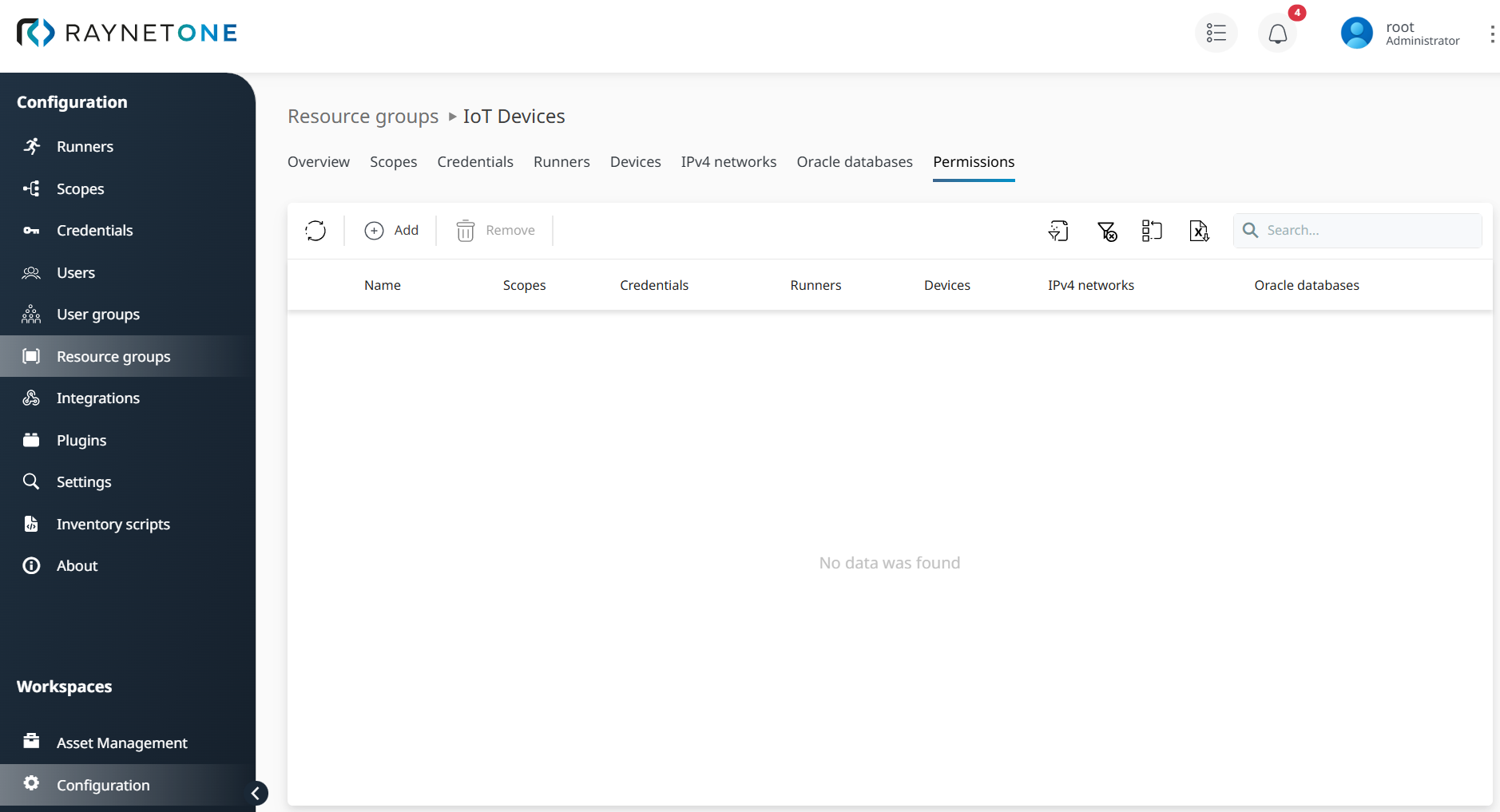
In the Resource groups/IoT Devices view select the Permissions tab and click the Add button to launch the Permission assignment wizard and configure specific access rights for the Resource group IoT Devices.
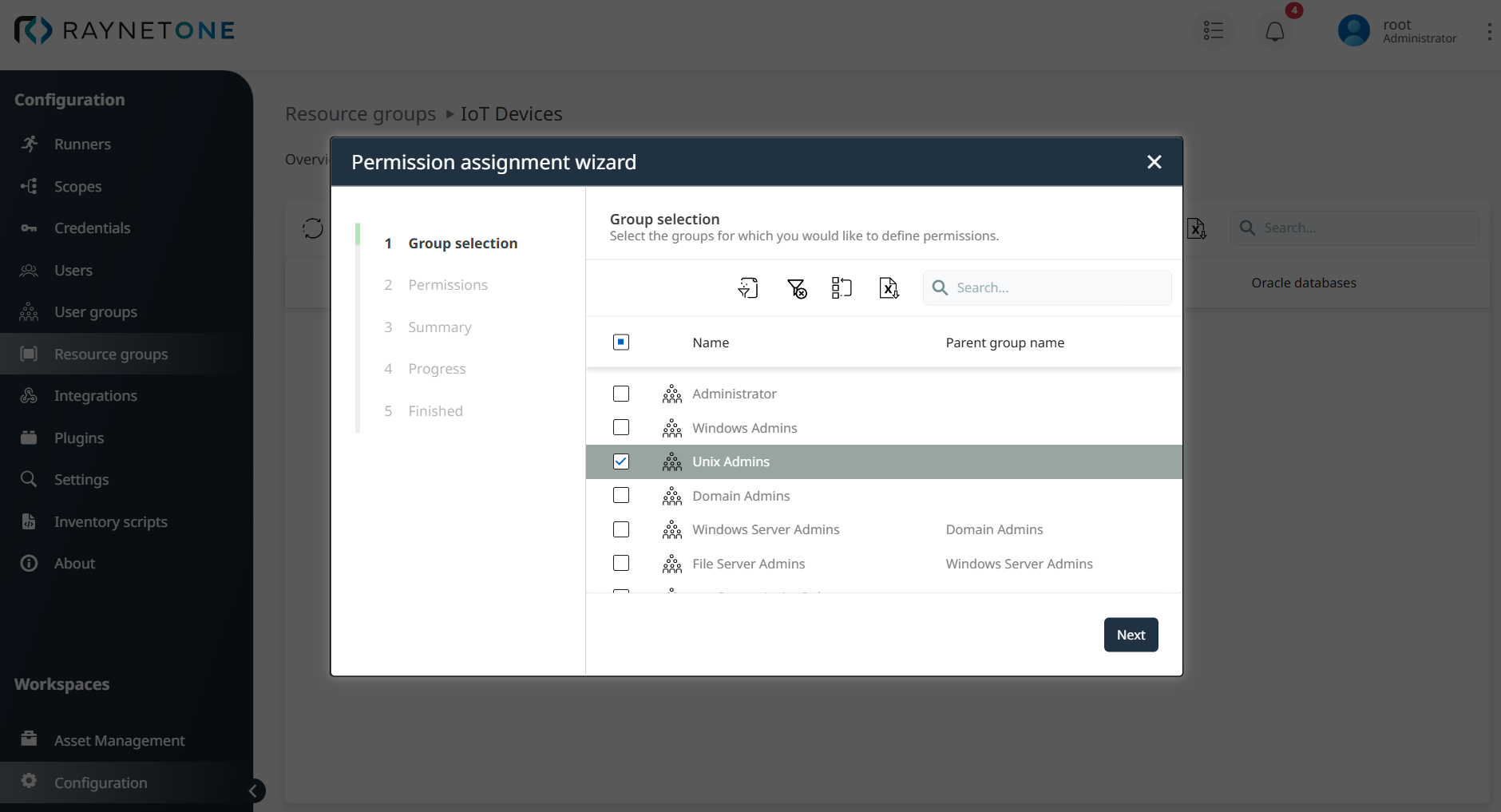
In Step 1: Group selection, select the parent user group, such as Unix Admins, by checking the corresponding checkbox and clicking the Next button to proceed to the next step of assigning permissions for that user group.
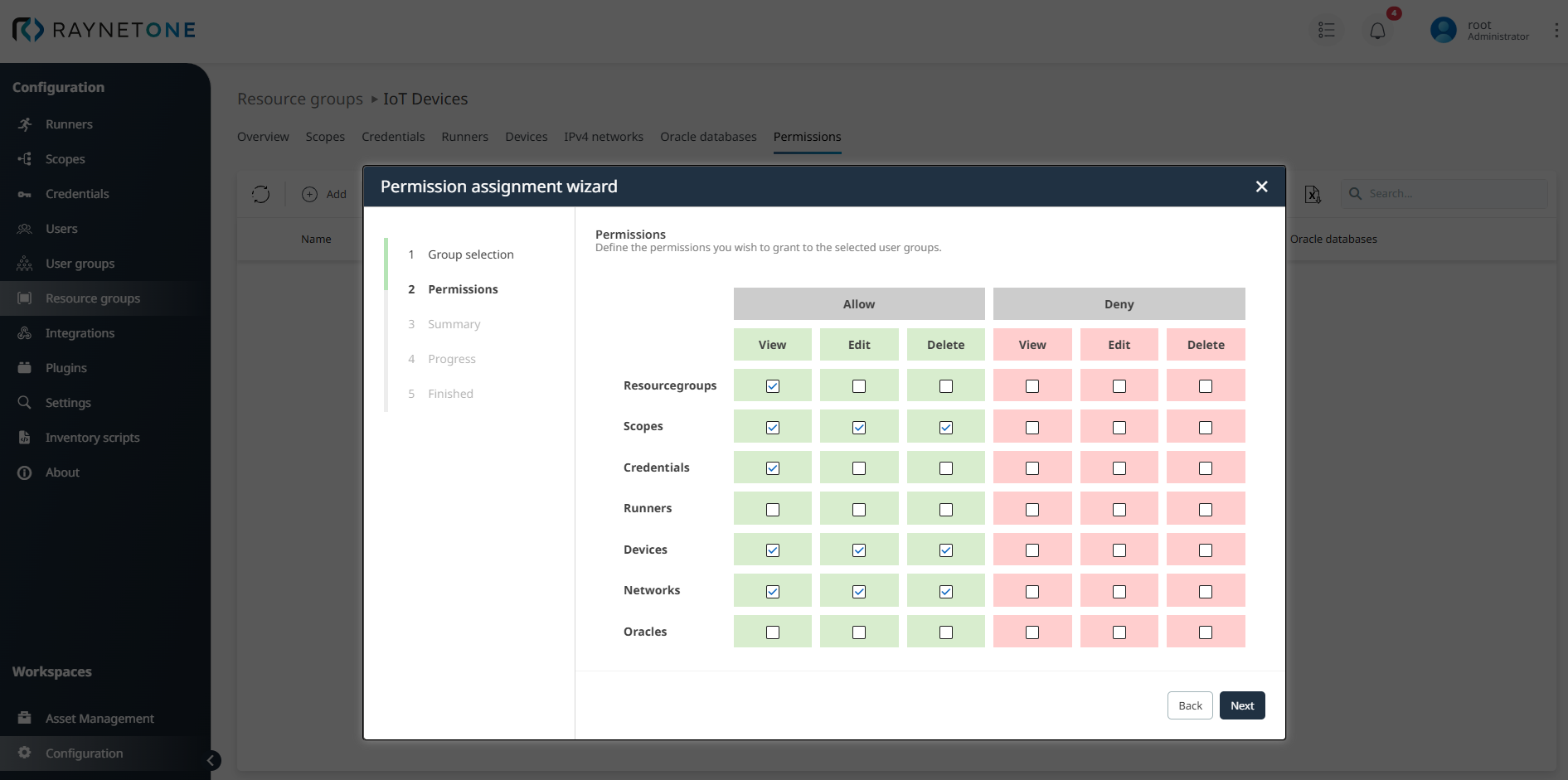
In Step 2: Permissions, define permissions for the selected user group by setting Allow or Deny for View, Edit, and Delete actions on various entity types. Configure the permissions to grant to the selected user group across different entity types:
Available Permission Types:
•Allow permissions: View, Edit, Delete (recommended approach)
•Deny permissions: View, Edit, Delete (create complex override scenarios)
Entity Types for Permission Assignment:
•Resourcegroups, Scopes, Credentials, Runners, Devices, Networks, Oracles
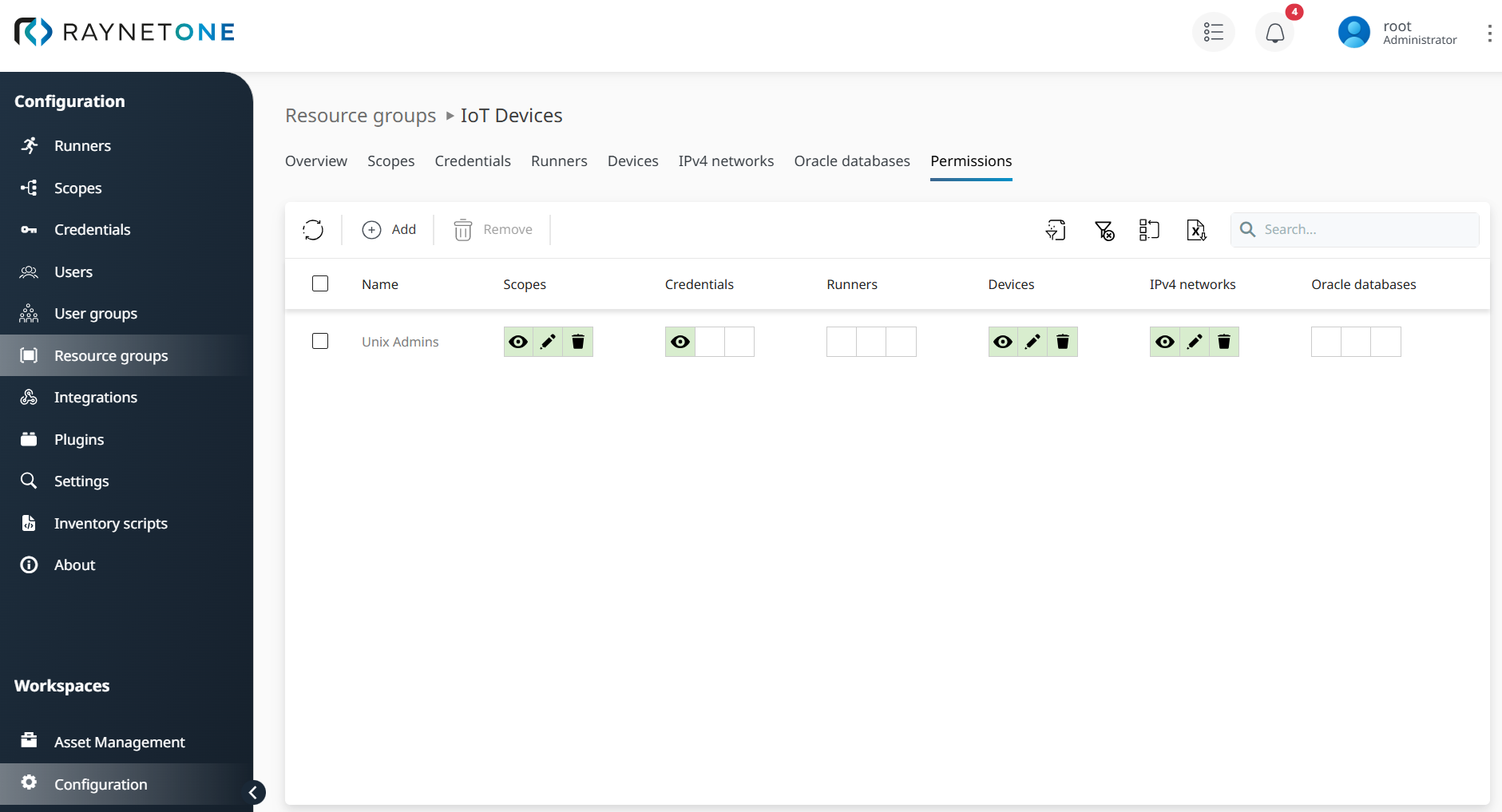
In this example, Allow permissions are set for View, Edit, and Delete actions on Devices, Networks, and Scopes for the Unix Admins group to ensure comprehensive IoT device management. Additionally, View permissions are granted for Resourcegroups and Credentials to provide necessary visibility while maintaining security boundaries through the principle of least privilege.
After selecting the desired permissions, click Next to proceed to the next step.
High-Privilege User group Management:
•Avoid nesting for high-privileged groups (e.g., Domain Admins).
•Keep privileged groups separate to reduce security risks.
•Use flat hierarchies for administrative groups.
After defining permissions for the resource group IoT Devices in Step 2: Permissions, click Next to review the configured ACL for the user group, such as Unix Admins, which details the Allow and Deny permissions for entities like Resourcegroups, Scopes, Credentials, Runners, Devices, Networks, and Oracles in Step 3: Summary. If the permissions align with the intended access rights for managing IoT Devices, click Next to confirm the ACL for precise and secure access control; otherwise, click Back to modify settings in Step 2: Permissions.
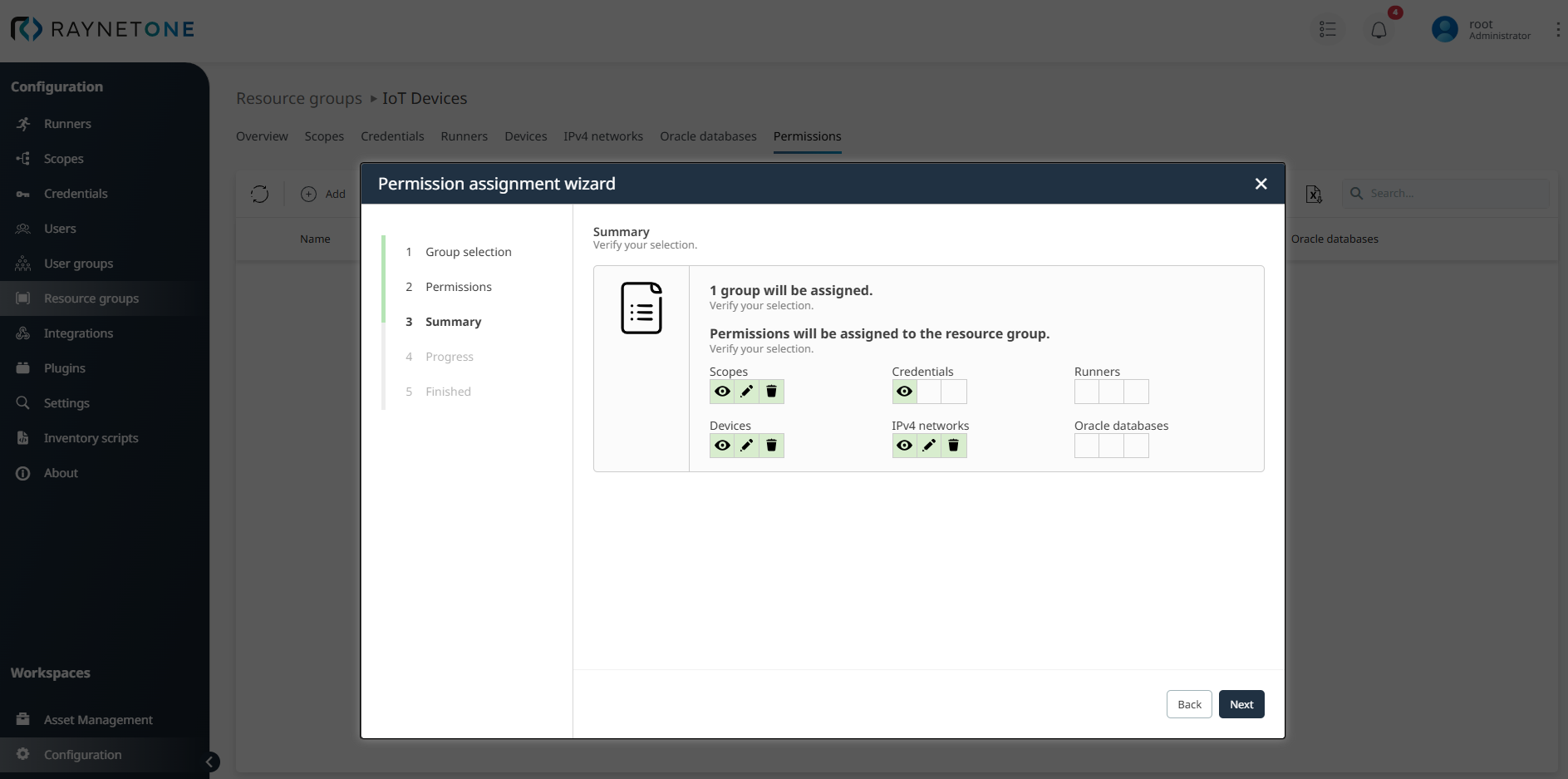
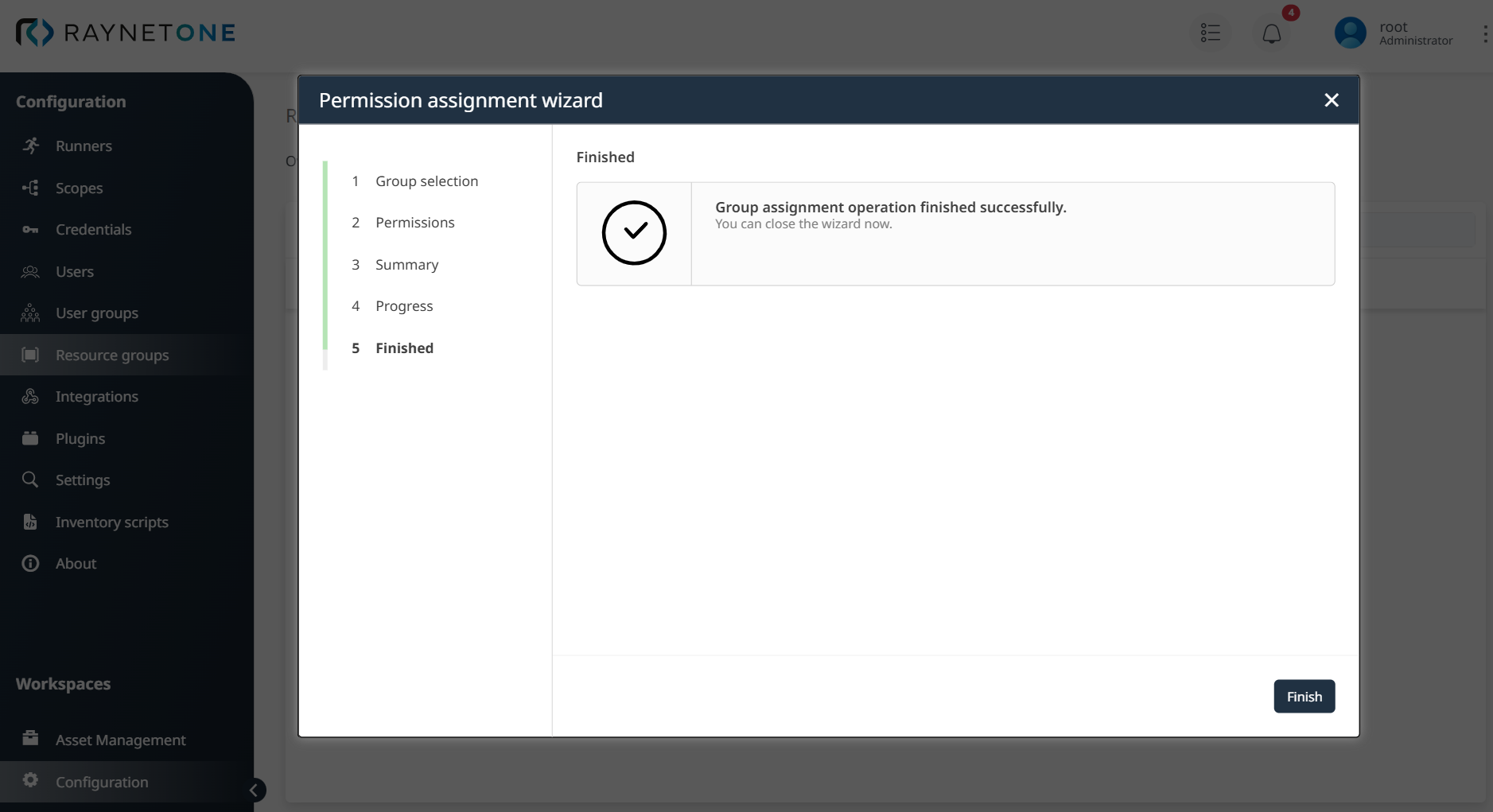
In the Permission assignment wizard for Raynet One, after verifying the ACL in Step 3: Summary and confirming it by clicking Next, proceed to Step 4: Progress to process the creation of the ACL for the User group Unix Admins on the Resource group IoT Devices. Upon successful processing, reach Step 5: Finished, which confirms that the group assignment operation has completed successfully. Click the Finish button to close the wizard, finalizing the permission configuration for secure and effortless management of the Resource group IoT Devices.
Once the permissions for the Resource group IoT Devices are created, they are effortlessly displayed in the Permissions tab for the User group Unix Admins, offering a clear, centralized view of access rights in Raynet One's platform. This intuitive and user-friendly design make permission management a breeze.
With Resource groups and ACLs successfully configured, Raynet One now provides comprehensive access control where the computed Permission Context and assigned roles combine to ensure users have exactly the right access they
need - nothing more, nothing less. Experience enterprise-grade security with operational efficiency through Raynet One's intelligent permission management system.