This is the place where system settings of Raynet One Data Hub can be changed. The screen is accessible by only Site Administrators.
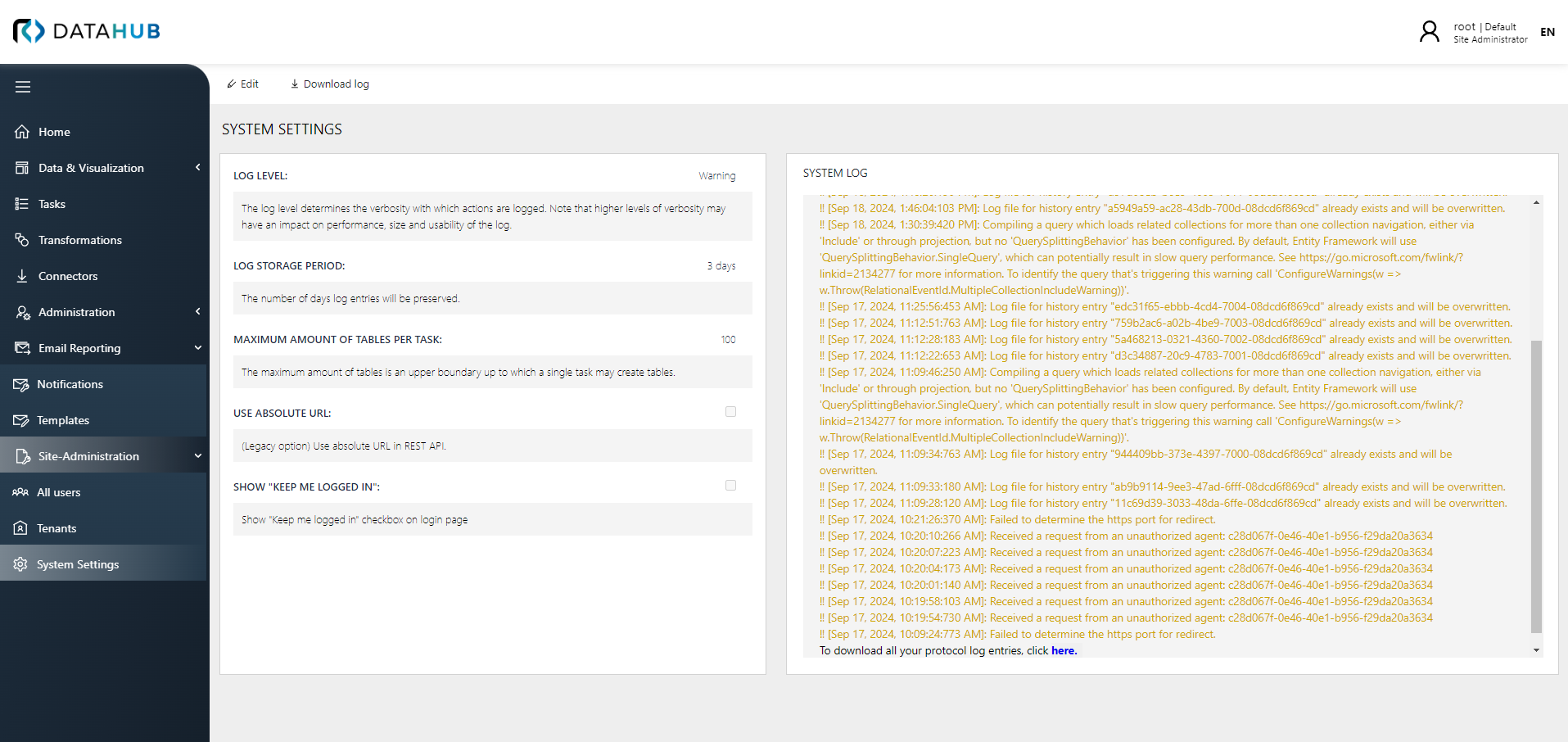
The Download log button can be used to download the log file to the local machine. The log file can also be found on the server in the following location:
•[RVDH-INSTALL DIR]\logs\RayVentoryDataHubService.log
At the bottom of the page the latest log entries from the log of the backend can be found at the bottom of the page in the SYSTEM LOG field.
The Edit button on top of the page can be used to open the Edit Settings dialog.
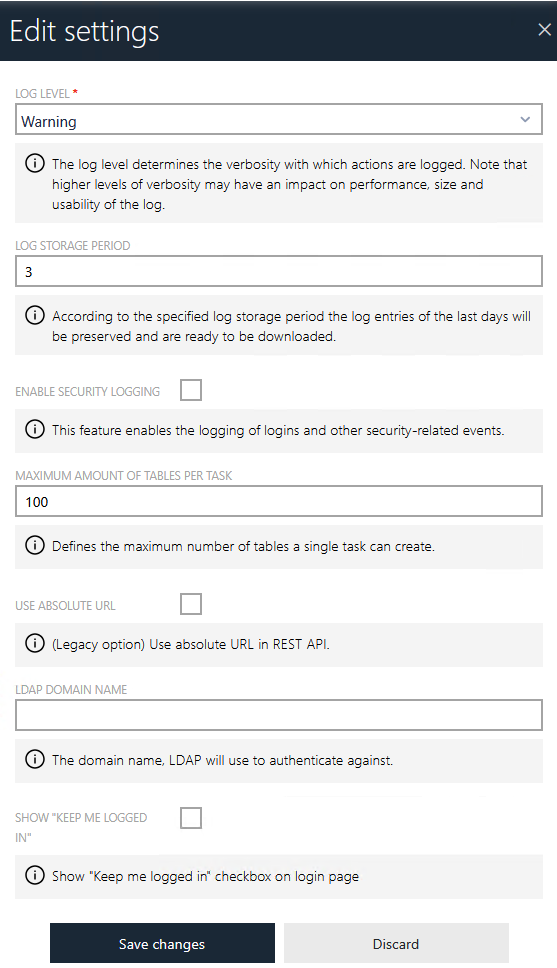
In the Edit Settings dialog the following options are available:
•LOG LEVEL: This field can be used to choose the log level using the dropdown menu. The log level determines the verbosity with which the actions are logged. The following log level are available in the dropdown menu.
oAll
oDebug
oFatal
oInfo
oOff
oWarning
|
Note: Higher levels of verbosity may have an impact on performance, size, and usability of the log. |

•LOG STORAGE PERIOD: This field defines the period that the log will be stored. The log entries will be preserved and kept ready for download for the period of day(s) that is defined in the field.
•ENABLE SECURITY LOGGING: If this checkbox is checked, the application logs security-related events to a dedicated security log file. This setting is disabled by default. When enabled, the following events are recorded:
oLogin attempts, including the authentication method used (Built-In, LDAP, or external identity provider)
oSuccessful logins
oFailed login attempts, including the reason for failure (wrong password or non-existent user)
oLogout events
oSession token renewals and tenant context switches
oAccess control violations (denied access to reporting objects)
oAutomatic account unlocks (when a locked account is automatically unlocked after the lockout period expires, including the user ID and username of the unlocked account)
Security events are written to a separate log file, independent of the main application log, in the following location: [RVDH-INSTALL DIR]\logs\DataHubSecurity.log
•MAXIMUM AMOUNT OF TABLES PER TASK: This field defines the maximum amount of tables that can be created by a single task.
•USE ABSOLUTE URL: If the checkbox is checked, the absolute URL will be used in the REST API. This is a legacy option.
•LDAP DOMAIN NAME: If LDAP is used, the domain name that LDAP will use needs to be entered here. More about LDAP can be found here.
•SHOW "KEEP ME LOGGED IN": If checked, the Keep me logged in checkbox on the login page will be shown. Otherwise, the checkbox will not be shown.
•ENABLE ACCOUNT LOCKOUT: If this checkbox is checked, user accounts are temporarily locked after a configurable number of consecutive failed login attempts. This feature is disabled by default. When enabled, the following additional settings become available:
oMAXIMUM FAILED LOGIN ATTEMPTS: The number of consecutive failed login attempts after which an account is locked. The valid range is 1 to 100. The default value is 6.
oLOCKOUT DURATION (MINUTES): The duration in minutes for which an account remains locked after exceeding the failed attempt limit. The account is automatically unlocked when this period expires. The default value is 30 minutes. The valid range is 1 to 525,600 minutes (equivalent to 1 year).
oSHOW ACCOUNT LOCKED MESSAGE ON LOGIN: When enabled, a locked user sees a specific message indicating the account is locked. When disabled, the generic invalid credentials message is displayed. Enabling this option may reveal account existence to potential attackers and should be used with care.
For more information about account lockout behavior and how to manually unlock accounts, see Account Lockout.