This section provides instructions for installing the latest version of Python, a mandatory dependency for the Data Hub Agent on Windows. Python must be installed system-wide for all users to ensure correct operation and to avoid environment variable issues. Follow these steps to check
if Python is installed on your system and to confirm its version.
To check if Python is installed, open a command prompt with administrator privileges and run the command:
python --version
If Python is not installed or the installed version is outdated, install the latest available Python version using the following steps.
Install the Latest Python Version on Windows
Download and install the latest Python version from the official Python website. Alternatively, installation can be performed using PowerShell with the package manager winget, which
is pre-installed on newer Windows versions. Open PowerShell with administrator privileges to ensure necessary permissions are available. Run the
following command in PowerShell to search for the latest available Python package and install it:
winget search Python.Python.3
Identify the latest version in the list and install it, for example:
winget install -e --id Python.Python.3.<latest>
After installation, run python --version in a command prompt to verify that Python is correctly installed. If the installed version is displayed,
the PATH environment variable is properly set and requires no further adjustment. Proceed to the Configuring Python Script Execution section, where the
python variable can be set to true.
If no Python version is displayed, configure the PATH environment variable manually. Verify the environment variable. Follow the steps below.
Manually Configure the PATH Environment Variable for Python
Press Win + S, type Environment Variables and select Edit the system environment variables. Edit the PATH variable under System variables to make Python available to all users on the machine.
Select PATH, then click Edit. Click New and add the paths of your Python installation to the system environment variables.
[InstallationPath]\Python3[x]\
[InstallationPath]\Python3[x]\Scripts
Replace [x] with the minor version number corresponding to your installed Python version. Click OK to save the changes and apply the updated Python paths to the environment variables.
Run python --version with administrator privileges in a newly opened terminal to verify that the Python version is displayed.
Configuring Python Script Execution
The following Python packages must be installed. To install them or verify their installation, execute the following commands in PowerShell:
python -m pip install requests
python -m pip install pyjwt
python -m pip install cryptography
python -m pip install pandas
python -m pip install numpy
python -m pip install truststore
python -m pip install certifi
|
Note: The packages requests, pyjwt, cryptography, pandas, numpy, truststore, and certifi listed above are mandatory and must be installed for Python connectors to function. These are the same packages included by default in the Docker-based deployment. For more information on AI-based Python script generation, see Generating Scripts with AI. |

Python script execution is disabled by default in the Data Hub Agent's configuration.
Upon installation of the Data Hub Agent, the PythonScriptsExecutionEnabled variable is set to false.
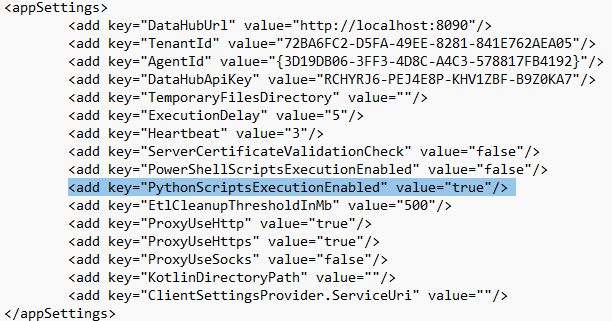 |
•Locate the installation folder of the Data Hub Agent •Open the configuration file Raynet.RayVentory.DataHub.Agent.dll.config in the installation folder. •Edit the file to set the key PythonScriptsExecutionEnabled to true. •Save the changes to enable the execution of Python scripts within Data Hub. |
Python scripts can now be executed as tasks in Data Hub.