The Connectors page is the central place where external connectors can be managed and licensed. A connector is a self-contained piece of software which is specialized in getting data from one or more external systems.
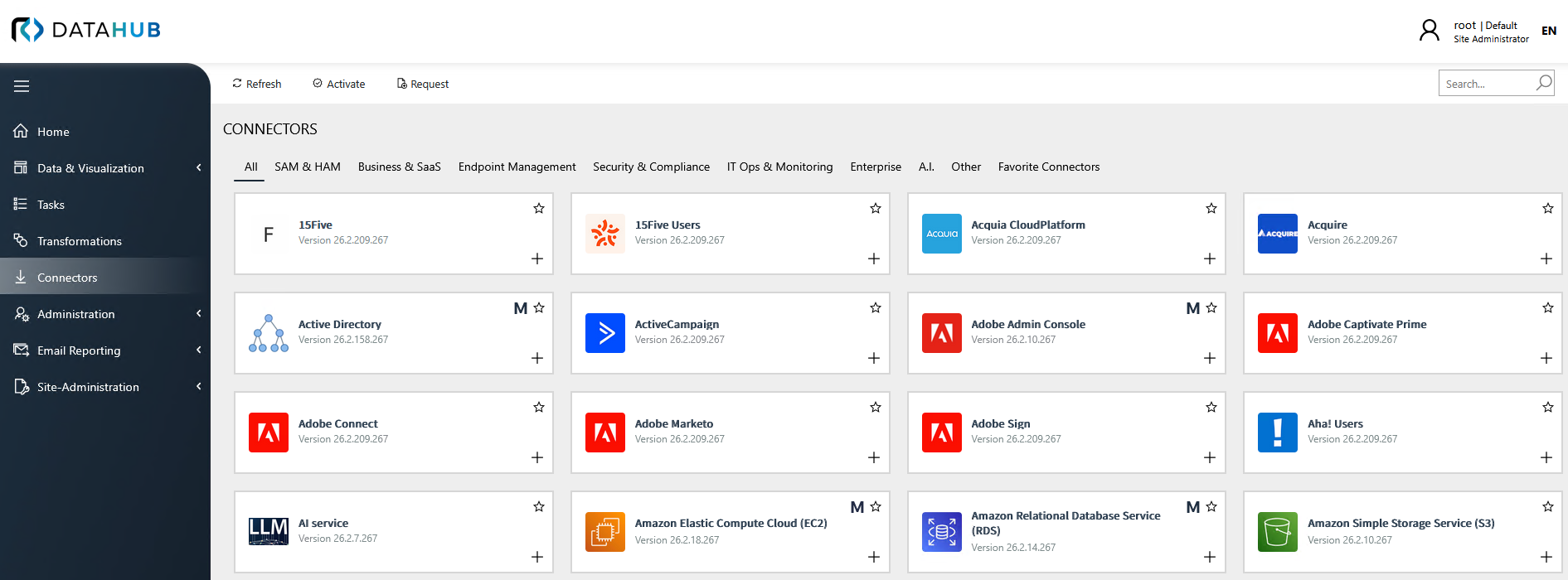
Connectors are displayed as tiles and sorted alphabetically within each view. Each tile shows the connector name, logo, and internal version. A search field in the top right corner allows filtering the visible tiles by name.
Classification Tabs
The Connectors page provides a set of classification tabs that group connectors by their target domain. Selecting a tab filters the visible tiles to only those belonging to the corresponding category:
•All — Displays every available connector regardless of category.
•SAM & HAM — Software Asset Management and Hardware Asset Management connectors.
•Business & SaaS — Connectors targeting business applications and Software-as-a-Service platforms.
•Endpoint Management — Connectors for endpoint and device management solutions.
•Security & Compliance — Connectors for security tools and compliance platforms.
•IT Ops & Monitoring — Connectors for IT operations and monitoring solutions.
•Enterprise — Connectors for enterprise infrastructure and directory services.
•A.I. — Connectors for artificial intelligence and data enrichment services.
•Other — Connectors that do not fall into any of the above categories.
•Favorite Connectors — Displays only connectors that have been marked as favorites by the current user. See Favorite Connectors below for details.
Favorite Connectors
Frequently used connectors can be bookmarked for quick access. To mark a connector as a favorite, click the star icon on its tile. Favorited connectors are accessible at any time through the Favorite Connectors tab. To remove a connector from the favorites list, click its star icon again. Favorites are stored per user account and do not affect other users.
Connector Types
Each connector belongs to one of four types that indicate its relationship to the Standard Data Transformation pipeline and its runtime requirements:
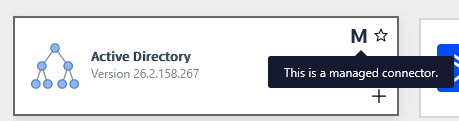
•Managed — Connectors that are part of the Standard Data Transformation. Once activated, they can be executed without further requirements. Managed connector tiles are identified by the M symbol displayed in the top right corner of the tile.
•Standard — Connectors that are not part of the Standard Data Transformation. Once activated, they can be executed without further requirements.
•Primer — Connectors that require a Python installation in order to be executed.
•Generic — Connectors that do not target any specific application or product. They are intended to be built upon, for example by using custom scripts.
Connector States
A connector may have one of the following states:
•Activated and visible
The connector is ready to be used.
•Activated but hidden
The connector is covered by the current license, however it has been hidden. This may be the case if the given platform that the connector supports is not actively used, and the connector is hidden to not clutter the list of available target systems when configuring a task.
•Not activated and hidden
The connector has not been activated, and it is hidden. This is the default for clean installation.
•Not activated but visible
It is possible to make the connector visible although no license is available. This may be the case if the license will be provided later, after initial set-up of the data, reports and tasks. Note that before the connector can be actually used (running a task), a valid license will be required.
In order to use a connector, it must be activated first. After a clean install, most of the connectors are hidden by default. To show a connector, click it with left mouse button and tick the respective checkbox:
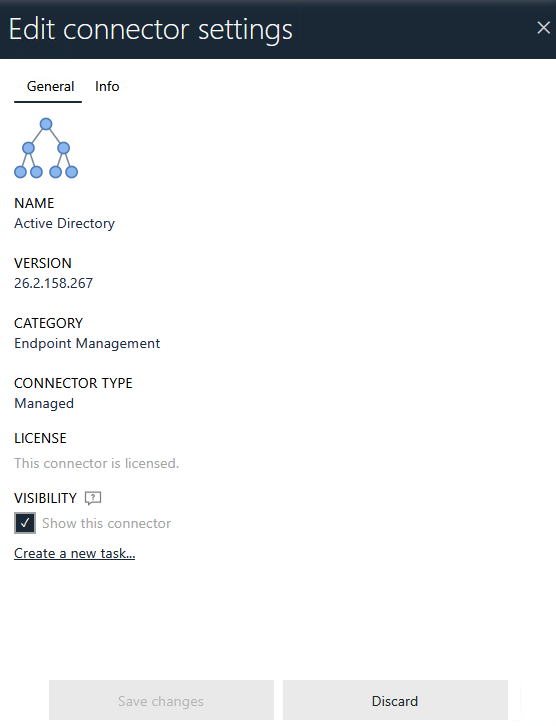
Once the connector is active, it can be used to define tasks. It is not possible to run tasks or accept incoming data, if the underlying connector is not licensed. To proceed, a valid license needs to be provided, as described in the next chapter.
Creating a New Task from the Connectors Page
You can create a new task directly from the Connectors page. To do it, press the plus icon next to the connector tile. You will be redirected to the Tasks page, with proper type preselected for you. Detailed information on the separate connectors available for Raynet One Data Hub can be found in the Raynet One Data Hub Connectors document.