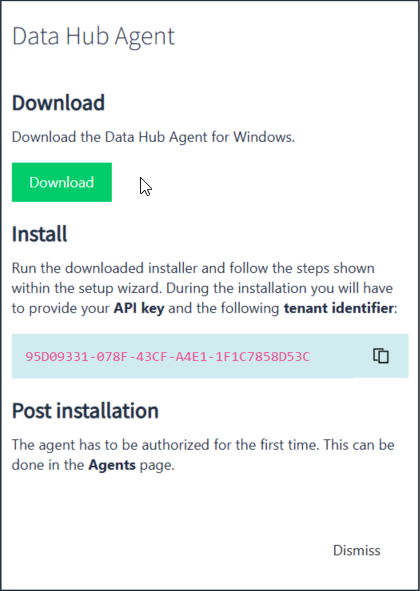
To install an offline agent, navigate to the Agents page under Administration using the navigation menu on the left panel. On this page, Click on Install... You will then be presented with the Data Hub Agent window where you can download an agent by pressing Download.
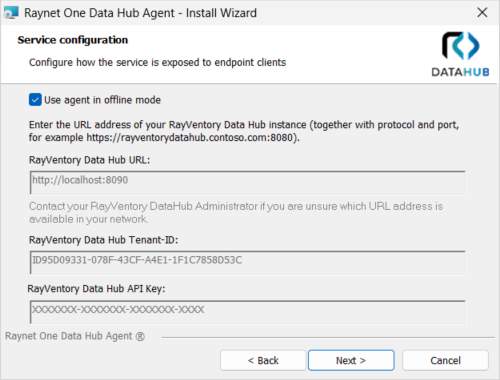
After running the installation wizard for the agent, you will be presented with the Service Configuration window. Here, enable the Use agent in offline mode option to activate offline mode. When offline mode is enabled, you will not be required to enter values for DH URL, DH Tenant-ID, or DH API Key.
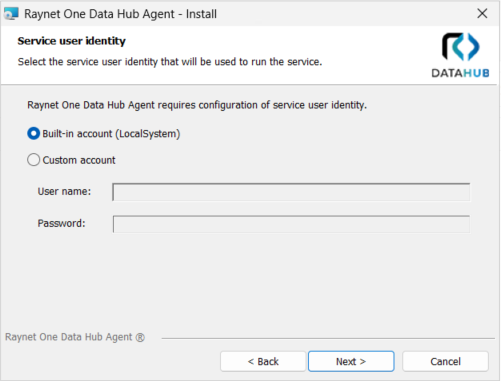
Next, choose whether to use the Built-in account (LocalSystem) or a Custom account.
•If the Built-in account option is selected, the fields for configuring a custom account will be disabled.
•If the Custom account option is selected, you must provide a user name and password.
Then continue with the installation.
To add the installed offline agent, navigate to the Agents page under Administration using the navigation menu on the left panel.
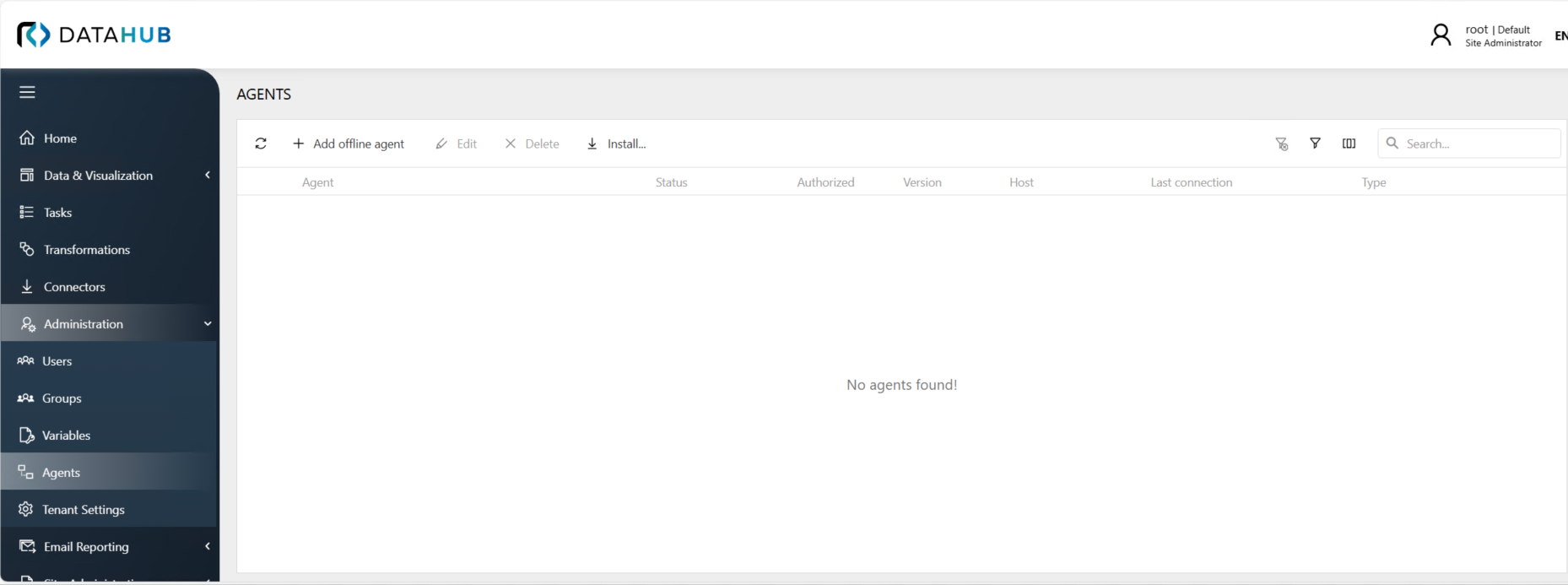
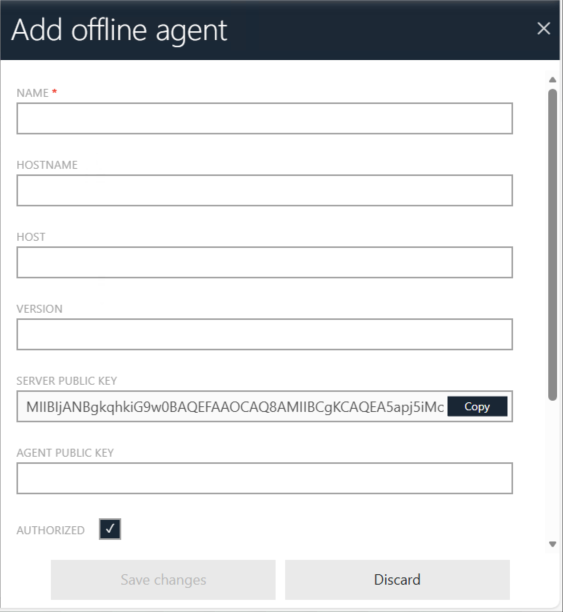
On this page, click on the Add offline agent button. In the window that opens, fill in the relevant details for the offline agent you want to add.
|
•Enter the name for the new offline agent in the first line. •Type in the desired Hostname for the second line. •Type in the desired name of the Host. •Specify the version. •The Server Public Key will be assigned automatically. This key is required later when linking the offline agent server. •Agent public key can be received from the terminal after executing the agent in the agent installation folder with the following command: ".\Raynet.RayVentory.DataHub.Agent.exe --generate-keypair". •Authorize the offline agent. •Lastly, select the type. |
Then navigate to where the installed offline agent is and open the Terminal by right clicking in the file opening Terminal. In the Terminal, paste the ".\Raynet.RayVentory.DataHub.Agent.exe --generate-keypair" command. After executing the command, the Agent Public Key will be presented.
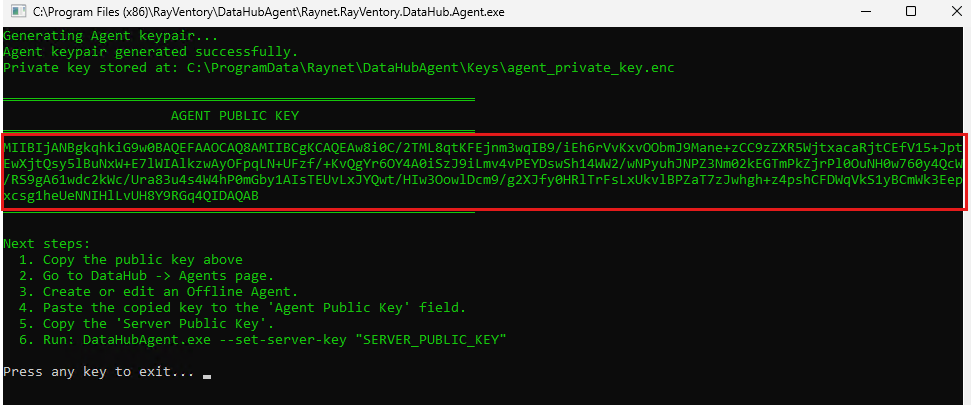
Copy this key and paste it in the Agent Public Key field in the Add offline agent window.Then save your changes.
Then, open the terminal where the offline agent is installed and execute the following command while replacing "SERVER_PUBLIC_KEY" with the Server Public Key from the Edit agent window:
".\Raynet.RayVentory.DataHub.Agent.exe --set-server-key "SERVER_PUBLIC_KEY".
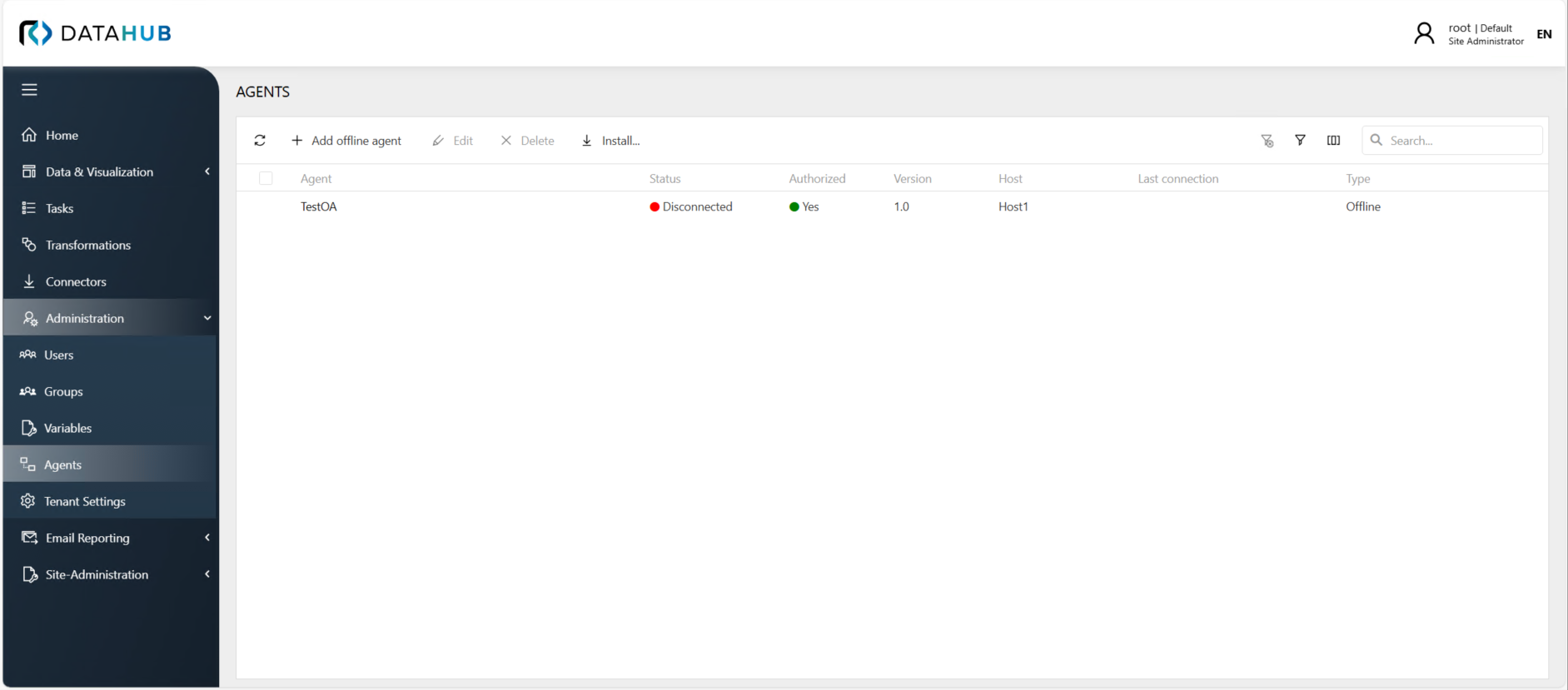
Your offline agent is now ready to execute tasks.