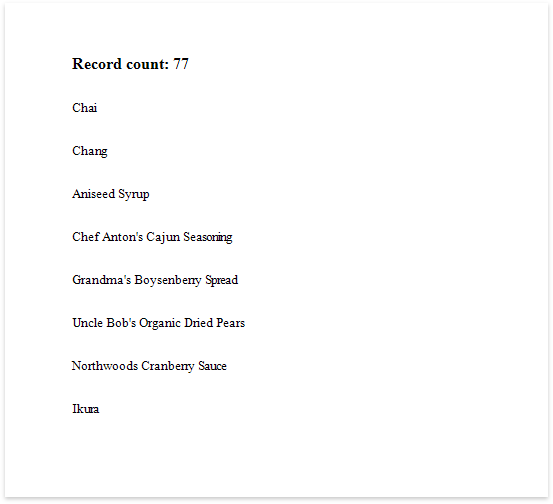
This document describes how to display the number or records in a report or group.
1.Select the corresponding command in the Actions category and insert a Report Header or Footer to display the record count for the entire report.
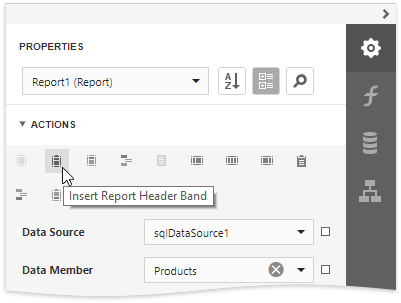
|
Note: Use a Group Header/Footer for displaying record counts for groups, and a Page Header/Footer for displaying record counts for pages. |

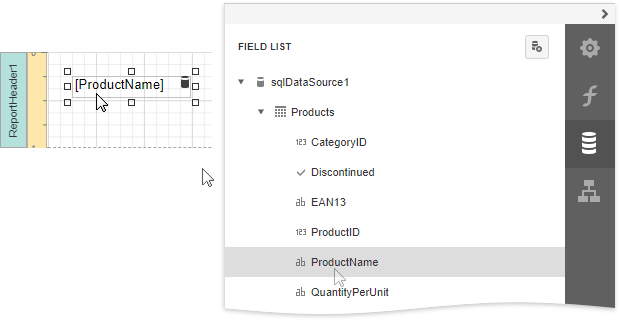
2.Switch to the Field List panel and drop the corresponding data table field onto the created band to create a data-bound label.
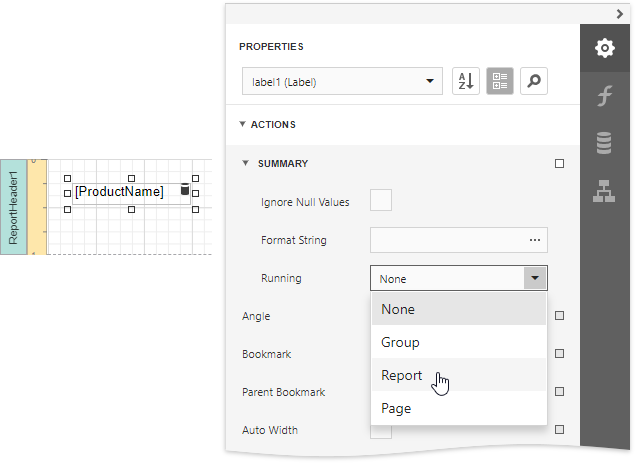
3.Expand the Summary section in the Actions category and invoke the Running drop-down list. Select Report to count the records throughout the entire report, or select Group or Page to reset the record count for every group or page.
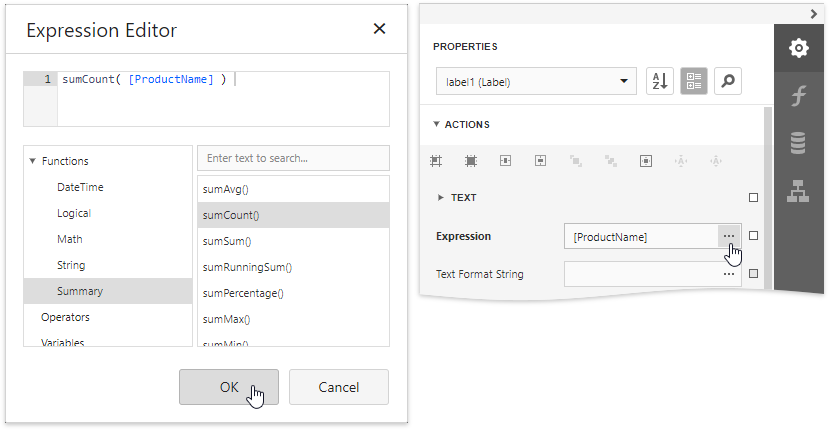
4.Click the Expression property's ellipsis button. In the invoked Expression Editor, select the sumCount function in the Functions | Summary section.
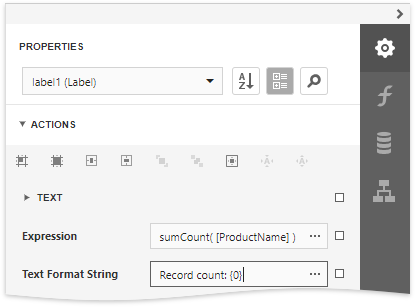
5.Use the Text Format String property to format the resulting value.
You can switch to Print Preview to see the resulting report.