Configuring the Windows runner can be a challenge in big corporate network environments. If you have installed the runner on the wrong machine, the server connection can fail. In case of unexpected behavior of the runner, we need to investigate possible error causes.
Let's take a look at various methods of troubleshooting the runner.
Restarting the runner Windows service
This method is good in case the runner is stuck in the disconnected state. Restarting the runner forces it to try a reconnect. The Windows service display name is Raynet One Runner Service. Open the Services window on the machine where the runner is installed on.
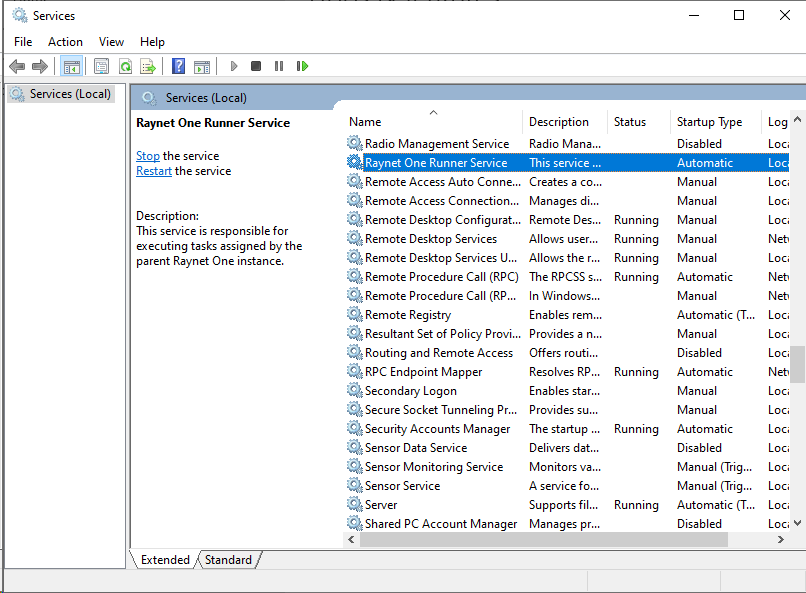
The Services manager of the Windows operating system. On English locale, you can press the Windows key and type in Services, then press Enter to open it. It can be used to restart the runner service.
Select the runner service and click on the blue Restart link to the left above the service description. This causes a shutdown and subsequent start of the runner application. Check the web interface again to see whether the connection problem has been resolved.
Alternatively, you can execute the Windows command sc restart RaynetOneService using the command prompt.
Executing the runner through the Windows command prompt
If you are experiencing any kind of difficult problem with the runner, be it due to misconfiguration or program fault, it may be a good idea to investigate the live runner log. The runner writes its log entries directly into the standard output. When opened through the Windows command prompt, the log is written directly into the command prompt, allowing you to easily trace current runner operation.
Be sure to be logged in as administrator account of your domain network or any equally authorized role to perform runner operations in your environment. Proper runner functionality may depend on the authorization level of the Windows account used to execute the runner.
Before manually executing the runner through the Windows command prompt, always check for another instance of the runner already executing. Most likely, the runner service is already executing. Open the Windows services manager and stop the Raynet One Runner Service. Then proceed with the steps for manual execution.
1.Navigate to the runner installation folder. By default, the runner is installed into C:\Program Files (x86)\Raynet\Runner\ (English locale).
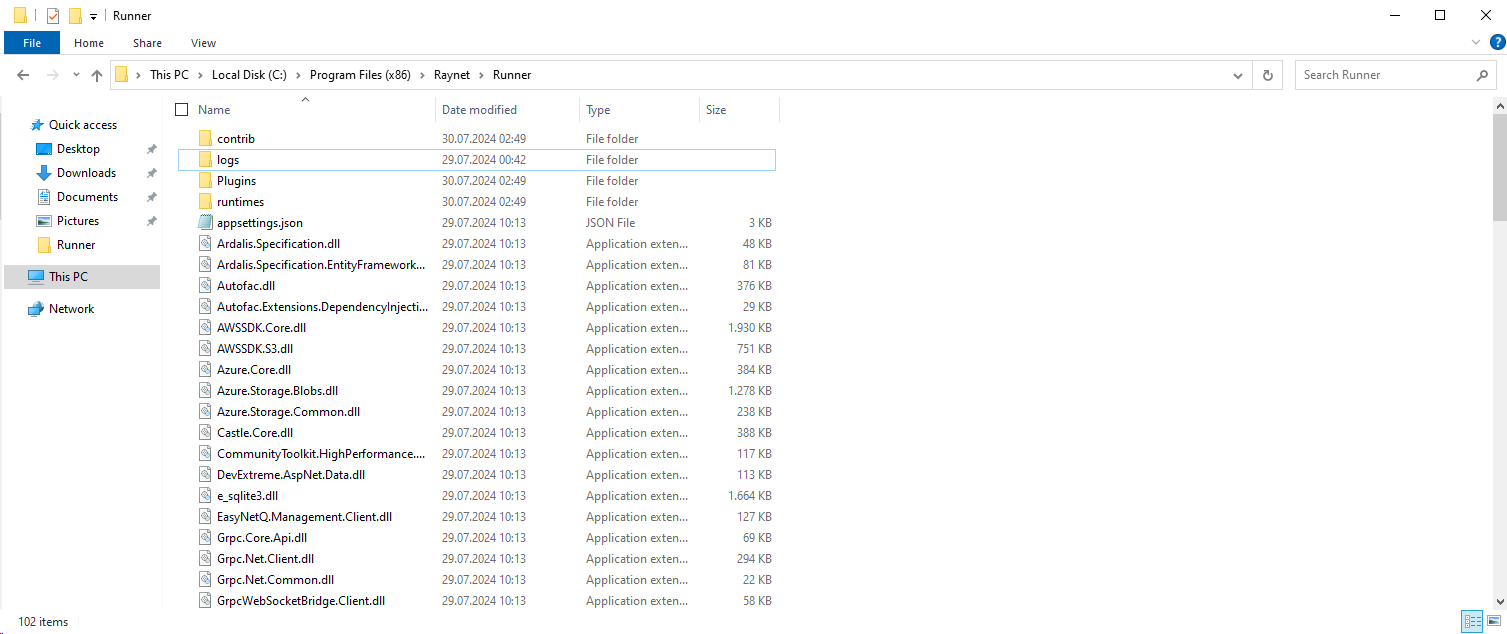
The Windows 10 File Explorer with the runner installation directory open. You can find the main runner application files in this folder.
2.Open a command prompt in this folder. You can click into the URI bar, type in cmd and hit the Enter key.

Typing into the URI bar of the Windows 10 File Explorer allows you to launch programs whose current directory is set to the location of the File Explorer's file-system view.
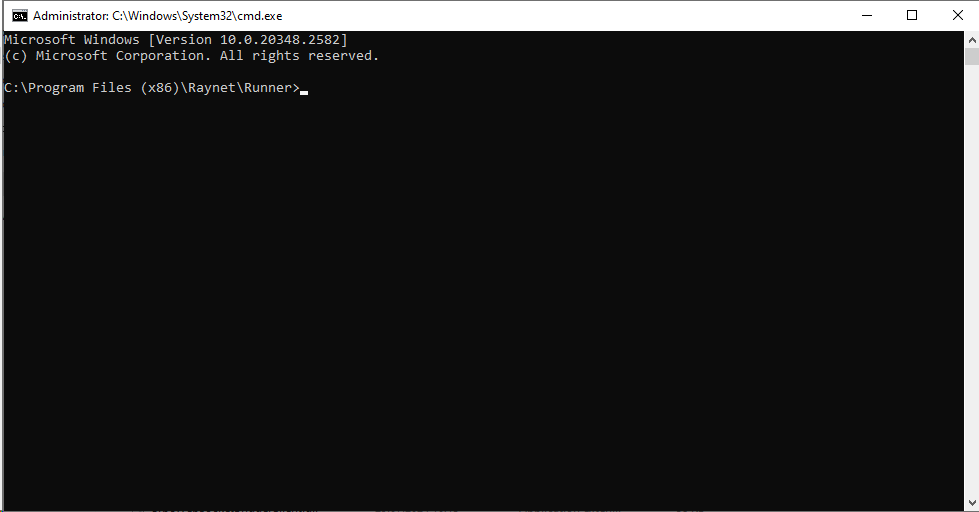
3.Type in raynet.one.runner.service.exe and hit the Enter key. This will execute the runner manually along with visible logging entries directly in the terminal application. You can find useful troubleshooting information this way.
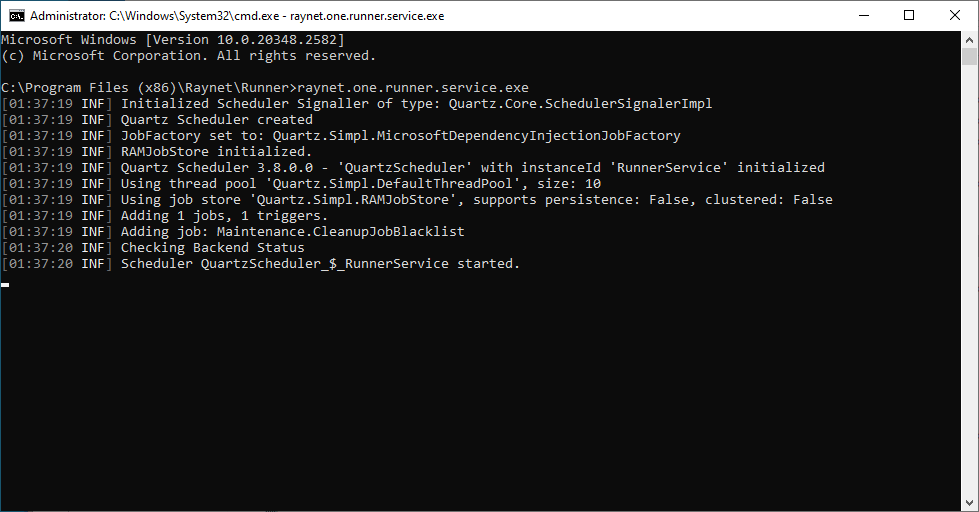
The Windows runner's log. It shows valuable information for troubleshooting. Log entries may indicate use of an invalid enrollment token. In this case, you should try reinstalling a new runner from the web interface. Many log entries are recurring and easy solutions are available. Getting familiar with the runner's logging capabilities is recommended.
TLS Handshake Error (Windows)
The Raynet One Runner includes the RVIA Data Service, which communicates over HTTPS using a TLS certificate installed in the Windows Certificate Store on the host machine. If the Windows service account running Raynet One Runner does not have permission to read the private key of that certificate, the RVIA Data Service cannot establish a TLS connection. As a result, inventory uploads fail and the service URL is unreachable.
Root Cause: ECC Certificate Private Key Access
ECC certificates imported into the Windows Certificate Store are managed by the Microsoft Software Key Storage Provider (KSP). When a certificate is installed by an administrator, only members of the Administrators group and the IIS_IUSRS group receive read access to the private key by default. If Raynet One Runner runs under a dedicated service account that does not belong to either group, the service cannot access the private key, which causes the TLS handshake to fail.
Note: The Manage Private Keys option in the certlm.msc management console is available only for certificates that were imported using the KSP. If this option is absent, the certificate must be re-imported using the correct provider before private key permissions can be managed.
Resolution: Granting Private Key Access to the Service Account
To resolve the TLS handshake error, grant the Raynet One Runner service account read access to the certificate private key:
1.Open the Local Computer certificate store by running certlm.msc.
2.Navigate to Personal > Certificates and locate the TLS certificate used by the RVIA Data Service.
3.Right-click the certificate, select All Tasks, and then select Manage Private Keys.
4.In the permission dialog, verify that the Raynet One Runner service account (or its security group) has at least Read permission. If the account is absent, add it and assign Read permission.
5.Apply the changes and close the dialog.
6.Restart the Raynet One Runner service. This also reinitializes the RVIA Data Service.
7.Verify that the RVIA Data Service URL is accessible and that inventory uploads succeed.
Recommendations
•When configuring Raynet One Runner on Windows, verify that the service account has read access to the private key of the TLS certificate assigned to the RVIA Data Service. Confirm this during initial setup to prevent connection failures after installation.
•When using ECC certificates, ensure they are imported using the Microsoft Software Key Storage Provider (KSP) to enable correct private key management. ECC certificates provide equivalent security to RSA with smaller key sizes and can be a suitable alternative where your PKI supports them.