The IT Visibility dashboard displays a compact overview of your entire IT environment. Generally, this view empowers you to quickly check on your IT environment via five tabs. Overview, Software, Hardware, Security and Gap identification.
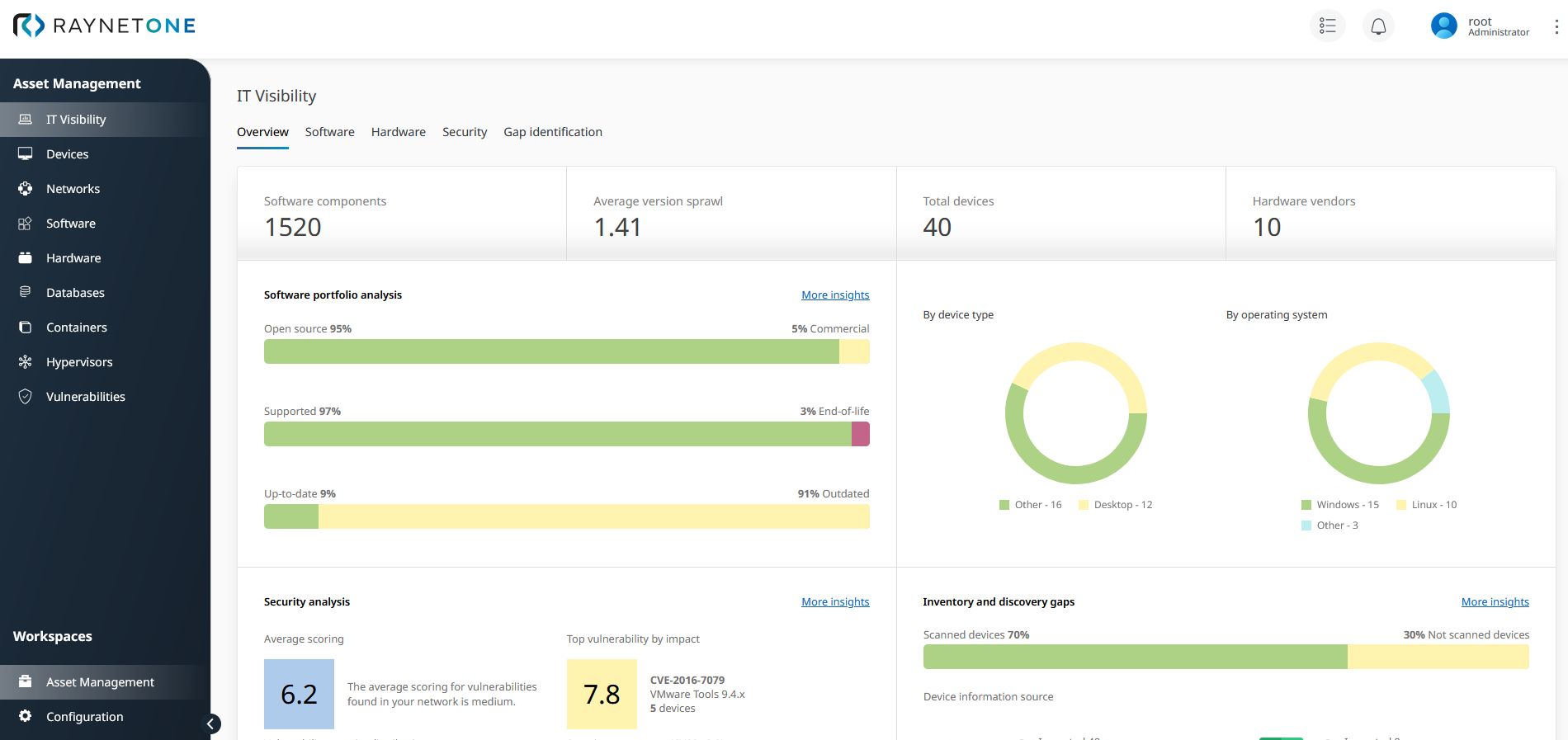
Under the Overview tab, you can see your environment status at a glance. You are provided with links to more detailed information about each category.
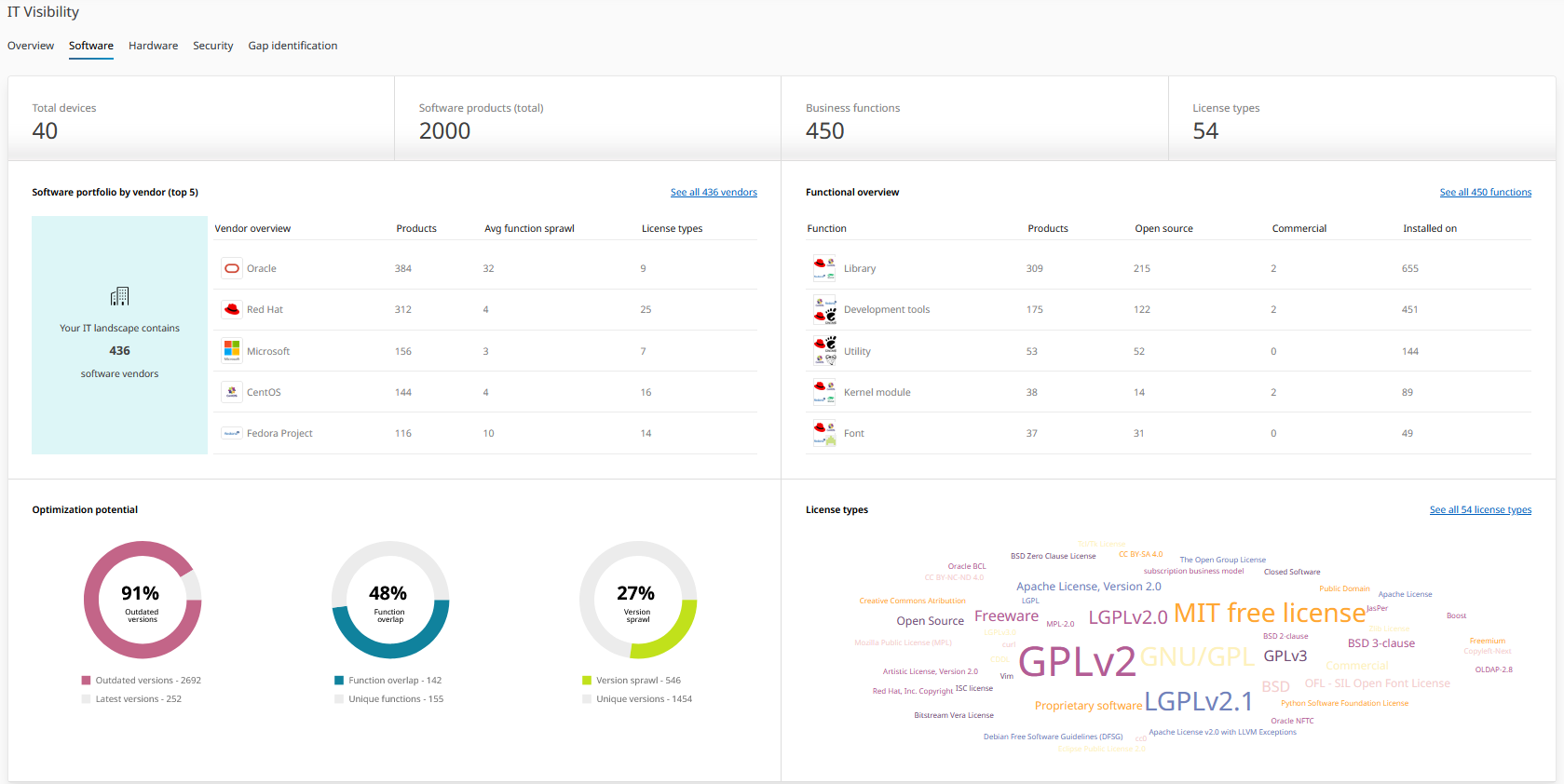
Under the Software tab, you get a complete overview about the following two categories: Software portfolio by vendor and Functional overview. Scrolling down in this view, you will also see your current software assets' Optimization potential and License types.
Under the Hardware tab, you can view the composition and current status of your hardware assets.
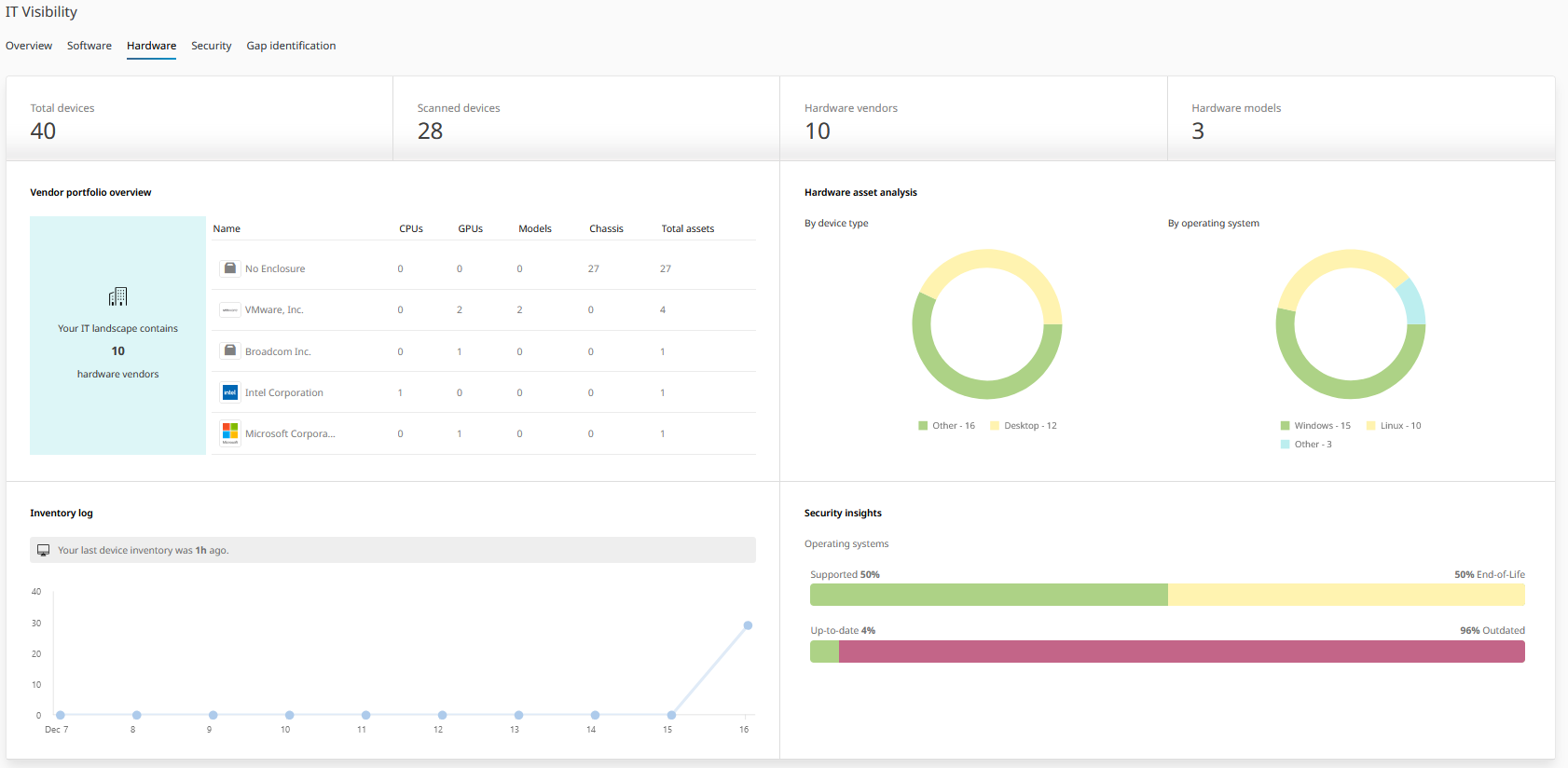
Don't worry about our test IT systems' up-to-date detection. We use all kinds of test devices to verify correct functionality.
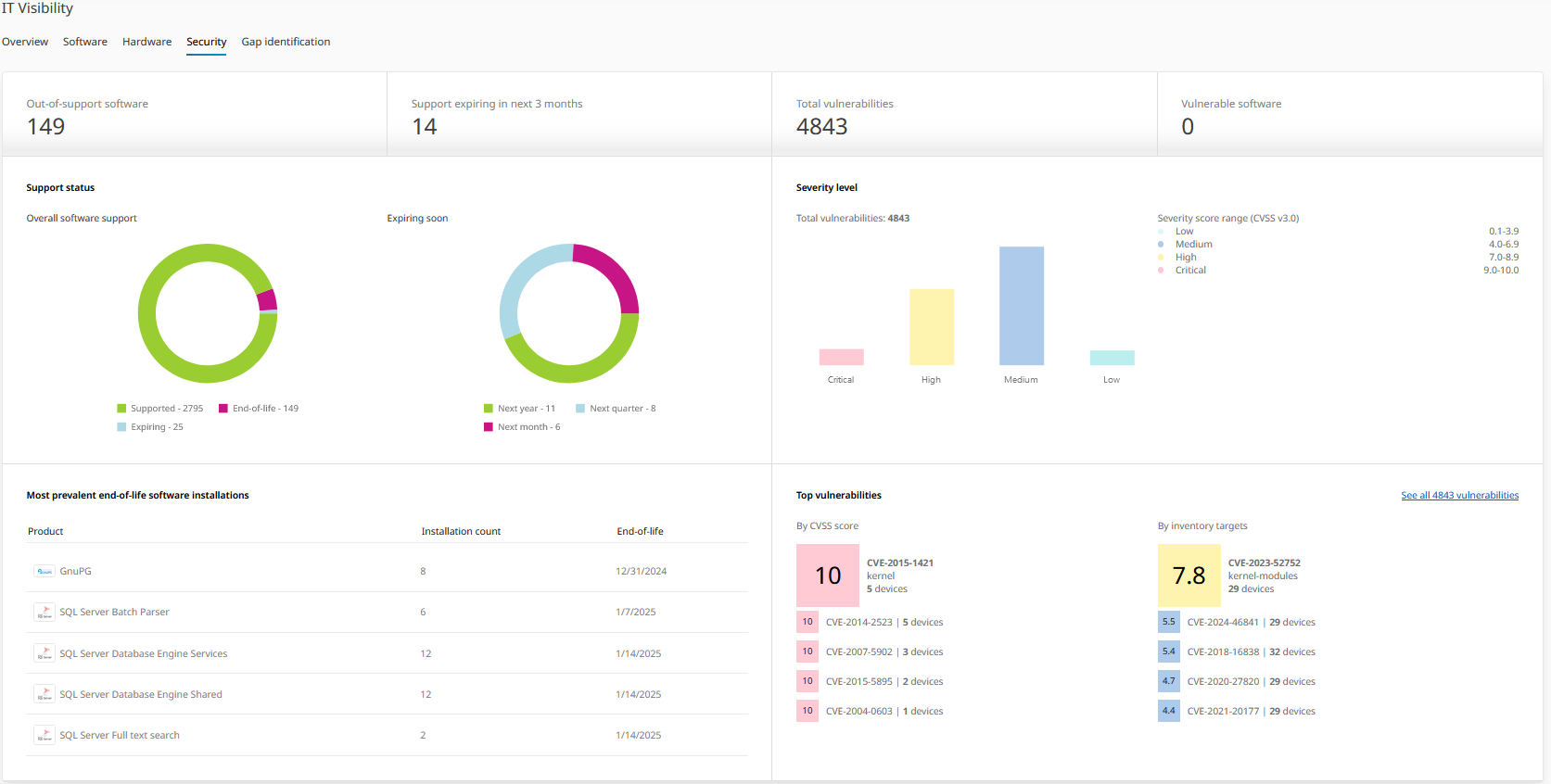
Under the Security tab, you can check on the security and vulnerability status of your IT landscape.
Under the Gap identification tab, you can check on your current discovery rate (how many assets have been scanned) and inventory coverage rate. The tab also displays data source coverage tiles for all active sources in your environment.
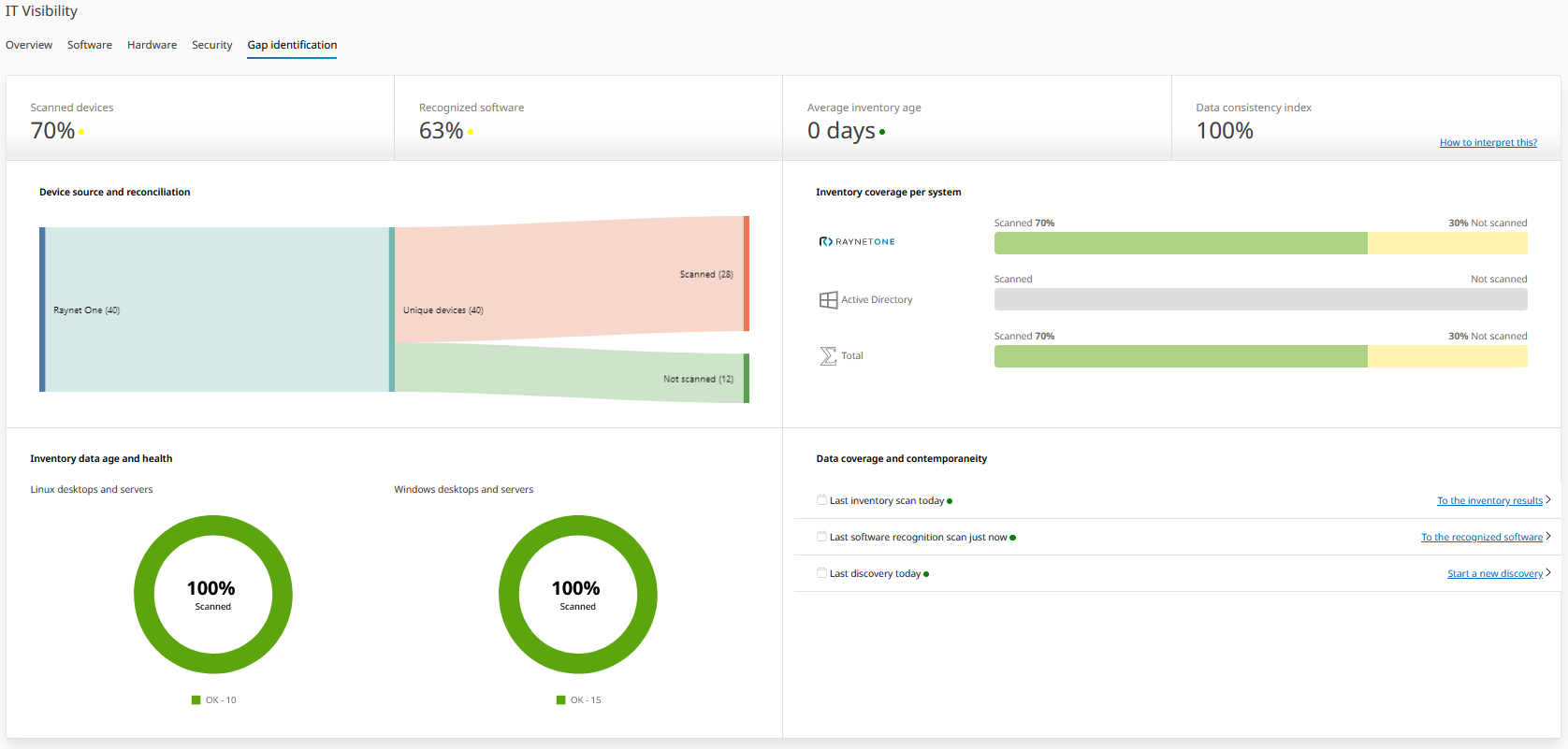
Data Source Coverage
Raynet One automatically detects which data sources have contributed device records to your IT inventory. The Gap identification tab and the Overview tab both display data source coverage tiles that reflect your live environment. Previously static and hardcoded, the displayed data sources are now dynamically derived from the sources that are actually active and populated in your system.
Each data source tile provides the following metrics:
•Imported — the total number of device records imported from that source.
•Unique — the number of devices uniquely identified from that source after deduplication.
•Scanned — the percentage of devices from that source that have been fully inventoried.
On the Overview tab, up to four data source tiles are displayed at a time in the Inventory and Discovery Gaps widget. The selection rotates automatically every two minutes so that all sources receive visibility over time. Sources that contain device records are prioritized and appear first; sources with no data may still be shown as context.
|
Tip: |
