Being able to change the password of your user account is important for account security. In addition, you can adjust your user settings to personalize how information is displayed in the web interface. In Raynet One, users can configure the system language, regional time-and-date format, and default currency.
Changing your password
First things first, these steps guide you on how to change your password.
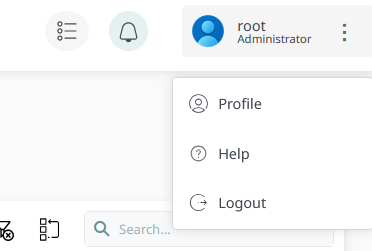
1.Click on the three dots next to the User profile button in the header and select the Profile option.
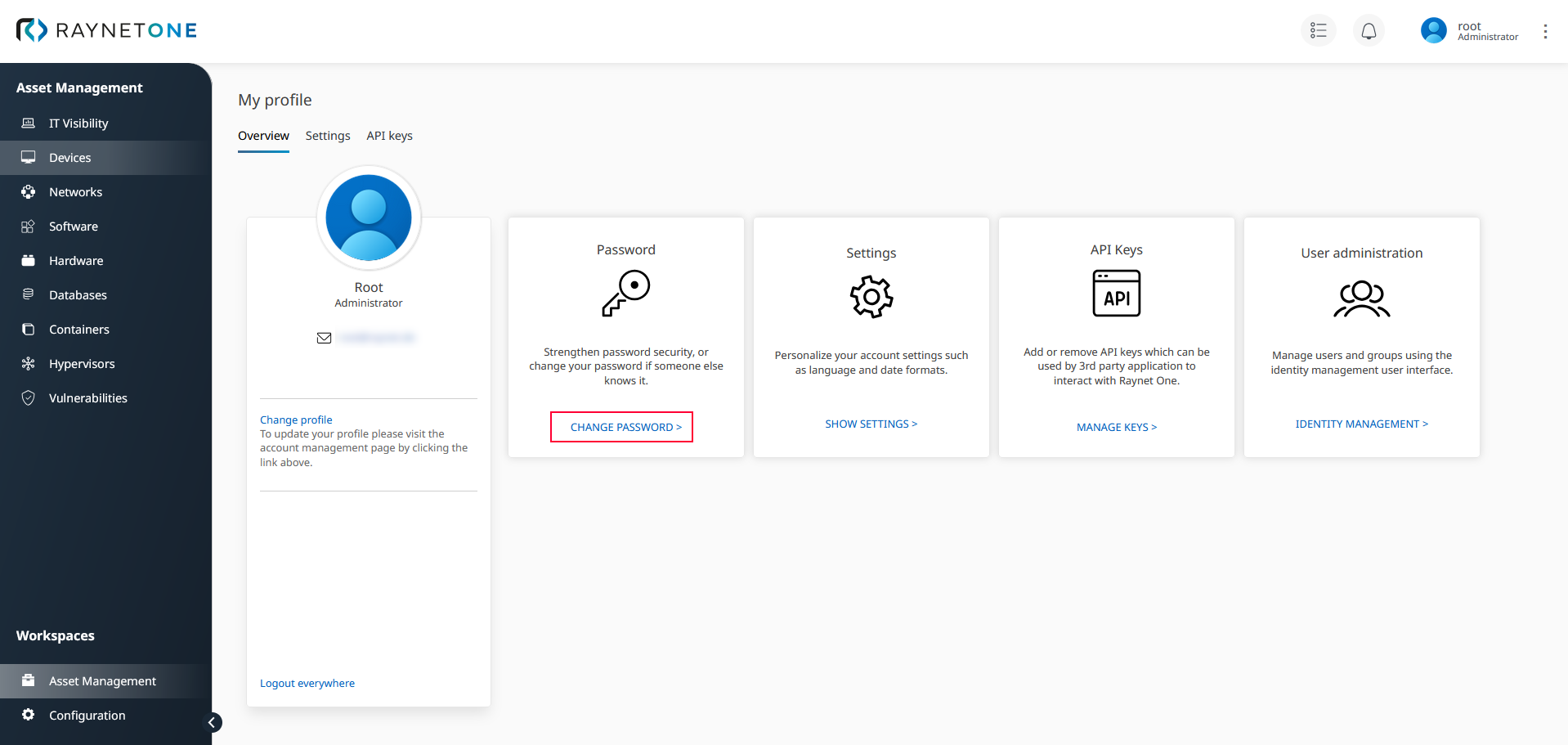
2.In the My profile overview, click on the link inside of the Password section. You are redirected to the sign-in dialog of the related Keycloak realm.
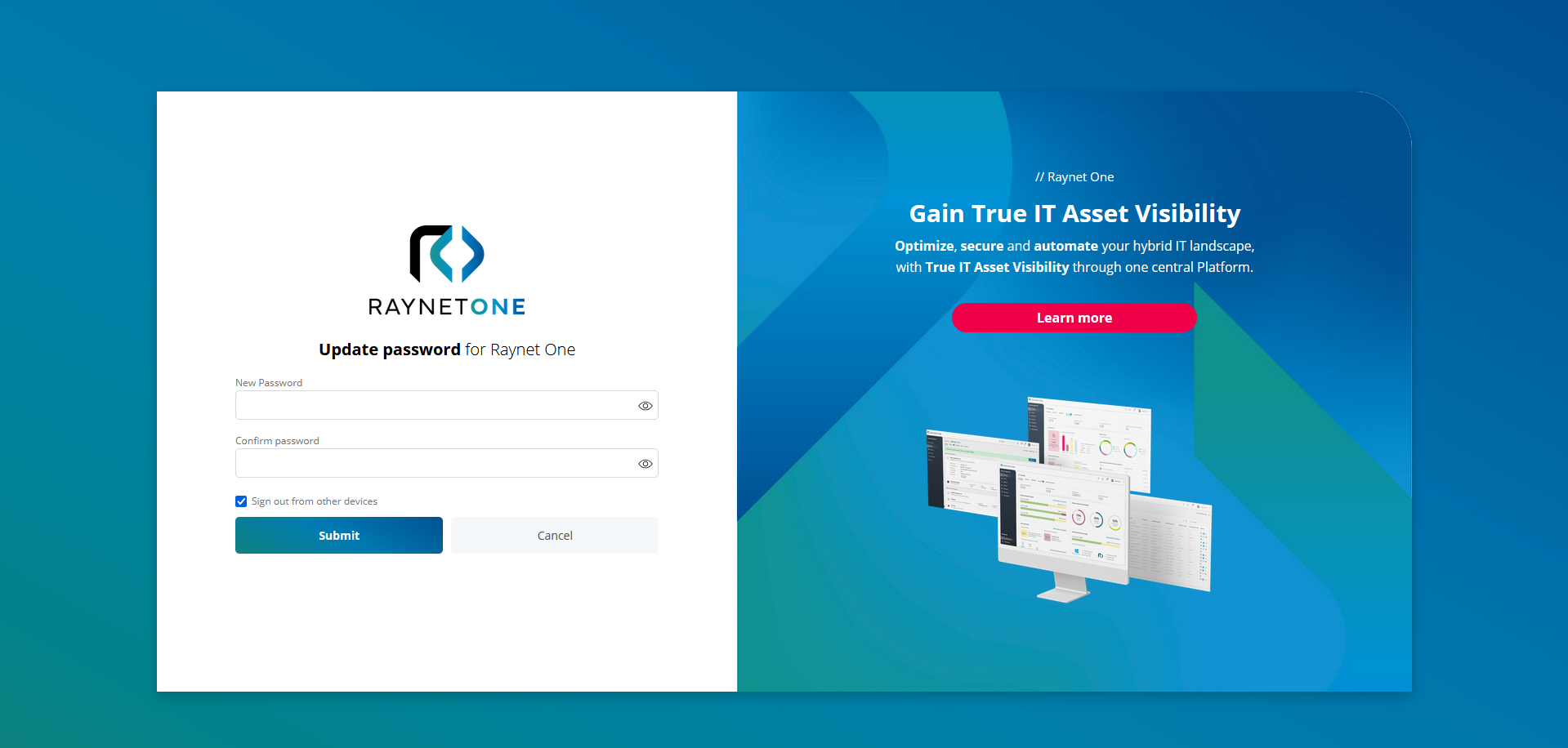
3.The Keycloak instance password change form is shown. Enter your new user credentials and click on Submit to assign the new combination. By default, the option to sign out of all other devices is enabled. This measure is meant to improve account security in the context of account hijacking.
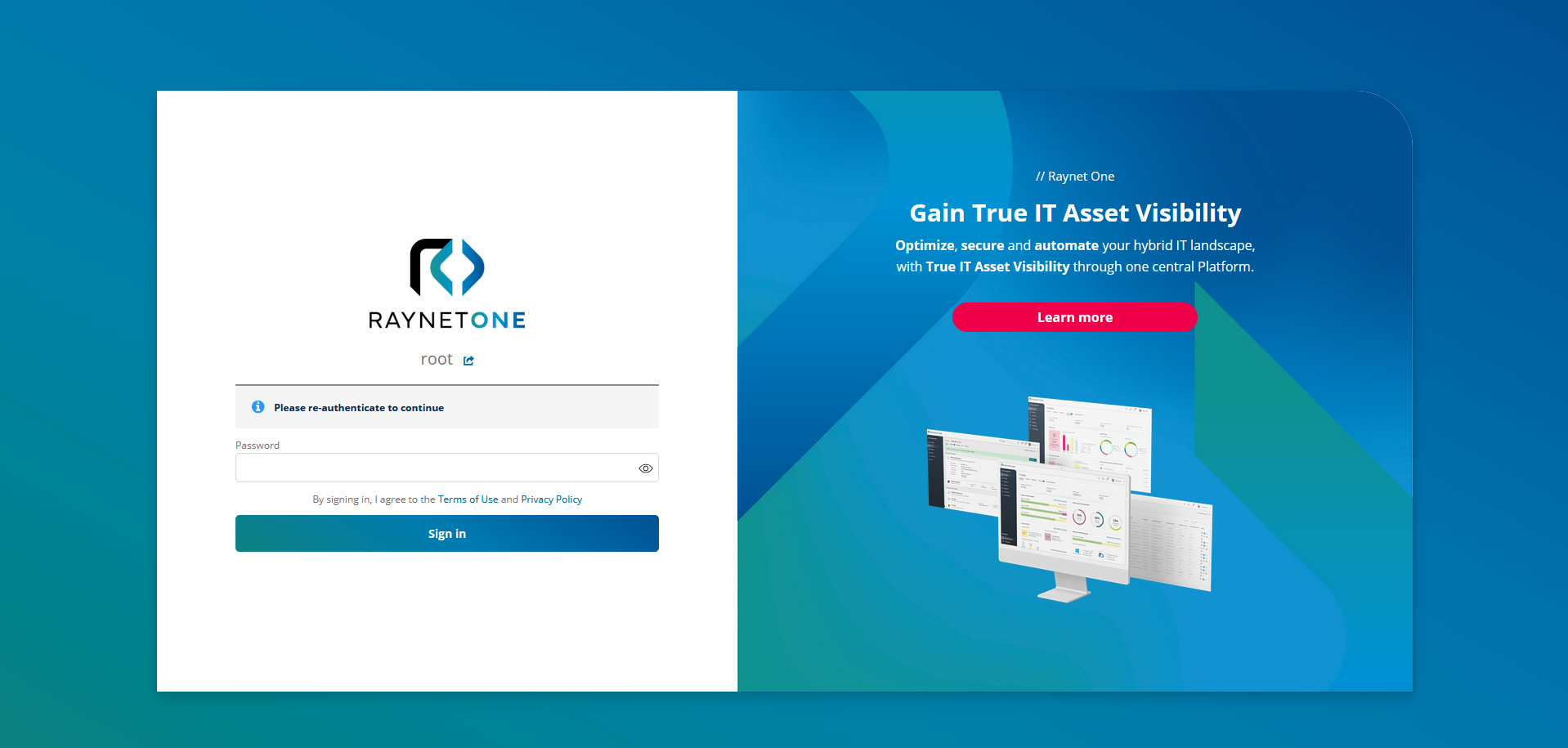
4.During submission, you may be asked to re-authenticate to the platform. Complete the challenge to confirm the new password assignment.
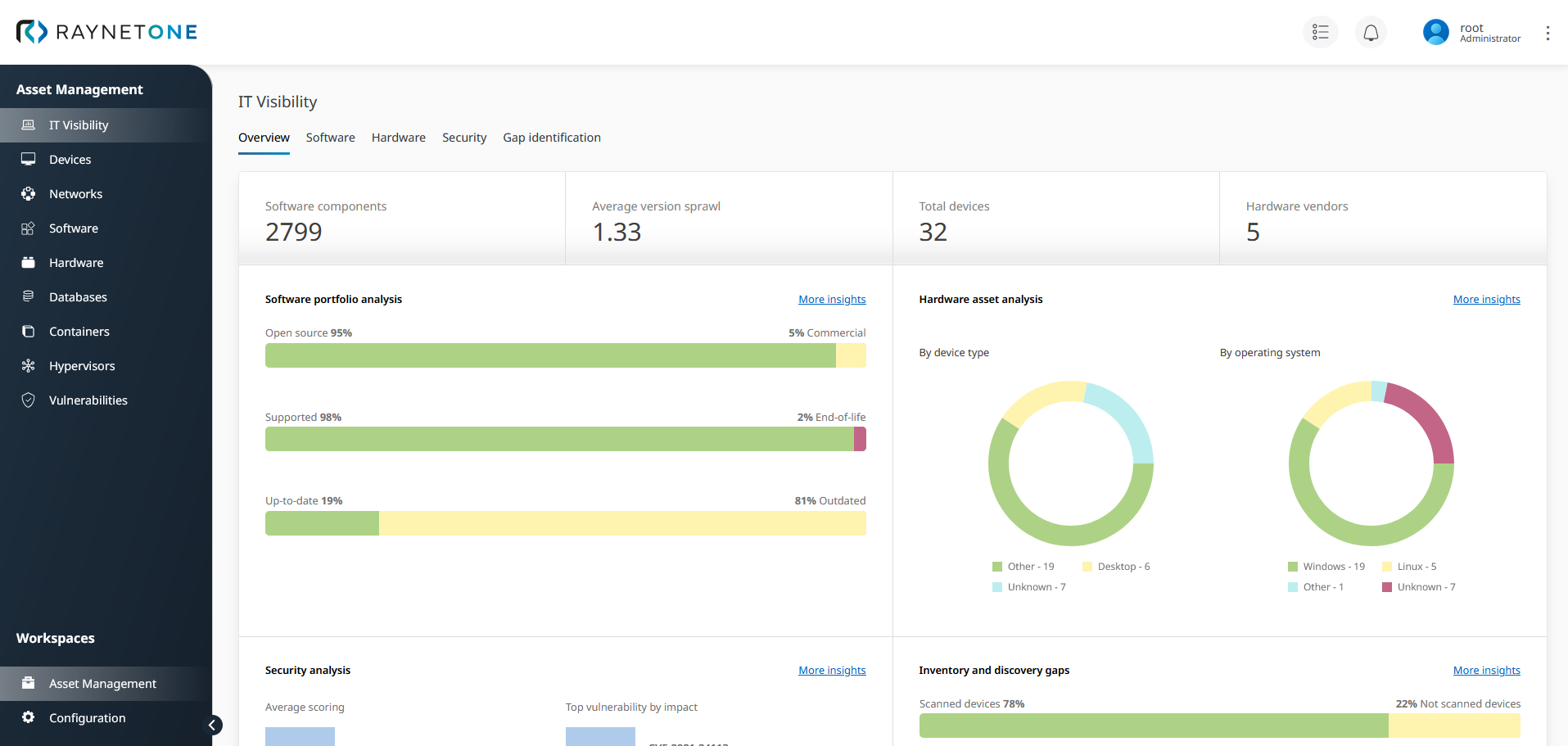
5.On password change completion and success, you are redirected to the IT Visibility dashboard.
Changing your user settings
Return to the My profile view and switch to the Settings tab. Here you can adjust personal display settings such as the language, regional format, and default currency.
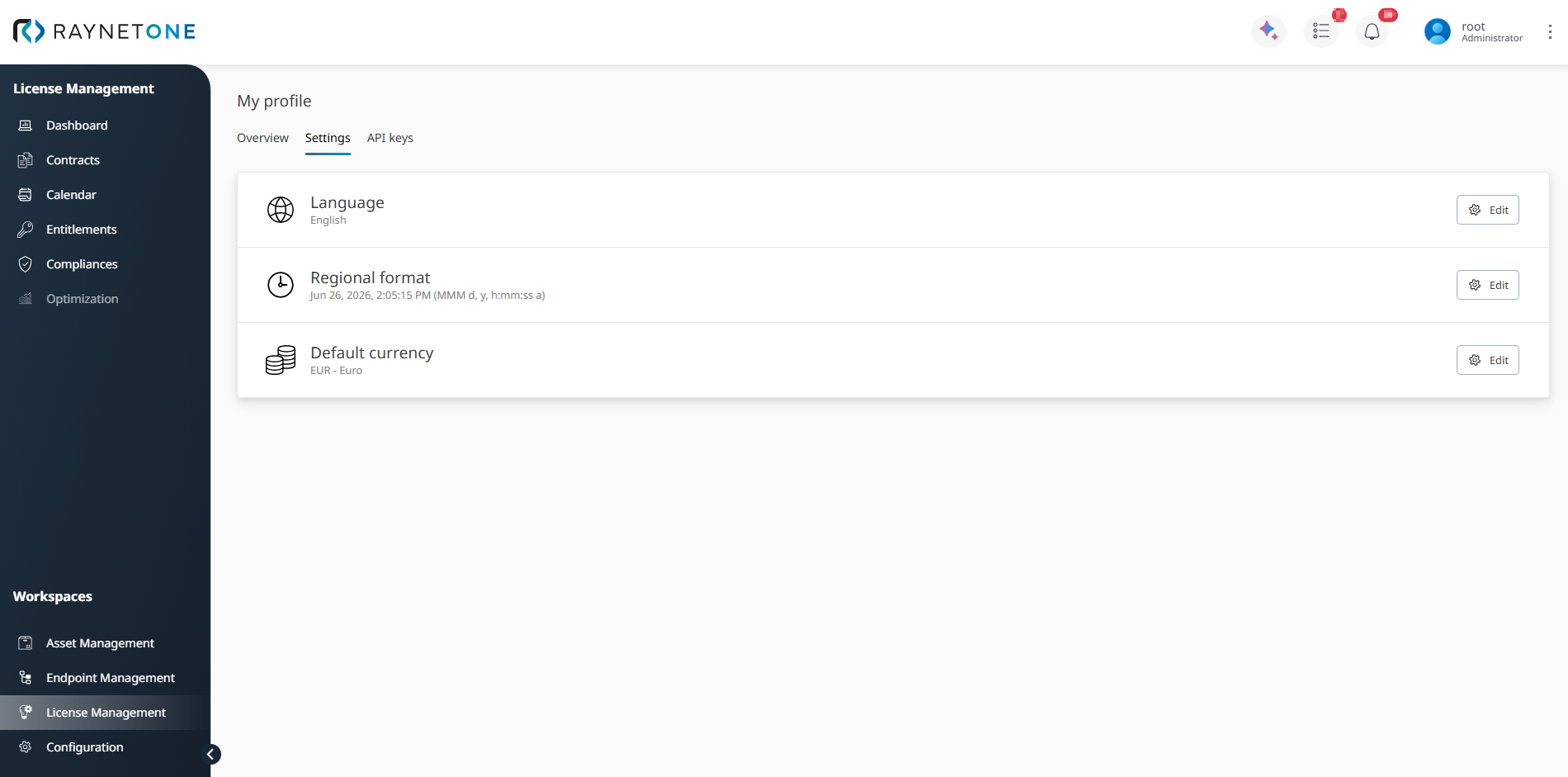
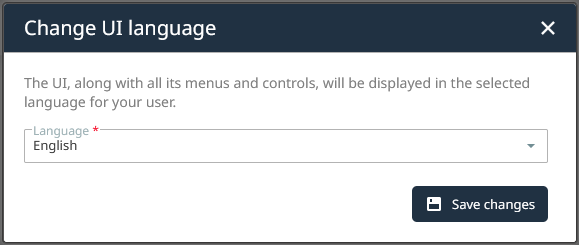
My profile > Settings with Language, Regional format, and Default currency. Click Edit next to Language to change the display language used across the web interface.
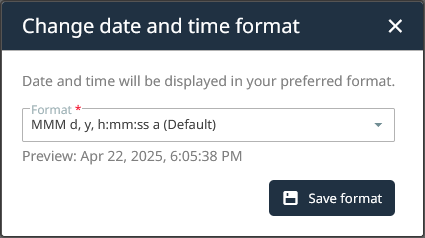
Click Edit next to Regional format to change how date and time values are displayed. The Preview string helps you verify the selected format before saving the change.
The Default currency setting defines the currency used for amounts that do not have a specific currency assigned. Click Edit next to Default currency to open the Change default currency dialog, select the required currency, and save the change.
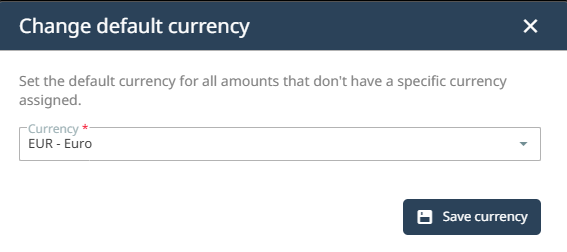
After saving, the selected price display mode is applied to the relevant price and value fields.