If your computer is part of a Windows domain network, it is typically part of an Active Directory (AD). It is the standard registry of Windows computers. The Windows computer publishes its name and device details onto the central AD server. Thus, by importing the AD hierarchy into Raynet One, you provide the essentially complete set of Windows computers inside of your network. By leveraging the power of the cloud-based Azure AD, you can even extend your outreach to worldwide proportions! In this chapter, we want to learn how to import your AD hierarchy.
Prerequisites for Active Directory Import
Before you can successfully import devices from Active Directory, ensure that the following prerequisites are met:
Network Connectivity
•Working network connection to Domain Controller: The runner must have reliable network connectivity to the Active Directory Domain Controller. Ensure that firewalls and network policies allow communication between the runner and the Domain Controller.
•Proper network routing: Verify that network routes are properly configured to allow the runner to reach the Domain Controller.
Domain Membership
The runner machine should be joined to the Windows domain where the Active Directory is hosted. Domain membership ensures seamless authentication and proper access to Active Directory resources.
Alternative for non-domain-joined runners: If the runner is not domain-joined, additional configuration steps may be required. Please consult your system administrator or support team for guidance on configuring non-domain-joined runners for Active Directory access.
Credentials
•Valid domain credentials: You must provide Windows domain credentials with sufficient permissions to query Active Directory. The credentials should have read access to the Active Directory structure and device information.
•Appropriate permissions: Ensure the credentials have the necessary permissions to read computer objects from Active Directory. Typically, Domain User privileges are sufficient for reading device information.
Security and Trust
Secure connections from the runner to the Active Directory host require PKI trust. This can be a challenging topic in Windows environments with multiple domains. Find the necessary cryptographical root certificate which signed the AD server connection certificate and embed it into the runner's machine certificate root trust storage.
Runner Requirements
•Windows runner: A Windows runner must be installed and properly configured. For runner installation instructions, see Add a Windows runner via Runners.
•Runner authorization: Ensure the runner is authorized and active in the Raynet One platform.
Importing Devices from Active Directory
Once all prerequisites are met, follow these steps to import devices from Active Directory:
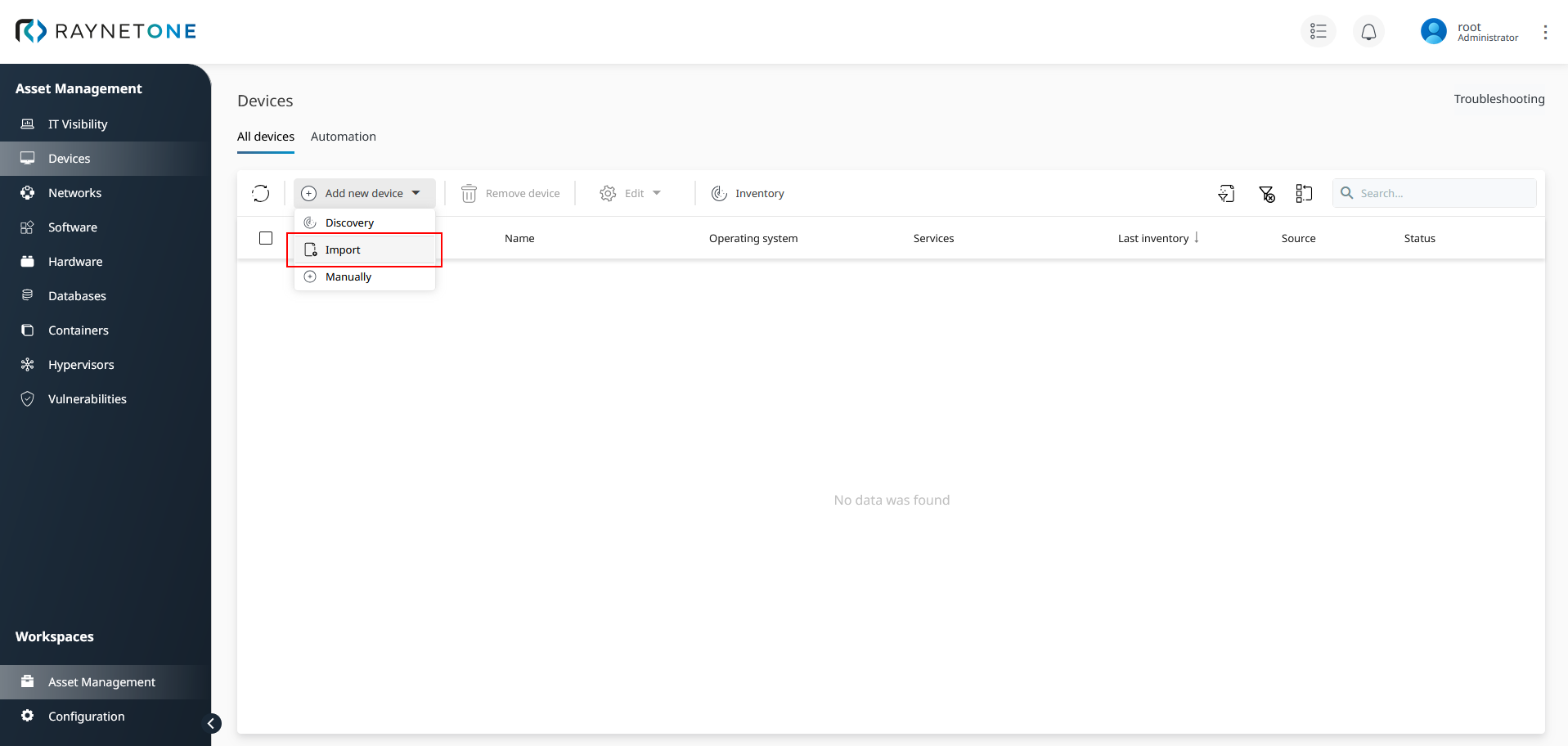
1.Navigate to the Devices view in the Asset Management workspace. Then click on Add new device and select Import to open the Device import wizard.
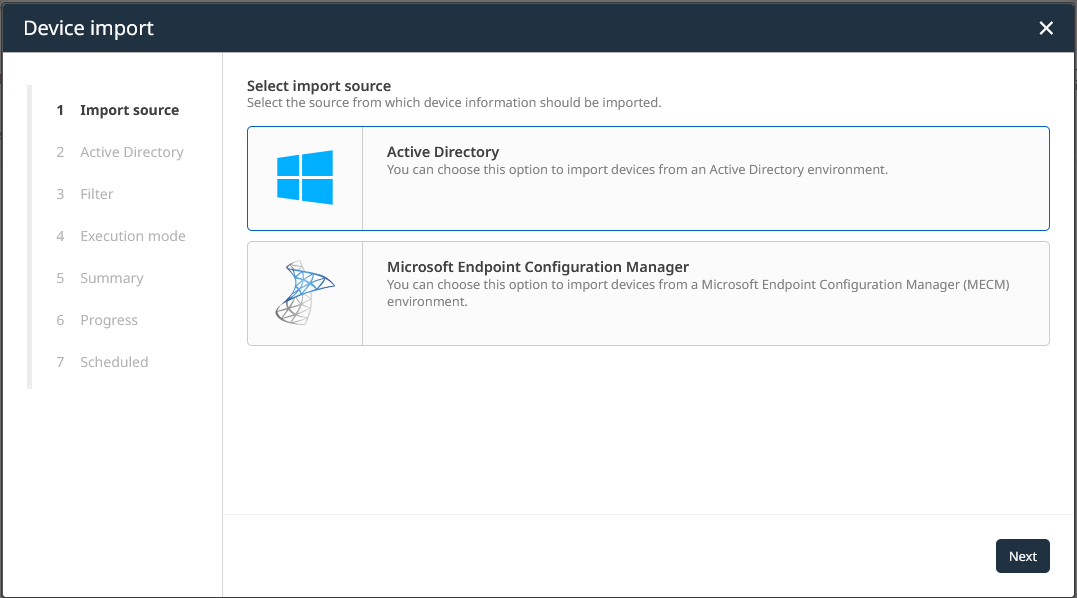
2.Select your import source according to your managed environment. In this case, it will be Active Directory. Then click on Next to proceed.
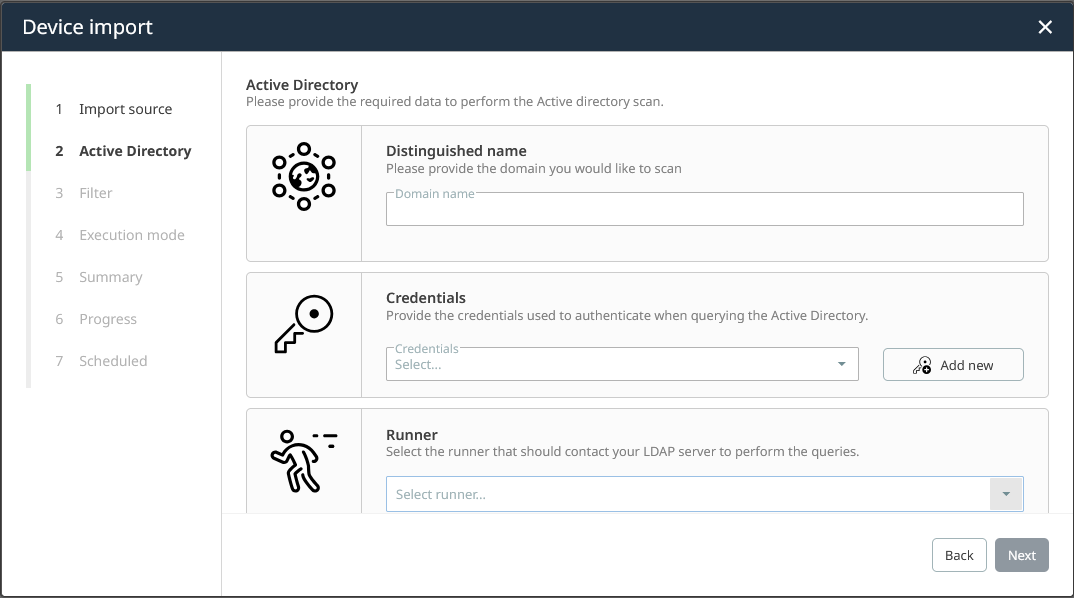
3.Fill in the field labeled Distinguished name, then select the stored credentials and applicable runner. The name has to match your Windows domain in which your AD is hosted. Provide credentials with sufficient permissions for performing AD queries. The selected runner has to be able to connect to the AD, including routes and connection security. After filling in all necessary details, click on Next to continue.
4.In this step you can set filter rules for all the data received from the AD. Each device has a hostname attribute. You can use regular expressions to filter for an accepted set of devices. The regular expressions follow the C# syntax (see the official reference). Inside of the Operating system filter section, there are options to filter for a known set of operating systems installed on the AD devices. After carefully considering and choosing the provided options, click on Next to proceed.
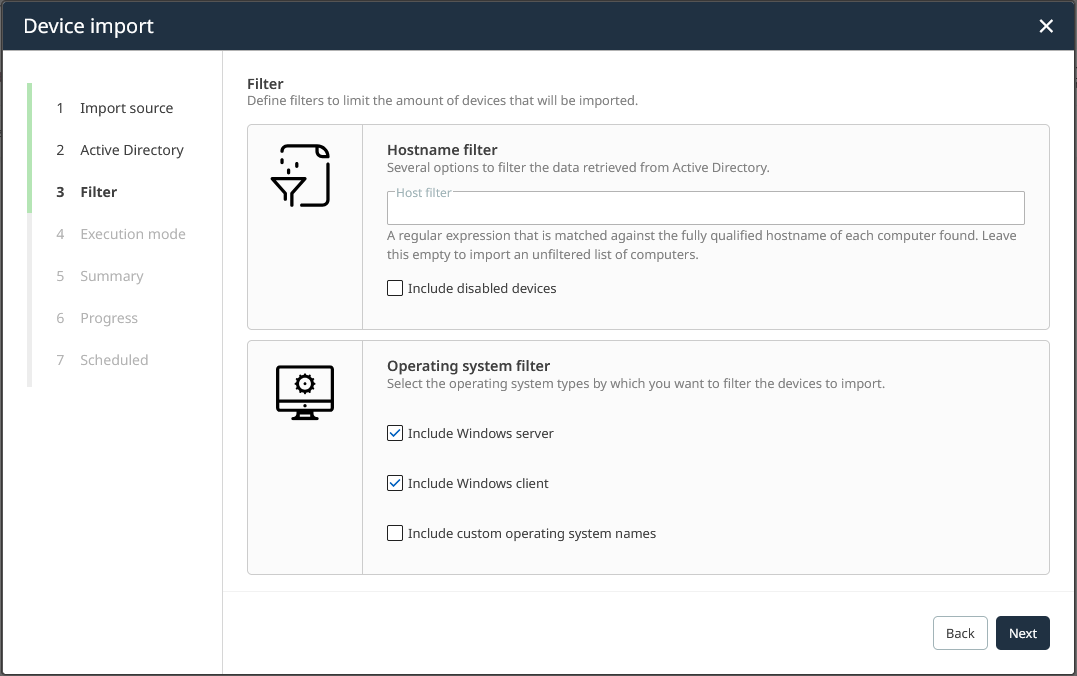
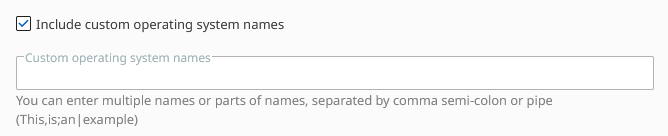
You can provide custom operating system names which mark the devices to be imported, if you enable the option.
5.Define the execution mode for scheduling your discovery run. You can set exact trigger times daily, weekly or monthly according to your requirements. Scheduled device import jobs will be displayed in full detail on the Devices Automation page. Let's choose the simplest option - Execute once - and click on Next.
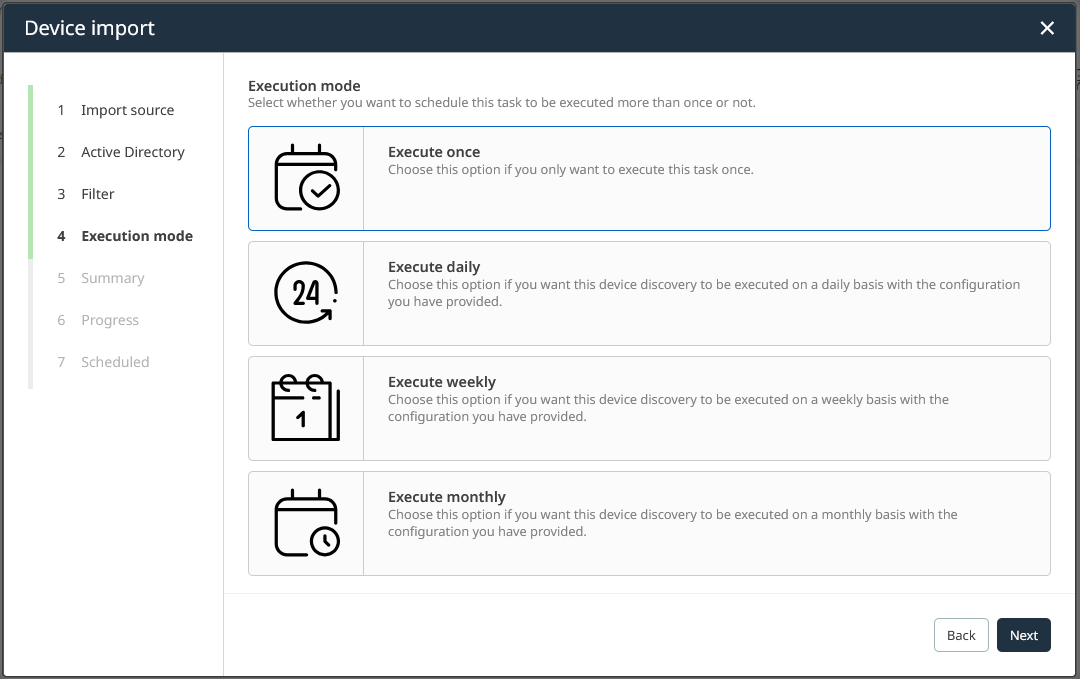
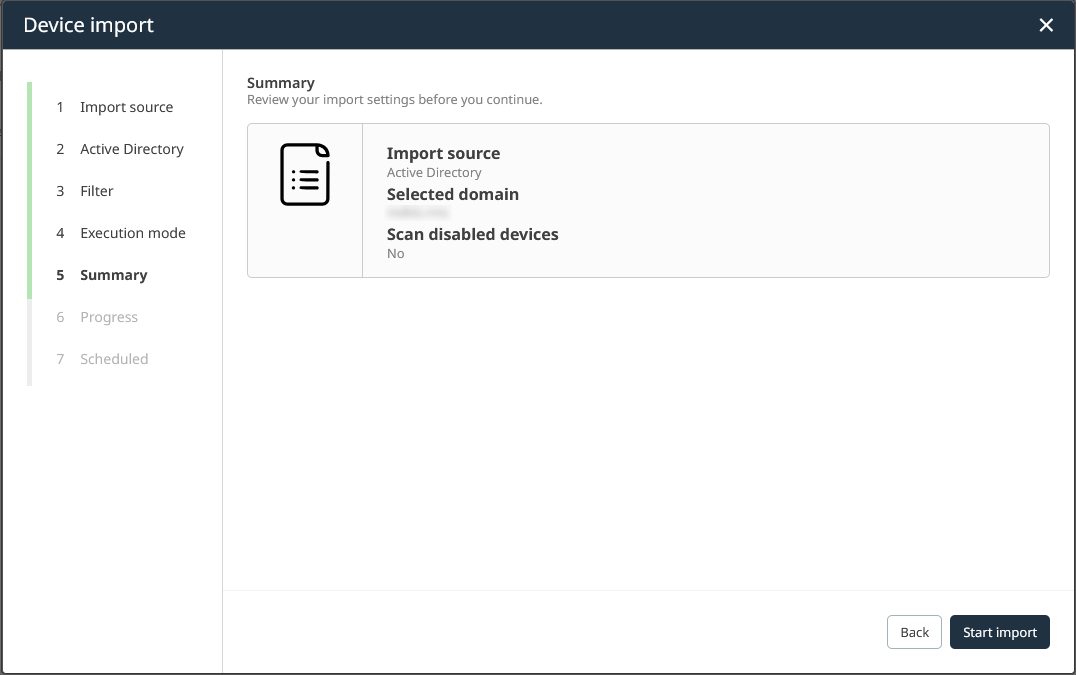
6.Verify the summary of your configuration. If it looks fine to you, click on Start import. After clicking, you will be presented with a progress page, during which the device import job is scheduled for execution. The specified runner will pick it up and collect data from the AD. If there is any configuration mistake, and you have not yet started the import job, you can go back to previous steps to revise.
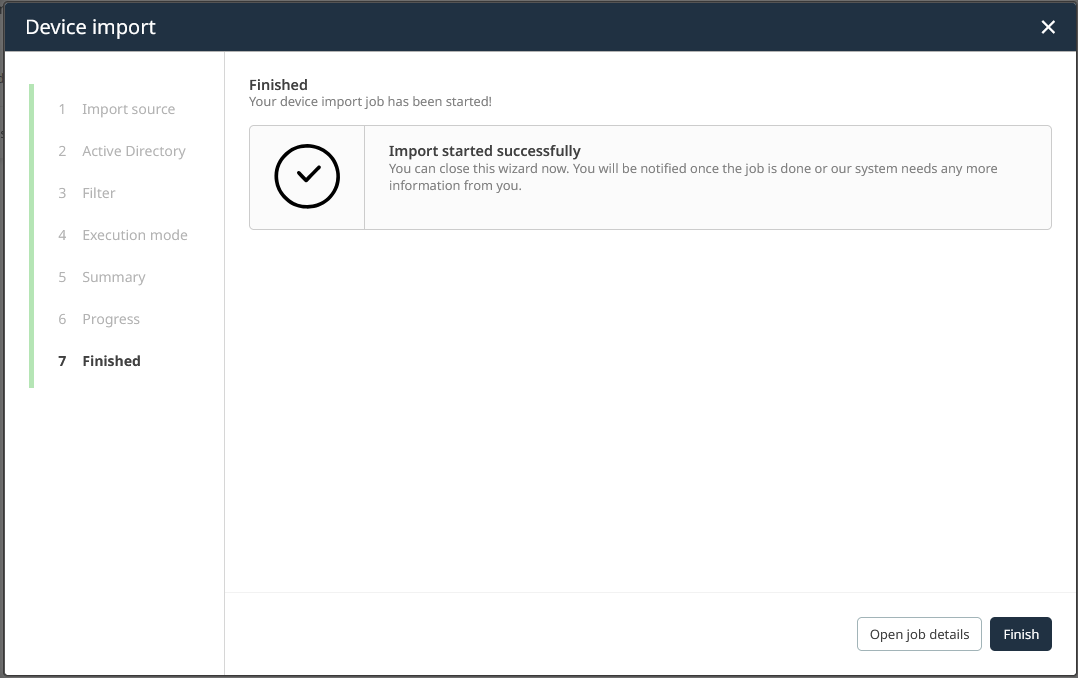
7.Click on Finish to finalize the process. Alternatively, you can open the Action Center to view details on your triggered import run.
|
Important: |

|
Tip:
|