The AI Chat feature in Raynet One provides a secure, conversational interface that allows users to access and analyze system and inventory data using natural language.
Instead of navigating through multiple views, filters, or custom reports, users can ask precise questions in natural language and receive structured, contextualized results immediately.
Every request is translated into controlled backend operations within Raynet One and executed strictly within the current user role and permission scope. All operations respect role-based access control and audit requirements, ensuring that AI Chat extends user capabilities without expanding the system's risk surface.
Deployment requirements, external service integrations, and configuration details are described in the AI Chat Configuration & Deployment section.
Overview
AI Chat integrates a large language model (LLM) with controlled access to Raynet One services and data sources.
Based on the available system and inventory data, it can:
•Retrieve and summarize inventory data: E.g., List all unlicensed software on servers returns a structured overview, highlighting compliance exposure and affected systems.
•Provide details on devices, software, networks, and databases: E.g., Show me details on my network devices pulls key information like configurations and connections.
•Support license-related analysis: E.g., How many Adobe licenses are expiring soon? generates forecasts and renewal recommendations.
•Access licensing information and encyclopedia data: E.g., What does this license term mean? draws from integrated knowledge bases for quick explanations.
•Maintain conversational context: Build on prior questions within the same chat.
Every AI Chat conversation is automatically saved, ensuring that no information is lost. Each chat maintains its own isolated context, and once a chat is deleted, it is permanently removed.
Opening the AI Chat
To access the AI Chat assistant:
1.Locate the AI Chat icon in the header area of the application interface.
2.Click the AI Chat icon to open the chat window.
3.The chat interface will appear as a modal window overlaying your current view.
Using the AI Chat Interface
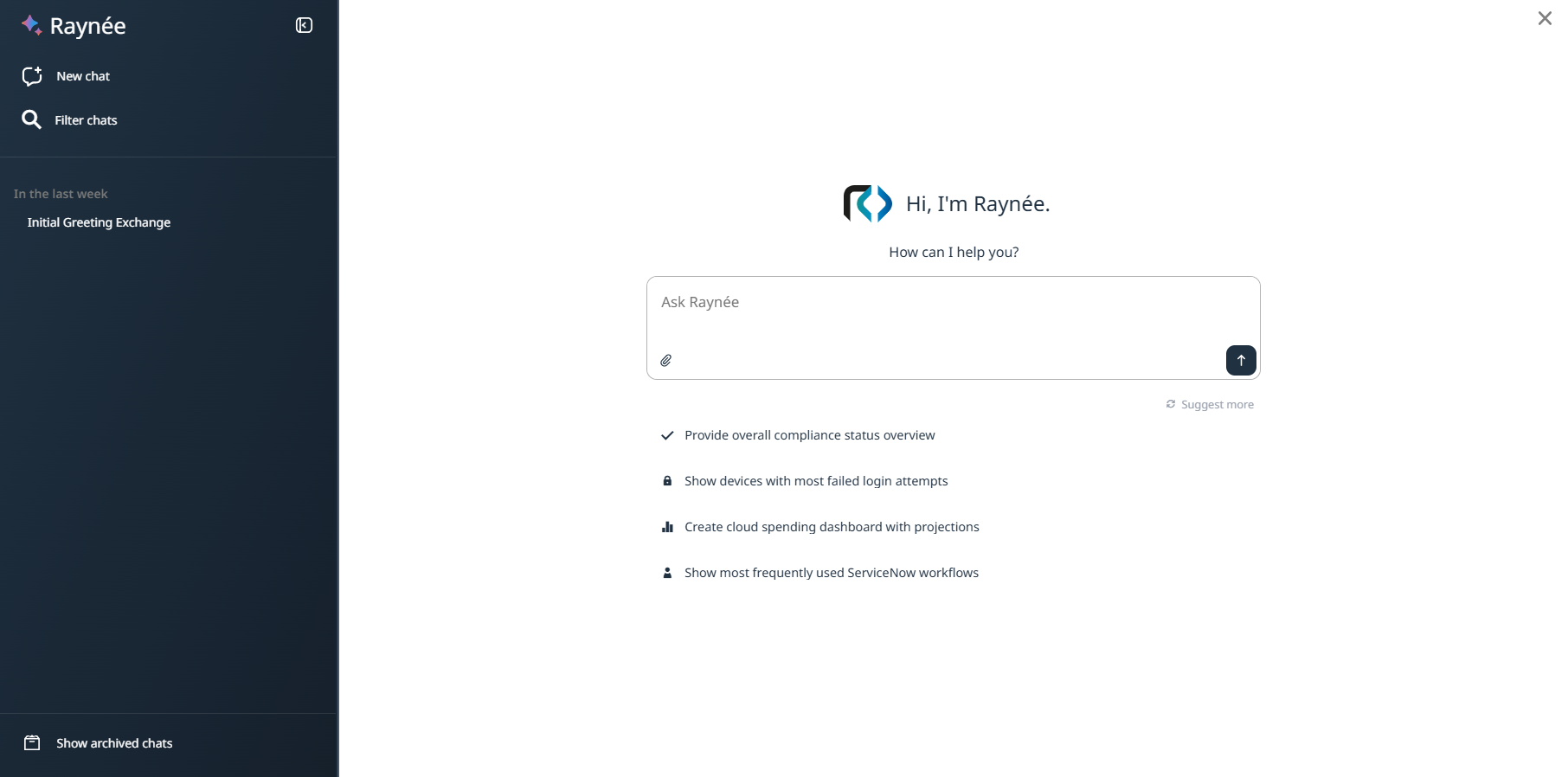
After opening AI Chat, the assistant becomes available directly within the application interface (see screenshot above). The interface is structured into clearly separated functional areas, designed to support controlled, context-aware interaction.
Sidebar
The sidebar provides structured access to all chats. It supports chat creation, organization, and lifecycle management.
Creating a Chat:
To initiate a new, independent conversation, select New chat. Each chat operates separately and maintains its own context.
Navigating Existing Chats:
Chats are listed chronologically and grouped by relative time periods (e.g., last week, last month). You may refine the list using available filter criteria such as keywords.
Organizing Chats:
To improve clarity you can:
•Rename chats to reflect their purpose.
•Archive chats that are no longer active but should remain accessible.
Archived chats are hidden from the main list by default but can be displayed at any time.
Removing Chats:
Deleting a chat permanently removes it. This action cannot be undone.
Data Persistence:
All chats are stored server-side and associated with the user account. Chats respect the user's permission scope and synchronize across devices.
Chat Area
The chat area represents the primary interaction space between you and the AI assistant. It displays the complete conversation history of the active chat and updates dynamically as messages are exchanged.
Message Structure and Status Indicators:
Messages are visually differentiated to ensure clear attribution and transparency of system activity:
•User messages are aligned to the right.
•Assistant responses are aligned to the left.
•System status indicators appear while the assistant is processing a request.
This structured layout preserves conversational context and provides real-time feedback during interactions.
Prompt Suggestions
Below the conversation window, contextual prompt suggestions may be displayed to help initiate or guide interactions. These suggestions can be selected to automatically populate the input field.
To explore additional suggestions, use Suggest more. The system will present alternative prompts to support different use cases or directions of inquiry.
Prompt suggestions are optional and have no effect unless they are submitted.
File Attachments
Files can be added to a message using the attachment control in the input area.
For security reasons, only non-executable file types are permitted. Executable files (e.g., .exe, .py, .bat, or similar script-based formats) cannot be uploaded.
This restriction ensures a secure processing environment and prevents the processing of potentially harmful executable content within the application environment. Uploaded files become part of the chat context once submitted.
Interaction Modes
The chat interface supports multiple interaction mechanisms. Text-based interaction is the default behavior. Voice capabilities are optional and must be explicitly enabled before they become available in the chat interface. Configuration is performed separately in the application settings (see Voice Mode Configuration).
•Voice Mode (accessible from the right side of the chat panel) enables spoken interaction with the assistant.
•Dictate Mode allows spoken input to be transcribed into the message field before submission.
Both voice modes provide alternative input methods while maintaining the same chat context and permission scope as text-based messages.
Managing Chat History
AI Chat conversations are automatically persisted and associated with the current user.
This allows you to:
•Reopen previous conversations.
•Continue discussions within their existing chat context.
•Review prior questions and responses for traceability.
•Permanently delete chats when they are no longer required.
Each chat is automatically assigned a title derived from the initial user input. Titles can be used to quickly identify and distinguish conversations in the chat history.
Deleted chats are permanently removed and cannot be restored through the user interface.
Best practices
To ensure accurate and efficient results when using AI Chat:
•Formulate precise and clear questions.
•Reference exact asset identifiers or filters where applicable.
•Use separate chats for unrelated topics to keep your chat history organized.
•Rephrase or refine queries if results do not match expectations.
•Review system status indicators to understand when data retrieval is in progress.
•Use proper asset names and identifiers when querying specific assets.
•Review status messages to understand what data the assistant is accessing.
AI Chat is designed to provide controlled, conversational access to system data.