The Web Server Role, provided by Internet Information Services (IIS), supports protocols such as HTTP/HTTPS/FTP and web services.
In environments using Active Directory (AD), IIS enables Windows Authentication and Single Sign-On (SSO) for secure user authentication.
Windows Authentication uses Kerberos as the primary protocol, with NTLM as an automatic fallback. It is not installed by default and must be enabled during role configuration.
No additional activation is required for NTLM. Configuration details for RayFlow AD Connector, used for SSO integration, is configured in a later section.
Installing the Web Server Role
To install and configure the Web Server Role (IIS), follow these steps using the Server Manager:
•Launch Server Manager.
•Select Add Roles and Features from the Server Manager Command Bar to open the Roles and Features wizard.
•In the Before You Begin pane, review the wizard's operations.
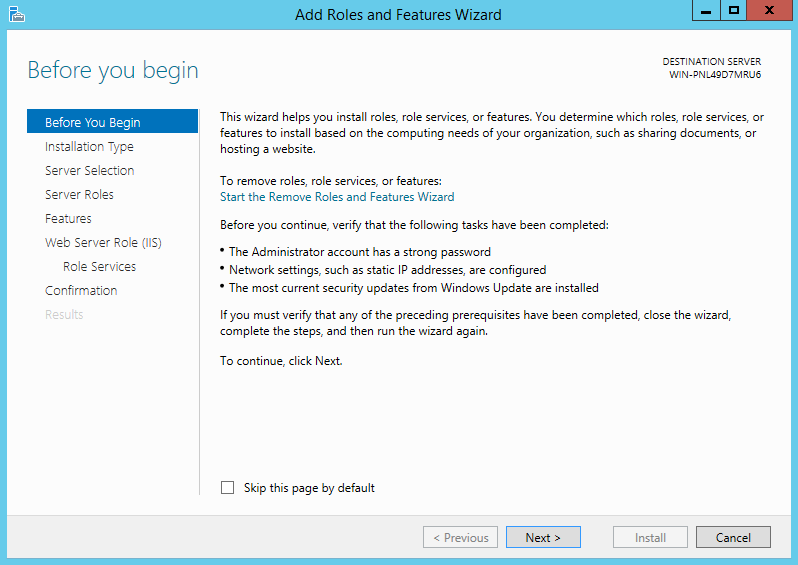
Select Next and proceed to the Select installation type pane.
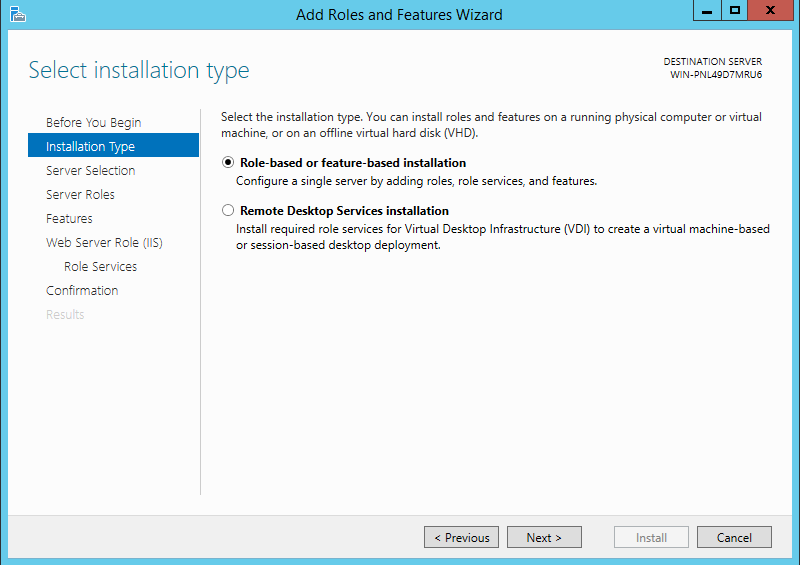
Select Role-based or feature-based installation as the installation type and click Next.
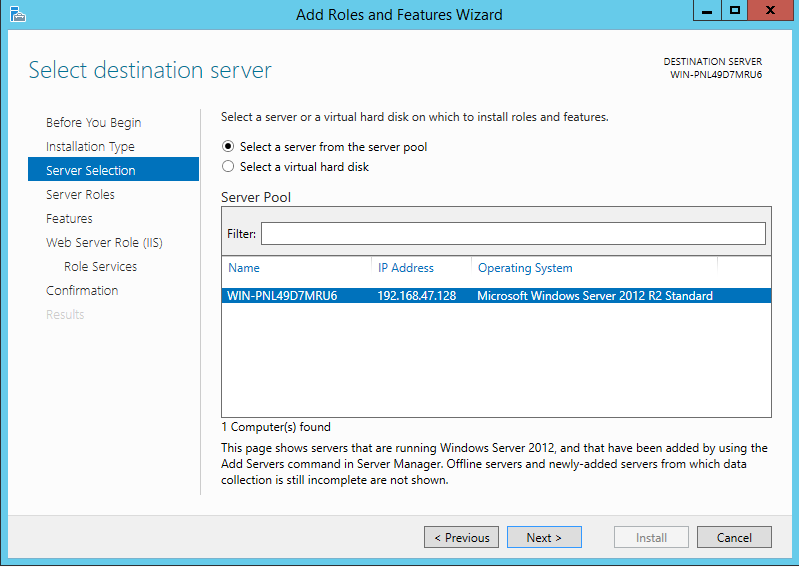
The destination server is selected from the server pool in the Server Selection pane by clicking Next.
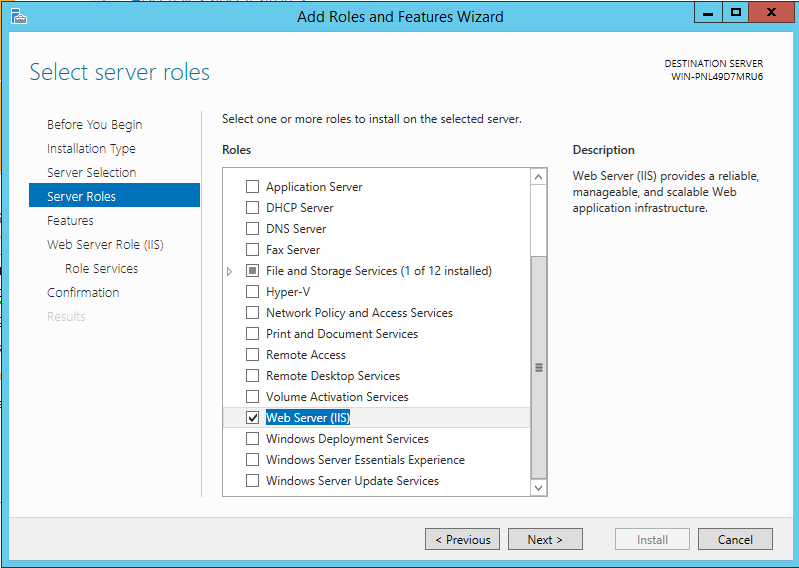
In the Server Roles pane, server roles such as Web Server (IIS) are configured for web or application services.
The Web Server (IIS) role is selected in the Server Roles pane. If prompted, required features are added by selecting Add Features,
or optional features are deselected as needed. Click Next to proceed.
On the Features window, select the .NET Framework 3.5 Features, then expand ASP.NET 4.5, .NET Framework 4.5 Features.
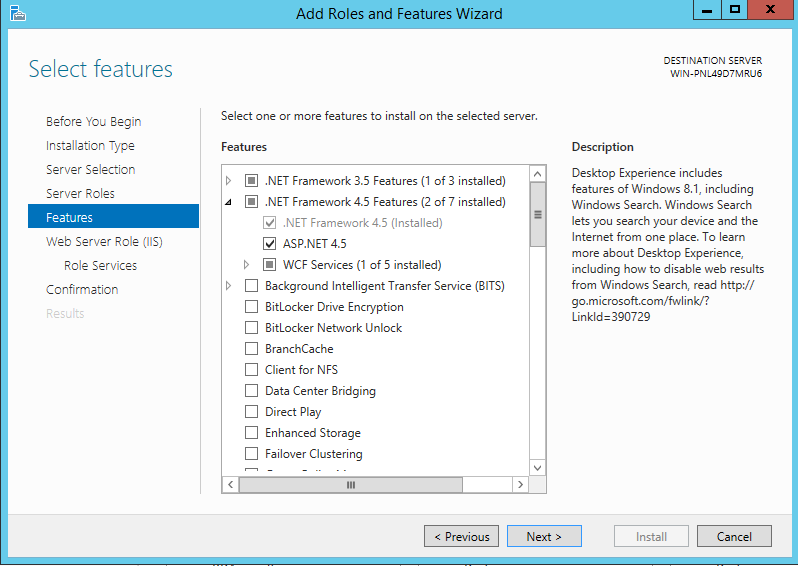
Click on the Next button.
Enable Windows Authentication Role Service
|
Note: The Windows Authentication feature, essential for enabling Single Sign-On (SSO) with Active Directory (AD) is not included by default in the Web Server Role (IIS) installation and must be manually selected and configured during role setup for all RayFlow instances. Additional configuration, such as Service Principal Names (SPNs) and the RayFlow AD Connector, is required for SSO and is described in later sections. |

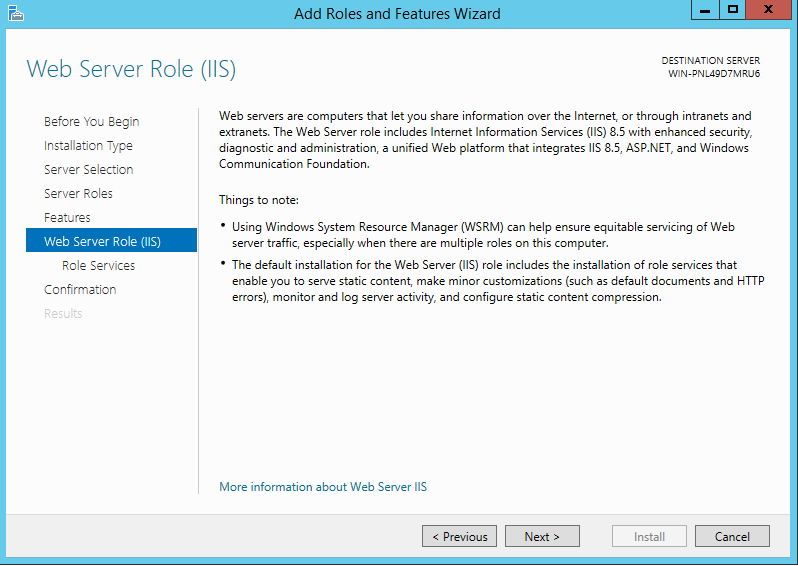
In the Role Service pane, customize the installation by selecting following services and then click on the Next button.
•Web Server
oCommon HTTP Features
✓Default Document
✓Directory Browsing
✓HTTP Errors
✓Static Content
oHealth and Diagnostics
✓HTTP Logging
✓Logging Tools
✓Tracing
oPerformance
✓Static Content Compression
oSecurity
✓Request Filtering
✓Digest Authentication
✓Windows Authentication
oApplication Development
✓.NET Extensibility 3.5
✓.NET Extensibility 4.5
✓ASP.NET 3.5
✓ASP.NET 4.5
✓ISAPI Extensions
✓ISAPI Filters
oManagement Tools
✓ISS Management Console
✓IIS6 Management Compatibility
✓IIS 6 Metabase Compatibility
✓IIS 6 Management Console
✓IIS 6 Scripting Tools
✓IIS6 WMI Compatibility
✓IIS Management Scripts and Tools
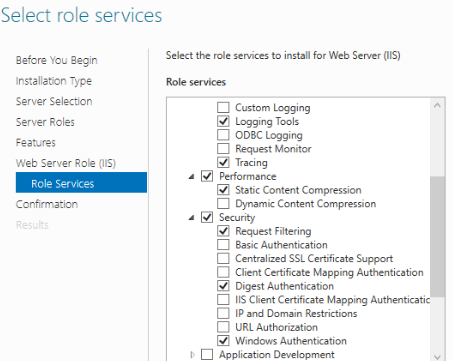 |
Description: This screenshot confirms the selection of key Role Services, including Windows Authentication, as detailed in the Enable Windows Authentication Role Service section. Ensure all required services are checked before proceeding with the Next button.
|
Click Next and then Install to complete the installation.
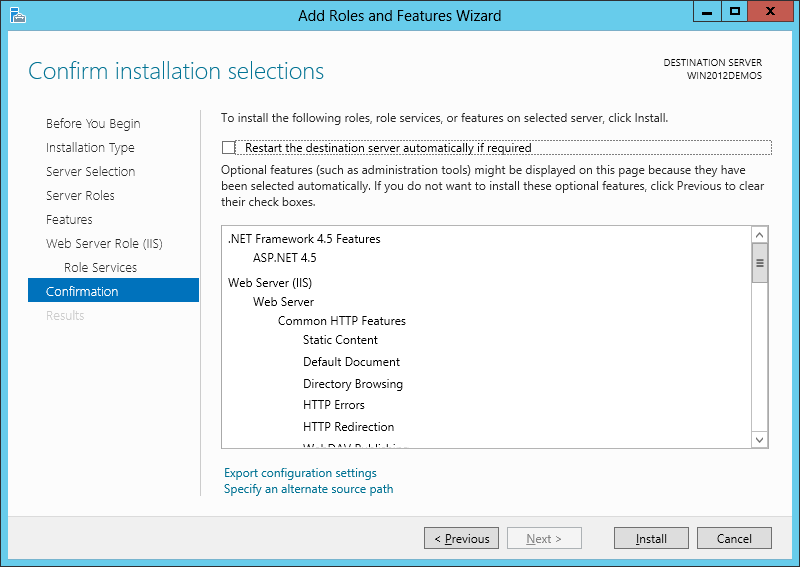
When the IIS installation completed, the wizard reflects the installation status:
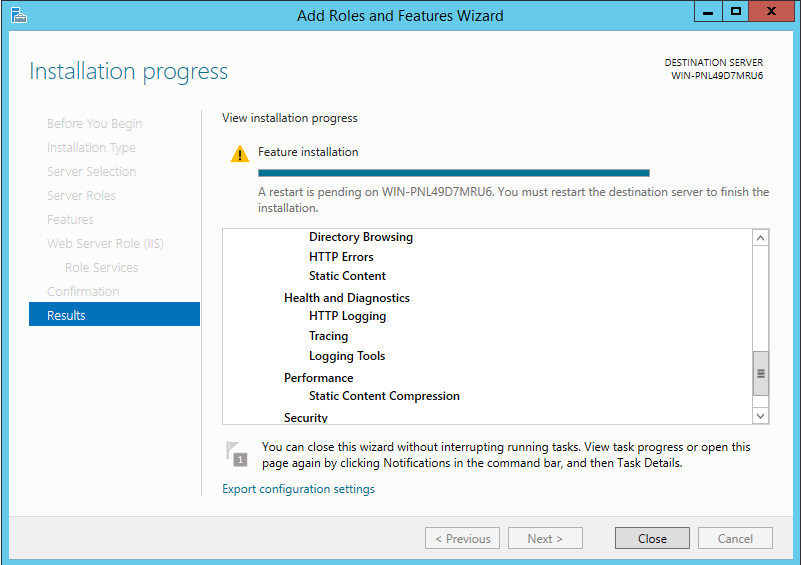
Click Close to exit the wizard and Restart your server.
|
Note: The Windows Authentication feature, essential for enabling Single Sign-On (SSO) with Active Directory (AD) , must be activated for the specific website in the IIS Manager to ensure proper authentication for all RayFlow instances. |
Active Directory and Kerberos-Configuration
Configure Active Directory (AD) and Kerberos for Single Sign-On (SSO). Verify domain resolution by opening a Command Prompt as administrator and
running nslookup <domain-name>.
Confirm the primary Domain Controller with nltest /dsgetdc:<domain-name>.
Check DNS and Kerberos SRV records with nslookup -type=SRV _kerberos._tcp.<domain-name>, expecting Priority = 0, Port = 88.
Ensure time synchronization with w32tm /query /status; if incorrect, correct it with w32tm /config /syncfromflags:domhier /update,
followed by net stop w32time && net start w32time.
Verify the Service Principal Name (SPN) with setspn -Q HTTP/<servername>
and register it if missing using setspn -S HTTP/<servername> <domain-name>\<server-account>.
Check the client's Kerberos ticket using the klist command to confirm Single Sign-On (SSO) is working correctly.
|
Note: For HTTPS, use HTTPS/<servername> for SPN. If backend services are accessed, consult the domain administrator to configure constrained delegation. |
To ensure the RayFlow application functions correctly, configure Windows Authentication and verify the firewall settings.
In the Providers dialog of Windows Authentication, confirm that Negotiate is listed as the first provider, followed by NTLM.
This prioritizes Kerberos for Single-Sign-On (SSO) with NTLM as the fallback.
Verify that the firewall allows traffic on port 80 (HTTP) or port 443(HTTPS) to enable connectivity for the RayFlow application.
To check the firewall configuration, run the following command in the Command Prompt:
netsh advfirewall firewall show rule name=all | findstr "80 443"
This command lists firewall rules for ports 80 and 443, confirming that the necessary ports are open for communication.
|
Note: Ensure firewall settings allow traffic on port 80 (HTTP) or 443 (HTTPS). |
Verify IIS Configuration for Authentication and SSO
To verify that IIS is correctly configured for Windows Authentication and SSO, follow these steps:
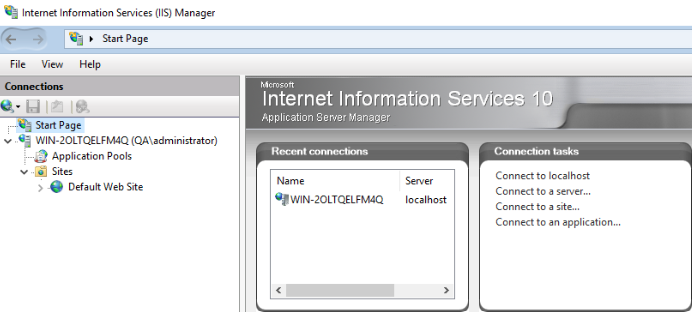 |
Launch IIS Manager by running inetmgr in the Run dialog or from Server Manager.
•In the Connections pane on the left, click on Start Page to expand the structure. •Expand your device name, then expand Sites, and select Default Web Site.
|
After clicking on Default Web Site, ensure that Features View is displayed in the Default Web Site Home overview.
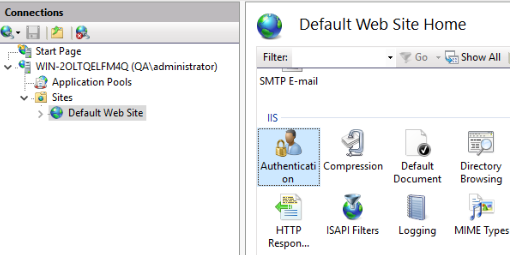 |
•In the Features View, navigate to the IIS section.
•Click Authentication under the IIS section to verify the settings.
|
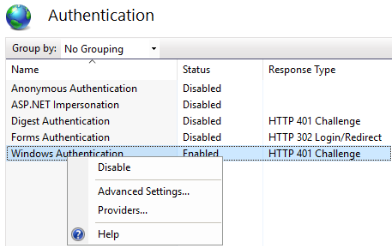 |
•In the Authentication settings, confirm that Windows Authentication is Enabled and Anonymous Authentication is Disabled. •If incorrect, right-click the respective item and modify its status. •To check providers, right-click Windows Authentication in the Authentication pane, then select Providers. |
|
Note: For troubleshooting, review IIS logs at C:\inetpub\logs\LogFiles and Windows Event Viewer (Windows Logs > System, Security, Application) for HTTP status codes and authentication events. |
Configure Authentication in IIS Manager
For detailed instructions on configuring Authentication settings for SSO with Active Directory (AD), including editing the web.config file located in
%InstallDir%\rayflow to enable Windows Authentication and enforce SSL-secured cookies, see the section Configure RayFlow to Use Single Sign-on later in this documentation.
Configuring the Custom AD Connector
In order to run the connector, access to an account with sufficient rights (at least reading rights) is needed. The RayFlow Server must be joined to the
AD domain.
Configure the Custom AD Connector on the RayFlow Server.
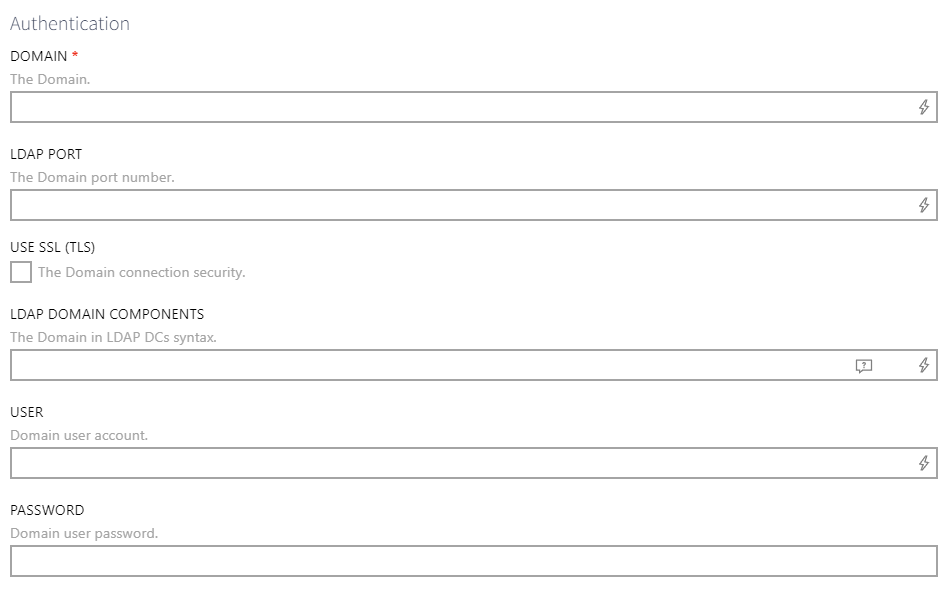 |
•Enter the Domain name into the DOMAIN field. •If the service account running the service already has sufficient rights, it is not necessary to enter data into the USER field and the PASSWORD field(Kerberos does not need). If this is not the case enter the name of the user used for authentication into the USER field and the password of the user used for authentication into the PASSWORD field.
•Enter the LDAP Domain Components into the LDAP DOMAIN COMPONENTS field if additional domain information is required for the connection to the Schema of Active Directory. •In most cases, this field can be left empty, and the system will attempt to connect using just the DOMAIN field. However, if the connection fails, specifying the domain in LDAP DCs syntax (e.g., DC=example,DC=com) may be necessary. •If further configuration is needed, you may need to manually enter the full LDAP Distinguished Name (DN) in this field (e.g., LDAP://ldap.example.com/CN=Schema,CN=Configuration,DC=example,DC=com).
|
|
Note: Ensure LDAP port (389/636) and SSL settings align with the AD environment. |
Adding Users and AD Groups in RayFlow
|
Note: For instructions on adding users in RayFlow, refer to the documentation RayFlow > 7.4 > User and Administration Guide > Administration > Users. For creating AD Groups in RayFlow, refer to RayFlow > 7.4 > User and Administration Guide > Administration > Groups. |
Testing SSO and AD Connector Functionaltiy
Verify that Single Sign-On (SSO) and the Active Directory (AD) Connector function correctly to ensure users are authenticated automatically and group permissions
are applied. If configuration changes were made, restart IIS by running iisreset in an elevated Command prompt.
From a domain-joined device, open the RayFlow Client in a supported browser (e.g., http://<servername>.
Confirm that users are authenticated automatically via their AD credentials without manual login prompts. If authentication fails, review IIS logs
at C:\inetpub\logs\LogFiles or Windows Event Viewer (Windows Logs > System, Security, Application) for errors related to authentication or connectivity.