The following steps describe the process to join a system to an Active Directory (AD) domain, enabling integration with domain-based services.
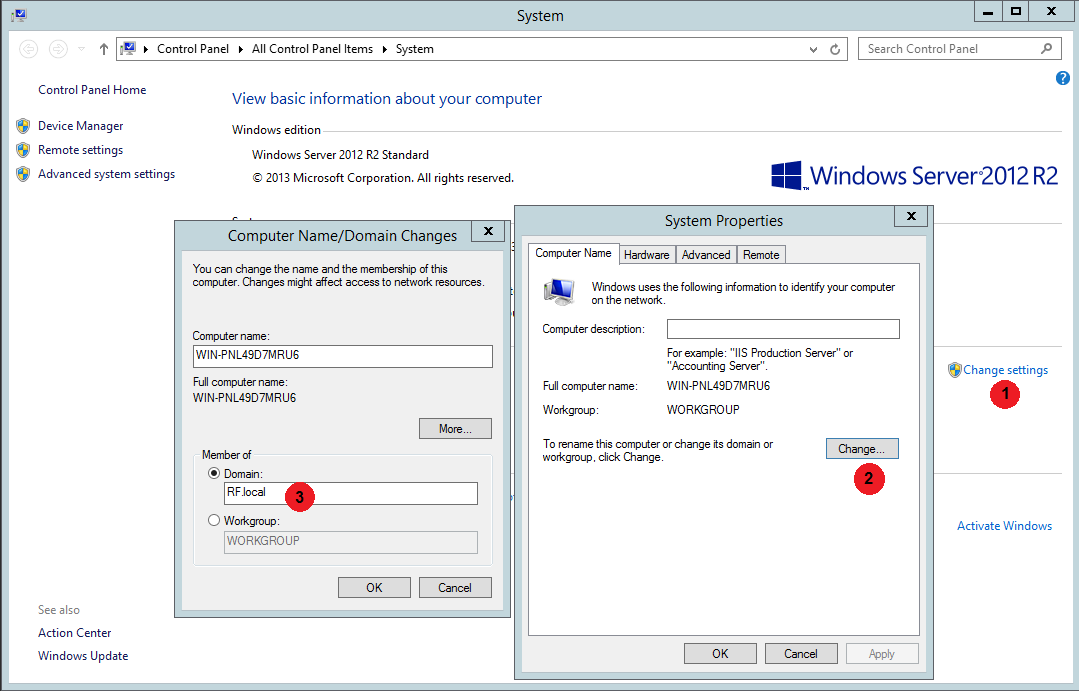
1.In Control Panel -> System and Security -> System select Change settings in the Computer name, domain, and workgroup settings submenu.
2.Click Change to the Computer Name/Domain Changes mask.
3.Enter the complete Domain Name for the whole network.
Reboot the system after entering user credentials (use a Domain Administrator account) for the domain join.
Verify Domain Join
The following steps verify that the system is joined to an Active Directory (AD) domain, a prerequisite for domain-based authentication.
Check domain membership:
•Open a Command Prompt or Powershell and run: systeminfo | findstr /C:"Domain"
•If the output shows Domain: WORKGROUP, the system is not joined to an Active Directory (AD) domain.
Ensure an AD Domain Controller is available in the network:
•Contact your domain administrator to confirm the presence of a domain controller or to set up a new one if required.
|
Note: An Active Directory (AD) domain and an available AD Domain Controller are required for Windows Authentication and Single Sign-On (SSO) to function with the RayFlow application, as both NTLM and Kerberos depend on an AD domain. |
